Guides
How to Create Certificate of Conformance PDFs Automatically From Notion
Create certificate of conformance (CoC) PDFs automatically from Notion: set up the quality record database, design the template, and generate a finished CoC with PDFOutput when an inspection passes.
By Sanat Biswal · 2026-11-17 · 5 min read
{/ synced-from-notion — do not edit manually /}
A shipment is packed, the truck is booked, and then the customer's receiving team asks for the certificate of conformance.
Someone opens last month's certificate, changes the part number, the quantity, and the date, saves it as a PDF, and hopes nothing was missed out from the details.
Then the customer finds an incorrect revision done on the document. The parts were setup correctly but the paperwork was not.
A certificate of conformance, often called a CoC or CofC, is a short document in which a supplier states that the goods it ships meets the agreed requirements. It is simple to setup, but it is easy to get wrong when it is typed by hand.
This guide shows how to keep the data in Notion, design the certificate once, and generate a finished PDF automatically when an inspection passes.
Short answer on how to use Notion to create Certificate of Conformance:
Keep your inspection results and shipment details in connected Notion databases, linked to the work order, parts, revisions, and the lot to be used for.
Build the certificate layout once in a Google Docs or Word template, with placeholders that match your Notion property names.
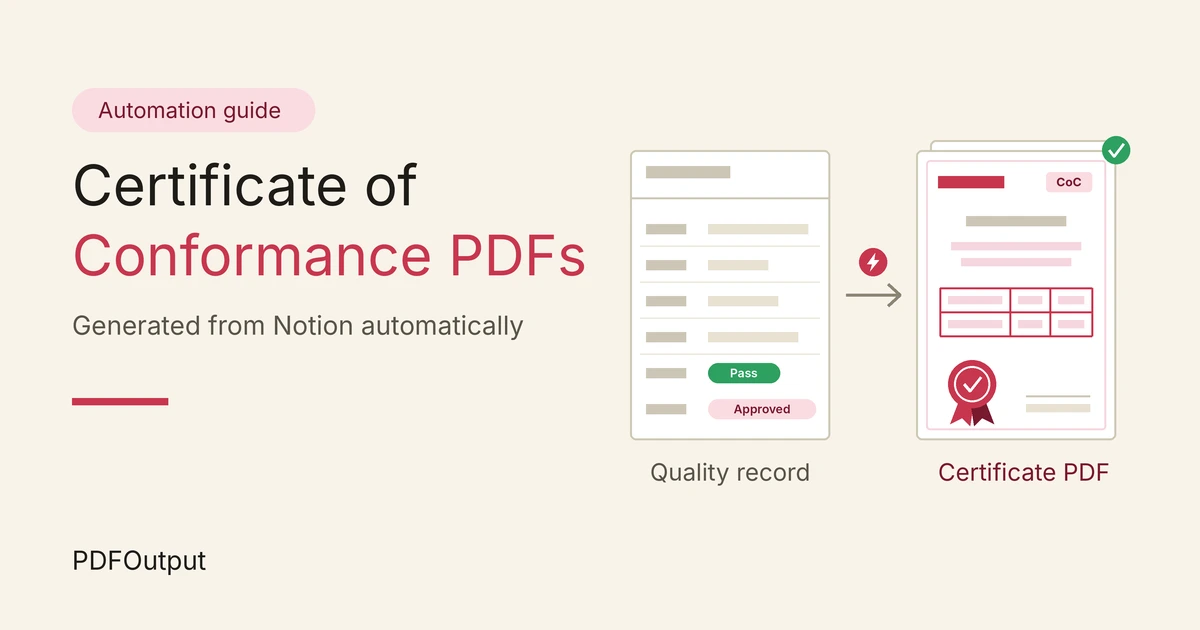
Then set the record so that when the generation status changes to Ready to Generate, it starts PDF generation with the help of an automation tool PDFOutput. The certificate gets filled from the records in the notion database that was saved, and is ready to be sent with the shipment.
Notion is good at holding the facts and moving a job through its stages. It isn't good at producing a controlled, print-ready certificate, because its own export is laid out automatically.
So the work gets split up. Notion holds the record. The template holds the layout and the standard wording. The automation joins them, and the certificate always matches the record.
Table of Contents
What a Certificate of Conformance Contains?
What goes on a CoC depends on your customer, your industry, and any standard you work to.
Many certificates include the following.
- Supplier details: company name, address, logo, and contact.
- Certificate number: a unique reference.
- Customer details: name, and the customer's purchase order number.
- Part details: part number, description, drawing number, and revision.
- Quantity shipped, and the lot, batch, or serial numbers.
- Conformance statement: a short statement that the goods meet the order and the specified requirements.
- References: the specification, standard, or drawing the goods conform to.
- Date of issue, and the date or reference of the final inspection.
- Authorized signatory: a name, title, and signature or approval.
- Lots database: one row per lot or batch, with the lot number, production date, quantity, and the work order. Link each quality record to its lots.
- Serial numbers: for serialised parts, a text property or a related database works well, depending on volume. For a long list, test how it appears on the PDF before you rely on it.
- Material certificates: attach the supplier's material certificate to the lot or the component, and record its number as a property, so it can be printed on your CoC.
- Draft: the record is being filled in.
- Inspection passed: the inspector has recorded the result.
- Approved for certificate: the quality manager or authorised person has checked it.
- Certificate generated: the PDF exists.
- Issued: the PDF has been sent to the customer.
- Header: your logo, company name, and the title "Certificate of Conformance".
- Certificate details: certificate number, date of issue, and the customer's PO number.
- Customer block: name and address.
- Goods table: part number, description, revision, quantity, and lot or serial numbers.
- Conformance statement: your approved wording, as fixed text.
- References: the drawing, specification, or standard.
- Approval block: name, title, date, and a signature line or area.
- Footer: contact details and page numbers. How to Add Page Numbers, Headers, and Footers to Notion PDFs covers this.
- Placeholders: replace the variable text with placeholders in double curly braces, such as
{{Certificate_Number}},{{Part_Number}}, and{{Quantity}}. - Ready to Generate creates a PDF from the database record.
- Generate Page converts the Notion page into a PDF.
- Generate PDF and Doc creates a PDF and a Google document.
- Preview creates a Google document so you can check it before making the final PDF.
- Generate E-Signed Doc creates an e-signed PDF in the database workflow.
- Choose how to start it. A button on each quality record, or a status property that PDFOutput watches.
- Use Preview first. Make a test record, set it to Preview, and check the Google document. Fix the layout and any empty placeholders.
- Switch to Ready to Generate. Once the template is right, use Ready to Generate to create the PDF from the record.
- Make approval trigger it. Use a Notion database automation, if your plan includes it, so that when the Certificate status changes to Approved for certificate, the generation status is set for you. Check what automations and triggers your version of Notion and your plan support. Notion Database Automations for PDF Generation covers the options.
- Choose where the file goes. Save the PDF to your chosen storage, and keep it linked to the quality record.
- Use a consistent file name, such as the certificate number, the customer, and the part number.
- Store it in a predictable folder, such as one per customer or per year.
- Keep a link on the record, so anyone can open the quality record and see the certificate.
- Send it with the shipment. Attach it to the dispatch email or the packing list, or share a link, depending on what the customer accepts.
- Update the status to Issued, and record the date and who sent it.
- Don't overwrite the old certificate. Keep it, and mark it as superseded.
- Use a version or suffix, such as the certificate number plus "-R1" for the first reissue.
- Record the reason in a property, such as the change and who requested it.
- Tell the customer that the new certificate replaces the old one.
- Inspection reports with measured values, built from the same quality record.
- First article inspection reports for new parts or revisions.
- Packing lists and delivery notes from the shipment.
- Material test certificates and certificates of analysis, where you pass on supplier or lab data.
- Nonconformance and corrective action reports when something fails.
- Calibration certificates for gauges and equipment.
- Warranty certificates for finished products.
- Work order travelers that follow the job through production.
- Quotes, order acknowledgements, and invoices from the sales side.
- How to Fix Page Breaks in Notion PDF Exports and
- Notion PDF Cutting Off Tables and Columns: How to Fix It.
- I know what each customer requires on their certificate, and it's recorded.
- Quality records link to work orders, sales orders, components, and lots.
- Each certificate gets a unique number automatically.
- An approval step sits between the inspection and the certificate.
- The conformance wording is fixed in the template, and has been reviewed.
- Placeholders match the Notion property names exactly.
- I've tested the template with Preview, using a realistic record.
- Approval starts generation, through an automation or a button.
- The PDF is named consistently, stored, and linked to the record.
- I have a process for reissues, and old certificates are kept.
- I've tested a long record, such as many serial numbers.
- How to Use Notion for a Supplier of Machine Components and Assemblies
- How to Use Notion for a Spare Parts Company
- How to Create Return Authorization Forms in Notion and Generate PDFs Automatically
- How to Export Notion to PDF
Some customers ask for more, such as material certificate numbers, process certifications, or a list of attached reports. Record each customer's requirements once, in the customer database, so nobody has to remember them.
The exact wording of the conformance statement matters. Have it reviewed against your own quality requirements and your customers' terms. This guide is about the system, not the legal text.
Certificate of Conformance, Test Certificate, and Inspection Report: What's the Difference?
These 3 documents are often confused with each other.
| Document | What it says | Usually includes |
|---|---|---|
| Certificate of conformance | The goods meet the order requirements | A statement, part and quantity details, a signatory |
| Test or material certificate | The results of specific tests or the material's properties | Measured values, test methods, material grades |
| Inspection report | What was measured on this batch or part | Dimensions, tolerances, results, inspector |
Plan the Data Before You Plan the Document
A certificate is only as good as the data behind it. Before you design anything, decide where each fact lives.
| Fact on the certificate | Where it should live in Notion |
|---|---|
| Customer and PO number | Sales Orders, linked to Customers |
| Part number, description, revision | Components or Assemblies |
| Quantity shipped | Shipments or Work Orders |
| Lot or serial numbers | Lots, linked to the work order |
| Inspection result and date | Quality Records |
| Specification or standard | Components, or the customer's requirements |
| Signatory | A Person property on the approval |
Build the Quality Records Database
Create a database called Quality Records. Each row is one inspection or release decision.
| Property | Type | Purpose |
|---|---|---|
| Record number | Title or automatic ID | Unique reference |
| Work order | Relation | Links to the job |
| Sales order | Relation or rollup | Pulls in the customer and PO number |
| Component or assembly | Relation | Pulls in part number and description |
| Revision | Rollup or select | The revision that was made |
| Quantity inspected | Number | How many units |
| Quantity accepted | Number | How many passed |
| Lot or serial numbers | Relation or text | Traceability |
| Result | Select | Pass, fail, or on hold |
| Inspector | Person | Who did the inspection |
| Inspection date | Date | When it was done |
| Attached reports | Files | Measurement files and photos |
| Certificate status | Status | Drives the automation |
| Certificate number | Automatic ID or formula | Printed on the PDF |
Link Lots, Serial Numbers, and Material Certificates
Traceability is the reason many customers ask for a CoC. Make it easy to show.
This also helps when a customer reports a problem. You can open the lot and see where it was made, what was inspected, and which certificate was issued. The same structure supports Material Traceability in Notion.
Add an Approval Step
A certificate is a statement made on your company's behalf, so someone responsible should approve it. Don't let it generate on its own from raw data.
A simple status flow works.
The approval is the trigger. Add a Person property called Approved by, and a Date property for the approval date. Both can appear on the certificate. If your quality system requires specific approval rules, follow those, not this example.
Design the CoC Template
Don't use Notion's own export for the certificate. As far as I know, it doesn't give you control over headers, footers, page breaks, or exactly where the signature block sits, and a certificate should look the same every time.
Refer to the guide at How to Export Notion to PDF which explains what the export can and can't do.
Build the layout in Google Docs or Word.
Keep the standard wording fixed in the template, so it can't change by accident. Keep the design plain and professional.
Refer to the post How to Add Your Logo and Brand Colors to Notion PDFs explains why branding belongs in the template.
Connect the Template to PDFOutput
PDFOutput creates documents from your Notion data using a template. The template can be a Google document, a Word file, a PDF file, or a Notion page. You add placeholders in double curly braces, such as {{Client_Name}}, and each placeholder must match the related Notion property name.
For your certificate, that means a placeholder for each property that appears on the page. Check how a property with a space in its name should be written, and test it. If a placeholder doesn't match, that field will be empty in the PDF. Template Placeholders Explained covers the naming rules in more detail.
Because the layout lives in a Google Doc or a Word file, you also get the tools of a word processor: real page breaks, headers and footers, page numbers, and table rows that don't split across pages. Check the exact menu names in your version of Google Docs or Word.
Automate the PDF When Inspection Passes
This is the step that saves the time. When the record is approved, the certificate should appear without anyone opening a template.
With PDFOutput, you can start generation from a Notion database button or a status property. These are some of the status options:
Here is a simple way to wire it up.
The result is a flow where an authorised person changes one property, and a finished certificate appears with the right part number, quantity, lot, and date already filled in. If you don't have database automations, a button works almost as well.
Optional: Add a Signature
Some customers expect a signed certificate. Generate E-Signed Doc creates an e-signed PDF in the database workflow, so the authorised person can sign online, and the signed copy stays with the record.
Test the whole flow with a sample record before you use it with real shipments, and check that it meets your customer's requirements for signatures. E-Signatures for Notion Documents covers this in more detail.
If your customers accept a name and approval date in place of a signature, you may not need this step. Check what each customer requires.
Name, Store, and Send the Certificate
A certificate nobody can find is nearly as bad as one that was never made.
A certificate often travels with other documents, so Packing Lists and Delivery Notes From Notion shows how to generate the packing list from the same shipment record.
Handle Reissues and Corrections
Certificates sometimes need correcting: a wrong quantity, a late revision, or a changed customer reference.
Plan for it.
This keeps a clear history, which helps during audits and customer reviews. If a part fails after the certificate was issued, link the issue to a nonconformance record.
Nonconformance Reports in Notion shows how to set that up.
Generate Certificates for Many Shipments at Once
If you ship many orders a day, or issue one certificate per lot, you may need to generate several at once. Create a view of quality records with the status Approved for certificate, check each record, and let the automation process them.
Test with a small group first, and check that each certificate has its own number and data. Batch PDF Generation From a Notion Database covers volume, naming, and error checks.
Beyond the CoC: Other Documents From the Same Data
Once your quality records, lots, and shipments are in Notion, the same data can produce more documents.
Each one follows the same pattern: structured data in Notion, a fixed layout in a template, and a trigger that creates the PDF. That is why it pays to do the first one carefully.
Notion Export, Browser Print, or a Template?
| Route | Control over the certificate | Best for |
|---|---|---|
| Notion's own export (••• then Export) | Low. Automatic layout | A quick internal copy |
| Print to PDF from a web browser | Low. The browser decides, and results can differ | A backup copy |
| A template in Google Docs or Word, filled with Notion data | High. You set the layout, wording, and page breaks | Certificates, reports, and anything that goes to a customer |
A Quick Checklist
Troubleshooting Table
| What you see | Likely cause | What to try |
|---|---|---|
| A field is empty on the certificate | Placeholder doesn't match the property name | Match the name exactly, and test with a sample record |
| Wrong revision on the PDF | Revision typed by hand, or not linked | Pull the revision from the component with a rollup |
| Two certificates have the same number | Number typed by hand | Use an automatic ID property |
| Long serial number list is cut off or runs over | Too much text for the layout | Test a long record, and give the list its own table or page |
| Certificate generated before approval | Trigger set on the wrong status | Trigger only from the approval status |
| PDF is not generated | Automation or trigger not set | Check the automation, or use a button |
| Layout differs from the template | Generated from the Notion page, not the template | Use a template, and test Preview |
| Old certificate was overwritten | No reissue process | Keep old files, and use a version suffix |
Frequently Asked Questions
What is a certificate of conformance?
It is a document in which a supplier states that the goods it ships meet the agreed requirements, such as the order, the drawing, or a specification. It usually includes the part, quantity, lot details, and an authorised signatory.
Can I create certificates of conformance in Notion?
Yes, as records. Keep the inspection result and shipment details in Notion databases. For the printable certificate, use a Google Docs or Word template filled with your Notion data, using a tool such as PDFOutput.
How do I generate a CoC PDF automatically?
Build the template with placeholders, connect it to your quality records database, and set up a trigger so that an approval status starts generation. Use a Notion database automation if your plan has one, or a button. Check what your plan supports.
What should the conformance statement say?
That depends on your customer, your industry, and any standard you work to. Have the wording reviewed against your own quality requirements, and keep it fixed in the template.
Can the certificate be signed?
PDFOutput has a Generate E-Signed Doc option that creates an e-signed PDF in the database workflow. Test the whole flow, and check what your customer accepts.
How do I correct a certificate that was already sent?
Don't overwrite it. Issue a new one with a version suffix, mark the old one as superseded, record the reason, and tell the customer.
Related Reading
Conclusion
A certificate of conformance is a short document that carries a lot of trust. When it's typed by hand, mistakes creep in. When it's generated from the record, the part number, revision, quantity, and lot always match what was inspected. Keep the data in Notion, put the layout and standard wording in a template, and let an approval status start the PDF. When you're ready, PDFOutput can fill your template from each Notion record and save the PDF to your chosen storage.
Want certificates that generate themselves from your quality records? Try PDFOutput.