Guides
Notion PDF Cutting Off Tables and Columns: How to Fix It
Notion PDF cutting off tables and columns? Learn why wide content gets clipped, how to fix tables, database views, and column layouts, and when to move the layout into a template.
By Sanat Biswal · 2026-11-13 · 5 min read
{/ synced-from-notion — do not edit manually /}
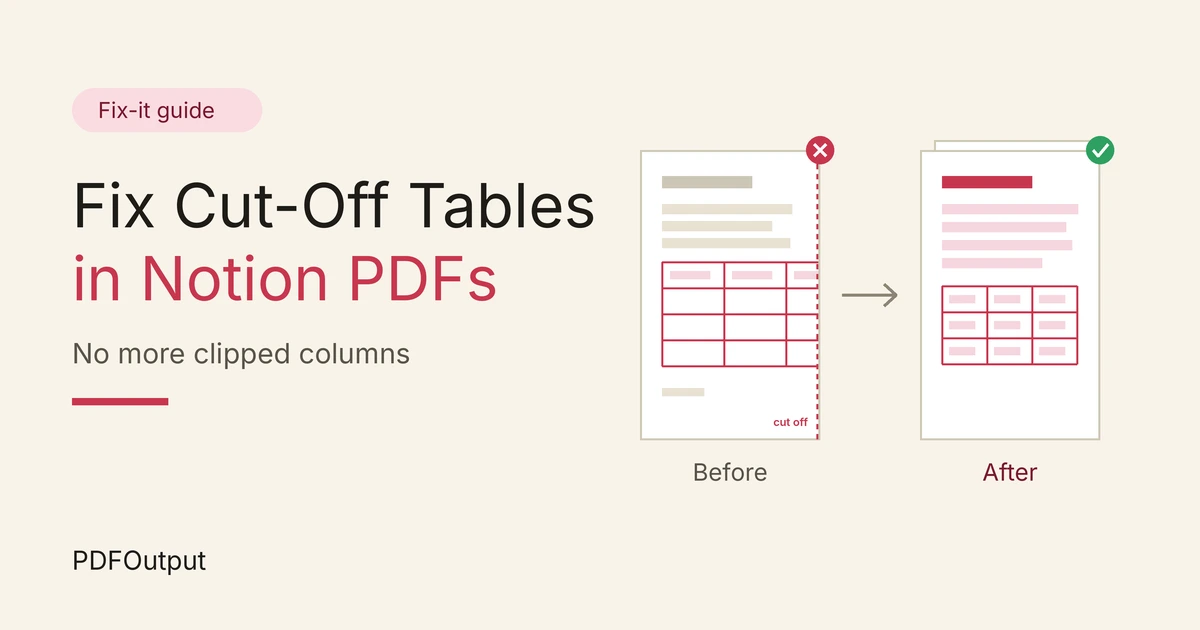
You export a Notion page to PDF, and the right side of your table is gone. The last two columns have vanished, or the final column is sliced through the middle of a word. Or you built a neat three-column layout, and one column is squeezed or clipped at the edge. On screen, everything fit. In the PDF, part of your content is missing.
This guide explains why it happens, how to fix tables and columns, and when to stop fighting and move the layout somewhere that handles wide content properly.
Short answer: A PDF page has a fixed width, and a Notion table or column layout that is wider than that space gets clipped or squeezed. You fix it by making the content fit the page: lock your page settings, reduce the number of columns, shorten cell text, show only the properties you need, replace side-by-side columns with a single column, and work on a print-ready copy. If a wide table must appear in full every time, put the layout in a template, where you control the page size and the table.
In more detail: On screen, Notion lets a table scroll sideways, so a wide table is never a problem. A PDF can't scroll. Whatever doesn't fit inside the page width has to be shrunk, wrapped, or cut. Which one happens depends on the block type and your export settings, and the behaviour can change as Notion updates, so check your version.
Table of Contents
Why Tables and Columns Get Cut Off
Three things cause most problems.
- A page has a fixed width. Notion tables and database views can be wider than the screen and scroll sideways. A PDF page can't, so the extra width is clipped or shrunk.
- Column widths are set for the screen. A column that looked right in a large browser window may be too wide once the page is turned into a narrow sheet.
- Side-by-side layouts share a small space. Notion's columns split the page width between them. A table or an image inside a narrow column has even less room.
- Remove columns you don't need. Ask whether the reader needs each one. If a column is only for your own use, delete it on the print-ready copy.
- Merge columns that belong together. Two short columns, such as "First name" and "Last name", can become one column called "Name".
- Shorten the headers. "Estimated delivery date" can be "Delivery". Short headers allow narrow columns.
- Check the column widths. Drag wide columns narrower, and look for one column using far more space than its content needs.
- Turn the table sideways in your head. If a table has many columns and few rows, consider swapping them, so the long list runs down the page, not across it.
- Show only the properties you need. In the view settings, hide the rest. Hidden properties don't take up width.
- Create a view just for printing. Keep your working view as it is, and make a second view named "Print" with fewer properties.
- Choose a view type that suits paper. A table with four or five columns usually prints better than a board or timeline, which are built for the screen. Check what your version exports.
- Think about wrapping. Some views let you wrap long text inside cells, so text drops to a second line, and doesn't force a wide column. Check the option in your version.
- Sort and filter. Showing fewer rows doesn't reduce width, but a shorter table is easier to check for clipping.
- Replace columns with a single column. On the print-ready copy, move the content of each column one under the other. This is the most reliable fix.
- Use a simple table instead. If the columns are really a comparison, such as features side by side, a two- or three-column table keeps the idea and is easier to control.
- Don't put a wide table inside a column. A table inside one of three columns has only a third of the page. Move it out, to full width.
- Reduce the number of columns. Two columns are more likely to survive than four.
- Keep each column's content short. Long text and big images in a narrow column are the first to be squeezed or clipped.
- Cut the words. Use short phrases in cells, and move detail to the text below the table.
- Move notes out of the table. A "Notes" column with full paragraphs is the usual cause of an over-wide table. Put the notes under the table, and refer to them by number.
- Avoid long unbroken strings. A long web address or reference code can't wrap, so it forces the column wider. Shorten it, or put it in the text as a link with a short label.
- Check numbers and dates. A long date format takes more room than a short one. "12 May 2026" is narrower than "Tuesday, 12 May 2026".
- Split it into two tables, each with some of the columns and a repeated identifier column, such as the item name. Give each a small heading.
- Use a wider page format or landscape, if your export offers one. Check the export dialog in your version.
- Lower the scale slightly, such as from 100% to 90%, and re-check every page.
- Turn off small text or full width, only if that gives a layout that fits. Test each one, because they can have opposite effects on different pages.
- Move the table into a template, where you set the page size and the table layout yourself.
- Page size and orientation: set landscape for a wide table, or a different page size.
- Margins: narrow the margins to give a table more room.
- Fixed column widths: decide how wide each column is, so one long entry doesn't stretch the whole table.
- Table rows that don't split: both Google Docs and Word let you stop a table row from breaking across a page.
- Ready to Generate creates a PDF from the database record.
- Generate Page converts the Notion page into a PDF.
- Generate PDF and Doc creates a PDF and a Google document.
- Preview creates a Google document so you can check it before making the final PDF.
- Generate E-Signed Doc creates an e-signed PDF in the database workflow.
- I'm working on a print-ready copy.
- I've chosen the page format, orientation if available, and scale, and written them down.
- Every column in each table is needed, and headers are short.
- Database views show only the properties I need.
- Long notes are moved out of the table.
- Columns are replaced with a single column or a table.
- No wide table sits inside a column.
- I've scrolled through every page of the exported PDF, and checked the right edge of each table.
- Notion PDF Export Not Working
- How to Export Notion to PDF
- How to Export a Notion Database to PDF
- How to Fix Page Breaks in Notion PDF Exports
If your export is also splitting tables across pages, How to Fix Page Breaks in Notion PDF Exports covers that. If images are missing, Notion PDF Export Not Working goes through the common causes.
Start With a Print-Ready Copy
Don't change the page your team uses every day. Duplicate it, and work on the copy.
On the copy, you can hide properties, shorten text, remove columns, and try changes freely. Name it clearly, such as "Report (print-ready)". When the original changes, update the copy and export again. It's a little extra work, and it keeps your working page tidy.
Lock the Settings First
Every cut-off depends on the settings, so fix them before you fix anything else. If you change a setting later, you'll have to re-check the whole document.
| Setting | Why it matters |
|---|---|
| Page format (such as A4 or Letter) | A wider page gives a table more room |
| Orientation, if your version offers it | Landscape is wider than portrait, so wide tables fit more easily |
| Scale (a percent) | A smaller scale fits more width, and makes text smaller |
| Full width and small text (page settings) | These change how much room content has, and how lines wrap |
| Device (web, desktop, or mobile) | Layouts can differ slightly between them |
Fix 1: Simple Tables That Run Off the Page
A simple table with many columns is the most common victim. The fix is to make it need less width.
Make the change, export, and look again. A table that fits at the top of the page may still be clipped lower down if a later row has longer text. Check every row.
Fix 2: Database Views With Too Many Properties
A database view can show every property of every record, and that is usually too wide for a page.
How to Export a Notion Database to PDF explains this in more detail.
Fix 3: Columns That Clip or Squeeze
Column layouts look great on screen and behave badly in PDFs. Notion splits the page width between the columns, so each one gets only a share of an already narrow page.
If you rely on columns for the design, accept that the result will be less predictable, or move the layout to a template.
Fix 4: Long Text in Cells
Sometimes the table is not too wide. It's the text. A cell with a long sentence stretches its column, and pushes everything else off the page.
Fix 5: Wide Tables That Must Stay Wide
Some tables can't be made narrower. A price list with ten columns or a timesheet with a column for each day needs the width.
Try these, in this order:
Don't shrink the table until the text is hard to read. If a table needs a magnifying glass, it's the wrong layout for paper.
The Shrink-It-All Trap
A common fix is to drop the scale to 50% so everything fits. It works, in the sense that nothing is cut off.
But then the text is tiny, the page looks empty around it, and the reader has to zoom in. It also doesn't help the next person who adds a column. Use a small reduction, such as 100% to 90%, to fit a table that's only just too wide. For anything wider, change the content or the layout.
A better rule: fix cut-off tables by making the content narrower, not by making the page smaller.
Notion Export, Browser Print, or a Template?
You have three routes, and each has a trade-off.
| Route | Control over wide tables | Best for |
|---|---|---|
| Notion's own export (••• then Export) | Low. Automatic layout, and limited page options | Quick internal copies of simple tables |
| Print to PDF from a web browser | Medium. You can often choose orientation and margins, but results can differ from Notion's export | A backup copy |
| A template in Google Docs or Word, filled with Notion data | High. You set the page size, orientation, and table | Invoices, reports, price lists, and anything that must look the same every time |
When to Use a Template for Wide Tables
If you export the same kind of document every week, such as an invoice with several line-item columns or a client report with a data table, trimming columns by hand each time is the wrong job. The better answer is to put the layout where you can control it.
PDFOutput creates documents from your Notion data using a template. The template can be a Google document, a Word file, a PDF file, or a Notion page. You add placeholders in double curly braces, such as {{Client_Name}}, and each placeholder must match the related Notion property name. Because the layout lives in a Google Doc or a Word file, you get the tools of a word processor:
Check the exact menu names in your version of Google Docs or Word.
You can start generation with a Notion database button or a status property. These are some of the status options:
Use Preview to look at the tables before you create the final PDF. Generate Page converts the Notion page, so test whether wide tables behave like Notion's own export. For strict control, use a Google Doc or Word template.
A template doesn't make the problem disappear entirely. A table with far more columns or longer text than you planned for can still run out of room. Test your template with a record that has the longest realistic text, and leave space. How to Add Your Logo and Brand Colors to Notion PDFs explains why branding belongs in the template too.
A Quick Checklist
Before you export, run through this list.
Troubleshooting Table
| What you see | Likely cause | What to try |
|---|---|---|
| The last columns of a table are missing | Table wider than the page | Remove or merge columns, or use a wider page format |
| A column is cut through the middle of a word | Column extends past the page edge | Narrow the columns, and shorten the text |
| A database view is clipped | Too many properties shown | Make a print view with fewer properties |
| One column stretches the whole table | Long text or a long unbroken string | Shorten it, or move it out of the table |
| Columns are squeezed into a narrow strip | Columns share a small page width | Replace columns with a single column |
| A table inside a column is clipped | The column has only a share of the page | Move the table out to full width |
| Everything fits but the text is tiny | Scale set too low | Raise the scale, and cut content instead |
| Table looks different on another device | Layouts can differ | Use one device and one set of settings |
Frequently Asked Questions
Why is my Notion table cut off in the PDF?
A PDF page has a fixed width, and a table that is wider than the page gets clipped or shrunk. On screen, Notion lets the table scroll sideways, but a PDF can't. Reduce the columns, shorten the text, or use a wider page format if your export offers one.
Why are my Notion columns cut off or squeezed in the PDF?
Columns share the page width, so each one gets only a share of an already narrow page. Replace them with a single column on a print-ready copy, or use a simple table.
Can I export a Notion table in landscape?
Some versions of Notion's export let you choose the page format or orientation, and your browser's print dialog often offers landscape. Options change as Notion updates, so check your version. A Google Docs or Word template always lets you set landscape.
Does lowering the scale fix a cut-off table?
A little. A lower scale fits more width, and a small reduction can rescue a table that is only just too wide. A big reduction makes the text hard to read, so change the content instead.
How do I print a Notion database without cutting off columns?
Make a view just for printing, show only the properties you need, and keep the text in cells short. How to Export a Notion Database to PDF goes through the steps.
How do I get wide tables to export reliably every time?
Put the layout in a Google Docs or Word template, where you set the page size, orientation, and column widths, and fill it with your Notion data using a tool such as PDFOutput. Test it with realistic text first.
Related Reading
Conclusion
Tables and columns get cut off because a PDF page has a fixed width, and Notion content can be wider. You can fix most cases by making the content narrower: lock your settings, remove or merge columns, keep text in cells short, show only the properties you need, and replace columns with a single column. For documents with wide tables that must look the same every time, move the layout into a template where you control the page. When you're ready, PDFOutput can fill your template from each Notion record and save the PDF to your chosen storage.
Want PDFs where your tables fit the page? Try PDFOutput.