Guides
How to Use Notion for a Supplier of Machine Components and Assemblies
Learn how to use Notion for a supplier of machine components and assemblies: manage RFQs, BOMs, orders, production, and quality records, and generate quotes, packing lists, and certificates as PDFs.
By Sanat Biswal · 2026-11-17 · 5 min read
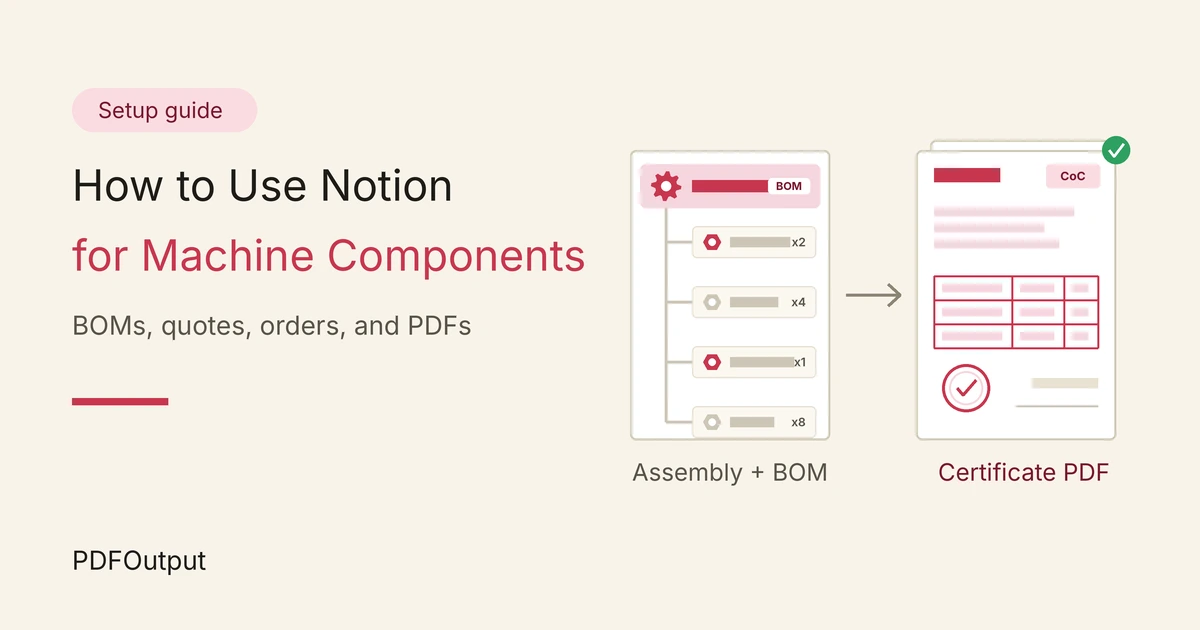
{/ synced-from-notion — do not edit manually /}
A supplier of machine components and assemblies deals with more moving parts than most businesses.
A customer sends a drawing and asks for a price. The assembly has twelve components, three of which come from subcontractors.
The price depends on the quantity, the material, and the lead time. Once the order is confirmed, someone has to schedule it, buy the materials, inspect the parts, and send them out with the right paperwork.
When all of this lives in different spreadsheets, inboxes, and folders, one missed update can mean a late shipment or the wrong revision on the shop floor.
This guide shows how to set up Notion to manage that work. It covers the databases you need, how to model an assembly and its bill of materials, how to track quotes, orders, production, and quality, and how to generate the PDFs your customers expect, such as quotes, packing lists, and certificates of conformance.
Short answer on how to use Notion for Machine Parts Suppliers:
Build connected databases in Notion for Components, Assemblies, Bill of Materials lines, Customers, RFQs and Quotes, Sales Orders, Work Orders, Suppliers, Purchase Orders, and Quality Records. Link them with relations, use rollups to total costs and quantities, and give each team a short saved view.
Notion is not an ERP or a full production planning system, so use it for the records, the workflow, and the visibility.
For documents that go to customers and must look the same every time, build the layout in a template and fill it with your Notion data using a tool such as PDFOutput.
In more detail: The key idea is to separate the thing from the transaction. A component or an assembly is a thing. A quote, an order, or a work order is a transaction that refers to it.
If you keep those apart and connect them with relations, you can answer questions such as "Which open orders use this component?" or "What is the current cost of this assembly?" in a few clicks.
Table of Contents
What Notion Can and Can't Do for a Components Supplier
Look into this thoroughly before you start building upon anything:
Notion is good fit for:
- Keeping components, assemblies, drawings, and specifications in one connected place.
- Showing how an assembly is built, and what each part costs, through relations and rollups.
- Tracking each quote, order, and work order through a clear set of stages.
- Giving sales, purchasing, production, and quality a shared view of the same data.
- Material requirements planning, finite capacity scheduling, or shop floor machine control.
- Barcode scanning and live inventory on the shop floor.
- Accounting, tax, and full financial reporting.
- Formal document control systems that some quality standards require. If you work to a quality standard, check what your auditors expect before you rely on Notion for controlled documents.
- Print-ready documents with page numbers, headers, and strict layouts.
- Part number: the title, in a consistent format.
- Description and category.
- Type: made in-house, subcontracted, or bought in.
- Material and finish: such as steel with zinc plating.
- Revision: the current revision letter or number.
- Drawing and specification: files attached to the row.
- Supplier: a relation, for bought-in and subcontracted parts.
- Unit cost: and the date it was last checked.
- Lead time: in days.
- Stock on hand and reorder level, if you hold stock.
- Status: active, under review, or obsolete.
- Assemblies: one row per assembly, with part number, description, revision, customer (if it's customer-specific), and status.
- BOM Lines: one row per component in an assembly. Each line has a relation to the assembly, a relation to the component, a quantity, and a notes field. A formula multiplies the quantity by the component's unit cost to give a line cost.
- Company name, contacts, email, and phone
- Billing and delivery addresses
- Payment terms and currency
- Required documents, such as certificates or inspection reports, so nobody forgets them
- Relations to their quotes, orders, and quality records
- Quote number: a unique reference.
- Customer: a relation.
- Assembly or components: relations to what is being quoted.
- Quantity breaks: such as price for 10, 50, and 100 units. A separate Quote Lines database works well here.
- Status: received, in costing, sent, won, lost, or expired.
- Valid until: a date, so expired quotes are easy to find.
- Lead time and delivery terms.
- Attached drawings and the customer's request.
- Order number, customer, and the customer's own purchase order number
- Assembly or components ordered, with quantities and agreed prices
- Delivery date and delivery address
- Status: confirmed, in production, ready, shipped, or invoiced
- Required documents, pulled from the customer record
- A relation to the work orders that fulfil it
- Work order number and the related sales order
- The assembly or component, revision, and quantity
- Planned start and finish dates
- Status: planned, material ordered, in production, in inspection, or complete
- Assigned person or cell
- Notes and attached drawings
- Contact details, payment terms, and currency
- What they supply or which process they perform
- Typical lead time and minimum order
- Approval status, certifications, and the date of the last review
- A rating or notes on quality and delivery
- PO number, supplier, and date
- Lines: component, quantity, and unit cost, with a rollup for the total
- Linked work order, so you know why you bought it
- Expected delivery date
- Status: draft, sent, confirmed, partly received, or received
- Record number, work order, component, and revision
- Type: incoming inspection, in-process, final inspection, or nonconformance
- Measurements or results, and the result: pass or fail
- Inspector and date
- For nonconformances: the cause, the action taken, and the status
- Attached photos, reports, or measurement files
- Keep the current revision in one place. The Components and Assemblies databases each have a revision property. Update it when the drawing changes.
- Attach the drawing to the component row, and name files with the part number and revision.
- Record the revision on every order and work order, so you know which revision was made.
- Mark old revisions as obsolete, and don't delete them.
- Set up a view of items under review, so nobody quotes a part whose drawing is still changing.
- Sales: open RFQs, quotes waiting for a reply, and quotes about to expire.
- Estimating: RFQs in costing, with the assembly's rolled-up cost.
- Purchasing: late purchase orders, and components below their reorder level.
- Production: a board of work orders by status, and what is due this week.
- Quality: open inspections and nonconformances.
- Management: orders by month, quote win rate, and late deliveries.
- Quotes, with quantity breaks and lead times
- Order acknowledgements
- Packing lists and delivery notes
- Certificates of conformance
- Inspection reports
- Purchase orders and RFQs to subcontractors
- Invoices
- Return authorization forms
- How to Fix Page Breaks in Notion PDF Exports,
- How to Add Page Numbers, Headers, and Footers to Notion PDFs, and
- Notion PDF Cutting Off Tables and Columns: How to Fix It.
- Pick one document to start with. A quote or a packing list is a good first choice, because you make them often.
- Build the template. In Google Docs or Word, lay out your logo, address, and standard terms. Add placeholders for the customer name, document number, date, and totals.
- Match the property names. Each placeholder must match the name of the property in your Notion database. Check how a property with a space in its name should be written, and test it.
- Handle the line items. Decide how the parts or assemblies will appear, and test with an order that has many lines.
- Connect the template to your database. Follow the PDFOutput setup for your database.
- Start generation. Use a Notion database button or a status property.
- Check the result, then send the PDF to the customer.
- Ready to Generate creates a PDF from the database record.
- Generate Page converts the Notion page into a PDF.
- Generate PDF and Doc creates a PDF and a Google document.
- Preview creates a Google document so you can check it before making the final PDF.
- Generate E-Signed Doc creates an e-signed PDF in the database workflow.
- Daily: update work order and purchase order statuses, and receive deliveries as they arrive.
- Weekly: review open RFQs and quotes about to expire, and follow up.
- Weekly: check late purchase orders, open nonconformances, and what ships next week.
- Monthly: review quote win rate, late deliveries, and the suppliers or components with the most issues.
- I've listed my databases and how they connect, before building them.
- Components and assemblies have unique part numbers and a current revision.
- Each assembly has BOM lines, with cost rolled up.
- RFQs, quotes, sales orders, and work orders are linked with relations.
- Customer document requirements are recorded on the customer.
- Quality records link to work orders and components.
- Drawings are attached, and old revisions are marked obsolete.
- Each team has a short, filtered view.
- Customer-facing documents come from a template, not Notion's own export.
- I've tested the template with the longest realistic record.
- Someone owns the weekly routine.
- How to Export Notion to PDF
- How to Export a Notion Database to PDF
Notion is not a good fit for:
Many small and mid-sized suppliers use Notion for quotes, orders, bills of materials, supplier tracking, and quality records, and keep accounting and detailed planning in other tools.
Features and limits change as Notion updates, so check what your plan offers.
Plan Your Databases First
Start by listing what your business tracks, and how the pieces connect.
| Database | What it holds | Connects to |
|---|---|---|
| Components | Each machined, fabricated, or bought-in part | Suppliers, BOM Lines, Quality Records |
| Assemblies | Each finished assembly, with revision and price | BOM Lines, Quotes, Orders |
| BOM Lines | One row per component in an assembly | Assemblies, Components |
| Customers | Who you sell to | Quotes, Orders |
| RFQs and Quotes | Requests and the prices you offer | Customers, Assemblies, Components |
| Sales Orders | Confirmed customer orders | Customers, Quotes, Work Orders |
| Work Orders | Production jobs | Sales Orders, Assemblies |
| Suppliers | Material suppliers and subcontractors | Components, Purchase Orders |
| Purchase Orders | What you buy | Suppliers, Components |
| Quality Records | Inspections and nonconformances | Work Orders, Components |
Database 1: Components
Each row is one component. It might be a machined shaft, a bracket, a bearing housing, or a bought-in fastener.
Useful properties:
Keep part numbers unique. A duplicate number is the start of a wrong-part shipment.
Database 2: Assemblies and Bills of Materials
This is the heart of the system. An assembly is built from components, and sometimes from other assemblies. Model it in two databases.
On the Assemblies database, add a rollup that sums the line costs. That gives you the material cost of the assembly, which updates when a component price changes.
Add your labour, machining, finishing, and overhead as number properties or a formula, and you have a cost to start a quote from.
For assemblies that contain sub-assemblies, add a relation from a BOM line to another assembly, and check how deeply your rollups can go.
Deep, multi-level bills of materials can get complicated in Notion, so test with a real example before you commit.
Database 3: Customers
Each row is a customer in this database. This includes the following properties:
The "required documents" property is easy to overlook, and it save a lot of trouble. Some customers want a certificate with every shipment. Others want a first article inspection report. Record it once, and it shows up on every order.
Database 4: RFQs and Quotes
Many suppliers use one database for requests and quotes, with a status that moves from one to the other.
When a quote is won, add a button or a relation that creates the sales order from it, so nobody retypes the details.
Track why quotes are lost. A simple select property, with price, lead time, capacity, or no response, gives you a pattern within a few months.
Database 5: Sales Orders
Each row is a confirmed order.
Keep the customer's purchase order number in its own property. It's the reference they will quote back to you.
Database 6: Work Orders
A work order is an instruction to make something. It connects a sales order to production.
A board view, grouped by status, gives production a simple picture of what is moving. For detailed scheduling across machines, consider a dedicated planning tool, and use Notion for the overview.
Database 7: Suppliers and Subcontractors
Track the people you buy from, including those who plate, heat treat, grind, or machine parts for you.
With relations to components, you can open a supplier and see what they provide. You can also open a component and see who can supply it.
Database 8: Purchase Orders
Purchase orders are the mirror of customer orders.
A view of purchase orders that are late and not yet received gives purchasing a daily to-do list.
Database 9: Quality Records
Quality records are where a components supplier earns trust.
These records feed documents such as certificates of conformance and inspection reports. They also show which components, processes, or suppliers cause the most problems.
Managing Revisions and Drawings
One of the biggest risks in this kind of business is making a part to an old drawing.
This is a practical workflow, not a formal document control system. If you need one for your quality standard, check the requirements first.
Views for Each Team
The same data can show different things to different people.
Use filters to keep each view short.
Generating PDFs From Notion
Customers and suppliers expect documents. The common ones for a components and assemblies supplier are:
Notion's own PDF export is fine for a quick internal copy. For documents that go outside the company, it's a weak fit.
Default export in Notion doesn’t give you page numbers, headers, footers, or manual page breaks, and long tables can be split or cut off.
These problems are covered in the following guides:
For a document that must look the same every time, build the layout in a template, and let the data come from Notion.
How to Set Up PDF Generation With PDFOutput
PDFOutput creates documents from your Notion data using a template. The template can be a Google document, a Word file, a PDF file, or a Notion page. You add placeholders in double curly braces, such as {{Client_Name}}, and each placeholder must match the related Notion property name.
Here is a simple way to set it up.
These are some of the status options:
Use Preview to look at a new template before you send anything to a customer.
Generate E-Signed Doc can suit documents that need a signature, such as a quote acceptance or a supply agreement.
Generate Page converts the Notion page, so test whether its page breaks behave like Notion's own export. For strict control, use a Google Doc or Word template.
A certificate of conformance is a good example. Your quality record holds the result, the revision, the inspector, and the date.
The template holds the layout, your company details, and the standard wording. When the work order is marked complete and the final inspection has passed, the certificate can be generated from the record, with the right part number and quantity already filled in.
Have your certificate wording reviewed against your own quality requirements.
Because the layout lives in a Google Doc or a Word file, you get the tools of a word processor: real page breaks, headers and footers, page numbers, and table rows that don't split across pages.
Check the exact menu names in your version of Google Docs or Word.
A template doesn't make every problem disappear. A quote with fifty line items or an inspection report with many measurements can still outgrow the page.
Test your template with the longest realistic record, and leave room. How to Add Your Logo and Brand Colors to Notion PDFs explains why branding belongs in the template too.
A Simple Weekly Routine
Write the routine on a page in the workspace, and give each task an owner.
A Quick Checklist
Troubleshooting Table
| What you see | Likely cause | What to try |
|---|---|---|
| Assembly cost doesn't match | A component price is out of date | Add a "price checked" date, and a view of old prices |
| Wrong revision made | Revision not recorded on the order | Add the revision to orders and work orders |
| Duplicate part numbers | No numbering rule | Keep part numbers unique, and check weekly |
| Quote total is wrong | Prices typed into quote pages | Use a Quote Lines database with rollups |
| Multi-level BOM is confusing | Deep nesting of assemblies | Test with a real example, and keep levels shallow |
| Workspace feels slow | Very large database or heavy views | Archive old records, and use filtered views |
| Certificate PDF looks different each time | Exported from Notion's own layout | Use a Google Docs or Word template |
| Placeholder shows empty in the PDF | Property name doesn't match | Match the name exactly, and test with a sample record |
Frequently Asked Questions
Can Notion replace an ERP for a machine components supplier?
For a small or mid-sized business, it can handle quotes, orders, bills of materials, supplier tracking, and quality records. It's not designed for material requirements planning, shop floor scheduling, or accounting, so many suppliers use Notion alongside other tools.
How do I model a bill of materials in Notion?
Use an Assemblies database and a BOM Lines database. Each line links one assembly to one component, with a quantity. A rollup on the assembly adds up the line costs. Test with a real assembly before you commit, especially if you have sub-assemblies.
How do I manage drawing revisions in Notion?
Keep the current revision as a property on each component and assembly, attach the drawing to the row, record the revision on every order and work order, and mark old revisions as obsolete. If your quality standard requires formal document control, check what it requires.
Can I generate certificates of conformance from Notion?
Yes, with a template. Keep the inspection results in a quality record, build the certificate layout in Google Docs or Word, and fill it with your Notion data using a tool such as PDFOutput. Have the wording reviewed against your own quality requirements.
How do I make quotes and packing lists in Notion?
Keep the data in your quotes and orders databases, with a lines database for the items, and generate the document from a Google Docs or Word template, filled with your Notion data.
Is Notion a good choice for a large catalog of components?
It depends on the size and how you use it. Very large databases can become slow, so test with your own data, use filtered views, and archive old records. For a very large catalog, consider a dedicated system.
Related Reading
Conclusion
A supplier of machine components and assemblies needs to quote accurately, build the right revision, ship on time, and prove the quality. Notion can help when you build connected databases, with components and assemblies at the centre, and give each team a short view of the data. For the documents that leave your business, such as quotes, packing lists, and certificates, put the layout in a template so that every PDF looks the same. When you're ready, PDFOutput can fill your template from each Notion record and save the PDF to your chosen storage.
Want quotes and certificates that look professional every time? Try PDFOutput.