Guides
How to Fix Page Breaks in Notion PDF Exports
Fix page breaks in Notion PDF exports: stop stranded headings, split tables, and cut-off images, and learn when to move your layout into a template with real page breaks.
By Sanat Biswal · 2026-11-13 · 5 min read
{/ synced-from-notion — do not edit manually /}
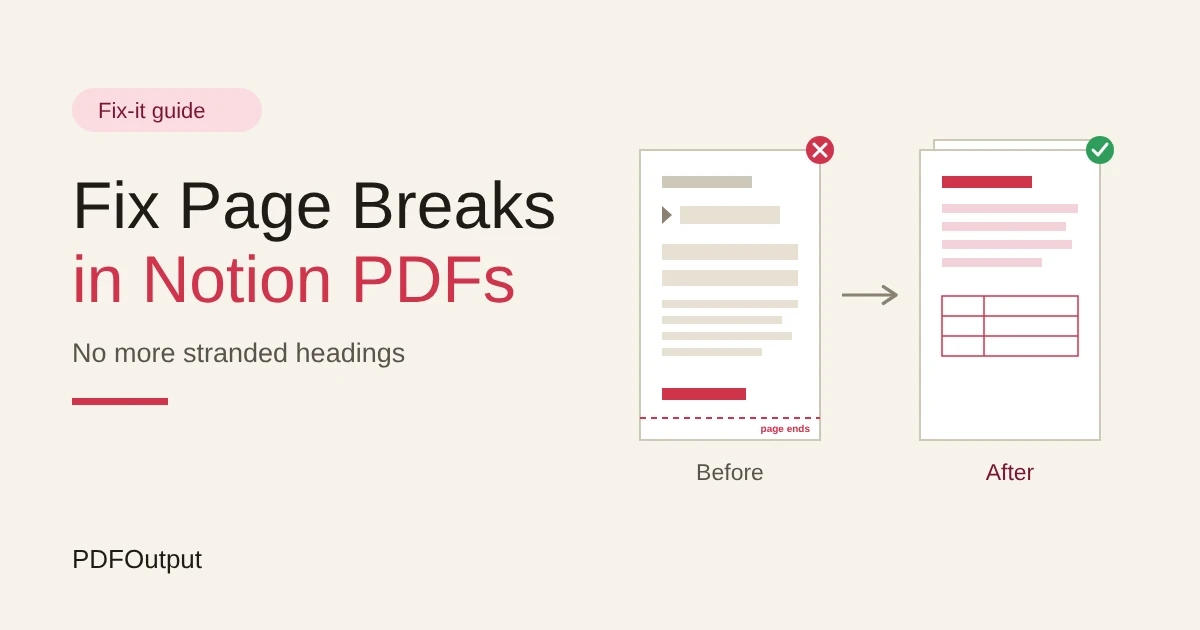
You export a Notion page to PDF, scroll through it, and there it is: a heading sitting alone at the bottom of page two, with its paragraph waiting on page three. Or a table sliced in half, or a big empty gap where an image wouldn’t fit. The page looked perfect on screen. The PDF looks careless.
This guide explains why it happens and how to fix it. It also explains when to stop fighting and move the layout somewhere that gives you real page breaks.
Short answer: Notion lays out the page automatically, and, as far as I know, doesn’t give you a page break block (check your version). So you can’t tell it where to break. You fix page breaks by changing what the export has to fit: lock the page settings, keep blocks small, keep headings close to their text, split long tables, avoid columns, and work on a print-ready copy. If a document must look the same every time, put the layout in a template where page breaks are real.
In more detail: A page break falls wherever the page runs out of room. Some blocks can split across pages, and some can’t, so they jump to the next page and leave a gap. Change the page format, the scale, the text size, or the width, and every break moves. That’s why fixes that depend on adding blank space are fragile. Structural fixes last.
Table of Contents
Why Page Breaks Go Wrong
Three things cause most problems.
- No manual break. You can’t say “start a new page here.” The layout engine decides.
- Blocks that don’t split. Some blocks, such as images, callouts, and certain tables, move to the next page whole if they don’t fit, leaving a gap.
- No “keep with next.” Word processors can keep a heading with the paragraph after it. Notion’s export doesn’t give you that control, so a heading can land at the bottom of a page.
- Shorten the section above it. If the previous section loses a few lines, the heading moves up, or the next block fits beside it.
- Lengthen the section above it, with a sentence of useful text, so the heading moves to the next page.
- Put a short paragraph straight after each heading. A heading with a real first paragraph is more likely to stay together than a heading followed by a big table or image.
- Use fewer heading levels. A heading followed immediately by a smaller heading is a recipe for orphans.
- Split a long table into several short ones, each with its own small heading, such as “Hours by week.”
- Reduce the columns. Fewer columns mean shorter rows, and a table that fits across the page.
- Shorten the text in cells. Long cell text makes tall rows that can’t split neatly.
- Use a database view with only the properties you need, and place it on the page. How to Export a Notion Database to PDF explains this in detail.
- Move a small table to the top of a section, so it’s less likely to fall on a page edge.
- Make images smaller. A medium-width image takes less height, and fits more easily.
- Upload images to Notion, and don’t link them from other sites, so they’re included in the export.
- Put each image straight after the paragraph that introduces it, so a gap before it matters less.
- Avoid several tall images in a row. Mix them with text.
- Check that an image isn’t wider than the page. If it is, it’ll shrink or cut.
- Toggles: closed toggles may hide their contents in the export. Open every toggle you want to appear, or, on the print-ready copy, turn them into plain text under a heading.
- Callouts: a long callout may not split, so it jumps to the next page whole. Keep callouts to a few lines, or split one into two.
- Columns: multi-column layouts are the hardest to break well. On the print-ready copy, replace columns with a single column, or a simple table.
- Shorten the text, or remove an empty block at the end.
- Lower the scale slightly, such as from 100% to 95%, and re-check every page.
- Tighten spacing, by removing extra empty blocks.
- Real page breaks: insert a page break where a new section should start.
- Keep with next: in Google Docs, the paragraph settings let you keep a heading with the next paragraph. Word has the same idea under its paragraph options.
- Keep lines together: stop a paragraph from splitting across pages.
- Table rows that don’t split: both Google Docs and Word let you stop a table row from breaking across a page.
- Ready to Generate creates a PDF from the database record.
- Generate Page converts the Notion page into a PDF.
- Generate PDF and Doc creates a PDF and a Google document.
- Preview creates a Google document so you can check it before making the final PDF.
- Generate E-Signed Doc creates an e-signed PDF in the database workflow.
- I’m working on a print-ready copy.
- I’ve chosen the page format and scale, and written them down.
- Toggles are open, and callouts are short.
- Columns are replaced with a single column or a table.
- Long tables are split, with their own headings.
- Images are uploaded, medium-sized, and not stacked.
- Every heading has a real paragraph after it.
- I’ve scrolled through every page of the exported PDF.
- Notion PDF Export Not Working
- How to Export Notion to PDF
- How to Export a Notion Database to PDF
- How to Create Monthly Client Reports Automatically from Notion
Menus and options change as Notion updates, so check what your version offers. If your export is also cutting off tables or losing images, Notion PDF Export Not Working covers those problems.
Start With a Print-Ready Copy
Don’t fix breaks on the page your team uses every day. Duplicate it, and work on the copy.
On the copy, you can expand toggles, delete notes, simplify the layout, and try changes freely. Name it clearly, such as “Proposal (print-ready)”. When the original changes, update the copy and export again. It’s a little extra work, and it keeps your working page tidy.
Lock the Settings First
Every break depends on the settings, so fix them before you fix anything else. If you change a setting later, you’ll have to re-check the whole document.
| Setting | Why it matters |
|---|---|
| Page format (such as A4 or Letter) | A different page height moves every break |
| Scale (a percent) | A smaller scale fits more per page, and shifts breaks |
| Full width and small text (page settings) | These change how lines wrap, and so how long the page is |
| Include content and subpages | These add or remove blocks |
| Device (web, desktop, or mobile) | Layouts can differ slightly between them |
Fix 1: Stranded Headings
A heading alone at the bottom of a page is the most common problem, and the easiest to fix.
Because you can’t tell Notion to keep a heading with its text, you change what’s near it.
Make the change, export, and look again. If the fix pushes another heading to the bottom of another page, you’ve moved the problem. Check the whole document after each change.
Fix 2: Tables Split Across Pages
A table that starts at the bottom of one page and continues on the next can be hard to read, especially with no repeated header row.
For tables that must be clean, such as an invoice’s line items, a template is more reliable than any Notion trick. That’s covered below.
Fix 3: Images Pushed or Cut
A tall image that doesn’t fit at the bottom of a page jumps to the next, and leaves a gap.
Fix 4: Toggles, Callouts, and Columns
These blocks look great on screen and behave badly in PDFs.
If you rely on columns for the design, accept that the result will be less predictable, or move the layout to a template.
Fix 5: Big Gaps and Nearly Empty Last Pages
Two related problems: a large blank area in the middle of a document, and a last page with only one or two lines.
Big gaps come from a block that couldn’t split, usually an image, a callout, or a table. Find the block right after the gap, and make it shorter, smaller, or split it.
A nearly empty last page is usually a document that’s a few lines too long. Try these, in this order:
Don’t shrink the text until it’s hard to read. If a document is only just too long, trim it. Readers prefer a shorter document to a tiny one.
The Spacer Trap
A common fix is to add empty blocks until the next section lands on a new page. It works, once, for one set of settings.
Then someone edits a paragraph, changes the page format, or exports from a different device, and the blank space now creates a gap in the wrong place. Spacers are fragile, because they depend on the exact length of everything above them. Use them for a one-off document that you’ll never change, and nowhere else.
A better rule: fix breaks by changing content and structure, not by adding blank space.
Notion Export, Browser Print, or a Template?
You have three routes, and each has a trade-off.
| Route | Page break control | Best for |
|---|---|---|
| Notion’s own export (••• then Export) | Low. Automatic layout | Quick internal copies |
| Print to PDF from a web browser | Low. The browser decides, and results can differ from Notion’s export | A backup copy |
| A template in Google Docs or Word, filled with Notion data | High. You set the breaks | Invoices, reports, contracts, and anything that must look the same every time |
When to Use a Template With Real Page Breaks
If you export the same kind of document every week, such as an invoice, a client report, or a proposal, fixing page breaks by hand each time is the wrong job. The better answer is to put the layout where you can control it.
PDFOutput creates documents from your Notion data using a template. The template can be a Google document, a Word file, a PDF file, or a Notion page. You add placeholders in double curly braces, such as {{Client_Name}}, and each placeholder must match the related Notion property name. Because the layout lives in a Google Doc or a Word file, you get the tools of a word processor:
Check the exact menu names in your version of Google Docs or Word.
You can start generation with a Notion database button or a status property. These are some of the status options:
Use Preview to look at the pages before you create the final PDF. Generate Page converts the Notion page, so test whether its breaks behave like Notion’s own export. For strict control, use a Google Doc or Word template.
A template doesn’t make page breaks disappear entirely. If a record holds far more text than you planned for, content still grows. Test your template with a record that has the longest realistic text, and leave room. How to Add Your Logo and Brand Colors to Notion PDFs explains why branding belongs in the template too.
A Quick Checklist
Before you export, run through this list.
Troubleshooting Table
| What you see | Likely cause | What to try |
|---|---|---|
| A heading alone at the bottom of a page | No “keep with next” | Change the length of the section above, or add a paragraph after the heading |
| A table split across pages | Table too long | Split it into smaller tables with headings |
| A big blank gap | A block that can’t split | Shrink or split the block after the gap |
| A nearly empty last page | Document slightly too long | Trim text, then lower the scale a little |
| Breaks changed after an edit | Layout depends on exact length | Re-check every page, and avoid blank spacers |
| Different breaks on another device | Layouts can differ | Use one device and one set of settings |
| Toggle content missing | Toggle was closed | Open it, or flatten it on the print-ready copy |
| Columns look odd | Columns break unpredictably | Use a single column or a table |
Frequently Asked Questions
Can I insert a page break in Notion?
As far as I know, Notion doesn’t offer a page break block, though that may change, so check your version. You can influence breaks by changing content and structure, or use a template where page breaks are real.
Why does my heading land at the bottom of a page?
Notion lays out the page automatically and doesn’t keep a heading with the text after it. Change the length of the section above it, or add a short paragraph straight after the heading, and check again.
Do blank blocks fix page breaks?
They can, for one export with one set of settings. They break as soon as the content, the page format, or the scale changes, so use them only for documents you won’t edit.
Does changing the scale fix page breaks?
It moves them. A lower scale fits more on each page, which can fix a nearly empty last page, but it can create new problems elsewhere, so re-check every page.
How do I get reliable page breaks for invoices and reports?
Put the layout in a Google Docs or Word template, where you can set real page breaks and keep headings with their text, and fill it with your Notion data using a tool such as PDFOutput. Test it with realistic text first.
Why are my page breaks different on another device?
Layouts can differ between the web, desktop, and mobile versions. Pick one device and one set of settings, and use them every time.
Related Reading
Conclusion
Page breaks go wrong because Notion decides where they fall. You can’t place them, but you can shape what they have to fit: lock your settings, keep blocks small, give headings real text, and work on a print-ready copy. For documents that must look the same every time, move the layout into a template where breaks are real. When you’re ready, PDFOutput can fill your template from each Notion record and save the PDF to your chosen storage.
Want PDFs with page breaks you control? Try PDFOutput.