Guides
How to Add Page Numbers, Headers, and Footers to Notion PDFs
Add page numbers, headers, and footers to Notion PDFs: what Notion's export can and can't do, how the browser print route compares, and when to use a template with real headers and footers.
By Sanat Biswal · 2026-11-13 · 5 min read
{/ synced-from-notion — do not edit manually /}
How to Add Page Numbers, Headers, and Footers to Notion PDFs
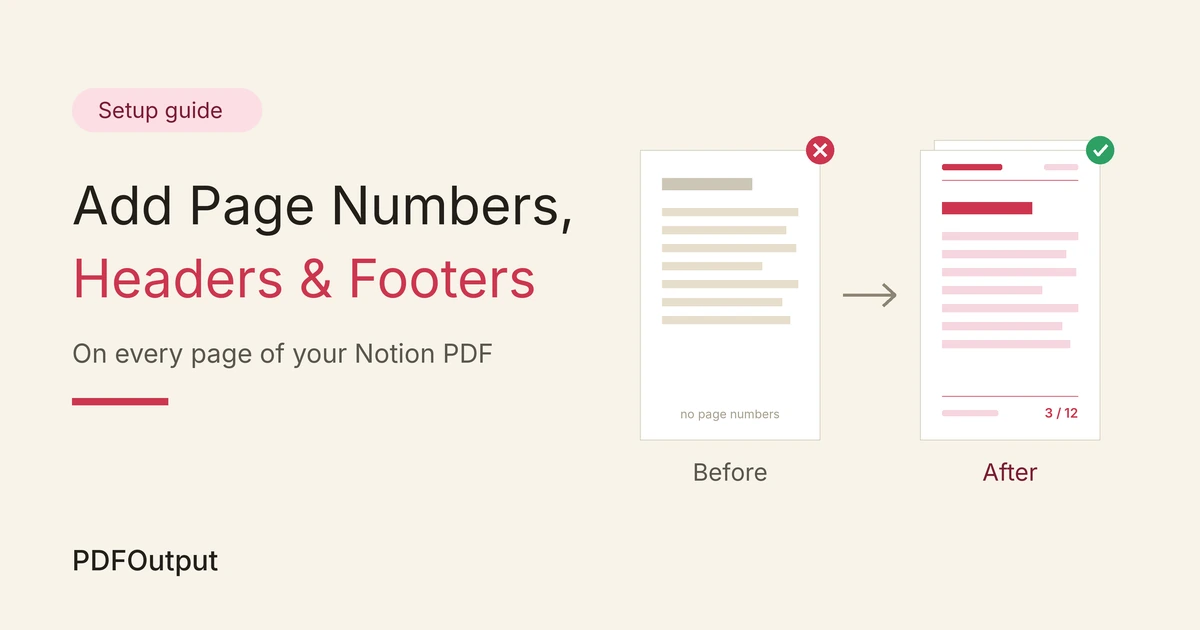
You setup your notion proposal page and export the same as PDF. While the pdf is generated, but there aren’t any page numbers mentioned on the document, neither do you see a company name mentioned at the top.
Sometimes even the page numbers are not to be found in the document as well, this means the document didn’t finish well as expected.
Today in this guide we will know why Notion PDFs usually arrive without any page numbers, headers, and footers, and what can be done inside Notion and browser, and when does it make more sense to move the layout into a template where headers and footers are automatically built in.
Notion’s native pdf export feature doesn’t offer assistance on the page numbers, headers, or footers. In such a scenario there are 3 methods available.
- First, work inside Notion: put the document name, date, and section numbers in the page content itself.
- Second, print to PDF from a web browser, which can add a basic header and footer with a page number, but gives you little control over the wording.
- Third, put the layout in a Google Docs or Word template, where page numbers, headers, and footers are real features you control
- Why Notion PDFs Don't Have Page Numbers
- What You Can Do Inside Notion
- Route 1: Put the Details in the Page Itself
- Route 2: Print From a Browser
- Route 3: A Template With Real Headers and Footers
- How to Set Up Page Numbers in Google Docs or Word
- Headers and Footers Worth Adding
- What About Typing the Page Numbers by Hand?
- Notion Export, Browser Print, or a Template?
- A Quick Checklist
- Troubleshooting Table
- Frequently Asked Questions
- Related Reading
- Conclusion
- No page layout settings. Word processors have a page setup with a header area and a footer area. Notion's export dialog, has options for page format, scale, and content, but doesn’t help with repeating text on every page.
- Pages are cut automatically. Notion decides where each page ends, so it can't know which page a given line that will land on until the export runs.
- Content is not tied to a page. A Notion block belongs to the document, not to "page 3" or any specific page by default. That's useful for editing, and often unhelpful for printing.
- Put the document name and date at the top. A clear title block tells the reader what they're holding.
- Number your sections. If you write "3. Pricing" and "4. Timeline" in your headings, the reader can say "see section 3" even without page numbers.
- Add a short content list at the start. A list of sections with numbers does the job a page index does.
- Add a closing line. A last line such as "Prepared for Acme Ltd, 12 May" works like a footer that appears once.
- Add a title block. Include the document title, the client name, the date, and a version number.
- Number the headings. Add "1.", "2.", "3." to your main headings.
- Add a contents list. Keep it short. One line per main section.
- You can't edit the wording. The browser decides what appears and where it appears. You can't add "Confidential" or your company name.
- The address may appear. Some browsers print the page's web address in the footer. If the link is private or shows an internal workspace name, you may not want your client to see it through properly.
- The layout may differ from Notion's export. The browser, not Notion, decides how the page is cut, so breaks can fall into different places. Make sure to check on every page.
- Settings differ between browsers. The names and positions of the options change between browsers and versions, so check your own.
- Page numbers that update by themselves as the content grows or shrinks.
- A header with your logo, company name, or document title, repeated on every page.
- A footer with a confidentiality line, contact details, or "Page 2 of 9".
- A different first page, so a cover page can have no header or page number.
- Open your template. Use the same file that holds your placeholders.
- Insert page numbers. In Google Docs, look under the Insert menu for page numbers. In Word, look for the page number option on the Insert tab.
- Choose the position. Top or bottom, left, centre, or right. Footers at the bottom centre or right are the most common for business documents.
- Use "Page X of Y" if you want it. Both tools can show the total page count, which helps readers notice a missing page.
- Set a different first page, if your first page is a cover. Both tools have an option for this in the header and footer settings.
- Add your header and footer text. Keep each to one short line.
- Test with realistic content. Fill the template with the longest realistic record you expect, and check that the numbers and text still look right.
- Ready to Generate creates a PDF from the database record.
- Generate Page converts the Notion page into a PDF.
- Generate PDF and Doc creates a PDF and a Google document.
- Preview creates a Google document so you can check it before making the final PDF.
- Generate E-Signed Doc creates an e-signed PDF in the database workflow.
- I've decided which route fits this document: Notion export, browser print, or a template.
- My title block shows the document name, date, and client.
- Headings are numbered, so readers can refer to a section.
- If I'm printing from a browser, I've checked what the header and footer show, including any web address.
- If I'm using a template, the header, footer, and page numbers are set, and the cover page is clean.
- I've tested with a realistic, long record.
- I've scrolled through every page of the final PDF.
- Notion PDF Export Not Working
- How to Export Notion to PDF
- How to Fix Page Breaks in Notion PDF Exports
By default, a header or footer section are not part of a Notion page. It belongs to the page layout of a document printed, and Notion's default export treats the pages exported as one continuous page of content that gets cut into multiple sheets or pages.
So there is nowhere to put a repeating line. You can add the information to the content, or you can use a tool that has a real page layout.
Table of Contents
Why Notion PDFs Don't Have Page Numbers?
3 things that causes most of the frustration for the users:
But having said that menus and options do change as Notion updates its features, so keep an eye on what is updated recently.
If the export is also cutting off tables or misplacing headings, Notion PDF Export Not Working and How to Fix Page Breaks in Notion PDF Exports cover those problems.
What You Can Do Inside Notion?
You won’t be able to add actual footer to the page, but you can definitely present the same to the reader in other ways.
These are not a replacement for page numbers. They are a good fallback for internal documents, where the reader only needs to find their way around.
Route 1: Put the Details in the Page Itself
Start by working on a print-ready copy. Duplicate the page, and name it clearly, such as "Proposal (print-ready)".
Then make the 3 changes that are required:
Then export and read through every page. If you change the length of the content later, the page breaks will move, so check the whole document each time.
Route 2: Print From a Browser
If you need an actual page number, printing from a web browser is the quickest option. Open the Notion page in your browser, open the print dialog, and choose to save as PDF.
Most browsers have a setting often called Headers and footers.
When it's on, the browser adds a small line at the top and bottom of each page. Depending on the browser, this can include the date, the page title, the page address, and the page number, such as "2/9".
Before you rely on this route, know its limitations properly:
This route suits a quick internal copy where a page number is all you need. It's weaker for client documents, where you want control over what the header and footer say.
Route 3: A Template With Real Headers and Footers
This is the most preferred and reliable way to generate PDFs from your Notion Database which involves PDFOutput automation tool.
If you send the same kind of document every week, such as an invoice, a client report, or a proposal, adding page numbers by hand each time is the wrong job. The better answer is to put the layout where headers and footers are normal features.
PDFOutput creates documents from your Notion data using a template.
The template can be a Google document, a Word file, a PDF file, or a Notion page. You add placeholders in double curly braces, such as {{Client_Name}}, and each placeholder must match the related Notion property name.
Because the layout lives in a Google Doc or a Word file, you get the tools of a word processor:
Check the exact menu names in your version of Google Docs or Word. If you want a placeholder inside a header or footer, test that it fills correctly with a sample record before you rely on it.
How to Set Up Page Numbers in Google Docs or Word
The steps are similar in both. Menu names can change, so treat this as a guide.
You can start generation from a Notion database button or a status property. These are some of the status options:
Use Preview to check the header, footer, and page numbers before you create the final PDF.
Generate Page converts the Notion page, so test whether it gives you the header and footer behaviour you need. For strict control, use a Google Doc or Word template. How to Add Your Logo and Brand Colors to Notion PDFs explains why branding belongs in the template too.
Headers and Footers Worth Adding
Don't fill the margins. A few well-chosen lines do more than a crowded footer.
| Where | What to put there | Why |
|---|---|---|
| Header, left | Company name or logo | Shows who sent the document |
| Header, right | Document title or reference number | Helps with filing and replies |
| Footer, left | "Confidential" or a short legal line | Sets expectations about sharing |
| Footer, centre | Contact details | Saves the reader a search |
| Footer, right | Page X of Y | Lets readers cite a page and spot a missing one |
What About Typing the Page Numbers by Hand?
It's tempting to type "Page 1", "Page 2", and so on into the Notion page at the points where you think each page ends. It works, once, if you never change anything.
Then someone edits a paragraph, changes the page format, or exports from a different device, the breaks move, and your "Page 3" label now sits in the middle of page 2. Hand-typed numbers depend on the exact length of everything above them. Use them for a one-off document that you'll never change, and nowhere else.
A better rule: let a tool with a real page layout count the pages for you.
Notion Export, Browser Print, or a Template?
| Route | Page numbers, headers, footers | Best for |
|---|---|---|
| Notion's own export (••• then Export) | As far as I know, none. Put details in the content | Quick internal copies |
| Print to PDF from a web browser | Basic, with limited control over wording | A backup copy with a page number |
| A template in Google Docs or Word, filled with Notion data | Full control | Invoices, reports, contracts, and anything that must look finished every time |
A Quick Checklist
Before you export, run through this list.
Troubleshooting Table
| What you see | Likely cause | What to try |
|---|---|---|
| No page numbers in the Notion export | The export has no page layout options | Use a browser print or a template |
| A web address in the footer | The browser added it | Turn the browser's headers and footers off, or use a template |
| Can't change the wording of the footer | The browser sets it | Use a template, where you write the footer yourself |
| Page numbers show on the cover | Same footer on every page | Set a different first page in Google Docs or Word |
| Hand-typed page numbers are in the wrong place | Page breaks moved after an edit | Remove them, and use automatic page numbers |
| Different page count on another device | Layouts can differ between devices | Use one device and one set of settings |
| Header text didn't fill from Notion | Placeholder not supported in that spot, or name mismatch | Test with a sample record, and match the property name exactly |
Frequently Asked Questions
Can I add page numbers to a Notion PDF export?
As far as I know, Notion's own export doesn't offer page numbers, though that may change, so check your version. You can print from a browser to get a basic page number, or use a Google Docs or Word template, where page numbers are a normal feature.
Can I add a header or footer in Notion?
Not as a repeating element, as far as I know. You can put the information at the top or bottom of the page content, but it appears once, not on every page.
How do I add a page number to a PDF from the browser?
Open the print dialog, save as PDF, and turn on the headers and footers option. The exact name and position depend on your browser. Check what it prints, because it may include the date and the page address.
How do I make the first page have no header or page number?
Use a template. Google Docs and Word both let you set a different first page in the header and footer settings, which suits a cover page.
How do I get "Page X of Y" on a PDF made from Notion?
Put the layout in a Google Docs or Word template, and use their page number and page count fields. A tool such as PDFOutput can then fill the template with your Notion data.
Will my page numbers stay correct if the content changes?
In a template, yes, because the word processor counts the pages when the document is made. Page numbers typed by hand won't.
Related Reading
Conclusion
Notion PDFs lack page numbers, headers, and footers because the export has no page layout to attach them to. You can work around it by putting the details in the content, or by printing from a browser for a basic page number. For documents that must look finished every time, move the layout into a template where headers, footers, and page numbers are real.
When you're ready, PDFOutput can fill your template from each Notion record and save the PDF to your chosen storage.
Want PDFs with headers, footers, and page numbers you control? Try PDFOutput.