Guides
Notion Formulas for Documents: Totals, Taxes, and Dates
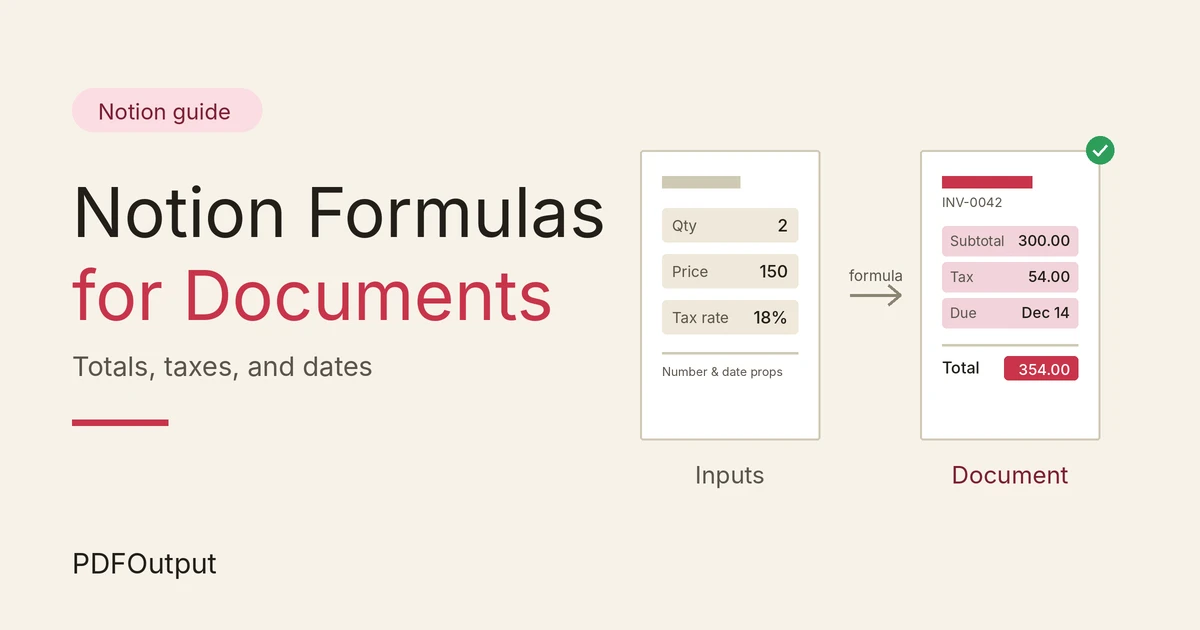
Notion formulas for invoices, quotes, and reports: calculate totals, taxes, and discounts, handle due dates and overdue status, and send clean values to a PDF with PDFOutput.
By Sanat Biswal · 2026-11-14 · 5 min read
{/ synced-from-notion — do not edit manually /}
You build an invoice in Notion, and the numbers look right until they don’t. A total is off by a few paise, a due date is wrong because someone miscounted the days, and the status still says “Sent” three weeks after the payment was due. When that page becomes a PDF, every one of those mistakes goes to your client.
The fix is to stop typing values that can be calculated. Notion formulas can work out totals, taxes, discounts, due dates, and overdue status from the data you already have, and they update by themselves when something changes.
In this guide, we will go through the formulas that matter most for documents such as invoices, quotes, and client reports, explain the mistakes that cause wrong numbers, and show how those values flow into a finished PDF with PDFOutput.
The short version: use formulas for the maths, dates, and status, format the results clearly, and use a template tool such as PDFOutput to place those values into a Google Docs or Word layout. Keep the calculation in Notion and the design in the template.
Table of Contents
Why Formulas Matter for Documents
A document is only as trustworthy as its numbers. Three things make formulas better than typing values by hand:
That last point matters when you generate documents. A tool that fills a template from your database can only be as accurate as the properties you give it.
Formula syntax and menu names change as Notion updates, so test each formula on a sample record before you rely on it.
Before You Start: Property Types
Most formula problems come from property types, not from the formula itself. Set these up first.
| Property | Type | Notes |
|---|---|---|
| Quantity | Number | Whole or decimal |
| Unit Price | Number | Use the currency number format |
| Tax Rate | Number | Use the percent format, so 18% is stored as 0.18 |
| Discount | Number | Percent format for a percentage discount |
| Issue Date | Date | A real date, not text |
| Due Date | Date or formula | A real date, not text |
| Status | Select | Draft, Sent, Paid |
Totals: Quantity Times Price
The basic line total multiplies two number properties:
prop("Quantity") * prop("Unit Price")
If your invoice has several lines, keep each line in its own database record and add them up with a rollup on the invoice. The relations and rollups approach is covered in our guide on building invoice line items in Notion. The formulas in this article work both on a single record and on rollup values.
A grand total is then a formula that adds the parts:
prop("Subtotal") + prop("Tax") - prop("Discount Amount")
Rounding Money Properly
Notion’s round() function rounds to a whole number. To round to two decimal places, multiply by 100, round, and divide by 100:
round(prop("Quantity") prop("Unit Price") 100) / 100
This avoids results such as 99.99999 or 33.333333 appearing in a document. Apply rounding at the point where money is created, usually the line total and the tax amount, so the numbers on the page add up when your client checks them with a calculator.
Use ceil() or floor() only if you have a specific reason, such as always rounding up billable hours.
Taxes: Percent Properties and Tax Amounts
With the tax rate stored as a percent, the tax amount is a simple multiplication:
round(prop("Subtotal") prop("Tax Rate") 100) / 100
A few practical points:
- One rate for the whole invoice. Put a Tax Rate property on the invoice and multiply it by the subtotal.
- Different rates by line. Put a Tax Rate on each line item, calculate a tax amount per line, and roll up the sum.
- Prices that already include tax. Work backwards:
prop("Gross") / (1 + prop("Tax Rate"))gives the net amount. - Ready to Generate creates a PDF from the database record.
- Generate Page converts the Notion page into a PDF.
- Generate PDF and Doc creates a PDF and a Google document.
- Preview creates a Google document so you can check it before making the final PDF.
- Generate E-Signed Doc creates an e-signed PDF in the database workflow.
- Percent typed as a plain number. A tax rate stored as 18 instead of 18% multiplies the tax by a hundred.
- No rounding. The document shows 99.99999, or line amounts that don’t add up to the total.
- Dates stored as text. A formula can’t add days to “12 May” typed into a text property.
- A status formula that uses
now()on a saved document. The PDF shows the status on the day it was generated, which may not be what the reader sees later. - Mixed currencies. Adding rupees and dollars in the same rollup gives a meaningless number. Keep one currency per invoice.
- Formulas that refer to renamed properties. Renaming a property can break formulas and template placeholders that depend on the old name, so recheck both after a rename.
- Quantity, price, and rate properties are numbers, and the tax rate uses the percent format.
- Dates are real date properties, not text.
- Money is rounded to two decimals where it is created.
- Totals add up correctly when I check them with a calculator.
- The due date is calculated, and I’ve checked it against a real calendar.
- The status formula gives the right answer for paid, open, and overdue records.
- My template placeholders match the Notion property names exactly.
- I’ve used Preview to check a sample document before generating the final PDF.
- I’ve confirmed the tax treatment with an accountant.
- How to Build Invoice Line Items with Relations and Rollups in Notion
- How to Export Notion to PDF
- How to Add Page Numbers, Headers, and Footers to Notion PDFs
Tax rules differ by country and by type of sale. Confirm the correct treatment with an accountant before you send documents to clients.
Discounts: Percent and Fixed
Two common discount types, each with its own formula.
A percentage discount:
round(prop("Subtotal") prop("Discount") 100) / 100
A fixed amount discount is just a number property, such as “Discount Amount”, which you subtract in the total.
If you offer both, decide which is applied first and stick to it. Applying a percentage before a fixed amount gives a different result from the reverse, and your document should show the same order your formula uses.
Dates: Due Dates and Date Formatting
Dates are where hand-typing hurts most. A due date can be calculated from the issue date:
dateAdd(prop("Issue Date"), 30, "days")
To make the term flexible, add a number property called “Payment Terms (days)” and use it:
dateAdd(prop("Issue Date"), prop("Payment Terms (days)"), "days")
For the document itself, you often want a date as readable text. formatDate() turns a date into a string:
formatDate(prop("Due Date"), "MMMM D, YYYY")
That gives a result such as “May 12, 2026”. Change the format string to suit your region, for example “D MMMM YYYY” for “12 May 2026”. Check the format options in your version of Notion, and test with dates that have one-digit days and months.
Time zones can shift a date by a day when times are involved. If you only need dates, keep the property as a date without a time.
Status: Open, Due Soon, Overdue
A status formula can look at the payment status and the due date together:
ifs(prop("Status") == "Paid", "Paid", empty(prop("Due Date")), "No due date", dateBetween(now(), prop("Due Date"), "days") > 0, "Overdue", dateBetween(prop("Due Date"), now(), "days") <= 7, "Due soon", "Open")
To show how late an invoice is:
max(0, dateBetween(now(), prop("Due Date"), "days"))
Remember that now() changes every time Notion recalculates. That is useful on a dashboard, but a PDF generated on a given day will show the status for that day only. Generate the document again if the status matters to the reader.
Text Formulas for Document Fields
Sometimes a document needs a ready-made line of text rather than a raw number. A text formula can combine several properties:
"Invoice " + prop("Invoice Number") + " for " + prop("Client Name")
A payment note that includes the due date:
"Please pay by " + formatDate(prop("Due Date"), "MMMM D, YYYY") + "."
These make good template fields, because the wording is controlled in one place and every document follows it. For currency, a number property with a currency format is usually safer than building the symbol into text, because it keeps the value usable for calculations.
How These Values Reach a PDF With PDFOutput
Once your formulas give you reliable totals, taxes, and dates, the next step is the document. Notion’s own PDF export follows the page layout and has no repeating headers or footers, so it isn’t ideal for finished invoices or proposals.
PDFOutput creates documents from your Notion data using a template. The template can be a Google document, a Word file, a PDF file, or a Notion page. You add placeholders in double curly braces, such as {{Client_Name}}, and each placeholder must match the related Notion property name.
This is why formula properties are so useful. A formula result is a property like any other, so it can feed a placeholder:
| Placeholder | Notion property | Type |
|---|---|---|
{{Invoice_Number}} | Invoice Number | Title |
{{Issue_Date_Text}} | Issue Date Text | Formula (text) |
{{Due_Date_Text}} | Due Date Text | Formula (text) |
{{Subtotal}} | Subtotal | Number or rollup |
{{Tax}} | Tax | Formula |
{{Total}} | Total | Formula |
{{Payment_Note}} | Payment Note | Formula (text) |
You can start generation from a Notion database button or a status property. These are some of the status options:
Use Preview to check totals, tax, and date formats before you create the final PDF. Because the layout lives in a Google Docs or Word template, you also get headers, footers, and page numbers as normal features.
Formula Mistakes That Break Documents
These are the problems that most often reach a client.
A Quick Checklist
Before you send a document built from formulas, run through this list.
Troubleshooting Table
| What you see | Likely cause | What to try |
|---|---|---|
| Tax is a hundred times too big | The rate is stored as 18, not 18% | Change the property to the percent format and re-enter the rate |
| Totals show long decimals | No rounding in the formula | Use round(value * 100) / 100 |
| Formula returns an error | A text property is used in maths | Convert it to a number property |
| Due date is wrong by a day | A time or time zone is stored with the date | Use a date without a time |
| Status never changes to Overdue | The due date is empty or stored as text | Check the property type and fill the date |
| Date prints in the wrong style in the PDF | The default date format is used | Use a text formula with formatDate() and a placeholder for it |
| Placeholder is empty in the PDF | Name mismatch, or the property has no value | Match the property name exactly and check the record |
Frequently Asked Questions
How do I calculate tax in a Notion formula?
Store the tax rate as a percent number, then multiply it by the subtotal and round to two decimals, for example round(prop("Subtotal") prop("Tax Rate") 100) / 100. Confirm the right method for your country with an accountant.
How do I round to two decimal places in Notion?
Multiply by 100, round, and divide by 100. The round() function on its own rounds to a whole number.
How do I set a due date 30 days after an invoice date?
Use dateAdd(prop("Issue Date"), 30, "days"). To make the term flexible, use a number property for the number of days instead of typing 30.
Why does my Notion formula show an error?
The most common causes are a property with the wrong type, a renamed property that the formula still refers to, or a missing value in a field the formula needs. Check each property used in the formula.
Can I use Notion formula results in a PDF?
Yes. A formula result is a normal property, so a tool such as PDFOutput can use it in a placeholder when it fills a Google Docs or Word template with your Notion data.
Will the PDF change when a formula result changes?
No. A PDF that was already generated is a snapshot. Generate it again after the data changes, and use Preview to check it first.
Related Reading
Conclusion
A document is only as reliable as its numbers. Formulas let Notion work out totals, taxes, discounts, due dates, and status from your data, so you aren’t retyping values and hoping they’re right. Set the property types carefully, round money where it is created, and keep dates as real dates.
Then let the template handle the design. PDFOutput can fill your Google Docs or Word template from each Notion record, so the finished PDF carries your branding, your headers and footers, and numbers that match Notion.
Want documents that calculate themselves and arrive as clean PDFs? Try PDFOutput.