Guides
How to Build Invoice Line Items with Relations and Rollups in Notion
Build invoice line items in Notion with two linked databases, relations, rollups, and formulas, then turn each invoice into a clean PDF with PDFOutput.
By Sanat Biswal · 2026-11-14 · 5 min read
{/ synced-from-notion — do not edit manually /}
How to Build Invoice Line Items with Relations and Rollups in Notion
You open your Notion invoice page and add a row for design work, another for hosting, and a third for a revision round. Then you pull out a calculator to add them up, type the total by hand, and hope you didn’t miss anything. The next month you copy the page, change a few numbers, and forget to update the total.
This is the problem that relations and rollups solve. Instead of typing totals, you keep every line item as its own record, link it to an invoice, and let Notion do the maths.
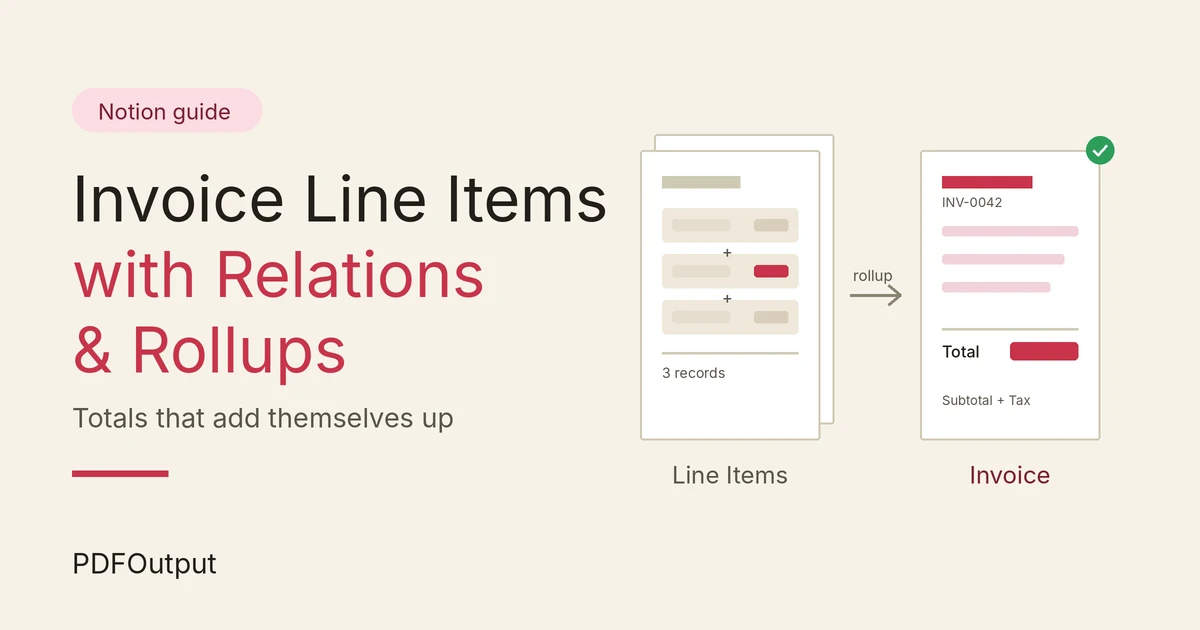
In this guide, we will build an invoice system in Notion with two linked databases, a line total formula, rollups for the subtotal, tax, and grand total, and then look at how to turn each invoice into a finished PDF using PDFOutput.
The short version:
create an Invoices database and a Line Items database, connect them with a relation, add a formula for each line total, and add rollups on the invoice to sum those lines.
Once the numbers are right, PDFOutput can fill a Google Docs or Word template from each invoice record and generate the PDF.
Table of Contents
Why Line Items Need Their Own Database
It is tempting to build an invoice as a single Notion page with a table inside it. It works for one invoice. It starts to hurt by the third.
Three things go wrong with that approach:
When each line item is its own database record, linked to an invoice, you get structure for free. You can filter, group, total, and export it, and the invoice total updates whenever a line changes.
What You Need Before You Start
You only need a Notion workspace and a few minutes. Plan for two databases:
| Database | What each row represents | Example |
|---|---|---|
| Invoices | One invoice sent to one client | INV-0042, Acme Ltd |
| Line Items | One charge on one invoice | Logo design, 1 × 500 |
Property names and menus change as Notion updates, so treat the exact labels below as a guide and check them in your own workspace.
Step 1: Create the Line Items Database
Create a new database and name it Line Items. Add these properties:
| Property | Type | Purpose |
|---|---|---|
| Description | Title | What you are charging for |
| Quantity | Number | How many units, hours, or items |
| Unit Price | Number (currency format) | Price of one unit |
| Tax Rate | Number (percent format) | Tax for this line, such as 18% |
| Line Total | Formula | Quantity × Unit Price (added in Step 4) |
Step 2: Create the Invoices Database
Create a second database and name it Invoices. Start with the basic properties:
| Property | Type | Purpose |
|---|---|---|
| Invoice Number | Title | For example, INV-0042 |
| Client Name | Text | Who you are billing |
| Client Email | Where the invoice is sent | |
| Issue Date | Date | When the invoice is issued |
| Due Date | Date | When payment is expected |
| Status | Select | Draft, Sent, Paid, Overdue |
Step 3: Connect Them With a Relation
A relation is a property that links records in one database to records in another.
Now every line item can point to exactly one invoice, and every invoice shows all of its line items. This two-way link is what makes rollups possible.
If you want each line item to belong to only one invoice, you can limit the relation to one page. Check the relation settings in your version of Notion.
Step 4: Calculate Each Line Total
In Line Items, edit the Line Total formula property. A simple version looks like this:
prop("Quantity") * prop("Unit Price")
That gives you the amount before tax. To avoid long decimals from things like 3 hours at 33.333, round to two places:
round(prop("Quantity") prop("Unit Price") 100) / 100
If you also want a tax amount per line, add a second formula property called Tax Amount:
round(prop("Line Total") prop("Tax Rate") 100) / 100
The exact formula syntax can change as Notion updates its formula editor, so test with a sample line before you trust it. Add one line with a quantity of 2 and a unit price of 150, and check that the line total shows 300.
Step 5: Add Rollups to the Invoice
A rollup looks at the records linked through a relation, picks one of their properties, and calculates something from it.
In the Invoices database, add a property called Subtotal:
Now add a second rollup called Tax with the same relation, the “Tax Amount” property, and Sum.
Open an invoice, link two or three line items to it, and watch the subtotal change. If you edit a quantity on a line, the invoice updates by itself. That is the whole point of doing it this way.
A couple of other rollup calculations are useful:
- Count all gives you the number of line items on the invoice.
- Show original lists the linked values, which can be handy for text such as descriptions.
- A negative line item. Add a line called “Early payment discount” with a quantity of 1 and a negative unit price. The rollup sums it like any other line.
- A discount property on the invoice. Add a number property for the discount and subtract it in the Total formula.
- Ready to Generate creates a PDF from the database record.
- Generate Page converts the Notion page into a PDF.
- Generate PDF and Doc creates a PDF and a Google document.
- Preview creates a Google document so you can check it before making the final PDF.
- Generate E-Signed Doc creates an e-signed PDF in the database workflow.
- A line items table in the template. If you want each line item on its own row, check PDFOutput’s documentation for how it handles related records and repeating rows, and test it with an invoice that has several lines before you rely on it.
- A summary in one field. Add a rollup on Invoices that shows the original values of the related line descriptions, and use it in a single placeholder. This is less polished, but it is a safe fallback when a simple summary is enough.
- Line Items and Invoices are separate databases, joined by a two-way relation.
- Every line item is linked to an invoice.
- Line Total is a formula, and a test line gives the answer I expect.
- Subtotal and Tax on the invoice are rollups with the Sum calculation.
- Total is a formula that adds the subtotal and tax.
- Money properties are formatted as currency.
- My template placeholders match the Notion property names exactly.
- I’ve used Preview to check a sample invoice before generating the final PDF.
- I’ve checked the tax treatment with my accountant.
- How to Export Notion to PDF
- How to Fix Page Breaks in Notion PDF
- How to Add Your Logo and Brand Colors to Notion PDFs
Step 6: Add Tax and the Grand Total
Add a formula property to Invoices called Total:
prop("Subtotal") + prop("Tax")
Format the Subtotal, Tax, and Total properties as currency so they read the same way on every invoice.
If your tax rate is the same on every line, you can skip the per-line tax and use one Tax Rate property on the invoice instead, with a formula such as:
round(prop("Subtotal") prop("Tax Rate") 100) / 100
Per-line tax is better when you sell a mix of taxable and non-taxable items, or items at different rates. Tax rules vary by country and business, so confirm yours with an accountant before you send invoices.
Adding Discounts
There are two common ways to handle discounts without breaking your totals.
The negative line is simpler and also shows the discount clearly on the final document. The property approach keeps the line items list clean. Pick one and use it consistently.
From Invoice to PDF With PDFOutput
Once your totals work, the invoice is only half done. The client needs a document, and Notion’s own export isn’t built for branded invoices. It has no repeating headers or footers, and the layout follows the page rather than a template.
This is where PDFOutput fits. PDFOutput creates documents from your Notion data using a template. The template can be a Google document, a Word file, a PDF file, or a Notion page. You add placeholders in double curly braces, such as {{Client_Name}}, and each placeholder must match the related Notion property name.
For your invoice database, that means placeholders like:
| Placeholder | Notion property |
|---|---|
{{Invoice_Number}} | Invoice Number |
{{Client_Name}} | Client Name |
{{Issue_Date}} | Issue Date |
{{Due_Date}} | Due Date |
{{Subtotal}} | Subtotal (rollup) |
{{Tax}} | Tax (rollup) |
{{Total}} | Total (formula) |
You can start generation from a Notion database button or a status property. These are some of the status options:
Use Preview on your first few invoices to check the numbers, the layout, and the wording before you create the final PDF.
Templates: Table Rows vs Single Fields
Single values such as the client name, total, and due date map neatly to one placeholder each. Line items are different, because an invoice can have two lines or twenty.
There are two practical ways to think about it:
Whichever you choose, test with a realistic invoice. Fill it with the longest invoice you expect to send, and check that nothing runs off the page.
A Quick Checklist
Before you send your first invoice from this setup, run through this list.
Troubleshooting Table
| What you see | Likely cause | What to try |
|---|---|---|
| Subtotal shows 0 | No line items are linked, or the rollup points to the wrong property | Link a line item, and check the rollup uses “Line Total” with Sum |
| Subtotal is correct but Total is wrong | The Total formula references the wrong property | Check it uses Subtotal and Tax, not Line Total |
| Long decimals such as 99.99999 | Floating point maths with no rounding | Wrap the formula in round( ... * 100) / 100 |
| Line item doesn’t appear on the invoice | The relation isn’t set on that row | Open the line item and select the invoice |
| Rollup option is missing | The relation property doesn’t exist yet | Add the relation first, then the rollup |
| Placeholder shows up empty in the PDF | Name mismatch, or the property is empty | Match the property name exactly and check the record has a value |
| Currency symbol is missing | The property is formatted as a plain number | Change the property format to currency in Notion |
Frequently Asked Questions
Can I build invoice line items in Notion without a second database?
You can use a table block inside the page, but it can’t roll its totals up into a property. A separate Line Items database with a relation is the more reliable setup if you need totals that update by themselves.
What is the difference between a relation and a rollup in Notion?
A relation links records in one database to records in another. A rollup reads a property from those linked records and calculates something, such as a sum or a count.
Why does my rollup show 0?
Usually no records are linked yet, or the rollup is reading a property that is empty. Check the relation first, then the property and calculation chosen in the rollup.
How do I add tax to invoice totals in Notion?
Either add a tax amount formula to each line item and roll up the sum, or use one tax rate property on the invoice and multiply it by the subtotal. Confirm the right approach for your country with an accountant.
Can I generate a PDF invoice from a Notion database?
Yes. A tool such as PDFOutput can fill a Google Docs or Word template with the values from each invoice record and save the PDF to your chosen storage.
Will the PDF update if I change a line item?
The Notion totals update right away. A PDF that was already generated won’t change, so generate it again after editing, and use Preview to check the result.
Related Reading
Conclusion
A Notion invoice that depends on typed totals will go wrong sooner or later. Putting each charge in a Line Items database, linking it to an invoice with a relation, and using rollups for the subtotal and tax means the numbers take care of themselves.
Once the data is clean, the last step is the document. PDFOutput can fill your Google Docs or Word template from each invoice record, so the finished PDF carries your branding, your headers and footers, and totals that match Notion.
Want invoices that build themselves and arrive as clean PDFs? Try PDFOutput.