Guides
How to Create a Contract Template in Notion and Generate PDFs Automatically
Build a Notion contract template with linked databases, track statuses and renewal dates, then generate branded contract PDFs from each record with PDFOutput.
By Sanat Biswal · 2026-11-14 · 5 min read
{/ synced-from-notion — do not edit manually /}
You finish a call with a new client and are now ready to send them a contract.
You open your previous contract and start replacing everything that needs to be updated.
The client's name, contract date, payment terms, and perhaps a few clauses specific to this new engagement.
But then comes the tricky part. You hope you haven't missed the old company's name buried somewhere in Clause 5 of the Terms and Conditions.
You finally send the contract to your client, only to spot two mistakes almost immediately:
- You forgot to update the contract expiry date.
- You misspelled the client's name by adding an extra "a".
- Why Contracts Belong in a Database
- What You Need Before You Start
- Step 1: Create the Contracts Database
- Step 2: Add a Clients Database
- Step 3: Build a Clause Library
- Step 4: Track Dates With Formulas
- Step 5: Create Views to Manage Contracts
- Step 6: Generate the Contract as a PDF With PDFOutput
- Templates: Single Fields vs Clauses
- A Quick Checklist
- Troubleshooting Table
- Frequently Asked Questions
- Related Reading
- Conclusion
- Key terms are buried in text. If the value, the start date, and the renewal terms live inside paragraphs, you can't filter, sort, or total them. A question like "which contracts end in the next 60 days?" means opening every file and scanning through each detail to find the answer.
- Every contract is a fresh copy-paste job. Copying an old contract carries over old names, dates, and terms. Even a missed edit can end up infront of the client.
- Nothing reminds you of what is coming. Renewals, expiries, and notice periods are quite often easy to miss when the dates simply sit inside documents instead of being properties inside a database.
- In the Contracts database, add a new property.
- Choose Relation as the type.
- Select the Clients database as the one to link to.
- Turn on the option to show the relation on Clients as well, so the link works in both directions.
- Name the property on Contracts "Client", and the property on Clients "Contracts".
- Choose Rollup as the property type.
- For Relation, pick "Client".
- For Property, pick "Contact Person" (then repeat for "Email" and "Address").
- For Calculate, pick Show original.
- Choose Rollup as the property type.
- For Relation, pick "Clauses".
- For Property, pick "Clause Text".
- For Calculate, pick Show original.
- Board by Status. Group by Status to see where every contract stands, from Draft to Signed.
- Expiring Soon. A table filtered to Status is Signed and Renewal Flag is Renew soon, sorted by End Date.
- Calendar by End Date. See renewals and expiries laid out across the year.
- By Client. Group by Client to see every agreement with one company in a single place.
- Ready to Generate creates a PDF from the database record.
- Generate Page converts the Notion page into a PDF.
- Generate PDF and Doc creates a PDF and a Google document.
- Preview creates a Google document so you can check it before making the final PDF.
- Generate E-Signed Doc creates an e-signed PDF in the database workflow.
- Fill in the contract record and link the client and the clauses
- Set the status to In Review and use Preview to check the wording, dates, and layout in a Google document
- Have the contract reviewed, then generate the final PDF with PDFOutput
- Send it to the client, then change the status to Sent
- When it is signed, record the Signed Date and set the status to Signed
- Fixed wording in the template, variable facts in placeholders. Write the standard clauses directly in your Google Docs or Word template, and use placeholders only for the details that change, such as names, dates, and amounts. This is the safest approach, and the one we recommend for most contracts.
- Clauses pulled in through a rollup. Use the Clauses Text rollup in a single placeholder when the clauses really do vary per contract. It is less polished, because the clauses arrive as one block of text, so check PDFOutput's documentation for how it handles related records and repeating sections, and test it before you rely on it.
- Contracts, Clients, and Clauses are separate databases, joined by relations.
- Every contract is linked to a client.
- Status, Start Date, End Date, and Contract Value are filled in.
- Days Until End and Renewal Flag work, and a test contract gives the result I expect.
- My views show the board by status and the contracts expiring soon.
- My template placeholders match the Notion property names exactly.
- I've used Preview to check a sample contract before generating the final PDF.
- A lawyer has reviewed my contract wording and clauses.
- How to Export Notion to PDF
- How to Build Invoice Line Items with Relations and Rollups in Notion
- How to Build a Notion Quote Template That Calculates Totals and Exports to PDF
- How to Add Your Logo and Brand Colors to Notion PDFs
Sounds familiar?
How often have you had to deal with this kind of situation in your business?
Contracts are one of the repetitive documents built around a small set of details each time: who you're working with, what you're offering, when the agreement starts and ends, how much you're charging, and what terms both parties have agreed upon.
Yet, every time you create a new contract, you have to go through the same process of verifying each and every detail including finding an old document, replacing client details, updating dates, modifying payment terms, and hoping you haven't missed anything along the way.
This is where Notion can make things much easier.
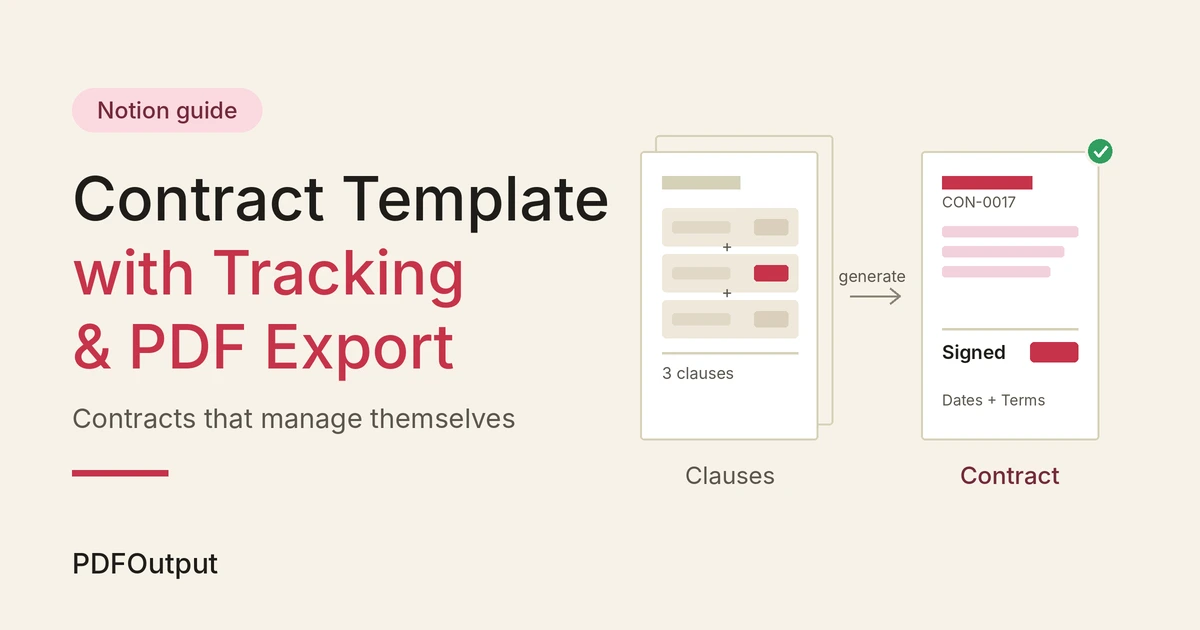
In this guide, we'll build a contract management system in Notion using linked databases for Contracts, Clients, and Clauses. You'll learn how to store client information, manage contract terms, track expiry dates using formulas, and organize all your agreements in one place.
Once the system is ready, we'll connect it to PDFOutput (a PDF automation tool for Notion) and use a reusable Google Docs or Word template to automatically populate contract details and generate a professional PDF for each new client.
The idea is simple: enter your contract information once in Notion, reuse your existing contract structure, and generate a ready-to-send document without manually editing the same details over and over again.
This guide focuses on contract management and document automation. It is not to be considered a legal advice by any means.
Table of Contents
Why Contracts Belong in a Database?
It is tempting to keep each contract as a standalone Notion page, or as a Word file in a folder. It works for the first few. Then it starts to hurt when you start to scale in operations.
3 things can go wrong with that approach:
When each contract is a database record with structured properties, you get to filter, set reminders, and can create reporting for free.
And because the data is structured, it can also be used to generate the document itself.
What You Need Before You Start
You only need a Notion workspace and a little time to plan for 3 databases being used:
| Database | What each row represents | Example |
|---|---|---|
| Contracts | One agreement with one client | CON-0017, Website Design Agreement |
| Clients | One client company or person | Acme Ltd |
| Clauses | One reusable block of contract wording | Confidentiality, Payment terms |
Property names and menus can change as Notion tends to update, so treat each of the exact labels below as a guide and check them in your own workspace.
Step 1: Create the Contracts Database
Create a new full-page database and name it Contracts. Add these properties:
| Property | Type | Purpose |
|---|---|---|
| Contract Number | Title | For example, CON-0017 |
| Contract Type | Select | Service Agreement, NDA, Retainer, Freelance |
| Status | Select | Draft, In Review, Sent, Signed, Expired, Terminated |
| Start Date | Date | When the contract takes effect |
| End Date | Date | When the contract ends or must be renewed |
| Contract Value | Number (currency format) | Total or recurring value |
| Payment Terms | Select | Net 15, Net 30, 50% upfront |
| Scope of Work | Text | A short description of what is being delivered |
| Governing Law | Text | The jurisdiction your contract falls under |
| Signed Date | Date | When both parties signed |
Step 2: Add a Clients Database
If you already have a clients or CRM database, use it. If not, create a new database called Clients with these properties:
| Property | Type | Purpose |
|---|---|---|
| Client Name | Title | The company or person |
| Contact Person | Text | Who signs or receives the contract |
| Where the contract is sent | ||
| Address | Text | The registered or billing address |
Next, pull the client details into each contract so you do not retype them. Add rollup properties on Contracts:
Now every contract shows the client's current details, and if a client changes their address, you fix it once in the Clients database.
If you want each contract to belong to only one client, you can limit the relation to one page. Check the relation settings in your version of Notion.
Related Reading : How to use Relation and Rollup in Notion
Step 3: Build a Clause Library
Most of a contract is a boilerplate template that can be reused:
confidentiality, intellectual property, termination, liability.
Instead of pasting these into every contract each time, keep each one once in its own database.
Create a database called Clauses with these properties:
| Property | Type | Purpose |
|---|---|---|
| Clause Name | Title | For example, Confidentiality |
| Category | Select | Legal, Payment, Scope, Termination |
| Clause Text | Text | The exact wording |
| Contracts | Relation | Links to the Contracts database |
When you update the wording of a clause in the library, every new contract you generate uses the latest version. Contracts that were already generated will not change, which is exactly what you want for an agreement someone has signed.
A clause library also helps with review. Your lawyer can approve the wording once, and you can reuse it with confidence.
Step 4: Track Dates With Formulas
This is where the database starts working for you. Add a few formula properties to Contracts.
First, a property called Days Until End:
dateBetween(prop("End Date"), now(), "days")
This gives you the number of days left. A negative number means the contract has already ended.
Next, a property called Term (Months) to show how long the contract runs:
dateBetween(prop("End Date"), prop("Start Date"), "months")
Finally, a Renewal Flag property that turns the number into a clear signal:
if(prop("Status") == "Signed" and prop("Days Until End") < 0, "Expired", if(prop("Status") == "Signed" and prop("Days Until End") <= 60, "Renew soon", "OK"))
The exact formula syntax can change as Notion updates its formula editor, so test with a sample contract before you trust it. Add a contract with an end date 30 days away and a status of Signed, and check that the flag shows "Renew soon".
If you also want to track notice periods, add a number property called Notice Period (Days) and compare it with Days Until End. That way you get a warning before the cancellation window closes, not after.
Step 5: Create Views to Manage Contracts
One database can power several views. These four cover most needs:
A contract that moves from Draft to In Review to Sent to Signed is easy to follow on the board, and nothing sits forgotten in a folder.
Step 6: Generate the Contract as a PDF With PDFOutput
Once your data is right, the contract is only half done. The client needs a document, and Notion's own export isn't built for branded contracts. It has no repeating headers or footers, and the layout follows the page rather than a template.
This is where PDFOutput fits.
PDFOutput creates documents from your Notion data using a template. The template can be a Google document, a Word file, a PDF file, or a Notion page. You add placeholders in double curly braces, such as {{Client_Name}}, and each placeholder must match the related Notion property name.
For your contracts database, that means placeholders like:
| Placeholder | Notion property |
|---|---|
{{Contract_Number}} | Contract Number |
{{Client_Name}} | Client Name (from the Clients database) |
{{Contract_Type}} | Contract Type |
{{Start_Date}} | Start Date |
{{End_Date}} | End Date |
{{Contract_Value}} | Contract Value |
{{Payment_Terms}} | Payment Terms |
{{Scope_of_Work}} | Scope of Work |
{{Governing_Law}} | Governing Law |
{{Clauses_Text}} | Clauses Text (rollup) |
You can start generation from a Notion database button or a status property. These are some of the status options:
A simple workflow looks like this:
If you need signatures, Generate E-Signed Doc is the option to look at. Check PDFOutput's documentation for how signing works in your setup, and confirm with your lawyer that an e-signature is acceptable for the type of contract you are sending.
Use Preview on your first few contracts. A wrong date or a missing clause in a contract is far more costly than a typo in an invoice.
Templates: Single Fields vs Clauses
Single values such as the client name, start date, and contract value map neatly to one placeholder each. Longer content such as clauses is different, because the number of clauses changes from contract to contract.
There are 2 practical ways to think about it:
Whichever you choose, test with a realistic contract. Use the longest agreement you expect to send, and check that nothing runs off the page or breaks across pages in an awkward place.
A Quick Checklist
Before you send your first contract from this setup, run through this list.
Troubleshooting Table
| What you see | Likely cause | What to try |
|---|---|---|
| Client details are empty on the contract | No client is linked, or the rollup points to the wrong property | Link a client, and check the rollup reads the right property |
| Days Until End shows an error | Start or End Date is empty | Fill in the date, or wrap the formula in an if that checks for empty values |
| Renewal Flag never changes | The Status isn't exactly "Signed", or the formula references the wrong property | Check the Select option name and the formula |
| Clauses Text is empty | No clauses are linked, or the rollup reads an empty property | Link clauses and check Clause Text has content |
| Placeholder shows up empty in the PDF | Name mismatch, or the property is empty | Match the property name exactly and check the record has a value |
| Date looks wrong in the PDF | The date format differs from what you expect | Check the date property format in Notion and preview before generating |
| Currency symbol is missing | The property is formatted as a plain number | Change the property format to currency in Notion |
Frequently Asked Questions
Can I use Notion for contract management?
Yes, for tracking and organizing contracts. A database with properties for status, dates, value, and client gives you filtering, reminders, and a clear pipeline. For legally binding wording and signatures, make sure your contract content has been reviewed by a lawyer.
How do I keep track of contract renewal dates in Notion?
Store the End Date as a date property, add a formula that calculates the days remaining, and create a view that shows contracts ending soon. A calendar view by End Date is also useful.
Can I generate a PDF contract from a Notion database?
Yes. A tool such as PDFOutput can fill a Google Docs or Word template with the values from each contract record and save the PDF to your chosen storage.
Can I send contracts for e-signature from Notion?
PDFOutput has a Generate E-Signed Doc option that creates an e-signed PDF in the database workflow. Check its documentation for the current details, and confirm with your lawyer that e-signatures are valid for your type of contract and your country.
Will the PDF update if I change a contract record?
The Notion data updates right away. A PDF that was already generated won't change, so generate it again after editing, and use Preview to check the result. Never edit a contract after it has been signed. Create an amendment or a new version instead.
Should I write the clauses in the template or in Notion?
For most contracts, put the standard wording in the template and use placeholders for the facts that change. Use a clause library in Notion when you need to mix and match clauses per contract.
Related Reading
Conclusion
A contract process built on copy-paste and folders will let something slip sooner or later: a wrong name, a missed renewal, a signed copy nobody can find. Putting your contracts in a database, linking them to clients and clauses, and adding formulas for dates means the facts live in one place and the reminders take care of themselves.
Once the data is clean, the last step is the document. PDFOutput can fill your Google Docs or Word template from each contract record, so the finished PDF carries your branding, your headers and footers, and terms that match Notion.
Want contracts that build themselves and arrive as clean PDFs? Try PDFOutput.