Guides
Build a Notion Quote Template That Calculates Totals and Exports to PDF
Build a Notion quote template with linked databases, rollups, and formulas that calculate totals, then turn each quote into a branded PDF with PDFOutput.
By Sanat Biswal · 2026-11-14 · 5 min read
{/ synced-from-notion — do not edit manually /}
Today, if you are busy building quotations in a spreadsheet or a word document you are simply adding a lot of time onto boring repetitive admin tasks.
This usually means you are copying over last month’s quotation terms changing the variables that needs to change such as:
And again despite all of this you would still end up making mistakes — probably more often than not!😑
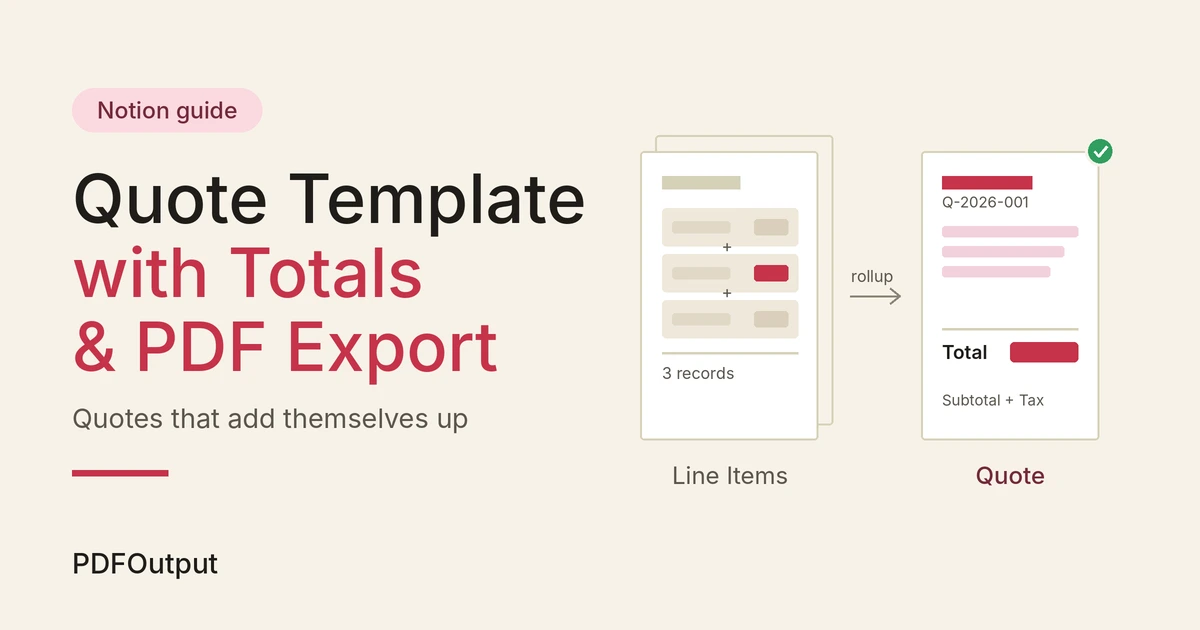
But with a tool like Notion you can immediately setup 2 linked databases and add the desired formulas within the database, to setup the entire thing properly as required.
On top of this just create a quotation template for once either in a Google Document or Word File or even an existing PDF File would work.
Then simply connecting that template with the notion database can help you produces a clean PDF in a couple of clicks.
Let’s understand this process with the helpful guide that walks through the whole setup, step by step.
What You'll Build
By the end, you'll have:
- A Quotes database with one page per quote (client, date, status, tax rate, discount)
- A Line Items database where each row is a product or service on a quote
- Formulas that calculate line totals, subtotal, tax, and the final total automatically
- A branded quote PDF generated from a Google Docs or Word template with PDFOutput
- Quote Number (Title), for example Q-2026-001
- Client (Text)
- Issue Date (Date)
- Valid Until (Date)
- Status (Select): Draft, Sent, Accepted, Declined
- Tax Rate (Number, formatted as a percentage)
- Discount (Number, formatted as currency)
- Item (Title): the product or service name
- Description (Text)
- Quantity (Number)
- Unit Price (Number, currency)
- Quote (Relation to the Quotes database)
- Subtotal (Rollup): relation = Line Items, property = Line Total, calculate = Sum
- Tax (Formula):
prop("Subtotal") * prop("Tax Rate") - Total (Formula):
prop("Subtotal") - prop("Discount") + prop("Tax") - Ready to Generate creates a PDF from the database record.
- Generate Page converts the Notion page into a PDF.
- Generate PDF and Doc creates a PDF and a Google document.
- Preview creates a Google document so you can check it before making the final PDF.
- Generate E-Signed Doc creates an e-signed PDF in the database workflow.
- Set the quote's status to Draft and review the numbers in Notion
- Use Preview to check the totals, layout, and wording in a Google document
- Generate the final PDF with PDFOutput
- Attach the PDF to your email, then change the status to Sent
- Use a numbering convention. Year plus a sequence number (Q-2026-014) keeps quotes easy to find.
- Add a Valid Until date. It sets expectations and nudges clients to decide.
- Keep a catalog of common items. A third database of services with default prices lets you pull rows into Line Items instead of retyping.
- Track status. A board view grouped by Status gives you a live pipeline of quotes.
- Round deliberately. Wrap totals in round() if you want whole-currency amounts.
- Totals show zero: check that each line item is linked to the right quote through the Quote relation.
- Tax looks too high or too low: confirm whether the Tax Rate is stored as a percentage or a plain number.
- Line items from other quotes appear: re-check the linked view filter and make sure it points to the current page.
- Placeholder shows up empty in the PDF: the name doesn't match the Notion property exactly, or the property is empty on that record.
Step 1: Create the Quotes Database
Create a new full-page database called Quotes and add these properties:
Keep this database small, as its the primary database that will hold the key information related to a Quote. Everything beyond this are added onto second database.
Step 2: Create the Line Items Database
Create a second database called Line Items with these additional properties:
Then add a Line Total formula property:
prop("Quantity") * prop("Unit Price")
Every row now calculates its own total the moment you type a quantity and a price.
Step 3: Roll Up the Totals
Head back to the Quotes database, add a relation to Line Items (it may already exist as the reverse of the Quote relation).
Then add the following properties:
If your tax rate is stored as a percentage in Notion, the formula above works as written. If it's stored as a plain number like 18, divide the value by 100.
Step 4: Turn the Quote Into a PDF With PDFOutput
Once your data is ready and set and you have a quotation system setup properly in Notion, its time to generate PDFs.
Notion’s own export isn't built for branded quotes. It has no repeating headers or footers, and the layout follows the page rather than a template.
So, this is where PDFOutput fits in. PDFOutput creates documents from your Notion data using a template. The template can be a Google document, a Word file, a PDF file, or a Notion page. You add placeholders in double curly braces, such as {{Client}}, and each placeholder must match the related Notion property name.
For your Quotes database, that means placeholders like:
| Placeholder | Notion property |
|---|---|
{{Quote_Number}} | Quote Number |
{{Client}} | Client |
{{Issue_Date}} | Issue Date |
{{Valid_Until}} | Valid Until |
{{Subtotal}} | Subtotal (rollup) |
{{Discount}} | Discount |
{{Tax}} | Tax (formula) |
{{Total}} | Total (formula) |
You can start generation from a Notion database button or a status property. These are some of the status options:
A simple workflow looks like this:
Tip: Use Preview on your first few quotes. Also test with the longest quote you expect to send, and check that nothing runs off the page.
But how do you produce multiple rows of data in the line items database in a single quotation?
PDFOutput does support adding multiple lines from the same related database onto a single document being generated. So no matter how many line items you have it can be generated onto the document clearly fetching the information from the line items database.
Note: The Notion totals update right away, but a PDF that was already generated won't change. If you edit a line item, generate the PDF again.
Tips for a Cleaner Quote
Common Problems and Fixes
Wrapping Up
With two databases, a handful of formulas, and PDFOutput filling your own template, you can go from a blank page to a professional, branded quote in minutes. Build it once, and connect the template to the notion database and keep generating quotations forever right from inside the notion database itself.