Guides
How to Use Notion for a Physiotherapy Clinic: Appointments and Operations
Learn how to set up Notion for a physiotherapy clinic’s operations: appointments, no-shows, referrals, staff, equipment, and compliance tasks, with patient data kept out.
By Sanat Biswal · 2026-11-04 · 5 min read
{/ synced-from-notion — do not edit manually /}
A physiotherapy clinic runs on a rhythm of appointments.
The 9 am assessment that needs a longer slot. The follow-up that nobody confirmed, which becomes a no-show. The referral that sat in an inbox for four days. The treatment table that’s due for a safety check, the therapist whose registration renews next month, the stock of gel and paper roll that ran out on a Monday.
Most small clinics hold the operational side of this in a diary, a shared inbox, and the practice manager’s memory, and the cost shows up as empty slots, slow referrals, and last-minute scrambles.
Notion can hold the operational layer in one place. This guide is for practice managers, owner-physiotherapists, and small clinics with a few therapists and a front desk.
It follows a patient’s journey through the clinic’s operations, from referral to discharge, and the clinic’s day-to-day: appointments, no-shows, waiting lists, staff, equipment, and recurring compliance tasks.
It shows how to set up referrals, patients (administrative records only), appointments, staff, equipment, and operations tasks, and how to turn operational records into PDFs such as appointment confirmations, rotas, and compliance logs.
It is general information about organizing a business, not to be considered as legal, regulatory, clinical, or data protection advice.
An important boundary that comes first.
Notion is not a clinical record system.
Assessments, diagnoses, treatment notes, exercise programs, outcome scores for individual patients, and images belong in a system that’s built for health records and meets the rules that apply to you.
Many places have strict laws on health data, such as consent, security, retention, breach notification, and agreements with service providers. This guide keeps clinical content out of Notion by design.
Before you put any identifiable patient information in any tool, check your rules, check what agreements the provider offers, and get qualified advice.
Quick Answer on how to use Notion for physiotherapy:
To use Notion for a physiotherapy clinic’s operations, create linked databases for Referrals, Patients (administrative records only, with an ID code and no clinical details), Appointments, Staff, Equipment and Rooms, and Operations Tasks.
Track appointment status, confirmations, late cancellations, and no-shows. Track how long referrals wait for a first appointment. Use formulas to show who needs a confirmation, which courses of treatment need more sessions authorized, and which equipment or registrations are due.
Turn cleaning, safety, stock, and compliance routines into recurring tasks with owners and dates. Keep clinical notes in your clinical system, and put only operational facts in Notion.
Notion works well for the operational side of a clinic because the work is a set of dated, repeating tasks.
An appointment has a time, a therapist, a room, and a status. A referral has a date received and a date of first contact. A piece of equipment has a service date and an interval.
A formula counts hours to an appointment and flags the ones that need confirming, and another counts days since a referral and flags the slow ones. Notion isn’t a clinical record system, a claims system, a payment tool, or a booking engine.
It doesn’t send reminders by itself, so it works best beside your clinical system, your booking and messaging tools, and your billing system.
For documents that leave the clinic, you can export a page as a PDF or generate one from a template, as long as they contain only what the recipient should see.
Table of Contents
What Notion Can and Can’t Do for a Physiotherapy Clinic
Notion is good for:
- Tracking referrals and how long they wait for a first appointment.
- Tracking appointment status, confirmations, cancellations, and no-shows.
- Managing a waiting list by preference and priority.
- Tracking authorized sessions and courses of treatment, by count only.
- Tracking staff schedules, registrations, and training dates.
- Tracking equipment, rooms, service dates, and maintenance.
- Running recurring cleaning, stock, and compliance routines.
- Clinical notes, assessments, diagnoses, or treatment plans.
- Exercise programs, images, or outcome scores for individual patients.
- Insurance claims, payments, or billing records.
- Online booking with live availability.
- Automatic reminders or text messages.
- Replacing the records your regulator requires.
- Check whether Notion can be used with patient data at all. Many rules require specific agreements with providers that handle patient data, specific security measures, and control over where data is stored. Ask the provider what agreements, security features, and data location options it offers for your plan, and keep the answers. If it can’t meet your requirements, don’t put identifiable patient data in it.
- Use ID codes, not names, where you can. Use the patient ID from your clinical system, and let the staff who need the details look them up there. A record that says “P-10482” reveals far less than one that says a name.
- Keep clinical content out. No diagnoses, conditions, symptoms, injuries, treatment details, exercises, images, or outcome scores for individual patients. Even a “reason for visit” can be clinical.
- Keep identifiers out of titles, links, and shared pages. Page titles show in search, links, and notifications. Use codes in titles.
- Never store insurance numbers, government IDs, or card numbers in Notion.
- Treat referrals carefully. A referral letter contains clinical detail. Keep the letter in your clinical system, and record only the source, the date, and the status in Notion.
- Check every connected tool. Integrations, automations, and any AI features can move data around. Check how they handle data before you connect them to a workspace that holds identifiable patient information.
- Plan for mistakes. Know your breach response procedure, who must be told, and how fast, and train staff in it.
- Respect access and retention rules. Patients often have rights to see, correct, or delete their records, and clinics often must keep records for a set time. Find out how those rules apply to the data in each system.
- Referrals stores where new patients come from. Add these properties: Referral ID, Source Type (Physician, Self-Referral, Insurer or Scheme, Sports Club, Employer, or Other), Referrer Name (organization or practitioner), Date Received, Date First Contacted, Status (New, Contacted, Booked, Attended, or Lost), Days Waiting (a formula), Slow Flag (a formula), Priority (Routine or Urgent, as defined by your rules), and Notes (no clinical content).
- Patients is the administrative database. Add: Patient ID (from your clinical system), Status (Waiting, Active, On Hold, or Discharged), Assigned Therapist (relation), Referral (relation), Funding Type (Self-Pay, Insurance, or Scheme), Sessions Authorized, Sessions Attended (a rollup), Sessions Remaining (a formula), Upcoming Appointments (a rollup), Authorization Flag (a formula), Rebook Flag (a formula), Preferred Days and Times (for the waiting list), and Contact Preference (such as Text, Email, or Phone).
- Appointments stores each slot. Add: Patient (relation), Therapist (relation), Room (relation), Appointment Time, Duration (minutes), End Time (a formula), Type (Initial Assessment, Follow-Up, Review, Group Class, or Discharge), Status (Booked, Confirmed, Attended, Cancelled, or No-Show), Cancelled On, Reminder Sent (a checkbox), Billing Status (Not Billed, Billed, Paid, or Follow-Up), Hours Until (a formula), Confirm Flag (a formula), Late Cancel Flag (a formula), Attended Count (a formula), and Upcoming Count (a formula).
- Staff stores your team. Add: Name, Role (Physiotherapist, Assistant, Reception, or Manager), Registration Expiry, Insurance Expiry, First Aid Expiry, Hours Available Per Week, Booked Hours (a rollup), Utilization (a formula), Renewal Flag (a formula), and Notes. Keep personal details to what you need.
- Equipment and Rooms stores what the clinic owns. Add: Item, Type (Treatment Table, Electrotherapy Unit, Exercise Equipment, Room, or Other), Location, Serial Number, Status (In Use or Out of Service), Last Service Date, Service Interval (months), Next Service Due (a formula), and Service Flag (a formula).
- Operations Tasks stores recurring work. Add: Task, Category (Cleaning, Infection Control, Stock, Compliance, Training, Maintenance, or Admin), Frequency (Daily, Weekly, Monthly, or Annual), Owner (relation to Staff), Due Date, Status (Open, Done, or Skipped), Completed On, Overdue Flag (a formula), and Evidence Link.
- Needs contact: new referrals, sorted by date, with the flag.
- By source: referrals grouped by source type, for your marketing and relationship work.
- Lost: referrals marked Lost, with a note of why (for example, “Booked elsewhere” or “No response”), to see where you lose people.
- Waiting list: patients with the status Waiting, sorted by priority and date, with their preferred days and times.
- Active: patients with the status Active, grouped by therapist.
- On hold: patients on hold, so nobody is lost.
- Needs rebooking and authorizations: patients with the flags in the course of treatment section.
- Today: appointments today, grouped by therapist and sorted by time.
- To confirm: appointments with the flag.
- This week: a calendar view.
- Needs billing follow-up: attended appointments with a Billing Status of Not Billed or Follow-Up, so nothing is left unbilled.
- Room schedule: a timeline view grouped by room.
- Authorizations needed: patients with the authorization flag.
- No next appointment: patients with the rebook flag.
- Discharged recently: patients discharged in the last 30 days, for a tidy-up of the administrative record, as your retention rules allow.
- Rota: a calendar or timeline of each person’s working days and appointments.
- Utilization by therapist: a table of booked and available hours.
- Renewals due: staff with the flag, grouped by what is due.
- Service due: items with the flag, sorted by date.
- Out of service: items not in use, with the reason and the expected return.
- By room: equipment grouped by location, for a quick check of what each room has.
- Daily: opening checklist, cleaning of treatment surfaces between patients as your infection control policy requires, closing checklist
- Weekly: stock check, equipment visual check, waste handling
- Monthly: deeper cleaning, a check of first aid supplies, a review of incidents
- Annual: policy reviews, fire drill, equipment servicing, training renewals, insurance and registration renewals
- Today: tasks due today, grouped by owner.
- Overdue: tasks with the flag, at the top of the manager’s page.
- By category: tasks grouped by category, for audits.
- Completed this month: a record of what was done, with the date and any evidence link.
- Appointment confirmations and reminders: the date, the time, the location, how to get here, and your cancellation policy, with no clinical content
- New patient information packs: what to expect, what to bring, parking, and policies
- Clinic policies and privacy notices: cancellation, complaints, and data handling, with wording checked by someone qualified
- Referral acknowledgements to referrers, containing only what your rules allow
- Staff rotas and room schedules
- Equipment service records and registers
- Cleaning, safety, and compliance logs, for audits and inspections
- Operational summaries for the owner or manager: attendance, utilization, and referrals
- Annual compliance and training summaries
- Create your template with your clinic’s name, your logo, and your layout.
- Add placeholders in double curly braces where the data should go, such as {{Appointment_Time}}
or{{Task}}`. - Make sure each placeholder matches the name of a Notion property.
- Start the document with a Notion database button or a status property.
- Ready to Generate creates a PDF from the database record.
- Generate Page converts the Notion page into a PDF.
- Generate PDF and Doc creates a PDF and a Google document.
- Preview creates a Google document so you can check it before making the final PDF.
- Generate E-Signed Doc creates an e-signed PDF in the database workflow.
- Give reception access to referrals, appointments, and the waiting list, but not to staff and financial details.
- Give therapists access to their own appointments and tasks.
- Keep pricing, billing status, and financial summaries in views that only the manager and owner can open.
- Keep staff registration, insurance, and personal details visible only to those who need them.
- Never give patients or referrers access to the workspace. Send them only the documents they’re entitled to, through secure channels.
- Keep clinical content, insurance numbers, government IDs, and card details out of Notion entirely.
- Remove access on the day someone leaves.
- Review who has access every few months, and after any incident.
- How to Use Notion for a Music School
- How to Use Notion for a Driving School
- How to Use Notion for a Self-Storage Business
Notion is not made for:
If you already use a clinical records system, a booking tool, a billing system, and a messaging tool, treat Notion as the operations layer beside them. Link to the official record by an ID code, and don’t copy clinical content into Notion.
Patient Data, Privacy, and Compliance
Health information is among the most protected personal data, and a clinic carries real duties for it. These habits keep operational work useful without putting patients at risk.
Rules differ by country, state, and profession, so check what applies to you, and get qualified advice before you decide what goes where. While you are testing, use made-up patients and made-up ID codes.
Use These 6 Databases
Start with these 6 databases. You can add more later, such as Inventory, Incidents, or Policies and Training.
A relation connects a record in one database to a record in another.
Link Patients to Referrals and Therapists, link Appointments to Patients, Staff, and Rooms, and link Operations Tasks to their owners.
Now a therapist’s page shows their appointments and hours, and a room’s page shows what’s booked in it.
Referrals: From Enquiry to First Appointment
Referrers notice how quickly you respond, and so do patients. A referral that waits is a patient who books elsewhere.
Create a Referral record when one arrives, with its date received, the source type, and the referrer’s name. Record only the operational facts.
The letter or form stays in your clinical system. Record the date you first contacted the patient, and move the status from New to Contacted to Booked to Attended.
On Referrals, add these formulas:
``
Days Waiting: if(or(prop("Status") == "New", prop("Status") == "Contacted"), dateBetween(now(), prop("Date Received"), "days"), 0)
Slow Flag: if(and(prop("Status") == "New", prop("Days Waiting") >= 2), "Contact today", if(prop("Days Waiting") >= 7, "Waiting a week", ""))
`
The flag shows new referrals that haven’t been contacted for two days, and any referral still waiting after a week.
Change the numbers to match your service standards, and any targets your referrers or schemes set. Urgent referrals may need a much faster response, so use the Priority property to sort them, and follow your rules on what counts as urgent.
Make these views of Referrals:
Add a task to thank regular referrers, and to let them know when their patients have started, in a way your rules and the patient’s consent allow.
Relationships with referrers are a major source of new patients, and a short, prompt acknowledgement helps.
Patients: Administrative Records Only
The Patients database is not a clinical file. It’s a lightweight index that lets the front desk and the manager run the clinic, with details kept in your clinical system.
For each patient, create a record with the ID code from your clinical system, the status, the assigned therapist, the funding type, and the number of sessions authorized, if any.
Record how the patient prefers to be contacted, and the days and times that suit them, for the waiting list and scheduling. That’s often enough.
If your rules and your provider’s agreements allow you to hold names and contact details in Notion, you may choose to. Many clinics decide not to, and use the ID code alone. The ID approach is safer, and it makes mistakes less costly.
Make these views of Patients:
Notice what’s missing: no condition, no notes, no goals, no scores. Those live in the clinical record.
Appointments: Confirm, Attend, Follow Up
Appointments are the heartbeat of the clinic. A few formulas help keep the diary full and the day smooth.
On Appointments, add these formulas:
`
End Time: dateAdd(prop("Appointment Time"), prop("Duration"), "minutes")
Hours Until: dateBetween(prop("Appointment Time"), now(), "hours")
Confirm Flag: if(and(prop("Status") == "Booked", prop("Hours Until") >= 0, prop("Hours Until") <= 48), "Confirm", "")
`
The flag shows booked appointments in the next 48 hours that haven’t been confirmed. Reception reaches out using your messaging tool (Notion doesn’t send reminders), then ticks Reminder Sent and sets the status to Confirmed. Make sure Appointment Time includes a time, not just a date.
Two helper formulas make the counts easy to use later, since a plain rollup can’t filter by status:
`
Attended Count: if(prop("Status") == "Attended", 1, 0)
Upcoming Count: if(and(or(prop("Status") == "Booked", prop("Status") == "Confirmed"), prop("Appointment Time") > now()), 1, 0)
`
Make these views of Appointments:
Notion can’t block double booking, so check the room and therapist timelines before you confirm a slot, and keep your booking tool as the source of truth for the diary.
After each appointment, set the status to Attended, Cancelled, or No-Show, as soon as you can. Clinical notes go in the clinical system, and Notion records only the status and the billing follow-up.
> 💡 Pro Tip: Keep the length of each appointment type consistent, such as 60 minutes for an assessment and 30 for a follow-up, and let the End Time formula do the rest. A calendar with consistent slots makes gaps and double bookings much easier to spot.
No-Shows, Late Cancellations, and the Waiting List
A missed appointment costs the clinic an empty slot and the patient a delay in care. The goal is to reduce them kindly, and to fill the ones that happen.
Record the date and time of any cancellation, and add a flag for late ones, using the notice period in your policy:
`
Late Cancel Flag: if(and(prop("Status") == "Cancelled", dateBetween(prop("Appointment Time"), prop("Cancelled On"), "hours") < 24), "Late cancel", "")
`
The flag shows cancellations with under 24 hours’ notice. Your terms decide what happens next, such as a fee, and consumer and health rules may limit it, so check before you charge. A fee policy should be clear, fair, applied the same way to everyone, and flexible for genuine emergencies.
Look at the patterns without looking at individuals. Make aggregate views of no-shows and late cancellations by therapist, day, time, appointment type, and funding type.
If Monday mornings or first appointments are missed most often, you can change your reminders, your slot lengths, or how you explain the first visit.
For the waiting list, use a Waiting list view of patients with the status Waiting, sorted by priority and date, with their preferred days and times.
When a cancellation comes in, check the list for someone who can take the slot at short notice, and contact them using your messaging tool. Record when you offered the slot and whether it was taken. Keep notes about preferences operational, such as “Mornings only,” and not clinical.
Courses of Treatment and Authorized Sessions
Some funders, such as insurers and referral schemes, authorize a set number of sessions at a time. A clinic needs to know when a course is running out, so it can request more in time, and not mid-treatment.
On Patients, roll up Attended Count from Appointments as Sessions Attended, and roll up Upcoming Count as Upcoming Appointments. Then add:
`
Sessions Remaining: prop("Sessions Authorized") - prop("Sessions Attended")
Authorization Flag: if(and(prop("Status") == "Active", prop("Sessions Authorized") > 0, prop("Sessions Remaining") <= 1), "Request more sessions", "")
Rebook Flag: if(and(prop("Status") == "Active", prop("Upcoming Appointments") == 0), "No next appointment", "")
`
A patient with six sessions authorized and five attended has one left, and the flag tells the front desk to start the authorization process before the last appointment.
The therapist decides whether more treatment is clinically appropriate, and makes the case in the clinical system. Notion only tells the team when to ask.
The rebook flag shows active patients with nothing booked, which is when people drift away from care. A quick call or message from reception can fix it.
The therapist decides whether the patient needs another appointment, and a discharge is recorded in the clinical system, and by setting the Notion status to Discharged.
Make these views of Patients:
Staff, Rotas, and Utilization
A clinic’s capacity is its therapists’ time. Notion can show how much is available, how much is booked, and what’s about to expire.
On Staff, record each person’s registration expiry, professional insurance expiry, and first aid or other training expiry, with the hours they’re available each week. Roll up the booked hours from Appointments, then add:
`
Utilization: prop("Booked Hours") / prop("Hours Available Per Week")
Renewal Flag: if(or(dateBetween(prop("Registration Expiry"), now(), "days") <= 60, dateBetween(prop("Insurance Expiry"), now(), "days") <= 60, dateBetween(prop("First Aid Expiry"), now(), "days") <= 60), "Renewal due", "")
`
The flag shows anyone with a registration, an insurance policy, or a training certificate that expires within 60 days.
Practising without valid registration or cover can have serious consequences, so check the dates on a schedule that suits your rules, and keep the official certificates in the place your policy requires.
Make these views of Staff and Appointments:
Utilization is a guide, and not a target for every person. A therapist with a lot of assessments or complex patients may need more time between appointments. A very high number may mean someone is stretched, and a low one may mean the diary needs filling or the hours need adjusting.
Equipment, Rooms, and Maintenance
Equipment fails at awkward times, and many items need regular servicing, safety testing, or calibration. A simple record keeps it from slipping.
For each item, record the serial number, the location, the date of the last service, and the interval in months. Then add:
`
Next Service Due: dateAdd(prop("Last Service Date"), prop("Service Interval"), "months")
Service Flag: if(and(prop("Status") == "In Use", dateBetween(prop("Next Service Due"), now(), "days") <= 30), "Service due", "")
`
The flag shows items due for service within 30 days, or overdue. Check what testing, servicing, and calibration your equipment, your insurer, and your rules require, and use those intervals. After a service, update the date and add a link to the report.
If something breaks, set its status to Out of Service, and make sure it isn’t used until it’s fixed. Link the item to a Maintenance task with a due date and an owner.
Make these views:
Operations Tasks: Cleaning, Stock, and Compliance
The routines that keep a clinic safe and legal are easy to skip when it’s busy, and hard to prove if they’re not recorded. Turn them into tasks with owners and dates.
Create recurring tasks for each routine, with a frequency and an owner. For example:
Check the rules and guidance that apply to your clinic, such as infection control, waste, fire safety, and emergency procedures, and base your tasks on them. Notion holds the schedule and the proof that it was done, and it doesn’t replace the procedures themselves.
Notion’s database templates can create recurring tasks on a schedule, such as every Monday or the first of the month. Set them up once, and a fresh task appears each time, assigned to the right person. Add an overdue flag:
`
Overdue Flag: if(and(prop("Status") == "Open", dateBetween(now(), prop("Due Date"), "days") > 0), "Overdue", "")
`
Make these views of Operations Tasks:
For consumables such as gel, paper roll, tape, and gloves, add a small Inventory database with a quantity and a reorder level, then add:
`
Reorder Flag: if(prop("Quantity") <= prop("Reorder Level"), "Reorder", "")
`
A weekly stock task keeps the quantities honest, and the flag tells you what to order before it runs out.
Your Business Numbers
A clinic has a few operational numbers worth watching. Here is a made-up month. None of them involve individual patients’ clinical information.
| Item | Value |
|---|---|
| Appointments scheduled | 800 |
| Attended | 700 |
| Attendance rate | 87.5% |
| No-shows | 40 |
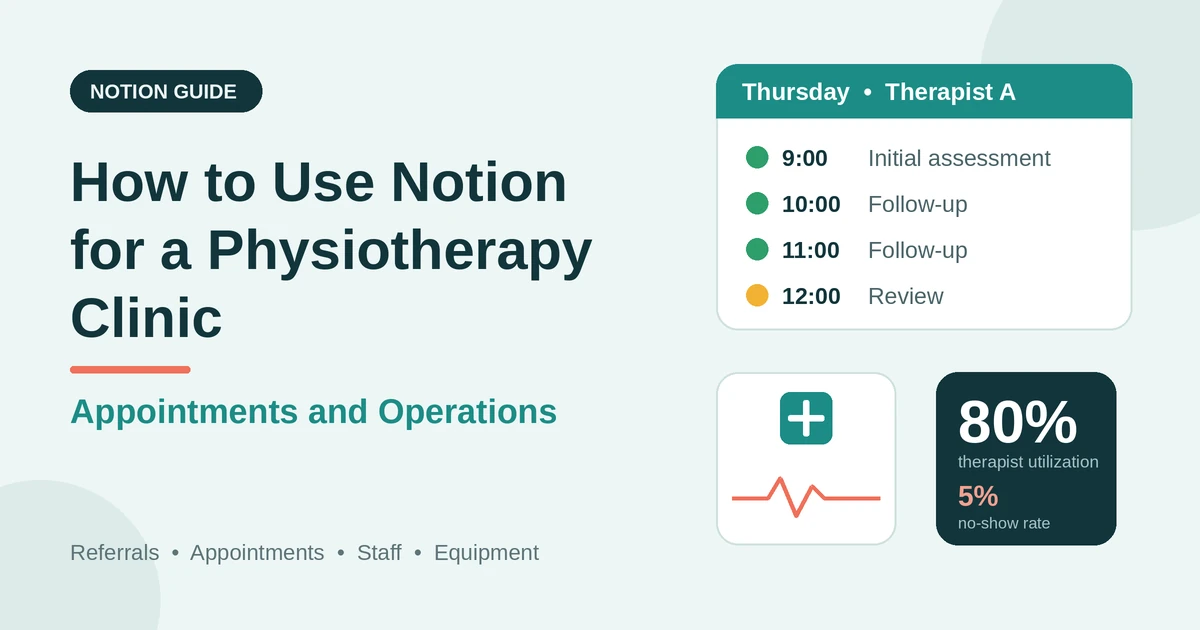
| No-show rate | 5% |
| Late cancellations | 30 |
| Late cancellation rate | 3.75% |
| Other cancellations | 30 |
| Therapist hours available | 140 |
| Hours booked | 112 |
| Utilization | 80% |
| Referrals received | 60 |
| Attended a first appointment | 45 |
| Referral conversion | 75% |
Divide attended by scheduled for the attendance rate, no-shows by scheduled for the no-show rate, and attended referrals by received referrals for conversion.
A high no-show rate may point to your reminder process, appointment lengths, or how the first visit is explained. Low conversion may point to slow response times or a lack of capacity.
Also watch days from referral to first appointment, the share of cancelled slots you refill, equipment and compliance tasks completed on time, and where referrals come from.
A small sample can mislead, so treat these as guides. They leave out rent, wages, consumables, insurance, and tax, so check the full figures with an accountant.
If you track outcomes, keep them to clinic-level summaries from your clinical system, and avoid copying individual patients’ scores into Notion. Test every formula with made-up numbers and check it with a calculator.
A Thursday for a Small Physiotherapy Clinic
To see how the pieces fit, here is one made-up Thursday for a clinic with three therapists and a front desk.
8:00 am. The practice manager opens the Today view. Twenty-four appointments are booked across three therapists and four rooms. The Needs contact view shows one new referral that arrived yesterday afternoon.
8:15 am. The front desk contacts the new patient, books an assessment for Monday, and sets the referral to Booked. The clinical details stay in the clinical system.
9:00 am. The To confirm view shows six appointments in the next 48 hours. Reception sends the reminders through the messaging tool, and ticks Reminder Sent.
10:30 am. A patient cancels for tomorrow morning, with under 24 hours’ notice. Reception records the cancellation time, sees the Late cancel flag, and checks the Waiting list view. She offers the slot to a patient who prefers mornings, and it’s taken.
12:00 pm. The Authorizations needed view shows a patient with one session left. Reception starts the authorization request, and the therapist adds the clinical case in the clinical system.
1:30 pm. The Renewals due view shows a therapist’s first aid certificate expires next month. The manager books a course.
3:00 pm. The Service due view shows an electrotherapy unit due for service in two weeks. She books the engineer, and updates the date when it’s done.
5:30 pm. The closing checklist is ticked, the Overdue view is empty, and she exports the monthly cleaning log as a PDF for the audit folder.
Nothing depended on anyone’s memory.
The Documents That Leave Notion
Patients and referrers don’t use your workspace, and many documents belong in your clinical or billing system. From Notion, generate only operational documents that contain what the recipient should see:
Documents that contain clinical information, such as reports to referrers, exercise sheets, and treatment summaries, belong in your clinical system. Invoices and receipts belong in your billing system.
For a single operational page, you can use Notion’s export option.
How to Export Notion to PDF shows the settings. Patients and referrers judge a clinic partly by the care in its paperwork, and Notion’s own export gives you limited control over layout.
How to Add Your Logo and Brand Colors to Notion PDFs explains how a template solves that.
Generating PDFs with PDFOutput
PDFOutput creates documents from your Notion data using a template. A template can be a Google document, a Word file, a PDF file, or a Notion page. If you already have a confirmation or log layout in Word or Google Docs, you can reuse it.
Here is how it works:
These are some of the status options:
The e-signed option may help with documents such as staff policy acknowledgements. Whether an electronic signature is valid for a given document depends on your location and the type of document, so check before you rely on it. You can save the finished file to a property in your database, so a log stays on its record. You can also save it to a Google Drive folder and store the link in a property.
Three kinds of document work well, and none of them need patient information.
An appointment confirmation uses the fields on one appointment record: the date, the time, the therapist’s name, the room or location, and your standard policy text, addressed through your messaging system and not by name in the file.
A compliance log uses the fields on a set of Operations Tasks records: the task, the owner, the due date, and the date it was completed.
An equipment register uses the fields on one equipment record: the item, the serial number, the last service date, and the next due date.
If you’d like a log that lists every task in a month, test a template with a sample month that has many tasks, and check that each appears. If it doesn’t, write a short summary as text on a monthly record, and use that in the template.
Before using any document tool with information about your clinic, ask the provider how data is handled, where it’s stored, what agreements are available, and whether it can meet the requirements for health data.
If the answers don’t satisfy your rules, don’t use the tool for anything that identifies patients.
The safest approach is to generate documents from records that hold only what the recipient should see, and to keep patient-identifiable content in your clinical system. Check the details on every document before you send it, and use secure channels for anything sensitive.
Start with the compliance log, since it has no patient data and it’s the one you’ll need for an audit. Use Preview first and check for empty fields, the right dates, and wording you’re happy for an inspector to read.
> 📌 Key Takeaway: Keep clinical content in your clinical system, and use Notion for the operations around it: referrals, appointment status, no-shows, staff, equipment, and recurring tasks. Then confirmations, rotas, and compliance logs come from records you already have, without patient details.
Who Can See What
Your workspace will hold operational information, and possibly a little administrative information about patients, so control access tightly.
Common Mistakes
Putting clinical notes in Notion. Keep them in your clinical system. Notion is for operations.
Using patient names in page titles. Titles show up in search, links, and notifications. Use ID codes.
Skipping the data check. Before any patient information goes into any tool, check your rules and the provider’s agreements.
Leaving referrals waiting. Slow replies lose patients and referrers. Use the slow flag.
Not confirming appointments. Unconfirmed bookings turn into no-shows. Use the confirm flag, and send reminders.
Charging late cancellation fees inconsistently. Write a clear policy, apply it fairly, and check the rules.
Running out of authorized sessions mid-course. Use the authorization flag to start the request early.
Forgetting renewals. Registrations, insurance, and training certificates need dates and flags.
Skipping equipment servicing. An unserviced device is a safety and insurance risk. Use the service flag.
Treating routines as optional. Cleaning, stock, and safety tasks need owners, dates, and a record.
Too many properties. If an appointment record takes a minute to fill in, it won’t get done. Keep it short.
No owner for the structure. If more than one person edits the workspace, pick one person responsible for the setup. Properties get renamed and formulas break, so tell that person not to rename properties used in PDF templates, because the placeholders must match exactly.
Skipping a test. Run a month with made-up patients and ID codes first, and fix what annoys you before you use real records.
Frequently Asked Questions
Can Notion be used to run a physiotherapy clinic?
For the operations side, yes. It can organize referrals, administrative patient records, appointment status, staff, equipment, and recurring tasks. It isn’t a clinical record system, a claims system, or a booking engine, and it doesn’t replace any record your regulator requires.
Is Notion suitable for storing patient information?
That depends on your rules and on what the provider offers. Health information is heavily regulated in many places, with requirements for agreements, security, and data location. Check with the provider and a qualified adviser, and if you can’t confirm that it meets your requirements, keep identifiable patient data out of it. This guide keeps clinical content out, and recommends ID codes instead of names.
How do I reduce no-shows in Notion?
Flag appointments in the next 48 hours that aren’t confirmed, send reminders through your messaging tool, and record cancellations with the time they were made. Review no-show patterns by day, time, therapist, and appointment type, with no individual patient detail, and adjust your reminders and slot lengths.
How do I manage a physiotherapy waiting list in Notion?
Keep a view of patients with the status Waiting, sorted by priority and date, with their preferred days and times. When a cancellation comes in, check the list for someone who can take the slot, and record the offer and the outcome. Keep the notes operational, with no clinical detail.
How do I track authorized sessions in Notion?
Record the number of sessions authorized on each patient’s administrative record, roll up the attended appointments using a helper formula that returns 1 for attended, and subtract. Flag patients with one session left so reception can start the authorization process, and leave the clinical case to the therapist in the clinical system.
How do I track equipment servicing and compliance tasks in Notion?
Record each item’s last service date and interval, and use a formula to calculate the next due date and flag items due within 30 days. Turn cleaning, stock, and compliance routines into recurring tasks with owners and dates, and keep a link to any evidence.
Can I create appointment confirmations and compliance logs from Notion?
You can export a page as a PDF, or use a template-based tool such as PDFOutput to fill a confirmation or log template with data from each record. Keep the documents to operational content that doesn’t identify patients, ask the provider about data handling first, test it on a few sample records, and check each document before you send it.
Related Reading
A good physiotherapy clinic setup in Notion looks after the operations around the care: referrals that get answered quickly, a diary with confirmations and a plan for no-shows, a waiting list that fills gaps, courses of treatment that never run out unnoticed, staff and equipment that are always in date, and routines that are recorded. Keep clinical information in your clinical system, use ID codes in place of names, check your rules and your providers’ agreements first, and run a month with made-up patients before you use real records. When your confirmations, rotas, and compliance logs need to leave Notion, PDFOutput can fill your template from each record and save the PDF to your chosen storage.
Want rotas, confirmations, and compliance logs as clean PDFs? Try PDFOutput.