Guides
How to Use Notion for a Self-Storage Business: Units and Payments
Learn how to set up Notion for a self-storage business with units, tenants, rentals, late payments, move-ins, and move-outs, plus PDF agreements and notices.
By Sanat Biswal · 2026-11-03 · 5 min read
{/ synced-from-notion — do not edit manually /}
A self-storage business looks simple from the outside: rent a box, collect the rent.
Underneath, it’s a long list of small, dated details.
Which of the 150 units are empty, and for how long? Who is paid through the end of the month, and who is nine days late? Whose rate was a first-month promotion that should have ended? Which unit has a leaking roof door? Which tenant moved out last week, and has the deposit been dealt with?
Small operators often keep this in a spreadsheet and the manager’s head, and the cost shows up as empty units nobody noticed and late payments nobody chased.
Notion can hold it in one place.
This guide is for owner-operators and managers of small, independent self-storage facilities, and for people planning one.
It follows a unit through its life: from an inquiry, to a rental, to monthly payments, to a move-out and the next tenant.
It shows how to set up leads, units, tenants, rentals, payments, and maintenance, how to track late payments consistently, and how to turn records into PDFs such as agreements, notices, and invoices. It also covers tenant privacy and security.
It is general information about organizing a business, not legal, financial, or insurance advice.
Self-storage is regulated in many places, with rules on rental agreements, late fees, notices, access, and the sale of contents after non-payment, so check what applies where you work, and get qualified advice before you take any enforcement step.
Quick Answer on how to use Notion for self storage business: To use Notion for a self-storage business, create linked databases for Leads, Units, Tenants, Rentals, Payments, and Maintenance.
Give every unit a record with its size, type, and street rate. Give every rental a start date, a rent, and a paid-through date, and let formulas show how many days past due it is and what stage of your late process it has reached.
Use a move-in and move-out checklist for every tenant. Track vacancy, occupancy, and the rent roll. Keep tenant data minimal, and put the key facts in report-ready fields, so an agreement or a notice PDF takes minutes.
Notion works well for small facilities because the business is a set of units, each with a status and a rent.
A unit has a rental, a rental has payments, and a rollup finds the date a tenant is paid through.
A formula compares that date with today to show how late a rental is, and another turns the number of days into a stage in your process, such as grace period, late notice, or second notice.
Notion isn’t a gate access system, a payment tool, a legal notice service, or a full storage management platform. It doesn’t send reminders by itself, so it works best beside your payment tool, your access control system, and your email.
Larger or multi-site operators often use dedicated storage management software for gate access, autopay, and legal letters, and Notion can still help with planning, projects, and reporting beside it. For documents tenants receive, you can export a page as a PDF or generate one from a template.
Table of Contents
What Notion Can and Can’t Do for a Self-Storage Business
Notion is good for:
- Keeping every unit, its size, its rate, and its status in one place.
- Tracking inquiries, reservations, and move-ins.
- Showing who is paid through, who is late, and by how many days.
- Tracking vacancy, occupancy, and the rent roll.
- Running consistent move-in and move-out checklists.
- Logging maintenance and incidents by unit.
- Creating consistent agreements, notices, and invoices.
- Gate access, door codes, or overlock control.
- Taking payments or running autopay.
- Automatic reminders or mass text messages.
- Sending legally compliant lien or sale notices.
- Replacing a purpose-built storage management system for a large facility.
- Never store gate codes, door codes, or lock combinations in Notion. Keep them in your access system. If a code needs to be recorded for a process, use a secure method and not a general workspace.
- Don’t store ID images or numbers. Verify identification in your approved process, and store only a checkbox such as “ID verified,” who verified it, and the date.
- Never store card numbers or bank details. Payments belong in your payment tool.
- Keep contents information minimal. Many agreements say you don’t inspect or take responsibility for contents. Record only what your agreement, your insurer, and the law require, such as a note that hazardous materials are prohibited.
- Protect tenants’ addresses and unit numbers. A list of who stores what, and where, is valuable to a thief. Restrict who can see it.
- Record who has access. Note authorized additional users on the rental, and check your agreement on who can access or change a rental.
- Tell tenants what you keep. Say what personal data you store, why, and for how long, in your terms.
- Leads stores people who’ve asked about a unit. Add these properties: Name, Phone, Email, Source, Size Wanted, Type Wanted, Move-In Date Wanted, Status (New, Quote Sent, Reserved, Rented, Lost, or Not Now), Last Contact, and Notes.
- Units stores each door. Add: Unit Number, Location (building, floor, or row), Type (Standard, Climate-Controlled, Drive-Up, or Outdoor Parking), Width, Length, Area (a formula), Street Rate, Rate per Sq Ft (a formula), Status (Available, Reserved, Occupied, Overlocked, or Out of Service), Vacant Since, Days Vacant (a formula), Current Rental (relation), and Notes.
- Tenants stores customers. Add: Name, Phone, Email, Mailing Address, ID Verified (a checkbox), Verified By, Verified On, Emergency Contact, Special Protections Note (see the late payments section), and Rentals (relation). Keep it to what you need.
- Rentals stores each lease. Add: Unit (relation), Tenant (relation), Start Date, Monthly Rent, Billing Day, Deposit, Autopay (a checkbox), Insurance Status (Own Policy, Protection Plan, or None), Status (Active, Late, Overlocked, Moved Out, or Legal Hold), Paid Through (a rollup), Days Past Due (a formula), Late Stage (a formula), Rate Review Flag (a formula), Notice Dates, and Move-Out Date.
- Payments stores money in. Add: Rental (relation), Type (Rent, Deposit, Fee, Insurance, or Refund), Amount, Due Date, Paid On, Covers From, Covers Through, Method, Status (Due, Paid, or Late), Paid Amount (a formula), and Paid Through Date (a formula).
- Maintenance stores work and incidents. Add: Unit (relation), Date Reported, Type (Repair, Door or Lock, Leak or Pest, Cleaning, Inspection, or Security Incident), Status (Open, In Progress, or Done), Cost, Vendor, and Notes.
- Available: units with the status Available, sorted by Days Vacant, longest first.
- By type and size: a board or gallery grouped by Type, for a quick look at inventory.
- Needs attention: units that are Out of Service, or have open maintenance.
- Occupancy map: units grouped by building or row with their status, as a visual of the facility.
- Rate review: rentals with the flag, sorted by how far they are below street rate.
- Long-vacant units: units vacant more than 45 days, for a rate or promotion review.
- Promotions ending: rentals with a promotion note and a start date more than a month ago.
- [ ] ID verified in your approved process, and recorded as a checkbox
- [ ] Rental agreement signed and stored securely
- [ ] First payment and any deposit received
- [ ] Insurance: the tenant’s own proof, or a protection plan, recorded
- [ ] Access arranged in your access system (no codes in Notion)
- [ ] Unit checked, clean, and the door working
- [ ] Rules explained: no living in units, no hazardous or prohibited items, access hours
- [ ] Emergency contact and authorized users recorded
- [ ] Autopay offered, and the choice recorded
- [ ] Unit status set to Occupied
- Active rentals: everything not moved out, grouped by building.
- Paid through this week: rentals whose paid-through date is in the next seven days, so you know what’s about to come due.
- Autopay off: rentals without autopay, since they’re the ones that slip.
- Follow your agreement and the law exactly. Notice periods, delivery methods, fees, overlocking, and any sale of contents are heavily regulated in many places, and mistakes can be costly.
- Treat every tenant the same way. Apply the same stages and fees to everyone, and record the reason for any exception.
- Check for special protections. Some tenants, such as people in military service, may have legal protections in some places. Use the Legal Hold status and the Special Protections Note, and check before you take any step.
- Be human early. A call before a letter often ends the problem, and keeps a customer.
- Get qualified advice before any lien process or sale. Notion can track dates and notices, but it can’t tell you whether a step is lawful.
- [ ] Notice received and recorded, with the date
- [ ] Unit emptied and swept, and the lock or tenant’s items removed
- [ ] Unit inspected, with photos linked from secure storage
- [ ] Any damage or cleaning needed recorded, and a maintenance task created
- [ ] Final balance calculated, and any deposit decision made and recorded
- [ ] Deposit refund or statement sent within the time your terms and local law say
- [ ] Access removed in your access system
- [ ] Rental set to Moved Out, and unit set to Available with the Vacant Since date
- Open work: records not done, grouped by unit, with age.
- Leaks and pests: records of those types, so patterns show up by building.
- Costs this quarter: a grouped view with a sum of Cost.
- Security incidents: a restricted view, for the owner and the manager.
- Rental agreements: terms, rent, fees, insurance, access, and responsibilities, with wording checked by someone qualified and signed in your approved process
- Move-in confirmations: the unit, the rent, the paid-through date, and the rules
- Invoices and receipts. Notion Receipt Template shows how to structure a receipt.
- Late notices: in the format and with the timing your agreement and local law require
- Rate change notices: the new rate, the effective date, and any required wording
- Move-out confirmations and deposit statements: the final balance, any deductions, and the refund
- Unit inspection reports: the condition at move-in or move-out, with a link to photos
- Rent roll and occupancy reports for an owner, lender, or buyer
- Facility rules and welcome packs: hours, prohibited items, and who to contact
- Create your template with your business name, your logo, and your layout.
- Add placeholders in double curly braces where the data should go, such as
{{Tenant_Name}}or{{Monthly_Rent}}. - Make sure each placeholder matches the name of a Notion property.
- Start the document with a Notion database button or a status property.
- Ready to Generate creates a PDF from the database record.
- Generate Page converts the Notion page into a PDF.
- Generate PDF and Doc creates a PDF and a Google document.
- Preview creates a Google document so you can check it before making the final PDF.
- Generate E-Signed Doc creates an e-signed PDF in the database workflow.
- Give front-desk staff access to units, rentals, and move-in and move-out checklists, but not to revenue and owner reports.
- Keep late-payment cases, legal holds, and security incidents on restricted pages.
- Keep pricing, the rent roll, and financials in views that only the owner can open.
- Never give tenants access to the workspace. Send each tenant only their own PDFs.
- Keep gate codes, lock combinations, ID details, and card data out of Notion entirely.
- Remove access on the day someone leaves.
- Review who has access every few months.
- How to Use Notion for a Homeowners Association
- How to Use Notion for a Auto Repair Business
- How to Use Notion for a Moving Company
Notion is not made for:
If you already use a payment tool, an access system, and a signed agreement process, treat Notion as the working layer beside them.
Link to the signed agreement and the payment record on the rental, and don’t assume a Notion page satisfies a legal requirement.
Tenant Privacy, Security, and Compliance
A storage facility holds two kinds of sensitive information: personal details about tenants, and the fact that valuable things are kept in certain places.
Rules differ by country and region, so check what applies to you. While you are testing, use made-up tenants and made-up units.
Use These 6 Databases
Start with these 6 databases. You can add more later, such as Promotions, Vendors, or Insurance.
A relation connects a record in one database to a record in another. Link Rentals to Units and Tenants, and link Payments to Rentals.
Now a rental’s page shows its unit, its tenant, its payments, and its notices together, and a unit’s page shows its current and past rentals.
Units: One Record per Door
The most useful list in the business is the list of units, with a status you trust. Create one Unit record per door, and keep the status current.
On Units, add these formulas:
Area: prop("Width") prop("Length")
Rate per Sq Ft: prop("Street Rate") / prop("Area")
Days Vacant: if(prop("Status") == "Available", dateBetween(now(), prop("Vacant Since"), "days"), 0)*
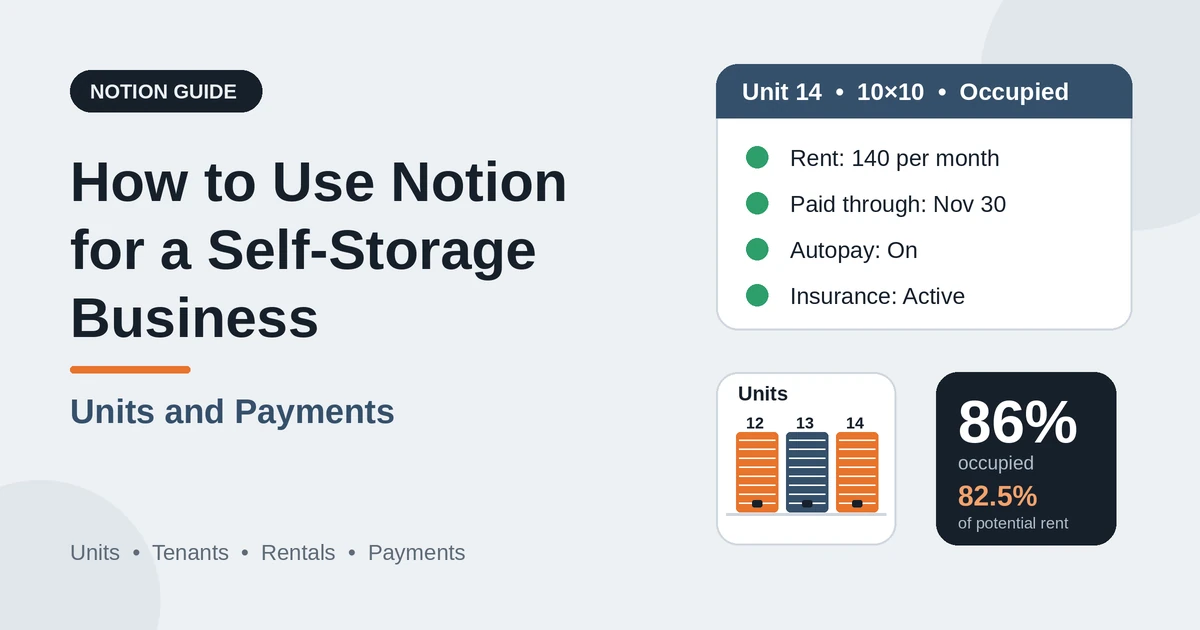
A 10 by 10 unit has 100 square feet, and at a street rate of 140 it’s 1.40 per square foot. Compare rates per square foot across sizes, because smaller units often earn more per square foot than larger ones.
Make these views of Units:
The Available view is the one to open every morning. A unit that has been empty for 60 days is a signal to look at the rate, the condition, the listing, or the promotion.
> 💡 Pro Tip: Set a “Vacant Since” date the moment a unit is cleaned and ready, and not the day the tenant left. You’ll see how long it takes to turn a unit, and where the delay is.
Rates, Promotions, and Vacancy
Rate management is where small facilities find the most money. A few simple records make it visible.
Set a street rate per unit, based on size, type, location, and the local market. Check what nearby facilities charge on a schedule that suits you, and note the date. Record promotions, such as a discounted first month, as a note on the rental, and a reminder to review the rate when the promotion ends.
On Rentals, add a flag for rentals paying well below the street rate, after rolling up the street rate from the unit:
Rate Review Flag: if(prop("Monthly Rent") < prop("Unit Street Rate") 0.8, "Review rate", "")*
It shows rentals paying less than 80% of the current street rate. Change the number to suit you.
Rate increases for existing tenants often have rules about notice, frequency, and size, and your agreement may set them, so check before you raise a rate, and give notice in the way your agreement and local law require.
Be honest and clear in your message, because long-term tenants who feel surprised tend to leave.
Make these views:
Move-In: From Inquiry to Rental
A smooth move-in sets the tone, and a careful one prevents most later problems.
Start with a Lead. When someone asks about a unit, record the size, the date, and how to reach them.
Offer a unit that fits, and set the Unit status to Reserved if you’re holding it, with a date the hold ends. When they decide, create the Tenant and the Rental, and link the unit.
Use a Move-In template as a checklist:
Make sure the agreement is the one your legal adviser reviewed, and give the tenant a copy. Tell them clearly about the paid-through date, the late fees, and what happens if payments stop. Surprises at this stage turn into disputes later.
Rentals and Paid-Through Dates
The most important date on a rental is the date the tenant is paid through. Everything else depends on it.
On Payments, add a helper formula, because a plain rollup can’t filter by status:
Paid Through Date: if(and(prop("Type") == "Rent", prop("Status") == "Paid"), prop("Covers Through"), empty())
On Rentals, roll up Paid Through Date from Payments using the latest date, and call it Paid Through. Then add:
Days Past Due: if(prop("Status") == "Moved Out", 0, max(0, dateBetween(now(), prop("Paid Through"), "days")))
A tenant who’s paid through the 30th, and it’s now the 9th of the next month, is nine days past due. Record each payment with the period it covers, such as the 1st to the 30th.
Partial payments and early payments both show up, because the covered period is what moves the date. For a new rental with no payments yet, set a first Covers Through date when you record the first payment.
Make these views of Rentals:
Late Payments: A Consistent Process
Late payments are the hardest part of the business, and the part where fairness, consistency, and the law matter most. A clear process protects both the tenant and you.
Write your stages from your rental agreement and local law. Then let a formula show which stage a rental has reached. Here is an example, with example numbers. Use the days your agreement and the law allow, and no others.
*Late Stage: ifs( prop("Days Past Due") >= 60, "Escalate: legal review", prop("Days Past Due") >= 30, "Second notice", prop("Days Past Due") >= 10, "Late notice", prop("Days Past Due") >= 1, "Grace period", "Current" )*
Create a view called Late rentals with every rental where the stage is anything other than Current, sorted by days past due, with a column for each notice date.
Record each step as it happens: the date, the method, and what was sent. A friendly call or message in the grace period solves many cases, because people forget, travel, or have a card that expired.
A few principles help:
Keep individual late-payment information restricted to the people who need it.
Move-Out and Turning a Unit
A move-out is the start of the next rental, so the sooner the unit is back on the market, the better.
When a tenant gives notice, record the move-out date on the rental. Follow your agreement on notice periods and on how the final month is charged. Use a Move-Out template as a checklist:
Create a Maintenance record for any repair or clean. When the unit is ready, set its status to Available, and set Vacant Since. If you plan to list the unit at a different rate, update the street rate before the listing goes live.
Ask departing tenants one short question, such as why they’re leaving, and record the answer in a note. After a few months, you’ll see patterns, such as price, moving house, or condition.
Maintenance and Security Incidents
A well-kept facility rents faster and loses fewer tenants, and a documented one is easier to defend if something goes wrong.
Log every repair, leak, pest problem, broken lock, and cleaning in the Maintenance database, linked to the unit. Record the date reported, who reported it, what was done, who did it, and the cost. For inspections, such as a walk of the whole property, record the date and what you found.
Log security incidents too, such as a forced door, a break-in, a tenant complaint, or suspicious activity. Write what happened, the date and time, who was told, and any report number. If tenant belongings may be affected, follow your agreement, your insurance policy, and local law on how and when to notify them. Keep incident records restricted.
Make these views of Maintenance:
If a leak or pest problem could have damaged a tenant’s belongings, record it carefully, tell the tenant promptly, and check your agreement and your insurer. Be factual, and don’t assume or admit fault in the record.
Payments, Fees, and Autopay
Most tenants pay monthly, and many pay by autopay. Write the terms in your agreement, and use Notion to track them.
For each rental, create a Payment record for each charge, with a type, an amount, a due date, and the period it covers. Notion can’t sum only the paid payments with a plain rollup, so use a helper formula on Payments:
Paid Amount: if(prop("Status") == "Paid", prop("Amount"), 0)
Add a late flag:
Late flag: if(prop("Status") == "Due" and dateBetween(now(), prop("Due Date"), "days") > 0, "Late", "")
A view called Payments due shows what’s coming and what’s late.
Payments happen in your payment tool, which may handle autopay, and you update the status in Notion when the money arrives.
Record late fees as a separate Payment of the type Fee, so rent and fees stay apart, and check the limits on late fees where you work.
Record refunds as Payments of the type Refund, with the date. Tax rules differ by country, so check what applies to you, including how storage rent and insurance are treated. Notion Receipt Template shows how to structure a receipt.
Your Business Numbers
A self-storage business has a few numbers worth watching. Here is a made-up month.
| Item | Value |
|---|---|
| Units | 200 |
| Occupied units | 172 |
| Physical occupancy | 86% |
| Average street rate | 140 |
| Gross potential rent (200 × 140) | 28,000 |
| Monthly rent roll | 23,100 |
| Economic occupancy | 82.5% |
| Rent billed | 23,100 |
| Rent collected | 22,000 |
| Collection rate | 95% |
| Move-ins | 14 |
| Move-outs | 10 |
| Net change in occupied units | +4 |
Economic occupancy shows how much of the rent you could earn at street rates you actually collect on the rent roll, so it also reflects discounts and promotions.
The gap between the two is a clue that your existing tenants pay less than new ones, or that you rely on promotions.
To count these, make grouped views with a count or a sum in each group: units by status, rentals by late stage, and payments by month. Divide occupied units by total units for physical occupancy, the rent roll by gross potential rent for economic occupancy, and collected by billed for the collection rate.
Also watch average days vacant, the share of rentals past due, the time it takes to turn a unit, how many tenants stay beyond a year, and where inquiries come from.
A small sample can mislead, so treat these as guides. They leave out insurance, taxes, repairs, financing, and your own time, so check the full figures with an accountant. Test every formula with made-up numbers and check it with a calculator.
A Monday at a Small Storage Facility
To see how the pieces fit, here is one made-up Monday at a facility with about 150 units and one manager.
8:30 am. The manager opens the Available view. Eleven units are empty, and three have been vacant over 45 days. She adds a note to review the rate for two of them.
9:00 am. The Late rentals view shows six rentals. Four are in the grace period, so she sends each a friendly message. One has reached the second notice stage, and she checks the notice dates before sending the next letter.
10:30 am. A walk-in asks about a 10 by 10 unit. She checks the Available view, quotes the street rate, and creates a Reserved status with a hold date.
11:30 am. The Move-In template guides the paperwork: ID verified in her approved process, agreement signed, first month paid, insurance recorded. She sets the unit to Occupied, and arranges access in the gate system.
1:00 pm. A tenant gives notice. She records the move-out date, and sets a reminder for the inspection.
2:30 pm. The Rate review view shows a long-term tenant paying 70% of the street rate. She schedules a rate notice to be sent according to the agreement.
3:30 pm. The Maintenance view shows a roof door that won’t close properly. She assigns a vendor, and sets the unit’s status to Out of Service until it’s fixed.
4:30 pm. She sets a rental’s status to Ready to Generate. The move-in confirmation goes to the tenant as a PDF.
Nothing depended on anyone’s memory.
The Documents That Leave Notion
Tenants don’t use your workspace, so some records need to become files:
For a single page, you can use Notion’s export option. How to Export Notion to PDF shows the settings.
Tenants judge a facility partly by the clarity of its paperwork, and Notion’s own export gives you limited control over layout. How to Add Your Logo and Brand Colors to Notion PDFs explains how a template solves that.
Generating PDFs with PDFOutput
PDFOutput creates documents from your Notion data using a template. A template can be a Google document, a Word file, a PDF file, or a Notion page. If you already have an agreement or notice layout in Word or Google Docs, you can reuse it.
Here is how it works:
These are some of the status options:
The e-signed option may help with rental agreements.
Whether an electronic signature is valid for a given agreement depends on your location and the type of document, and storage agreements can have specific rules, so check before you rely on it. You can save the finished file to a property in your database, so an agreement stays on the rental record. You can also save it to a Google Drive folder and store the link in a property.
Two kinds of document work well.
A move-in confirmation or agreement summary uses the fields on one rental record: the tenant, the unit, the start date, the rent, the billing day, and the insurance status.
A late notice uses the same record: the tenant, the unit, the paid-through date, the days past due, and the amount owed, with your required wording in the template.
If you’d like a document that lists every payment on a rental, test a template with a sample rental that has several, and check that each appears. If it doesn’t, write a short payment summary as text on the rental, and use that in the template.
Before using any document tool with information about your tenants, ask the provider how data is handled, where it’s stored, and what agreements are available, and keep the answers with your records.
The safest approach is to generate documents from records that hold only what the recipient should see. Never put gate codes, lock combinations, or ID details on a document.
For legal notices, make sure the template uses wording reviewed by someone qualified, and check the name and unit number on every document before you send it.
Start with the move-in confirmation, since you’ll send it most often. Use Preview first and check for empty fields, the right tenant, and wording you’re happy for them to keep.
> 📌 Key Takeaway: Give every unit a record and every rental a paid-through date, and let formulas show what’s vacant, what’s late, and what stage each late rental has reached. Then agreements, notices, and reports come from records you already have.
Who Can See What
Your workspace will hold tenants’ details, payment status, and the location of their belongings, so control access tightly.
Common Mistakes
Trusting a stale unit status. A unit marked Occupied that’s empty is lost rent, and one marked Available that’s occupied is a double rental. Update the status the day it changes.
Storing gate codes. Keep codes in your access system, and out of Notion entirely.
Recording a payment without the period it covers. The paid-through date depends on it.
Inconsistent late fees and notices. Apply the same process to every tenant, and record every step.
Skipping the legal review. Lien and sale processes are heavily regulated. Get qualified advice before you act.
Ignoring special protections. Some tenants have legal protections. Check before any enforcement step.
Letting old promotions run forever. A discounted first month that becomes a permanent discount quietly costs money. Use the rate review flag.
Slow unit turns. Set Vacant Since when the unit is ready, and look at how long it takes.
Forgetting the deposit. Record the refund decision and the date, within the time your terms and the law allow.
Treating Notion as an access system. Doors and gates are controlled elsewhere. Notion records what happened.
Too many properties. If a rental record takes twenty minutes to fill in, it won’t get done. Keep the templates short.
No owner for the structure. If more than one person edits the workspace, pick one person responsible for the setup. Properties get renamed and formulas break, so tell that person not to rename properties used in PDF templates, because the placeholders must match exactly.
Skipping a test. Run a month with made-up tenants and units first, and fix what annoys you before you use real records.
Frequently Asked Questions
Can Notion be used to run a self-storage business?
Yes, for a small facility’s records and planning. It can organize leads, units, tenants, rentals, payments, and maintenance. It doesn’t control gates, take payments, run autopay, or send legal notices, so use dedicated tools for those, and consider dedicated storage management software if you grow.
How do I track storage units in Notion?
Create a Units database with one record per door, including the size, type, street rate, status, and the date it became vacant. Use formulas for the area, the rate per square foot, and the days vacant, and make views for available units, units that need attention, and an occupancy map.
How do I track late payments in Notion?
Record each payment with the period it covers, roll up the latest paid-through date on the rental, and calculate the days past due. Use a formula to show the stage of your late process, based on the days your agreement and local law allow, and record the date and method of every notice.
How do I handle move-ins and move-outs in Notion?
Use a checklist template for each. For move-ins, cover ID verification, the signed agreement, payment, insurance, access, and the rules. For move-outs, cover notice, inspection, the deposit decision, and returning the unit to Available with a new Vacant Since date.
How do I calculate occupancy and rent roll in Notion?
Count occupied units and divide by total units for physical occupancy. Add up the monthly rent on active rentals for the rent roll, and divide it by the gross potential rent at street rates for economic occupancy.
Is it safe to store tenant information in Notion?
Notion lets you control who sees each page, but your duties depend on the rules where you work. Collect only what you need, keep gate codes, ID details, and card data out, keep late-payment and security records on restricted pages, and limit access to the people who need it.
Can I create agreements and notices from Notion?
You can export a page as a PDF, or use a template-based tool such as PDFOutput to fill an agreement or notice template with data from each record. Put the key facts in clearly named properties on one record, use wording reviewed by someone qualified for legal documents, test it on a few sample records first, and check each document before you send it.
Related Reading
A good self-storage setup in Notion keeps every door accountable: a record for each unit, a paid-through date for each rental, a clear view of what’s vacant and what’s late, a consistent process for late payments, and a clean turn at every move-out. Keep codes, ID details, and card data out, follow your local rules on notices, fees, and enforcement, and run a month with made-up tenants first. When your agreements, notices, and reports need to leave Notion, PDFOutput can fill your template from each record and save the PDF to your chosen storage.
Want agreements and notices as clean PDFs? Try PDFOutput.