Guides
How to Use Notion for Electricians and Plumbers: Jobs, Quotes, and Invoices
Set up Notion for electricians and plumbers: customers, call-outs, jobs, quotes, materials, invoices, and payments, plus PDF quotes, job sheets, and invoices.
By Sanat Biswal · 2026-10-24 · 5 min read
{/ synced-from-notion — do not edit manually /}
A tradesperson's day is built on interruptions.
A call comes in while you're under a sink. A quote you promised on Monday is still in your head on Thursday. A job finished three weeks ago still hasn't been invoiced, and a customer is asking whether you gave them a warranty.
Most of this lives in WhatsApp chats, paper notebooks, and a phone's call history.
Notion can hold that picture in one place. This guide is for self-employed electricians and plumbers, small contracting firms, and trades teams of any size.
It shows how to set up customers, enquiries, jobs, quotes, materials, invoices, and payments, and how to turn records into PDFs such as quotes, job sheets, and invoices. It also explains what should stay out of Notion.
All of the above information is general information about organizing a trades business, but not to be considered as legal, tax, safety, or accounting advice.
How to Use Notion for Electricians and Plumbers:
In order to use Notion for an electrical or plumbing business, start with building out linked databases for Customers, Enquiries, Jobs, Quotes, Materials, Invoices, and Payments.
Use formulas to flag quotations that haven't had a reply, jobs that are done but not yet invoiced, invoices that are running past overdue, and balances that are still owed. Keep official accounts, tax records, and any compliance documents your trade requires in the systems your regulator expects.
When you need to send a document, such as a quote, job sheet, or invoice, create a PDF from the records.
Notion works well as the coordination workspace for a trades business person.
Each customer, job, quote, and invoice is a record, and the records are linked, so a job shows its quote, the materials used, the invoice, and the payments received. Notion isn't an accounting package, a certification system, or a scheduling app with GPS.
It tracks what was asked for, what was agreed, what was done, and what is owed. For documents that customers receive, you can export a page as a PDF or generate one from a template.
Table of Contents
What Notion Can and Can't Do for a Trades Business
Notion is good for:
- Logging every enquiry and call-out before it is forgotten.
- Keeping customer addresses, site notes, and job history together.
- Tracking quotes from sent to accepted.
- Following jobs from booked to completed.
- Recording materials and costs against each job.
- Seeing which jobs are uninvoiced and which invoices are unpaid.
- Creating consistent quotes, job sheets, and invoices.
- Full accounting, payroll, and tax filing.
- Official safety or compliance certification systems.
- Live GPS tracking and route planning.
- Offline use in basements and plant rooms without signal.
- Stock control with barcode scanning.
- Customers stores people and companies. Add: Name, Phone, Email, Billing Address, Customer Type (Homeowner, Landlord, Business, or Builder), Notes, and Jobs (relation).
- Enquiries stores every incoming request. Add: Enquiry Title, Customer (relation), Date Received, Source (Phone, WhatsApp, Referral, Website, or Repeat), Trade (Electrical, Plumbing, or Both), Urgency (Emergency, This Week, or Flexible), Description, Status (New, Site Visit Booked, Quoted, Won, or Lost), and Reason Lost.
- Jobs stores every piece of work. Add: Job Number, Customer (relation), Site Address, Trade, Description, Status (Booked, In Progress, On Hold, Completed, or Invoiced), Scheduled Date, Assigned To, Completion Date, Quote (relation), Invoice (relation), and Photo Folder Link.
- Quotes stores each quote and its versions. Add: Quote Number, Job (relation), Version, Labour Estimate, Materials Estimate, Total, Sent Date, Valid Until, Status (Draft, Sent, Accepted, Declined, or Expired), and Accepted Date.
- Materials stores items used on jobs. Add: Item, Job (relation), Quantity, Unit Cost, Supplier, Date Purchased, and Charged to Customer (checkbox).
- Invoices stores what you bill. Add: Invoice Number, Job (relation), Issue Date, Due Date, Amount, Status (Draft, Sent, Part Paid, Paid, or Overdue), and Accounting Reference.
- Payments stores money received. Add: Payment Title, Invoice (relation), Amount, Date, Method (Cash, UPI, Bank Transfer, or Card), and Reference.
- New enquiries: everything with status New, urgent ones first.
- Quotes to chase: quoted enquiries with the Chase flag.
- Won and lost: grouped by status, so you can see where jobs come from and why you lose some.
- By source: enquiries grouped by where they came from, to see which channel brings work.
- Awaiting response: quotes with status Sent, oldest first.
- Accepted, not yet scheduled: won work that still needs a date.
- Expired quotes: to update or close.
- Board by status: Booked, In Progress, On Hold, Completed, Invoiced, so the whole business is visible.
- This week: a calendar of scheduled jobs.
- By person: jobs grouped by who is assigned, to balance work between vans.
- Completed, not invoiced: jobs with the Not invoiced flag.
- On hold: jobs waiting for parts, access, or a customer decision.
- Materials by job: everything bought for one job.
- Not charged yet: materials with the checkbox unticked, so extras reach the invoice.
- By supplier: purchases grouped by supplier, to check against statements.
- Unpaid invoices: sorted by due date.
- Overdue: invoices with the Overdue flag, largest first.
- Paid this month: a simple record of money in.
- Deposits pending: accepted quotes where the deposit hasn't arrived.
- Quotes: scope, price, exclusions, and validity, for the customer
- Job confirmations: date, address, scope, and any deposit required
- Job sheets: instructions, materials, and checklist for the technician on site
- Completion sheets: what was done, what was used, and the customer's sign-off
- Invoices and statements: amounts, due dates, and what has been paid
- Payment receipts: a simple record of money received
- Variation notes: a record of extra work agreed during a job
- Maintenance reminders: service due dates for repeat customers
- Landlord or builder summaries: a list of jobs and amounts for an account customer
- Monthly business reports: jobs, revenue, and outstanding balances, for the owner. Notion to Excel helps if your accountant wants the numbers in a spreadsheet.
- Create your template with your business name, logo, and layout.
- Add placeholders in double curly braces where the data should go, such as
{{Customer_Name}},{{Quote_Number}},{{Site_Address}}, and{{Total}}. - Make sure each placeholder matches the name of a Notion property.
- Start the document with a Notion database button or a status property.
- Ready to Generate creates a PDF from the database record.
- Generate Page converts the Notion page into a PDF.
- Generate PDF and Doc creates a PDF and a Google document.
- Preview creates a Google document so you can check it before making the final PDF.
- Generate E-Signed Doc creates an e-signed PDF in the database workflow.
- Give technicians access to their own jobs, addresses, and job sheets, without prices and margins.
- Keep quotes, invoices, and payments limited to the owner, the office, and whoever handles accounts.
- Keep access codes and key locations out of Notion, or limited to the people who need them.
- Don't invite customers into the workspace as a shortcut. Send them finished PDFs.
- If a subcontractor needs to see a job, use a separate page for that job, and not just a filtered view. Filters change what people see, and they are not a security boundary.
- Write down your rules about what may and may not be stored in Notion, and make sure every new team member, including apprentices and subcontractors, reads them.
- Remove access on the day someone leaves.
- Review who has access every few months.
- Archive old jobs following your record-keeping requirements.
- How to Use Notion for a Print Shop
- How to Use Notion for an Architecture Firm
- How to Export a Notion Database to PDF
- How to Add Your Logo and Brand Colors to Notion PDFs
Notion is not made for:
If you already use accounting software, a job management app, or a certification platform, treat Notion as the coordination layer besides it.
Official invoices and tax records stay in your accounting system, and compliance paperwork stays where your regulator expects it. Notion tracks the work and the decisions around them.
Customer Data and Compliance Records: Draw the Line First
A trades business holds customer names, home addresses, phone numbers, and sometimes details such as alarm codes, key locations, or when a house is empty.
It may also produce safety-critical records. Before you build anything, decide what will and won't live in Notion.
| Usually a good fit | Usually a poor fit |
|---|---|
| Customer names, phones, and site addresses | Alarm codes, key safe codes, or passwords |
| Job descriptions, dates, and status | Official certificates your trade must file with a scheme or authority |
| Quote amounts and acceptance dates | Bank details, card numbers, and ID documents |
| Materials used and costs | Tax filings and the official accounting ledger |
| Invoice status and payments received | Photos that show a customer's valuables or security setup |
Tax rules decide how invoices and records must be kept. Your insurer may expect certain records to be kept in a certain way. Check which apply to you, and ask a professional or your trade body if you're not sure. If you can't get a clear yes for a type of information, keep it out of Notion.
Two design rules keep most businesses safe.
First, link, don't store. The job record holds a link to the certificate, photo folder, or test report in the place where it is officially kept, and not a copy.
Second, record decisions, not just files. What matters in a dispute is what was quoted, what the customer accepted, what was changed, and when. Notion can hold that clearly.
While you are testing, use made-up customers only.
Use of 7 Databases
Start with these 7 databases. You can add more later.
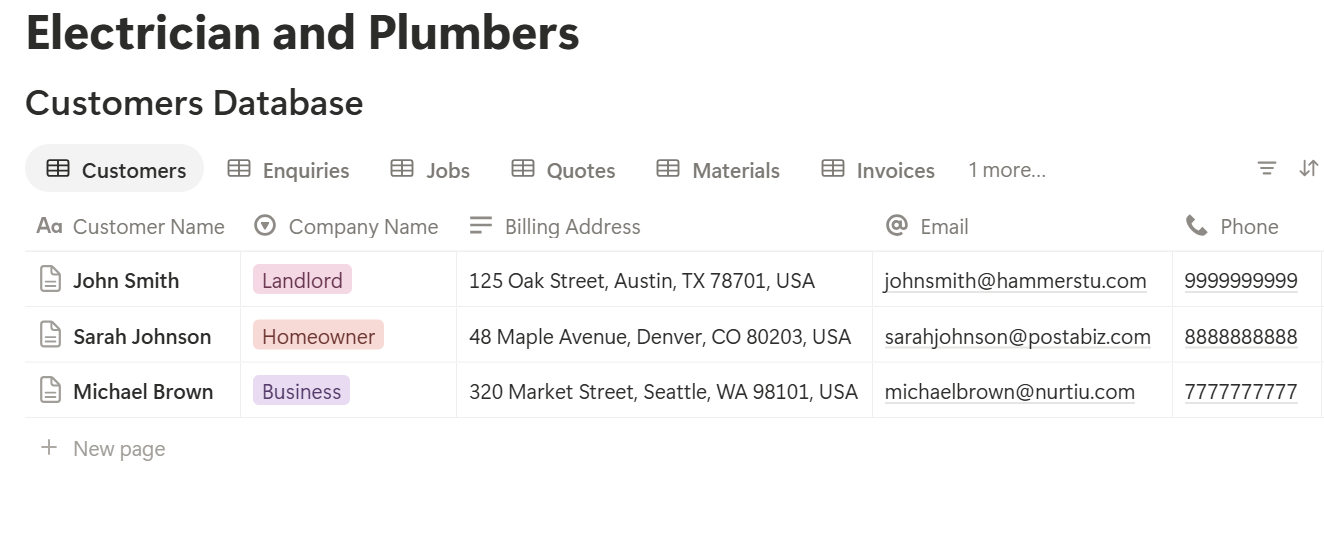
A relation connects a record in one database to a record in another.
Link Jobs to Customers and Quotes, Materials to Jobs, and Invoices and Payments to the job and invoice. Now a customer page shows every job you have done for them, and a job page shows its quote, its materials, its invoice, and the payments against it.
Enquiries and Customers
Work you lose is often work you forgot to follow up. An Enquiries database stops that.
Log every enquiry the moment it arrives, even a two-line WhatsApp message. Record who it is, what they want, how urgent it is, and what happens next. Then add a formula:
*Days Since: dateBetween(now(), prop("Date Received"), "days") Follow-up Flag: if(prop("Status") == "New" and prop("Days Since") >= 1, "Reply today", if(prop("Status") == "Quoted" and prop("Days Since") >= 5, "Chase quote", ""))*
The flag shows Reply today for an enquiry nobody has answered, and Chase quote for a quote that has been waiting five days. Adjust the numbers to suit how you work.
Make these views:
When an enquiry becomes work, change its status to Won and create the Job from it. Keep the customer's page updated with site notes that help next time, such as where the stopcock or consumer unit is. Keep codes and sensitive access details out.
Quotes That Get Answered
A quote is a promise with a price on it. A clear record makes sure you do what you said, and charge what you said.
For each job, create a Quote record with the labour and materials estimates, the total, the date sent, and how long it is valid. Then add:
*Total: prop("Labour Estimate") + prop("Materials Estimate") Expiry Flag: if(prop("Status") == "Sent" and prop("Valid Until") < now(), "Expired", "")*
If the customer asks for changes, create a new version instead of overwriting the old one. Version 2 of a quote with the scope changes written down is useful when a customer later says, "I thought that was included."
Record acceptance clearly. When the customer says yes, note the date and how they said it, and attach the message or screenshot. For larger jobs, get a written or signed acceptance.
Make these views:
Add a clear "Not included" line to every quote, such as making good, decorating, or permits. Many disputes are about what was assumed.
> 💡 Pro Tip: Log the quote at the end of the site visit, while you're still in the van. A quote written from memory next week is the one with the missing item.
The Jobs Database
Jobs are the center of the system. Every quote, material, invoice, and payment links back to a job.
Add these formulas:
*Days to Schedule: dateBetween(prop("Scheduled Date"), now(), "days") Schedule Flag: if(prop("Status") == "Booked" and prop("Days to Schedule") < 0, "Missed date", if(prop("Status") == "Booked" and prop("Days to Schedule") <= 1, "Due soon", "")) Invoice Flag: if(prop("Status") == "Completed" and empty(prop("Invoice")), "Not invoiced", "")*
The Invoice Flag is the most valuable one. It lists jobs you finished but never billed, and in a busy trades business there are usually more of them than you'd expect.
Make these views:
Make a job template with a checklist that matches your work: confirm access, check materials on the van, take before photos, complete work, test, take after photos, tidy up, get the customer's sign-off. For safety-related work, add a line to remind you to complete the official certificate or test record in the system your trade requires, and link to it. The checklist is a reminder, and not a substitute for your training or the rules that apply to you.
Add photos by link to a folder, and not by uploading large files. Before-and-after photos are useful evidence if a customer disputes the work later.
Materials and Costs
A job can be busy and still lose money, because small material costs get forgotten. A Materials database makes them visible.
When you buy parts for a job, add a record with the item, quantity, unit cost, supplier, and date. Link it to the job. Then add:
Line Cost: prop("Quantity") prop("Unit Cost")*
On Jobs, add rollups for Materials Cost (the sum of Line Cost) and compare it with the Materials Estimate on the quote:
*Materials Variance: prop("Materials Cost") - prop("Materials Estimate") Cost Flag: if(prop("Materials Variance") > 0, "Over estimate", "")*
Here is a made-up job:
| Item | Value |
|---|---|
| Quote total | 450 |
| Labour estimate | 300 |
| Materials estimate | 150 |
| Materials cost | 195 |
| Materials variance | +45 |
That is a prompt, and not a verdict. Perhaps the customer asked for extra fittings, in which case you should add them to the invoice with a note. Perhaps the quote was too low, which tells you how to price next time.
Notion won't count your stock for you. For a van stock list, keep a simple page of the main items and a reorder note, or use a dedicated inventory app if stock is a big part of your costs.
Make these views:
Invoices and Payments
The job isn't finished until the money arrives. The Invoices and Payments databases keep the end of the job as visible as the start.
Create an Invoice record for each job, with the amount, issue date, and due date. Record each payment against the invoice. Then add:
*Amount Paid: sum of linked Payments Balance: prop("Amount") - prop("Amount Paid") Overdue Flag: if(prop("Balance") > 0 and prop("Due Date") < now(), "Overdue", "") Days Overdue: if(prop("Overdue Flag") == "Overdue", dateBetween(now(), prop("Due Date"), "days"), 0)*
Here is a made-up invoice:
| Item | Value |
|---|---|
| Invoice amount | 645 |
| Deposit received | 200 |
| Paid on completion | 245 |
| Amount paid | 445 |
| Balance | 200 |
Make these views:
Notion gives you the picture and the prompts. Your accounting software issues official invoices, handles tax, and keeps the legal record, so match the two regularly. Put your accounting reference in each Invoice record to make that easy.
Recurring Work and Maintenance Reminders
Repeat customers are the most profitable work you have. Notion can remind you to ask for it.
Add a Next Service Date property to Jobs for work that repeats, such as boiler servicing, smoke alarm checks, or periodic testing, where your trade or your customer's insurance calls for it. Check which intervals apply to your work. Then add:
Service Flag: if(prop("Next Service Date") != empty() and dateBetween(prop("Next Service Date"), now(), "days") <= 30, "Service due", "")
Make a view called Service due this month. Contact each customer before the date, using a short message and a booking link. A reminder that arrives before the customer remembers feels like service, and it fills your calendar in quiet weeks.
Add a Warranty Until date to completed jobs, so you can answer a callback quickly. If a customer calls about work from last year, one search shows what you did, what you used, and what you told them.
A Day for a Small Two-Van Business
To see how the pieces fit, here is one made-up day.
7:30 am. The owner opens the This week calendar. Two jobs are booked today, one per van. The Missed date flag shows a job that slipped from yesterday, so she calls the customer and moves it.
9:00 am. A call comes in about a leaking pipe. She logs an Enquiry with the urgency set to Emergency, books a site visit, and sends a van.
11:00 am. The Quotes to chase view shows a quote that has been waiting six days. She sends a short message and notes it on the record.
1:00 pm. After the site visit, she creates a quote with labour, materials, and a Not included line. She uses Preview to generate the quote PDF, checks it, and sends it to the customer.
3:30 pm. The other van finishes a job. The technician ticks off the checklist, adds the materials, and links the certificate stored in the official system. The Invoice Flag appears.
4:30 pm. She creates the invoice from the job, generates the PDF, and sends it. The Completed, not invoiced view is empty.
5:00 pm. The Overdue view shows one invoice 10 days late. She sends a reminder, and logs a payment that arrived this morning.
No certificates were stored in Notion, and no finished job went unbilled.
The Documents That Leave Notion
Customers, builders, landlords, and suppliers don't use your workspace, so many records need to become files:
For a single page, you can use Notion's export option. How to Export Notion to PDF shows the settings, and How to Export a Notion Database to PDF helps with tables, such as a statement of jobs.
Customers judge a tradesperson by their paperwork, and Notion's own export gives you limited control over layout, fonts, and logos. How to Add Your Logo and Brand Colors to Notion PDFs explains how a template solves that.
Generating PDFs with PDFOutput
PDFOutput creates documents from your Notion data using a template.
A template can be a Google document, a Word file, a PDF file, or a Notion page. If you already have a quote or invoice layout in Word or Google Docs, you can reuse it.
Here is how it works:
These are some of the status options:
The e-signed option can help with quote acceptance and job completion sign-offs, so the customer's agreement is attached to the job. Whether an electronic signature is valid for a given document depends on your location and the document, so check before you rely on it. You can save the finished file to a property in your database, so the invoice stays on its Invoice record. You can also save it to a Google Drive folder and store the link in a property.
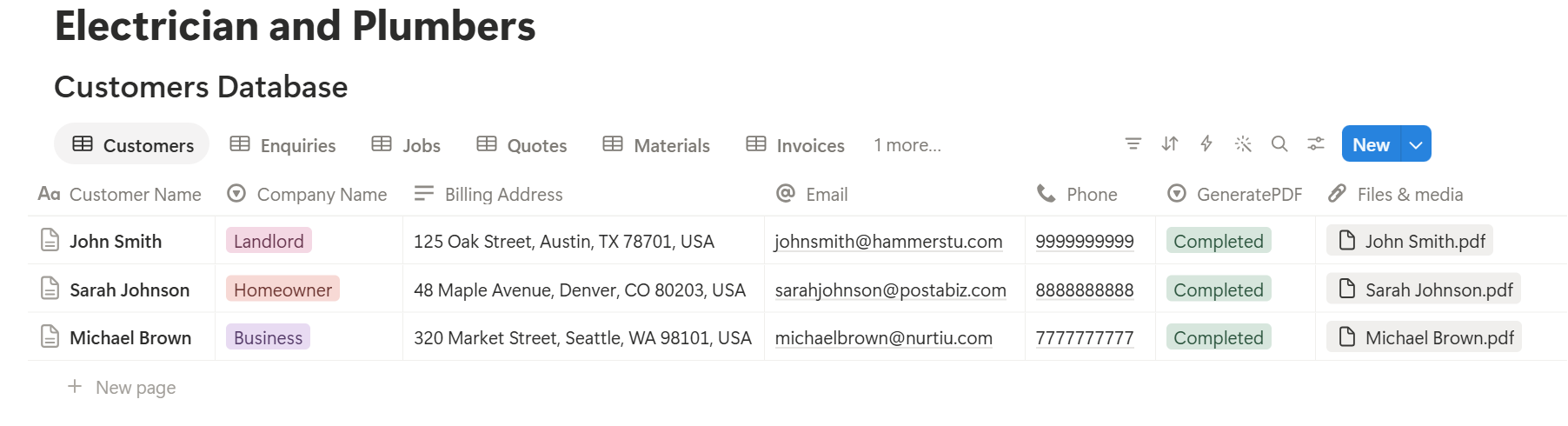
A quote or invoice often lists several lines, such as separate materials and labour items, and each line may be its own linked record. Before you rely on a template to list them all, test it with a job that has many materials, and check that every line shows the right item, quantity, and cost. If it doesn't, a simple fallback is to keep a short text list of the line items on the Quote or Invoice record, and use that in the template.
Always use Preview before sending a document that a customer will rely on. Check the name, address, scope, amounts, and dates, because a quote or invoice is a record as well as a message. Keep a copy of every document you send.
Before using any document tool with customer information, ask the provider how data is handled, where it's stored, and what agreements are available, and keep the answers with your records. Generate documents only from the fields they need.
> 📌 Key Takeaway: Keep the official records where your trade requires them, and keep the decisions in Notion: what was asked, what was quoted, what was agreed, what was done, and what was paid. When the quote, the job sheet, and the invoice all come from the same job record, they can't disagree.
Who Can See What
A trades workspace holds customer addresses, prices, and sometimes security details, and not everyone needs all of it.
Common Mistakes
Storing certificates only in Notion. Official certificates and test records belong where your trade requires. Link to them.
Forgetting to log small enquiries. The two-line message you didn't write down is the job you lost.
Overwriting quotes. Create a new version when the scope changes, so you can show what was agreed.
Leaving the "Not included" line off quotes. Many disputes start with an assumption.
Not recording extra work. If a customer asks for more on site, log it as a variation and put it on the invoice.
Forgetting materials. Add parts as you buy them, and use the Not charged yet view before you invoice.
Letting finished jobs sit uninvoiced. Check the Not invoiced view every day.
Treating Notion as your accounting system. Use it for prompts and balances, and keep official invoices and tax records in your accounting software.
Storing access codes. Keep alarm codes, key safe numbers, and passwords out of Notion.
Sharing a live Notion link. A link can show other fields or change after you send it. Send a PDF.
No owner for the structure. Pick one person responsible for the setup. Properties get renamed and formulas break, so tell that person not to rename properties used in PDF templates, because the placeholders must match exactly.
Skipping a test. Run a few made-up jobs first, and fix what annoys the team before you use real customers.
Frequently Asked Questions
Can Notion be used for electricians and plumbers?
Yes, for coordination work such as enquiries, jobs, quotes, materials, invoice tracking, and follow-ups. It isn't an accounting package or a certification system, so keep official invoices, tax records, and compliance documents where the rules require them.
How do I track jobs in Notion?
Create a Jobs database with a number, customer, site address, trade, status, scheduled date, and assigned person. Add a board grouped by status, a calendar by date, and a flag for completed jobs that have no invoice.
How do I write and track quotes in Notion?
Create a Quotes database linked to Jobs, with the labour and materials estimates, total, sent date, validity, and status. Create a new version when the scope changes, record the acceptance date, and use a flag to chase quotes that have waited too long.
How do I make sure I invoice every job?
Add a formula to Jobs that flags any job with status Completed and no linked invoice, and keep a view called Completed, not invoiced. Check it at the end of every day.
Can Notion handle invoices and payments?
It can track invoice status, due dates, and payments received, and flag overdue balances. Issue official invoices and keep tax records in your accounting software, and match the two regularly.
Can I create quotes, job sheets, and invoices from Notion?
Yes. You can export a page as a PDF, or use a template-based tool such as PDFOutput to fill a quote, job sheet, or invoice design with data from each record. Test it with a job that has many line items, and use Preview before you send anything.
Is it safe to keep customer details in Notion?
Keep names, phone numbers, and site addresses to what you need, and keep access codes, bank details, and ID documents out. Limit who can see prices and customer data, and follow the data protection rules that apply where you work.
Related Reading
Conclusion
The best Notion setup for electricians and plumbers is a simple job desk: enquiries that never go unanswered, quotes that get chased, jobs that move across a board, materials that reach the invoice, and payments that don't slip. Keep official records where your trade requires them, record the decisions in Notion, and test with a few made-up jobs before you use real ones.
When it is time to send a quote, a job sheet, or an invoice, PDFOutput can fill your branded template from the records and save the PDF back to them.
Want clean quotes, job sheets, and invoices straight from Notion? Try PDFOutput.