Guides
How to Use Notion for a Print Shop: Orders, Proofs, and Delivery
Set up Notion for a print shop: customers, quotes, orders, proofs, production, delivery, and payments, plus PDF job tickets, proofs, and delivery notes.
By Sanat Biswal · 2026-10-23 · 5 min read
{/ synced-from-notion — do not edit manually /}
A print shop runs on small details that have to be right.
A customer's business cards are on proof version two, but the customer approved version one by WhatsApp. A banner is due at 5 pm, the vinyl hasn't been cut, and the delivery boy doesn't know the address. A job is 100% printed and 0% paid.
Most of this lives in paper job tickets, chat threads, and the memory of whoever took the order.
Notion can hold that picture in one place. This guide is for print shops, copy centers, signage makers, and small production studios. It shows how to set up customers, quotes, orders, proofs, production, delivery, and payments, and how to turn records into PDFs such as quotes, job tickets, proofs, and delivery notes. It also explains what should stay out of Notion. It is general information about organizing a shop, not legal, tax, or accounting advice.
Detailed Guide on How to use Notion for Print Shop:
To use Notion for a print shop, build linked databases for Customers, Products, Orders, Proofs, Production Tasks, Deliveries, and Payments.
Use formulas to flag late orders, jobs missing approved proofs, unpaid deliveries, and balances due. Keep large print-ready files in cloud storage and your official invoices in your accounting software.
When you need to send a document, such as a quote, proof, job ticket, or delivery note, create a PDF from the records.
In more detail:
Notion works well as the coordination workspace for a print shop. Each customer, order, proof, and delivery is a record, and the records are linked, so an order shows its proofs, its production status, and its payment in one place.
Notion isn't a design tool, a file server, or a full accounting system. It tracks what was ordered, what state it is in, and what was agreed. For documents that customers and drivers receive, you can export a page as a PDF or generate one from a template.
Table of Contents
What Notion Can and Can't Do for a Print Shop
Notion is good for:
- Keeping customer details and order history together.
- Recording every order with specs, quantity, due date, and status.
- Tracking each proof version to an approval.
- Following jobs through printing, cutting, finishing, and packing.
- Planning deliveries and pickups.
- Seeing which jobs are unpaid or part-paid.
- Creating consistent quotes, job tickets, proofs, and delivery notes.
- Designing artwork or preparing print files.
- Storing large print-ready files, such as high-resolution PDFs and images.
- Full accounting, tax filing, and GST or VAT invoicing.
- Machine-level print queue and RIP management.
- Live inventory control with barcode scanning.
- Customers stores people and companies. Add: Name, Company, Phone, Email, Billing Address, Delivery Address, Customer Type (Walk-in, Regular, or Corporate), and Orders (relation).
- Products stores your price list and specs. Add: Product Name, Category (Cards, Flyers, Banners, Books, Stickers, or Other), Material, Standard Size, Unit Price, Minimum Quantity, and Turnaround Days.
- Orders stores every job from quote to delivery. Add: Order Number, Customer (relation), Product (relation), Quantity, Specs, Status (Quote, Awaiting Files, Proofing, Approved, In Production, Ready, Delivered, or Closed), Priority (Normal or Rush), Order Date, Due Date, Total Price, Advance Received, File Link, and Fulfillment (Pickup, Local Delivery, or Courier).
- Proofs stores each proof version. Add: Proof Title, Order (relation), Version, Proof File, Status (Draft, Sent, Changes Requested, or Approved), Sent Date, Approved Date, Approved By, and Customer Feedback.
- Production Tasks stores the steps for each job. Add: Task, Order (relation), Station (Digital Press, Large Format, Cutting, Binding, or Packing), Assigned To, Status (To Do, In Progress, or Done), and Due Date.
- Deliveries stores each handover. Add: Delivery Title, Order (relation), Type, Address, Driver or Courier, Tracking Number, Scheduled Date, Delivered Date, and Receipt Photo.
- Payments stores money received. Add: Payment Title, Order (relation), Amount, Date, Method (Cash, UPI, Bank Transfer, or Card), and Reference.
- Regulars: customers with several orders, for follow-up and offers.
- Corporate accounts: customers who are billed on credit.
- Recent customers: added in the last 30 days.
- Order board: a board grouped by status, so the whole shop can see where every job stands.
- Due today and tomorrow: orders with a Due flag, sorted by due date.
- Rush jobs: orders with Priority set to Rush.
- Awaiting files: orders that can't move forward until the customer sends artwork.
- By customer: orders grouped by customer, for account reviews.
- Awaiting approval: proofs with the status Sent, sorted by date.
- Changes requested: proofs the designer needs to revise.
- Approved this week: proofs ready to move to production.
- Proof history by order: all versions of one job, in order.
- By station: tasks grouped by machine or station, so each operator sees their queue.
- My tasks: tasks assigned to the current person.
- Blocked or late: tasks past their due date.
- Ready for packing: orders where every printing and finishing task is done.
- Today's deliveries: scheduled today, grouped by driver.
- Awaiting pickup: ready jobs the customer hasn't collected, sorted by how long they've waited.
- Out for delivery: jobs on the road.
- Delivered, unpaid: completed jobs with a balance due.
- Collect payment: delivered orders with a balance.
- Advance pending: new orders where the advance hasn't arrived, so you don't start work unpaid.
- Payments this week: a simple record of money in.
- Quotes: product, quantity, price, and validity, for the customer
- Order confirmations: specs, due date, and advance received
- Job tickets: specs, quantity, and instructions for the production floor
- Proof sheets: the proof, version number, and an approval line for the customer
- Delivery notes: what was delivered, to whom, and on what date, with a signature line
- Pickup slips: a ready-for-collection note with the order number and balance due
- Payment receipts: a simple record of money received
- Statements for corporate customers: open orders and balances
- Daily production sheets: the day's jobs, grouped by station
- Monthly shop reports: orders, revenue, and outstanding balances, for the owner. Notion to Excel helps if your accountant wants the numbers in a spreadsheet.
- Create your template with your shop's name, logo, and layout.
- Add placeholders in double curly braces where the data should go, such as
{{Order_Number}},{{Customer_Name}},{{Quantity}}, and{{Due_Date}}. - Make sure each placeholder matches the name of a Notion property.
- Start the document with a Notion database button or a status property.
- Ready to Generate creates a PDF from the database record.
- Generate Page converts the Notion page into a PDF.
- Generate PDF and Doc creates a PDF and a Google document.
- Preview creates a Google document so you can check it before making the final PDF.
- Generate E-Signed Doc creates an e-signed PDF in the database workflow.
- Give the production team access to job tickets, tasks, and schedules, without prices or margins.
- Keep pricing, payments, and customer balances limited to the owner, the front desk, and the person who handles accounts.
- Keep customer files under an NDA limited to the people working on that job.
- Don't invite customers into the workspace as a shortcut. Send them finished PDFs.
- If an outside freelancer, such as a designer, needs to see a job, use a separate page for that job, and not just a filtered view. Filters change what people see, and they are not a security boundary.
- Write down your rules about what may and may not be stored in Notion, and make sure every new team member reads them.
- Remove access on the day someone leaves.
- Review who has access every few months.
- Archive completed orders following your record-keeping requirements.
- How to Use Notion for an Architecture Firm
- How to Use Notion for a Manufacturing Business
- How to Export a Notion Database to PDF
- How to Add Your Logo and Brand Colors to Notion PDFs
Notion is not made for:
If you already use accounting software or a print MIS, treat Notion as the coordination layer beside it. Files live in cloud storage, official invoices live in your accounting system, and Notion tracks the work and the decisions around them.
Customer Data and Files: Draw the Line First
A print shop holds customer contact details, unreleased designs, and sometimes confidential material such as product launches, tenders, or exam papers. Before you build anything, decide what will and won't live in Notion.
| Usually a good fit | Usually a poor fit |
|---|---|
| Order numbers, specs, quantities, and due dates | Large print-ready files and image folders |
| Proof versions, approval dates, and feedback | Confidential documents under an NDA, such as exam papers or unreleased products |
| Delivery addresses, drivers, and dates | Customer ID documents, bank details, or card numbers |
| Payment status, advance received, and balance due | Tax filings and official ledgers |
| Production steps, machine, and assignee | Anything you couldn't explain if a customer asked where it was stored |
Tax rules decide how invoices and records must be kept. Check which apply to your shop, and ask a professional if you're unsure. If you can't get a clear yes for a type of information, keep it out of Notion.
Two design rules keep most shops safe.
First, link, don't store. Each order holds a link to the print-ready file in your cloud storage, not a copy.
Second, record decisions, not just files. What matters in a reprint dispute is who approved which proof version, on what date, and Notion can hold that clearly.
While you are testing, use made-up customers only.
Use of The 7 Databases
Start with these 7 databases. You can add more later.
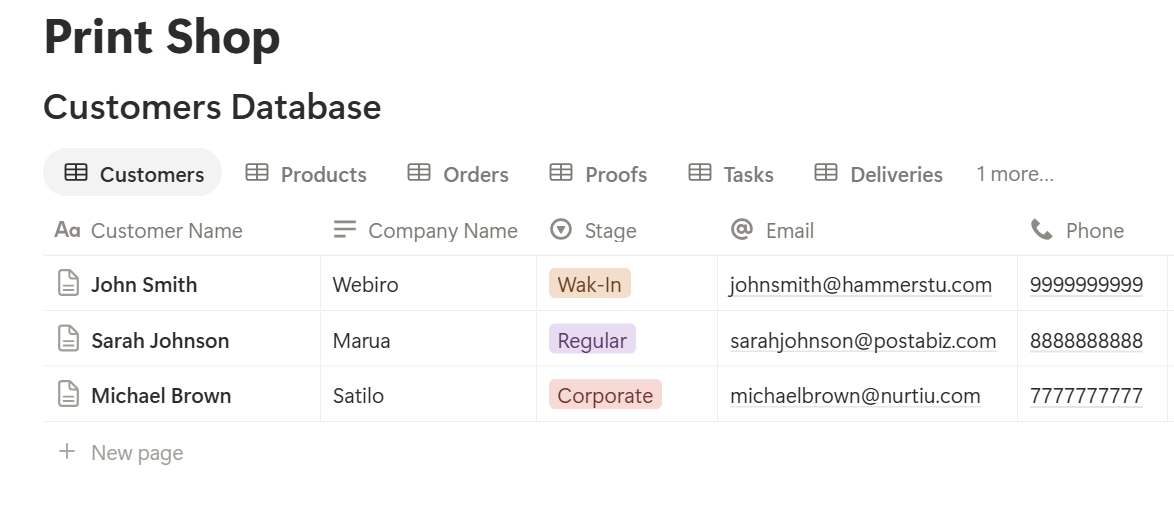
A relation connects a record in one database to a record in another. Link Orders to Customers and Products, and Proofs, Tasks, Deliveries, and Payments to Orders. Now an order page shows its proofs, its production steps, its delivery, and every payment received, and a customer page shows their complete history, which makes reorders quick.
Customers, Products, and Quotes
Repeat business is the backbone of a print shop, so your customer and product data should save time on every job.
On Products, enter your standard items with their materials, sizes, and prices. When a customer asks for 500 flyers, you pick the product and the price is ready. For each customer, keep their usual specs in the page notes, such as preferred paper or a brand color reference, so a reorder is a few clicks.
A quote is simply an order with the status Quote. When the customer says yes, change the status and the same record carries through the whole job, so nothing is retyped. Add a formula for the total:
Total Price: prop("Quantity") prop("Unit Price") + prop("Setup Fee")*
If a customer asks for a change after the quote, update the order and note the change in the page, so the price and the specs never disagree.
Make these views on Customers:
Create an order template with a built-in checklist: confirm specs, collect the file, check bleed and resolution, send the proof, collect the advance. Duplicate it for every new job.
The Orders Database
The Orders database is the heart of the system. Every other database links back to it.
Add these formulas:
*Balance Due: prop("Total Price") - prop("Amount Paid") Days to Due: dateBetween(prop("Due Date"), now(), "days") Due Flag: if(prop("Status") != "Delivered" and prop("Status") != "Closed" and prop("Days to Due") < 0, "Overdue", if(prop("Status") != "Delivered" and prop("Status") != "Closed" and prop("Days to Due") <= 1, "Due soon", "")) Proof Flag: if(prop("Status") == "In Production" and prop("Latest Proof Status") != "Approved", "No approved proof", "")*
Amount Paid is a rollup of the Payments linked to the order, and Latest Proof Status is a rollup from the Proofs database. The Due Flag shows Due soon within a day of the due date and Overdue after it. The Proof Flag catches the most expensive mistake in a print shop, a job that went to press without an approved proof. It is a reminder, and not a substitute for your own checks.
Make these views:
Use a Calendar view by Due Date to spot overloaded days before they happen.
Proofs: Approval Before Production
Proof approval is where most reprints are born. A customer says "I never approved that spelling," and without a record the shop pays for the job.
Give proofs their own database, and keep every version. Never overwrite version one with version two. For each proof, record the version, the file, the date sent, the status, and the customer's feedback. When the customer approves, record who approved, on what date, and by what channel, and paste the message or attach a screenshot.
Then add:
*Days Waiting: if(prop("Status") == "Sent", dateBetween(now(), prop("Sent Date"), "days"), 0) Proof Chase: if(prop("Status") == "Sent" and prop("Days Waiting") >= 2, "Chase customer", "")*
The flag shows Chase customer when a proof has waited two days without a reply. A short follow-up is cheaper than a late job.
Set one firm rule for the team: no order moves to In Production until its latest proof is Approved. The Proof Flag on the order is there to enforce it. For simple repeat jobs, you may choose a faster approval route, but write it down so everyone follows the same one.
Make these views:
> 💡 Pro Tip: Put the approval on the proof the moment you receive it, not at the end of the day. A screenshot saved straight away is worth more than a memory later.
Production Tracking
Once the proof is approved, the job moves to the shop floor. Create a Production Tasks record for each step, such as printing, laminating, cutting, binding, and packing, and link it to the order.
Add a formula to the Orders database to show progress:
Tasks Done: prop("Tasks Completed") / prop("Tasks Total")
Tasks Total and Tasks Completed are rollups of the linked tasks. Format Tasks Done as a percent. An order with five tasks and three done shows 60%.
Make these views:
If you track materials, add a simple Inventory database with paper, vinyl, and ink, linked to Orders. Even a basic reorder-level flag stops a job from stalling because the stock ran out:
Reorder Flag: if(prop("In Stock") <= prop("Reorder Level"), "Reorder", "")
Notion won't count stock automatically as you use it, so update quantities on a regular schedule, or keep inventory in a dedicated system.
Delivery and Pickup
A finished job still has to reach the customer, and this is where small shops lose time and goodwill.
For each order, create a Deliveries record with the type, address, driver or courier, scheduled date, and tracking number. For pickups, the record is simply a promise: the job is ready and waiting. For deliveries, add a receipt photo link after the handover as proof the job arrived.
Make these views:
Add a flag for ready jobs that have waited too long:
Pickup Flag: if(prop("Status") == "Ready" and dateBetween(now(), prop("Ready Date"), "days") >= 3, "Call customer", "")
A call to the customer after three days of waiting clears your shelf and gets the job paid. For couriers, keep the tracking number in the record so you can answer "where is my order?" in seconds.
Payments and Balances
A print shop can be busy and still be short of cash, because jobs go out before the money comes in. The Payments database makes the gap visible.
Record every payment against its order: the amount, date, method, and reference. Then use rollups and formulas on Orders:
*Amount Paid: sum of linked Payments Balance Due: prop("Total Price") - prop("Amount Paid") Payment Status: if(prop("Balance Due") <= 0, "Paid", if(prop("Amount Paid") > 0, "Part paid", "Unpaid")) Payment Flag: if(prop("Status") == "Delivered" and prop("Balance Due") > 0, "Collect payment", "")*
Here is a made-up order:
| Item | Value |
|---|---|
| Order | 500 brochures |
| Total price | 18,000 |
| Advance received | 6,000 |
| Paid on delivery | 8,000 |
| Amount paid | 14,000 |
| Balance due | 4,000 |
Make these views:
Notion gives you the picture and the prompts. Your accounting software issues invoices and keeps the official figures, so match them regularly.
A Day at a Small Print Shop
To see how the pieces fit, here is one made-up day.
9:00 am. The owner opens the Order board. The Due today view shows two orders with the Due soon flag and one marked Overdue. She asks the press operator to start the overdue one first.
9:30 am. A proof has waited three days, and the Chase customer flag has appeared. She sends a short WhatsApp message and notes the time on the record.
10:30 am. A walk-in customer asks for 1,000 flyers. She picks the product, enters the quantity, and the quote total appears. The customer agrees, pays an advance, and she logs the payment and changes the status to Awaiting Files.
12:00 pm. The customer's file arrives. The designer prepares a proof, attaches it as version one, and sets the status to Sent.
2:00 pm. An approval arrives for another job. She saves the screenshot to the proof, marks it Approved, and the order is cleared for production. The Proof Flag disappears.
4:00 pm. The Today's deliveries view lists three jobs. She uses Preview to generate delivery notes, checks them, and hands them to the driver.
5:30 pm. The Collect payment view shows one delivered order with 4,000 outstanding. She calls the customer, and logs the payment when it arrives.
No large files were stored in Notion, and every approval was recorded.
The Documents That Leave Notion
Customers, drivers, and suppliers don't use your workspace, so many records need to become files:
For a single page, you can use Notion's export option. How to Export Notion to PDF shows the settings, and How to Export a Notion Database to PDF helps with tables, such as a day's delivery list. Customers judge a print shop by its documents, and Notion's own export gives you limited control over layout, fonts, and logos. How to Add Your Logo and Brand Colors to Notion PDFs explains how a template solves that.
Generating PDFs with PDFOutput
PDFOutput creates documents from your Notion data using a template. A template can be a Google document, a Word file, a PDF file, or a Notion page. If you already have a quote or job ticket layout in Word or Google Docs, you can reuse it.
Here is how it works:
These are some of the status options:
The e-signed option can help with proof approvals and quote acceptance, so the customer's sign-off is attached to the order. Whether an electronic signature is valid for a given document depends on your location and your contract, so check before you rely on it. You can save the finished file to a property in your database, so the delivery note stays on its Order record. You can also save it to a Google Drive folder and store the link in a property.
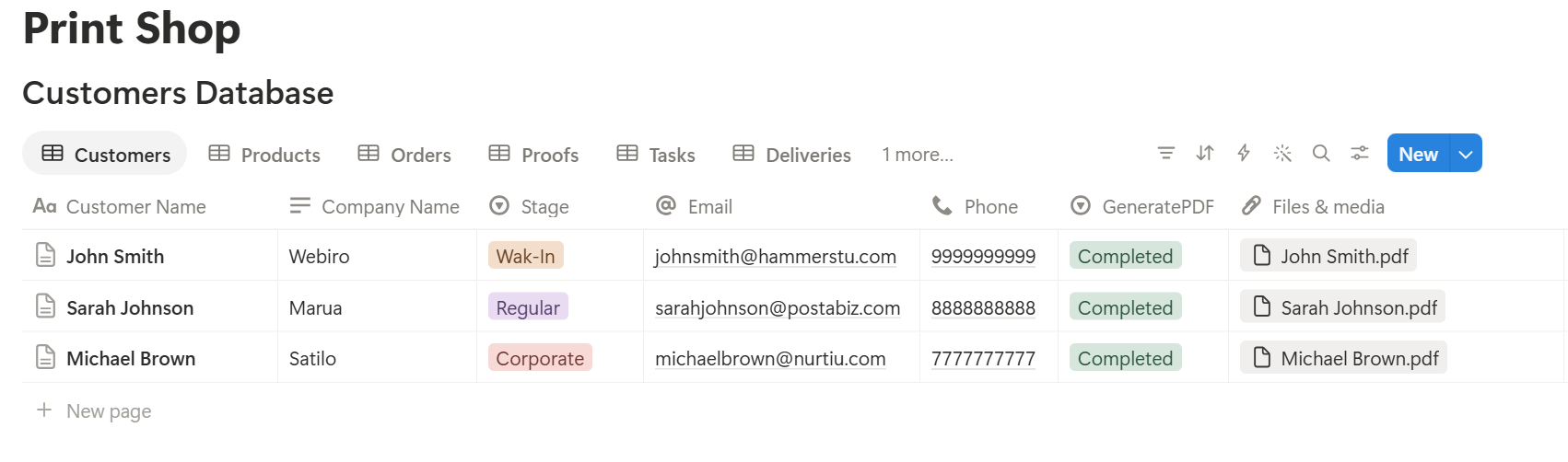
Some documents list several items, such as a delivery note covering many orders, or a customer statement covering many jobs. Each item is its own linked record. Before you rely on a template to list them all, test it with a customer who has many orders, and check that every line shows the right order number, quantity, and amount. If it doesn't, a simple fallback is to keep a short text summary of the items on the record, and use that in the template.
Always use Preview before sending a document that others will rely on. Check the names, quantities, prices, dates, and addresses, because a quote or proof is a record as well as a message. Keep a copy of every document you send.
Before using any document tool with customer information, ask the provider how data is handled, where it's stored, and what agreements are available, and keep the answers with your records. Generate documents only from the fields they need.
> 📌 Key Takeaway: Keep the files in cloud storage, and keep the decisions in Notion: what was ordered, what was approved, what was produced, what was delivered, and what was paid. When the quote, the job ticket, the proof, and the delivery note all come from the same record, they can't disagree.
Who Can See What
A shop workspace holds customer details, pricing, and unreleased designs, and not everyone needs all of it.
Common Mistakes
Storing large files in Notion. Print-ready files belong in cloud storage. Link to them.
Skipping proof records. Without an approval on record, a reprint dispute becomes your cost. Always log versions and approvals.
Starting production without an approved proof. The Proof Flag is a reminder. It doesn't replace the habit.
Overwriting proof versions. Keep every version, so you can show exactly what the customer saw and approved.
Starting work without an advance. Use the Advance pending view to see new jobs with no money received.
Treating Notion as your accounting system. Use it for balances and prompts, and keep official invoices and tax records in your accounting software.
Too many properties. Start simple, and add fields only when you actually need them.
Inconsistent statuses. Agree on one set of statuses with the team and stick to it.
Sharing a live Notion link. A link can show other fields or change after you send it. Send a PDF.
No owner for the structure. Pick one person responsible for the setup. Properties get renamed and formulas break, so tell that person not to rename properties used in PDF templates, because the placeholders must match exactly.
Skipping a test. Run a few made-up orders first, and fix what annoys the team before you use real jobs.
Frequently Asked Questions
Can Notion be used for a print shop?
Yes, for coordination work such as customers, quotes, orders, proofs, production tracking, delivery, and payment balances. It isn't a design tool, a file server, or an accounting system, so keep print files in cloud storage and invoices in your accounting software.
How do I track orders in Notion?
Create an Orders database with a number, customer, product, quantity, specs, status, due date, and total price. Add a board view grouped by status and formulas that flag late jobs, so the team sees what needs attention first.
How do I manage proofs and approvals in Notion?
Create a Proofs database linked to Orders, with one record per version, the proof file, status, and approval date. Never overwrite a version, record who approved and when, and don't move a job into production until its proof is approved.
How do I track deliveries and pickups?
Create a Deliveries database linked to Orders, with the type, address, driver, scheduled date, and tracking number. Add views for today's deliveries, jobs awaiting pickup, and delivered orders with a balance due.
Can Notion handle payments and invoices?
It can track advances, payments, and balances through a Payments database linked to Orders. Issue official invoices and keep tax records in your accounting software, and match the two regularly.
Can I create quotes, job tickets, and delivery notes from Notion?
Yes. You can export a page as a PDF, or use a template-based tool such as PDFOutput to fill a quote, job ticket, or delivery note design with data from each record. Test it with a customer who has many orders, and use Preview before you send anything.
Is it safe to keep customer artwork in Notion?
Keep the files themselves in cloud storage and link to them from the order. For confidential work under an NDA, follow the terms of the agreement, and keep the material out of Notion if you can't confirm it is allowed.
Related Reading
Conclusion
The best Notion setup for a print shop is a clear order desk: orders that flag themselves when they are late, proofs that are approved before production, jobs that move across a board, deliveries that nobody forgets, and balances that get collected. Keep the files in cloud storage, record the decisions in Notion, and test with a few made-up orders before you use real ones.
When it is time to send a quote, a proof, a job ticket, or a delivery note, PDFOutput can fill your branded template from the records and save the PDF back to them.
Want clean quotes, proofs, and delivery notes straight from Notion? Try PDFOutput.