Guides
How to Use Notion for an Architecture Firm: Projects, Drawings, and Client Reviews
Set up Notion for an architecture firm: projects, drawing registers, issue sheets, client reviews, RFIs, and fee stages, plus PDF transmittals and review reports.
By Sanat Biswal · 2026-10-23 · 5 min read
{/ synced-from-notion — do not edit manually /}
An architecture firm runs on versions.
A drawing is on revision C in the model, revision B on the structural engineer’s desk, and revision A in the client’s inbox.
The client’s comments arrived in an email, a call, and a margin note on a printout. A contractor’s question is two weeks old.
A fee stage is 60% done and 50% invoiced.
Most of this lives in spreadsheets, email threads, and the memory of whoever ran the last meeting.
Notion can hold that picture in one place. This guide is for architecture firms, design studios, and independent architects of any size.
It shows how to set up projects, a drawing register, issue records, client reviews, comments, RFIs, and fee stages, and how to turn records into PDFs such as issue sheets, drawing registers, and review summaries.
It also explains what should stay out of Notion. It is general information about organizing a practice, not legal, professional, or contractual advice.
Short answer on how to use Notion for architecture firms:
To use Notion for an architecture firm, build linked databases for Projects, Stages, Drawings, Issues, Client Reviews, Review Comments, RFIs, and Contacts.
Use formulas to flag drawings that are late or unchecked, flag client reviews that are overdue, work out how many comments are resolved, flag RFIs that need an answer, and compare the fee earned with the fee invoiced.
Keep the drawing files themselves, models, and anything your contract requires in a document management system. When you need to send someone a document, such as an issue sheet or a drawing register, create a PDF from the records.
In more detail:
Notion works well as the project coordination workspace for an architecture firm.
Each project, drawing, issue, review, comment, and RFI is a record, and the records are linked, so a drawing shows when it was issued and to whom, and a client review shows every comment that came out of it.
Notion isn’t a CAD or BIM tool, a file server, or a contractually compliant document control system. It tracks what exists, what state it is in, and what has been agreed. For documents that clients, consultants, and contractors receive, you can export a page as a PDF or generate one from a template.
Table of Contents
What Notion Can and Can’t Do for an Architecture Firm
Notion is good for:
- Keeping a drawing register with numbers, titles, revisions, and status.
- Recording every issue of drawings, with date, purpose, and recipients.
- Running client review rounds and tracking each comment to a response.
- Logging RFIs and consultant queries, with deadlines.
- Following design stages, fees, and progress.
- Keeping meeting notes and actions.
- Creating consistent issue sheets, registers, and reports.
- Drawing, modelling, or rendering.
- Storing large CAD, BIM, or image files.
- Controlled document management where a contract requires a specific platform.
- Marking up drawings.
- Time tracking and invoicing as a full system.
- Projects stores every job. Add these properties: Project Name, Project Number, Client (relation to Contacts), Stage, Project Lead, Start Date, Target Completion, Status (Pre-appointment, Active, On Hold, or Complete), and Folder Link.
- Stages stores the phases of each project and their fees. Add: Stage Name, Project (relation), Fee, Percent Complete, Invoiced to Date, Budget Hours, Hours Used, Start Date, and End Date.
- Drawings is your register. Add: Drawing Number, Title, Project (relation), Discipline (Architecture, Structure, Services, Landscape, or Other), Current Revision, Status (Work in Progress, Ready to Issue, Issued, or Superseded), Author, Checked By, Planned Issue Date, Scale, Size, and File Link.
- Issues stores each transmittal. Add: Issue Number, Project (relation), Date, Purpose (Information, Review, Approval, Tender, or Construction), Sent To (relation to Contacts), Drawings Included (relation to Drawings), Method, and Notes.
- Client Reviews stores each round of review. Add: Review Name, Project (relation), Round, Sent On, Due By, Status (Waiting, Comments Received, or Approved), and Meeting Date.
- Review Comments stores each comment. Add: Comment, Review (relation), Drawing (relation), Raised By, Date Raised, Response, Status (Open, In Progress, Resolved, Parked, or Declined), Owner, and Change to Scope (checkbox).
- RFIs stores questions. Add: RFI Number (a Unique ID property with a prefix such as RFI), Project (relation), Question, Raised By, Date Raised, Response Due, Date Answered, Answer, and Status (Open, Answered, or Closed).
- Contacts stores people and companies. Add: Name, Company, Role (Client, Structural Engineer, Services Engineer, Contractor, Planner, or Other), Email, Phone, and Projects (relation).
- Active projects: a board by stage, so you see where everything stands.
- By project lead: projects grouped by the person responsible, to balance workload.
- Completing soon: projects with a target completion in the next 90 days.
- Register by project: all drawings for one project, grouped by discipline, sorted by number.
- Due this week: drawings with a flag, sorted by planned issue date.
- Needs check: drawings marked Ready to Issue with no checker.
- Work in progress: drawings still being drawn, grouped by author, to see who is carrying what.
- Superseded: old drawings, kept for history.
- Issue log by project: all issues in date order, with recipients and purpose.
- Not yet issued: drawings with no issue records.
- Recent issues: issues from the last 30 days.
- Open comments: comments not yet Resolved, grouped by owner.
- By drawing: comments grouped by drawing, to see which ones are attracting the most.
- Possible scope changes: comments with the checkbox ticked.
- Review rounds: reviews by project, with the resolution rate.
- To invoice: stages with the Invoice due flag, for the person who raises invoices.
- Hours ahead of progress: stages with the hours flag, for the partners.
- Fee summary by project: total fee, invoiced, and remaining.
- Drawing issue sheets (transmittals): what was sent, to whom, on what date, and for what purpose
- Drawing registers: the current list of drawings with revisions and status, for the project team
- Client review summaries: the comments, responses, and status of a review round
- Approval and sign-off forms: a record of what the client approved at a stage
- RFI logs and responses: open and answered questions, for the contractor or the project team
- Meeting minutes and action lists: decisions and owners, sent after each meeting
- Site visit reports: observations and follow-up items
- Fee proposals and progress statements: stage fees, percent complete, and amounts to invoice
- Project status reports: a one-page summary for the client or the partners
- Monthly practice reports: projects, hours, fees, and invoicing, for the partners. Notion to Excel helps if your accountant wants the numbers in a spreadsheet.
- Create your template with your practice’s name, logo, and layout.
- Add placeholders in double curly braces where the data should go, such as
{{Project_Name}},{{Issue_Number}},{{Issue_Date}}, and{{Purpose}}. - Make sure each placeholder matches the name of a Notion property.
- Start the document with a Notion database button or a status property.
- Ready to Generate creates a PDF from the database record.
- Generate Page converts the Notion page into a PDF.
- Generate PDF and Doc creates a PDF and a Google document.
- Preview creates a Google document so you can check it before making the final PDF.
- Generate E-Signed Doc creates an e-signed PDF in the database workflow.
- Give the project team access to the drawings register, issues, reviews, and RFIs for their own projects.
- Keep fees, budgets, and hours limited to project leads, partners, and the person who raises invoices.
- Keep client contracts and confidential terms limited to the people who need them, and follow any NDA.
- Don’t invite clients, consultants, or contractors into the workspace as a shortcut. Send them finished PDFs, or use the project platform your contract requires.
- If an outside collaborator needs to see a project, use a separate page or workspace for that project, and not just a filtered view. Filters change what people see, and they are not a security boundary.
- Write down your rules about what may and may not be stored in Notion, and make sure every new team member, including students and freelancers, reads them.
- Remove access on the day someone leaves.
- Review who has access every few months.
- Archive projects when they complete, following your retention policy and the requirements of your appointment and insurer.
- How to Use Notion for a Manufacturing Business
- How to Use Notion for a Training Center
- How to Export a Notion Database to PDF
- How to Add Your Logo and Brand Colors to Notion PDFs
Notion is not made for:
If you already use a shared project platform or a common data environment, treat Notion as the coordination layer beside it.
Files live where they are controlled and versioned. Notion links to them and tracks the decisions around them.
Confidentiality and Records: Draw the Line First
An architecture practice holds client information, design work, and sometimes security-sensitive details. And some records can matter in a dispute years later. Before you build anything, decide what will and won’t live in Notion.
| Usually a good fit | Usually a poor fit |
|---|---|
| Drawing numbers, titles, revisions, and status | The drawing, model, and image files themselves |
| Issue dates, purposes, and recipients | Anything your contract says must sit in a named platform |
| Review rounds and a short record of each comment | Security-sensitive layouts, such as secure or critical sites |
| RFI questions, dates, and answers | Client ID documents, bank details, or personal data you don’t need |
| Fee stages, progress, and invoicing status | Contracts and confidential terms that an NDA says to restrict |
| Meeting notes, decisions, and actions | Anything you would be unable to explain if a client asked where it was stored |
Confidentiality agreements may limit where information can go. Data protection laws, such as GDPR, cover the personal details of clients and consultants. And your professional indemnity insurer may expect certain records to be kept in a certain way.
Check which of these apply to your practice, and ask a professional if you’re not sure. If you can’t get a clear yes for a type of information, keep it out of Notion.
2 design rules keep most practices safe.
First, link, don’t store. Each drawing record holds a link to the file in your controlled location, and not a copy.
Second, record decisions, not just files. What matters in a dispute is who approved what, on which revision, on which date, and Notion can hold that clearly.
While you are testing, use a made-up project only.
Use The 8 Databases
Start with these 8 databases. You can add more later.
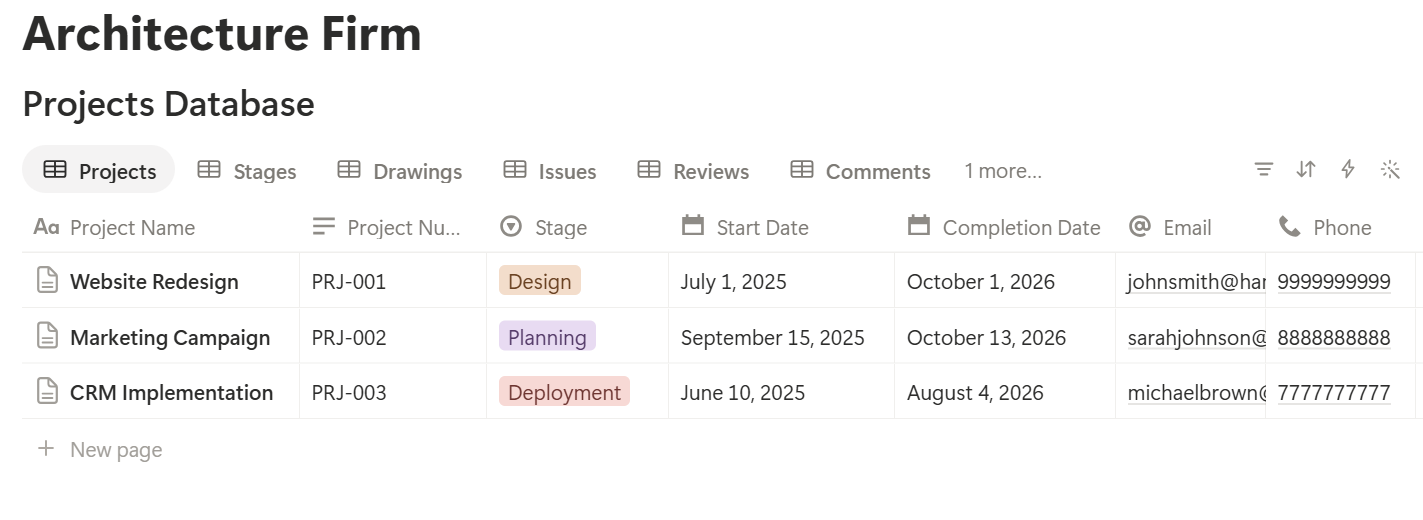
A relation connects a record in one database to a record in another. Link Drawings to Projects, Issues to Drawings, and Comments to Reviews and Drawings.
Now a project page shows its stages, drawings, issues, reviews, and RFIs together, and a drawing page shows every time it was sent out and every comment made on it.
Projects and Stages
A project is the container, and the stages are how you manage it. The names of design stages differ by country and by contract, so use the ones in your appointment, such as concept design, developed design, technical design, and construction stage.
For each project, add one Stage record per phase, with the fee for that stage, the start and end dates, and the budgeted hours.
Then, on Projects, add rollups for Total Fee (sum of the stage fees) and Invoiced (sum of Invoiced to Date). The details of the fees are covered in the fees section below.
Make these views on Projects:
Keep the project page as the home for the job. Put the key facts at the top: client, site, appointment documents, folder links, the main contacts, and the next milestone. Link to the controlled folders for the drawings, models, and contracts. A new team member should be able to open one page and know where everything is.
A project template saves time. It can contain the standard stages, a starter list of review rounds, a meeting notes template, and a project checklist. Duplicate it when a new job is won.
The Drawing Register
The register is the backbone of the practice. A good register tells everyone what drawings exist, what state they are in, and which revision is current.
Create one record per drawing, with a consistent number, such as a project code, a discipline code, and a sequence number. Pick a naming convention and write it down, because a register full of inconsistent numbers is hard to use and harder to trust. Put the link to the current file in the File Link property, and set the Current Revision and Status.
Then add:
*Days to planned issue: dateBetween(prop("Planned Issue Date"), now(), "days") Issue flag: if(prop("Status") != "Issued" and prop("Status") != "Superseded" and prop("Days to planned issue") < 0, "Overdue", if(prop("Status") != "Issued" and prop("Status") != "Superseded" and prop("Days to planned issue") <= 3, "Due soon", "")) Check flag: if(prop("Status") == "Ready to Issue" and empty(prop("Checked By")), "Needs check", "")*
The flag shows Due soon within three days of the planned issue date, and Overdue after it. The check flag stops a drawing from being ready to issue without a second pair of eyes. Your quality process may need more than a name in a field, so treat this as a reminder, and not as the check itself.
Make these views:
When a drawing moves to a new revision, update Current Revision, and keep the previous one in the history rather than overwriting it. A simple way is a Revisions database linked to Drawings, with one record per revision: the revision letter, the date, and a one-line description of what changed. Then you can answer “what changed between B and C?” without opening the file.
Issuing Drawings: Transmittals That Prove What Was Sent
In a dispute, the question is rarely whether a drawing existed. It is whether the right people had the right revision on a given date. An issue record answers that.
Every time you send drawings to anyone, create an Issue record. Give it a number, the date, the purpose, the recipients, and the drawings included. Link each drawing, and record the revision of each at the time of issue. If your register is the only place that holds the revision, you can’t reconstruct it later, because the revision field will have moved on. A short text list of the drawing numbers and revisions in the issue record keeps a snapshot, so don’t skip it.
On Drawings, add a rollup of the latest Issue date, called Last Issued, and a rollup that counts Issues. Then you can see at a glance which drawings have never been issued, and which have been issued many times.
Purpose matters. “For information”, “for review”, “for approval”, “for tender”, and “for construction” have different meanings, and different consequences. Use a fixed list, and make sure the purpose is on the issue sheet your recipients see.
Make these views:
Then create the issue sheet as a PDF from the Issue record, and send it with the drawings. The sheet and the record should always say the same thing, and generating one from the other makes sure of it.
> 💡 Pro Tip: Record each issue the moment you send it, and not at the end of the week. The sheet that is written afterwards is the one that has a mistake in it.
Client Reviews and Comments
Client feedback is the part of a project most likely to be scattered across email, calls, and printouts. A review database brings it into one list that everyone can see.
For each round of review, create a Client Reviews record with the date you sent the material, the date you need comments by, and the status. Then, for every comment, create a Review Comments record linked to the review and, where possible, to the drawing it refers to. Write the comment as the client made it, record who raised it, and add your response and the owner.
On Client Reviews, add rollups: Comments Total (count of comments), and Comments Resolved (count of comments with the status Resolved). Then add:
*Resolution rate: if(prop("Comments Total") > 0, prop("Comments Resolved") / prop("Comments Total"), 0) Review flag: if(prop("Status") == "Waiting" and dateBetween(now(), prop("Due By"), "days") > 0, "Client overdue", "")*
Format the rate as a percent. For example, if a review has 18 comments and 14 are resolved, the resolution rate is 78%. The flag shows Client overdue when you are waiting for comments past the date you asked for them. Chasing is easier when the date is on the record.
The checkbox for Change to Scope is the most valuable property in this database. A comment that asks for something beyond the agreed brief is a potential variation, and variations are where fee gets lost.
Tick the box when a comment looks like a change, and make a view called Possible scope changes for the project lead. Whether something is really a change is a decision for the people who know the appointment, but you can only decide on what you have recorded.
Make these views:
Record approvals clearly. When a client approves a design stage, record who approved, on what date, and which drawings and revisions they approved. Write it in the Review record, attach the email, and, if your appointment calls for it, get a signed confirmation. Don’t leave the only record of an approval in someone’s inbox.
RFIs and Consultant Queries
A request for information is a question with a clock on it. Contractors and consultants wait for answers, and a slow answer can cost a project time and money.
On RFIs, add a record for each question, with a unique number, the project, who asked, the date, and when a response is due. When the answer is sent, fill in the date and the answer, and change the status. Then add:
*Days open: if(empty(prop("Date Answered")), dateBetween(now(), prop("Date Raised"), "days"), dateBetween(prop("Date Answered"), prop("Date Raised"), "days")) RFI flag: if(prop("Status") == "Open", if(dateBetween(now(), prop("Response Due"), "days") > 0, "Response overdue", if(dateBetween(prop("Response Due"), now(), "days") <= 2, "Due soon", "")), "")*
The flag shows Due soon two days before the response date, and Response overdue after it. Days open tells you how long a question has waited, or how long it took to answer. Set the response time from your contract or your own standard, and put it in each record.
Make an Open RFIs view, sorted by due date, for your home page. Add a view of RFIs by project, to see where the questions pile up. A project with a lot of RFIs on one drawing set may be telling you something about the drawings.
Link an RFI to the drawings it affects. When the answer changes a drawing, the register shows both.
Meetings, Site Visits, and Actions
Decisions made in meetings are only useful if they are written down and followed up. Make a Meetings template with the date, who attended, the decisions made, and a list of actions. For each action, create a record in an Actions database with the owner, the due date, and the status.
Action flag: if(prop("Status") != "Done" and dateBetween(now(), prop("Due Date"), "days") > 0, "Overdue", "")
Make a My actions view filtered to the current person, and an Overdue actions view for the project lead. When the minutes go out, every action has an owner and a date, and the next meeting begins with the overdue list.
For site visits, make a template with the date, who attended, weather, progress, observations, and items to follow up. Add photos by link, and not by uploading large files. Whether site visit records need to follow a set format depends on your appointment, so check what applies.
Fees, Progress, and Hours
A practice can be busy and still lose money, because fee and effort drift apart. The Stages database makes the gap visible.
For each stage, enter the fee, your honest estimate of the percentage complete, the amount invoiced so far, the budgeted hours, and the hours used.
Update the percentage and hours at least every month, taking the hours from your time tracking system. Then add:
Earned: prop("Fee") prop("Percent Complete") To invoice: prop("Earned") - prop("Invoiced to Date") Billing flag: if(prop("To invoice") > 0, "Invoice due", if(prop("To invoice") < 0, "Invoiced ahead", "")) Budget used: if(prop("Budget Hours") > 0, prop("Hours Used") / prop("Budget Hours"), 0) Hours flag: if(prop("Budget used") > prop("Percent Complete") + 0.1, "Hours ahead of progress", "")*
Format Percent Complete and Budget used as percents. Here is a made-up stage:
| Item | Value |
|---|---|
| Stage fee | 24,000 |
| Percent complete | 60% |
| Earned | 14,400 |
| Invoiced to date | 12,000 |
| To invoice | 2,400 |
| Budget hours | 300 |
| Hours used | 210 |
| Budget used | 70% |
Maybe an extra review round took the time, in which case the comment database should show it, and it may be a variation. This is where the scope change checkbox and the fee view meet.
Be honest with the percentage. A stage that has been 90% complete for two months is not a measurement. Agree on what each percentage means for your stages, and have the project lead update it.
Make these views:
Notion gives you the picture and the prompts. Your accounting system issues invoices and keeps the official figures, so match them regularly.
A Day at a Small Practice
To see how the pieces fit, here is one made-up day.
8:45 am. The project lead opens the home page. The Due this week view shows two drawings with the Overdue flag and one with Needs check. She asks the author to finish one and a colleague to check the other.
9:30 am. The Client overdue flag appears on a review round. The client was due to send comments yesterday. She sends a polite reminder and notes the date on the record.
10:30 am. A contractor’s RFI arrives. She adds it with a response date, links the two drawings it refers to, and assigns it to the technical lead.
11:30 am. In the design meeting, three client comments are discussed. She enters them live, ticks Change to Scope on one, and adds the actions.
2:00 pm. The checked drawings are marked Ready to Issue. She creates an Issue record, links the drawings, and records the revision of each. She uses Preview to generate the issue sheet, checks it, and sends it with the files.
3:30 pm. The Stages view shows a stage with 60% progress, 70% of its hours used, and 2,400 to invoice. She tells the accounts contact, and flags the extra review round to the partner.
4:30 pm. The Open RFIs view shows one due tomorrow. She chases the engineer and updates the record.
No drawings were stored in Notion, and every issue was recorded.
The Documents That Leave Notion
Clients, consultants, contractors, and authorities don’t use your workspace, so many records need to become files:
For a single page, you can use Notion’s export option. How to Export Notion to PDF shows the settings, and How to Export a Notion Database to PDF helps with tables, such as a register. Clients judge a practice by its documents, and Notion’s own export gives you limited control over layout, fonts, and logos. How to Add Your Logo and Brand Colors to Notion PDFs explains how a template solves that.
Generating PDFs with PDFOutput
PDFOutput creates documents from your Notion data using a template. A template can be a Google document, a Word file, a PDF file, or a Notion page. If you already have an issue sheet or report layout in Word or Google Docs, you can reuse it.
Here is how it works:
These are some of the status options:
The e-signed option can help with design approval forms and acceptance of a fee proposal. Whether an electronic signature is valid for a given document depends on your location and your contract, so check before you rely on it. You can save the finished file to a property in your database, so the issue sheet stays on its Issue record. You can also save it to a Google Drive folder and store the link in a property.
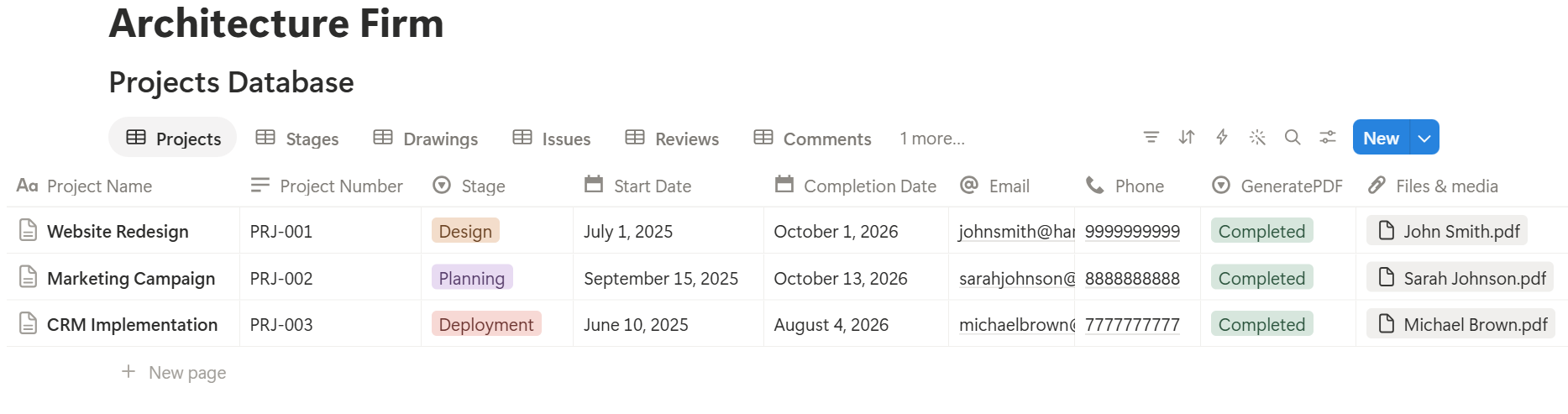
An issue sheet lists many drawings, and a register lists many more, each stored as its own linked record.
Before you rely on a template to list them all, test it with an issue that has many drawings, and check that each appears with the right number, title, and revision.
If it doesn’t, a simple fallback is to keep a short text list of the drawings and revisions on the Issue record, and use that in the template. That text list is also the snapshot that proves what was sent, so it is worth keeping either way.
Always use Preview before sending a document that others will rely on. Check the drawing numbers, the revisions, the dates, the purpose, and the recipients, because an issue sheet is a record as well as a cover note. Keep a copy of every sheet you send.
Before using any document tool with client information, ask the provider how data is handled, where it’s stored, and what agreements are available, and keep the answers with your records. Generate documents only from the fields they need.
> 📌 Key Takeaway: Keep the files in a controlled place, and keep the decisions in Notion: what was drawn, what was issued, what the client said, and what was approved. When the issue sheet, the register, and the review summary all come from the same records, they can’t disagree.
Who Can See What
A practice workspace holds client details, fee information, and design work, and not everyone needs all of it.
Common Mistakes
Storing drawings in Notion. Large files belong in a controlled system. Link to them, and keep Notion for the information around them.
Treating Notion as the official document control system. If your contract requires a specific platform or process, use it, and treat Notion as the coordination layer.
Overwriting the revision. If the register only shows the current revision, you can’t reconstruct what was issued last month. Keep a revision history and a snapshot on each issue.
Issuing without a check. The Needs check flag is a reminder. It doesn’t replace your quality process.
Leaving comments in email. A comment that isn’t in the database doesn’t get a response or a status, and can’t be counted.
Missing scope changes. If you don’t tick the box when a comment looks like a change, the fee conversation happens too late, or not at all.
Guessing the percentage complete. A stage that sits at 90% forever tells you nothing. Agree what each percentage means.
Inconsistent drawing numbers. Write down the convention, and apply it to every drawing from the first.
Letting the register go stale. A register that is two weeks behind is worse than none, because people trust it. Update it when you issue, not later.
Sharing a live Notion link. A link can show other fields or change after you send it. Send a PDF.
No owner for the structure. Pick one person responsible for the setup. Properties get renamed and formulas break, so tell that person not to rename properties used in PDF templates, because the placeholders must match exactly.
Skipping a test. Run a project with made-up drawings first, and fix what annoys the team before you use real jobs.
Frequently Asked Questions
Can Notion be used for an architecture firm?
Yes, for coordination work such as drawing registers, issue records, client reviews, RFIs, meeting actions, and fee stages. It isn’t a CAD or BIM tool or a file store, so keep the drawings and models in a controlled system and link to them.
Can Notion replace a document management system or a common data environment?
Not where your contract or project standard requires one. Notion tracks the status, the decisions, and the issue history around your files, but a controlled platform should hold the files and the approvals your contract says it must.
How do I build a drawing register in Notion?
Create a Drawings database with a number, title, project, discipline, current revision, status, author, checker, planned issue date, and a link to the file. Add formulas that flag drawings that are late or unchecked, and views by project and by discipline.
How do I track what I sent and when?
Create an Issues database, with one record for each transmittal, linked to the drawings and the recipients. Record the purpose and the revision of each drawing at the time of issue, so you can always show what a person received on a given date.
How do I manage client reviews in Notion?
Create a Client Reviews database for each round, and a Review Comments database for each comment, linked to the review and the drawing. Track the status of every comment, work out the resolution rate, and tick the scope change box on anything that looks like a variation.
How do I track fees by stage in Notion?
Create a Stages database linked to Projects, with the fee, percent complete, amount invoiced, and hours used. Add formulas for the fee earned, the amount to invoice, and the share of budgeted hours used, and keep your accounting system as the official record.
Can I create issue sheets and drawing registers from Notion?
Yes. You can export a page as a PDF, or use a template-based tool such as PDFOutput to fill an issue sheet or register design with data from each record. Test it with an issue that has many drawings, and use Preview before you send anything.
Related Reading
Conclusion
The best Notion setup for an architecture firm is a clear project desk: drawings that tell you when they are late, issues that prove what was sent, client comments that each get a response, RFIs that never go quiet, and fees that match the work. Keep the files in a controlled place, record the decisions in Notion, and test with a made-up project before you use a real one.
When it is time to send an issue sheet, a register, or a review summary, PDFOutput can fill your branded template from the records and save the PDF back to them.
Want clean issue sheets and registers straight from Notion? Try PDFOutput.