Guides
How to Use Notion for a Bakery or Cafe: Orders, Recipes, and Daily Prep
Set up Notion for a bakery or cafe: custom orders, recipes, costing, daily prep lists, stock, suppliers, and allergen info, plus PDF prep sheets, order forms, and recipe cards.
By Sanat Biswal · 2026-10-24 · 5 min read
{/ synced-from-notion — do not edit manually /}
A bakery runs round the clock.
The dough needs to be mixed at 4 am, the croissants proofed by 6 am, and the birthday cake must be finished before the customer arrives at noon. A custom order is written usually on a sticky note, the recipe remains in someone's head, and the flour is running low but nobody has noticed it yet.
This is typically how a bakery shop runs when nothing is organized properly at one place.
“It must be in the Whatsapp group or I remembered about it yesterday but forgot today”, this is typically what you would hear when nothing remains organized properly.
Today we are going to address this and understand about how to organize information and every detail for your bakery business so that its organized properly round the clock. The tool which will help us achieve this is Notion.
In this guide we are going to talk about bakeries, cafes, patisseries, and home bakers growing into a shop. It shows how to set up custom orders, recipes, costing, daily prep, stock, and suppliers, and how to turn records into PDFs such as prep sheets, order forms, and recipe cards.
It also explains what should stay out of Notion, especially around allergens and food safety. All of this is general information about organizing a food business, but not to be considered as any form of legal, food safety, or accounting advice.
Short answer: To use Notion for a bakery or cafe, build linked databases for Orders, Recipes, Ingredients, Products, Daily Prep, Suppliers, and Customers. Use formulas to work out recipe cost, flag orders that are due soon or unpaid, and flag ingredients that are low. Keep official food safety records, allergen declarations, and accounts in the systems your regulator and accountant expect. When you need to send or print a document, such as a prep sheet, order form, or recipe card, create a PDF from the records.
Notion works well as the coordination workspace for a bakery or cafe. Each order, recipe, ingredient, and prep task is a record, and the records are linked, so a recipe shows its ingredients and cost, and an order shows the products, the pickup time, and the payment.
Notion isn't a point-of-sale system, an inventory scanner, or a food safety certification tool. It tracks what is being made, when, by whom, and for whom. For documents that staff and customers use, you can export a page as a PDF or generate one from a template.
Table of Contents
What Notion Can and Can't Do for a Bakery or Cafe
Notion is good for:
- Keeping recipes in one consistent format.
- Working out the cost of each recipe and product.
- Taking and tracking custom orders and pre-orders.
- Planning daily prep and production.
- Following stock levels and supplier details.
- Recording notes about customers and their preferences.
- Creating consistent prep sheets, order forms, and recipe cards.
- Taking payments at the counter.
- Scanning barcodes or counting stock automatically.
- Official food safety and temperature logging systems where the rules require them.
- Replacing your legal allergen and labelling process.
- Full accounting, payroll, and tax filing.
- Recipes stores every recipe. Add: Recipe Name, Category (Bread, Pastry, Cake, Cookie, Drink, or Savory), Yield, Method, Prep Time, Bake Time, Allergen Notes, Recipe Cost, and Photo.
- Ingredients stores what you buy. Add: Ingredient, Unit (g, kg, ml, l, or each), Pack Size, Pack Price, Cost per Unit, Supplier (relation), In Stock, Reorder Level, and Allergens.
- Products stores what you sell. Add: Product Name, Recipe (relation), Size or Portion, Selling Price, Category, Available (checkbox), and Pre-order Only (checkbox).
- Orders stores custom orders and pre-orders. Add: Order Number, Customer (relation), Items, Pickup Date, Pickup Time, Status (New, Confirmed, In Prep, Ready, Collected, or Cancelled), Total, Deposit Received, Notes, and Allergy Note.
- Daily Prep stores the plan for each day. Add: Task, Date, Product or Recipe (relation), Quantity, Station (Mixing, Oven, Decorating, Counter, or Barista), Assigned To, and Status (To Do, In Progress, or Done).
- Suppliers stores who you buy from. Add: Supplier Name, Contact, Phone, Items Supplied, Delivery Days, Order Cutoff, and Notes.
- Customers stores regulars and order contacts. Add: Name, Phone, Email, Preferences, and Orders (relation).
- By category: recipes grouped as bread, pastry, cake, and drinks.
- Gallery: recipes with photos, for training new staff.
- Recently changed: recipes edited in the last 30 days, so changes are noticed.
- Missing costs: recipes where an ingredient has no price.
- Highest food cost: products sorted by Food Cost %.
- Best margins: products sorted by Margin, to know what to promote.
- Price check: products where an ingredient price changed recently.
- Order board: a board grouped by status, so the team sees every order in motion.
- This week: a calendar of pickup dates, to spot busy days early.
- Due tomorrow: orders with the Due soon flag, for planning.
- Awaiting deposit: confirmed orders with no deposit.
- Balance on pickup: orders where money is still due at collection.
- Allergy orders: orders with the Allergy flag, for the head baker.
- Today by station: tasks grouped by Mixing, Oven, Decorating, Counter, so each person sees their own list.
- My tasks: tasks assigned to the current person.
- Tomorrow's prep: a preview, so dough can be made the night before.
- Late tasks: anything flagged, for the person running the shift.
- Reorder list: ingredients with the Reorder flag, grouped by supplier.
- By supplier: everything you buy from one place, with its latest price.
- Price changes: ingredients whose pack price changed recently.
- Record the allergens for each ingredient, using the information on the supplier's label or specification.
- Use a rollup to show the allergens of each recipe, built from its ingredients, and review it by hand.
- Re-check allergens whenever an ingredient or a supplier changes, because a new brand may contain something different.
- Never give a customer allergen information from a database without checking it against the actual product and your legal requirements.
- Record cross-contamination risks, such as a shared oven or a shared bench, as notes on the recipe.
- Keep your official allergen documentation, labels, and training records where your regulator requires them.
- Daily prep sheets: what to make, how much, and at which station, printed for the kitchen
- Custom order forms: the order, date, time, allergy note, and deposit, for the customer to confirm
- Order confirmations: a summary sent after the order is taken
- Recipe cards: consistent, printable recipes for training and the bench
- Allergen information sheets: working documents for staff, checked against your legal process
- Supplier order lists: what to order, by supplier, with quantities
- Pickup slips: the order number, items, and balance due at collection
- Catering quotes: items, quantities, and prices for larger events
- Weekly production plans: the week's orders and standing items, for the team
- Monthly shop reports: sales, waste, and costs, for the owner. Notion to Excel helps if your accountant wants the numbers in a spreadsheet.
- Create your template with your shop's name, logo, and layout.
- Add placeholders in double curly braces where the data should go, such as
{{Order_Number}},{{Customer_Name}},{{Pickup_Date}}, and{{Allergy_Note}}. - Make sure each placeholder matches the name of a Notion property.
- Start the document with a Notion database button or a status property.
- Ready to Generate creates a PDF from the database record.
- Generate Page converts the Notion page into a PDF.
- Generate PDF and Doc creates a PDF and a Google document.
- Preview creates a Google document so you can check it before making the final PDF.
- Generate E-Signed Doc creates an e-signed PDF in the database workflow.
- Give bakers and counter staff access to recipes, prep lists, and orders, without costs and margins.
- Keep costing, supplier prices, and sales figures limited to the owner and managers.
- Limit customer phone numbers and allergy notes to the people who take and prepare orders.
- Don't invite customers into the workspace as a shortcut. Send them finished PDFs.
- If a part-timer or freelancer needs to see something, use a separate page for it, and not just a filtered view. Filters change what people see, and they are not a security boundary.
- Write down your rules about what may and may not be stored in Notion, and make sure every new team member reads them.
- Remove access on the day someone leaves.
- Review who has access every few months.
- Protect signature recipes, since a recipe database is also your most valuable intellectual property.
- How to Use Notion for Electricians and Plumbers
- How to Use Notion for a Print Shop
- How to Export a Notion Database to PDF
- How to Add Your Logo and Brand Colors to Notion PDFs
Notion is not made for:
If you already use a point-of-sale system, accounting software, or a food safety app, treat Notion as the coordination layer beside it.
Sales stay in your POS, accounts stay in your accounting system, and official safety records stay where your regulator expects them. Notion tracks the planning and the decisions around them.
Food Safety and Customer Data: Draw the Line First
A bakery or cafe holds customer names, phone numbers, and sometimes health information such as allergies. It also handles food safety, where mistakes can hurt people. Before you build anything, decide what will and won't live in Notion.
| Usually a good fit | Usually a poor fit |
|---|---|
| Recipes, methods, yields, and costs | Official temperature logs and safety records your regulator requires |
| Custom order details, pickup times, and status | Card numbers, bank details, and payment credentials |
| Daily prep lists and production plans | Detailed medical records of customers |
| Ingredient lists, stock levels, and suppliers | Staff contracts and payroll |
| Customer names, phones, and preferences | The official ledger and tax filings |
Data protection laws cover customers' personal details, including any allergy information you record against a name. Tax rules decide how sales and invoices must be recorded. Check which apply to your shop, and ask your local authority or a professional if you're not sure. If you can't get a clear yes for a type of information, keep it out of Notion.
Two design rules keep most shops safe.
First, link, don't duplicate. Keep one master recipe, and link every product and order to it, so a change is made once.
Second, record decisions, not just plans. What matters when something goes wrong is what was ordered, what was promised, and what was told to the customer, and Notion can hold that clearly.
While you are testing, use made-up customers and recipes only.
Use These Seven Databases
Start with these 7 databases. You can add more later.
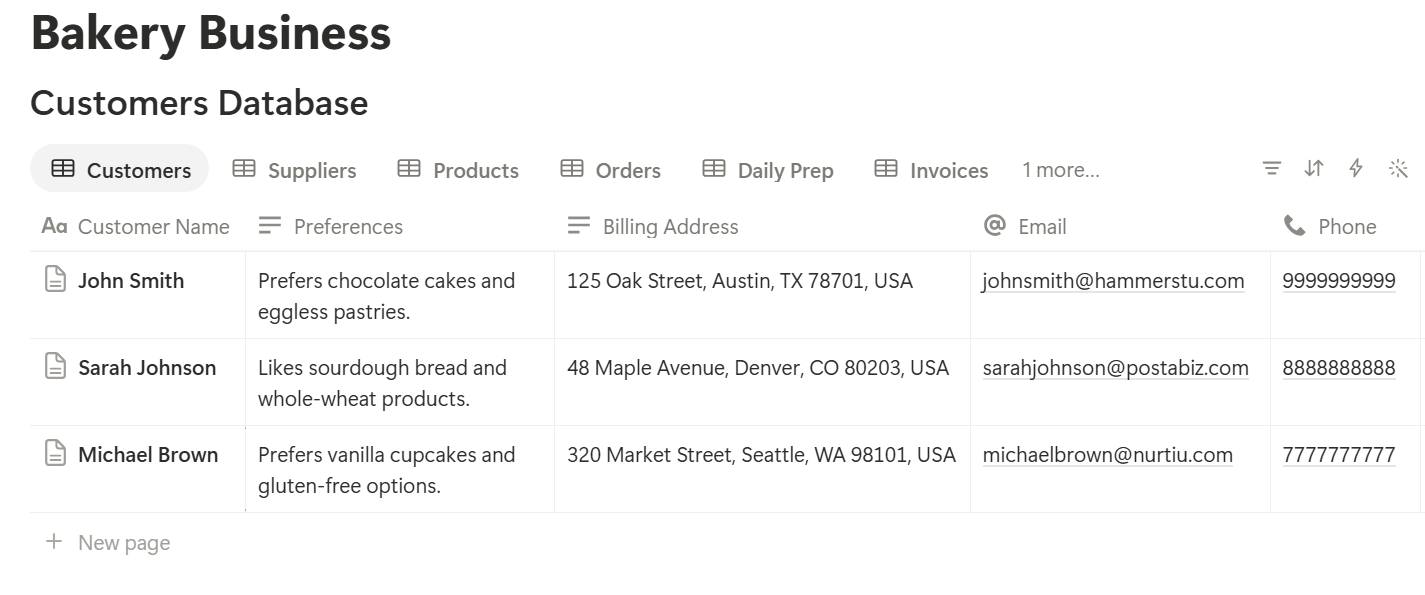
A relation connects a record in one database to a record in another. Link Recipes to Ingredients, Products to Recipes, and Orders to Customers and Products. Now a recipe shows its cost, a product shows its margin, and an order shows exactly what needs to be made.
Recipes and Ingredients
A recipe in one person's head is a risk. A recipe in a shared database is a system.
Create one Recipes record per item, in the same format every time: ingredients with quantities, method in numbered steps, yield, bake time, and any special notes. Use a recipe template so every new recipe has the same sections. Pick one unit system, such as grams for baking, and use it everywhere.
For costing to work, link each recipe to its ingredients with a small Recipe Lines database. Each line holds the recipe, the ingredient, and the quantity used. Then your ingredient costs flow into the recipe automatically.
On Ingredients, add a formula for the cost of one unit:
Cost per Unit: prop("Pack Price") / prop("Pack Size")
For example, a 25 kg bag of flour costing 1,500 has a cost per kg of 60. On Recipe Lines, add:
Line Cost: prop("Quantity") prop("Cost per Unit")*
Keep a version note on each recipe: who changed it, when, and why. A recipe that changes quietly, such as less butter to save cost, can change the product and the allergen information.
Make these views:
Costing and Margins
A bakery can be busy all day and still make little money, because ingredient prices move and nobody updates the sums. Costing makes the margin visible.
On Recipes, add rollups for Total Cost (the sum of its Line Costs) and then:
Cost per Portion: prop("Total Cost") / prop("Yield")
On Products, link to the recipe and add:
*Food Cost %: prop("Cost per Portion") / prop("Selling Price") Margin: prop("Selling Price") - prop("Cost per Portion") Margin Flag: if(prop("Food Cost %") > 0.35, "High cost", "")*
Format Food Cost % as a percent. Here is a made-up product:
| Item | Value |
|---|---|
| Recipe total cost | 480 |
| Yield | 12 muffins |
| Cost per portion | 40 |
| Selling price | 90 |
| Margin | 50 |
| Food cost % | 44% |
Costing only covers ingredients. Packaging, labour, energy, and rent matter too, so treat food cost as one part of the picture, and review ingredient prices whenever a supplier changes them.
Make these views:
Custom Orders and Pre-Orders
Custom cakes, party boxes, and catering orders are where small mistakes cost the most. A wrong date, a forgotten allergy, or a missing deposit can ruin an event.
Log every order the moment it is taken, even if it comes from a message. Use an order template with the questions you always need: what, how many, for what date and time, pickup or delivery, writing on the cake, allergies, deposit. Then add:
*Days to Pickup: dateBetween(prop("Pickup Date"), now(), "days") Pickup Flag: if(prop("Status") != "Collected" and prop("Status") != "Cancelled" and prop("Days to Pickup") < 0, "Overdue", if(prop("Status") != "Collected" and prop("Status") != "Cancelled" and prop("Days to Pickup") <= 1, "Due soon", "")) Balance Due: prop("Total") - prop("Deposit Received") Allergy Flag: if(not empty(prop("Allergy Note")), "Check allergies", "")*
The Allergy Flag shows on any order with an allergy note, so it can't be missed during prep. Make it a rule that nobody starts the order until the note has been read.
Make these views:
Set a cutoff rule and write it on every order form, such as custom cakes needing 48 hours' notice. Then add a check to the template, "Capacity confirmed," so you don't promise 12 cakes on a day when the oven can make 8.
Record changes. If a customer changes the flavor or the time, update the order and add a dated note. When you confirm an order, send the customer a PDF summary, and ask them to check it.
> 💡 Pro Tip: Read the order back to the customer when you take it, including the date, the time, and any allergy. Most order mistakes are made at the counter and not in the kitchen.
Daily Prep and Production
The day's work should be visible before the first oven is on. A Daily Prep database turns orders and standing needs into a list.
Each morning, or better the evening before, create Prep records for the day: the product or recipe, the quantity, the station, and who is doing it. For regular items such as sourdough and croissants, create a recurring template with the usual quantities, and adjust for the day's orders and the weather, because a rainy day sells differently.
Add a formula to flag late tasks:
Prep Flag: if(prop("Status") != "Done" and prop("Due Time") < now(), "Late", "")
Make these views:
A good routine is to review tomorrow's orders and prep list at closing time. The opener then starts work with a clear list, and not with a search for sticky notes.
Add a simple end-of-day review template: what sold out, what was left over, what went to waste, and notes for tomorrow. After a few weeks, the data shows which items you over-bake, and where waste is costing you.
Stock and Suppliers
Running out of butter at 6 am is a problem, and ordering too much is a quiet one. A simple stock system helps with both.
On Ingredients, record the current stock and a reorder level. Then add:
Reorder Flag: if(prop("In Stock") <= prop("Reorder Level"), "Reorder", "")
Notion won't count your stock automatically as you use it, so update quantities on a regular schedule, for example every evening for key items and weekly for the rest. If stock is a large part of your costs, or you have many items, use a dedicated inventory tool, and use Notion for the recipes and plans.
On Suppliers, record the delivery days and the order cutoff, so you know that the dairy order must be in by 3 pm the day before. Make a Order today view that shows reorder-flagged ingredients grouped by supplier, and send each supplier a single message.
Make these views:
When a supplier raises a price, update the ingredient, and the recipe costs follow. Then check the Highest food cost view.
Allergens: Handle With Care
Allergens are the part of a bakery where an error can cause serious harm. Notion can help you organize information. It can't replace your legal process.
Treat Notion's allergen view as a working aid for your team. The rules about what you must tell customers, and how, are set by the law where you work, so check them with your local authority.
A Day at a Small Bakery Cafe
To see how the pieces fit, here is one made-up day.
4:00 am. The baker opens the Today by station view. Sourdough, croissants, and two custom orders are listed with quantities. One order shows the Check allergies flag, so he reads the note before starting.
6:30 am. The Reorder list shows butter and milk below their reorder levels. The owner sends one message to each supplier before the cutoff.
9:00 am. A customer asks for a birthday cake for Saturday. The owner opens a new order from the template, reads it back to the customer, confirms capacity, and sends a PDF summary with the deposit request.
11:00 am. The Awaiting deposit view shows an order still unpaid for Friday's pickup. She sends a reminder.
2:00 pm. A supplier raises the price of cocoa. She updates the ingredient, and the Highest food cost view shows two products now above the threshold. She notes them for a price review.
5:30 pm. At closing, she fills in the end-of-day review: what sold out, what was left over, and what was wasted. She checks Tomorrow's prep, and uses Preview to generate the prep sheet, checks it, and prints it for the morning.
No payments were taken in Notion, and every order's allergy note was seen.
The Documents That Leave Notion
Bakers, customers, suppliers, and inspectors don't use your workspace, so many records need to become files:
For a single page, you can use Notion's export option. How to Export Notion to PDF shows the settings, and How to Export a Notion Database to PDF helps with tables, such as a supplier order list. Customers and staff judge a shop by its documents, and Notion's own export gives you limited control over layout, fonts, and logos. How to Add Your Logo and Brand Colors to Notion PDFs explains how a template solves that.
Generating PDFs with PDFOutput
PDFOutput creates documents from your Notion data using a template. A template can be a Google document, a Word file, a PDF file, or a Notion page. If you already have an order form or recipe card layout in Word or Google Docs, you can reuse it.
Here is how it works:
These are some of the status options:
The e-signed option can help with custom order confirmations and catering agreements, so the customer's agreement is attached to the order. Whether an electronic signature is valid for a given document depends on your location and the document, so check before you rely on it. You can save the finished file to a property in your database, so the order confirmation stays on its Order record. You can also save it to a Google Drive folder and store the link in a property.
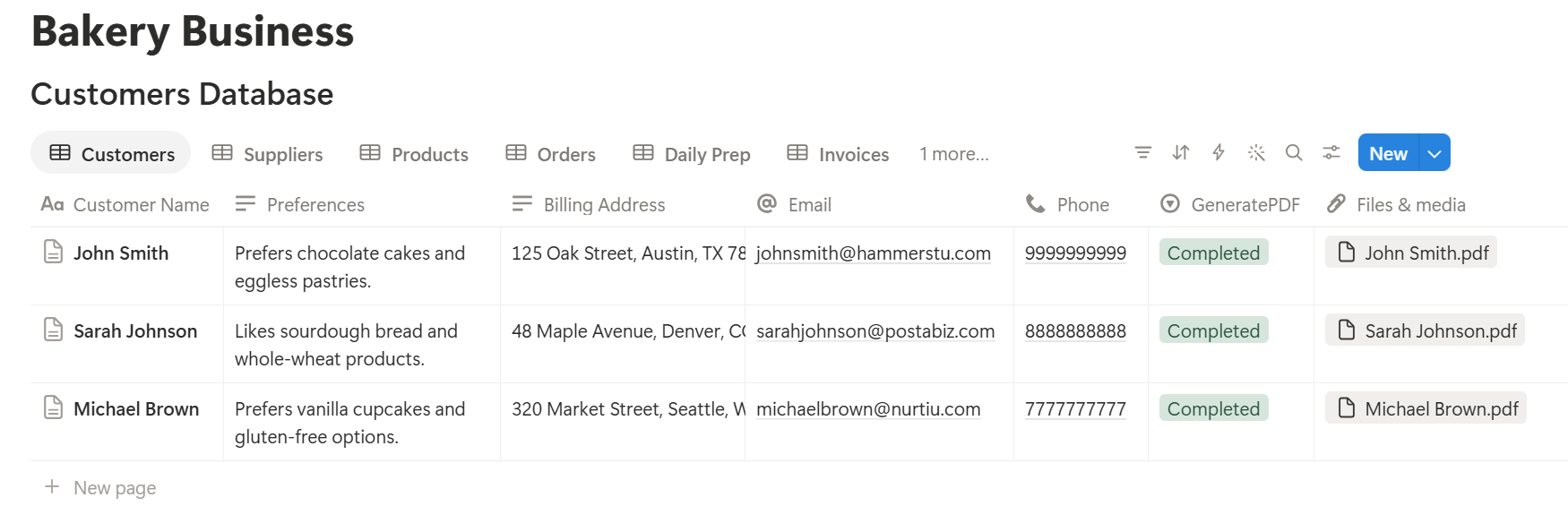
A prep sheet or an order form often lists several items, and each item may be its own linked record. Before you rely on a template to list them all, test it with an order that has many items, and check that every line shows the right product, quantity, and note. If it doesn't, a simple fallback is to keep a short text list of the items on the Order record, and use that in the template.
Always use Preview before printing or sending a document that others will rely on. Check the dates, times, quantities, and the allergy note, because an order form is a record as well as a message. Keep a copy of every document you send.
Before using any document tool with customer information, ask the provider how data is handled, where it's stored, and what agreements are available, and keep the answers with your records. Generate documents only from the fields they need.
> 📌 Key Takeaway: Keep one master recipe and one record per order, and let everything else come from them: the cost, the prep list, the order form, and the recipe card. When the prep sheet and the order confirmation come from the same record, they can't disagree.
Who Can See What
A bakery workspace holds recipes, costs, customer details, and supplier prices, and not everyone needs all of it.
Common Mistakes
Keeping recipes in several places. One master recipe, linked everywhere, means a change is made once.
Never updating ingredient prices. Costing is only as good as the prices behind it. Update them when suppliers change.
Ignoring packaging and labour. Food cost is one part of the margin, so don't treat it as the whole.
Skipping the allergy note on orders. Make the field part of the template, and make reading it a rule.
Relying on Notion alone for allergens. Use it as a working aid, and follow the legal process for labelling and customer information.
Promising more than the oven can make. Add a capacity check to the order template.
Taking orders without a deposit rule. Decide what needs a deposit, and use the Awaiting deposit view.
Letting stock numbers go stale. Update stock on a schedule, or use a dedicated tool.
Treating Notion as your POS or accounting system. Sales and tax records belong in the systems built for them.
Sharing a live Notion link. A link can show other fields or change after you send it. Send a PDF.
No owner for the structure. Pick one person responsible for the setup. Properties get renamed and formulas break, so tell that person not to rename properties used in PDF templates, because the placeholders must match exactly.
Skipping a test. Run a week of made-up orders and prep first, and fix what annoys the team before you use real ones.
Frequently Asked Questions
Can Notion be used for a bakery or cafe?
Yes, for coordination work such as recipes, costing, custom orders, daily prep, stock reminders, and supplier details. It isn't a point-of-sale system or a food safety certification tool, so keep sales, accounts, and official safety records in the systems built for them.
How do I organize recipes in Notion?
Create a Recipes database with a consistent template for ingredients, method, yield, and notes. Link recipes to an Ingredients database so costs and allergens come from one source, and keep a version note whenever a recipe changes.
How do I cost a recipe in Notion?
Record each ingredient's pack size and price to get a cost per unit, link ingredients to recipes with quantities, and add a formula for the total cost and the cost per portion. Compare that with the selling price to see the food cost percentage and the margin.
How do I manage custom cake orders?
Create an Orders database with the items, pickup date and time, allergy note, total, and deposit. Use a board by status, a calendar by pickup date, and flags for due soon, unpaid deposits, and orders with allergy notes.
How do I plan daily prep in Notion?
Create a Daily Prep database with the task, quantity, station, and assignee for each day. Use a recurring template for standard items, a view for each station, and review tomorrow's orders and prep at closing.
Can Notion track stock levels?
It can record stock and flag ingredients below a reorder level, but it won't count stock automatically. Update quantities on a schedule, or use a dedicated inventory tool for a large stock list.
Can I create prep sheets, order forms, and recipe cards from Notion?
Yes. You can export a page as a PDF, or use a template-based tool such as PDFOutput to fill a prep sheet, order form, or recipe card design with data from each record. Test it with an order that has many items, and use Preview before you print or send anything.
Is Notion safe for allergen information?
It can help you organize allergen information as a working aid, but it can't replace your legal allergen process. Check allergens against supplier labels, re-check when ingredients change, and follow the rules where you work.
Related Reading
Conclusion
The best Notion setup for a bakery or cafe is a simple kitchen desk: recipes that are costed, orders that flag their own dates and allergies, prep lists that are ready before the first oven is on, and stock that gets reordered before it runs out.
Keep one master recipe, record the decisions in Notion, and test with a week of made-up orders before you use real ones. When it is time to print a prep sheet, send an order confirmation, or share a recipe card, PDFOutput can fill your branded template from the records and save the PDF back to them.
Want clean prep sheets and order forms straight from Notion? Try PDFOutput.