Guides
How to Use Notion for a Solar Installation Company: Site Surveys, Installs, and Handover Reports
Learn how to set up Notion for a solar installer with leads, site surveys, permit tracking, install days, and warranties, plus PDF quotes and handover reports.
By Sanat Biswal · 2026-10-28 · 5 min read
{/ synced-from-notion — do not edit manually /}
A solar installation looks simple from the street: panels go on a roof.
Behind it sits a long chain. A lead becomes a survey. The survey becomes a design and a quote. The quote becomes a permit application and a wait.
Equipment has to be ordered, a crew has to be booked around the weather, and when it’s done, the customer needs a report that proves what was fitted and when. A project can sit for weeks at any link, and nobody notices until the customer calls.
Notion can hold the whole chain in one place. This guide is for small and mid-sized solar installers. It shows how to set up leads, projects, site surveys, installs, and equipment records, how to track permits and warranties, and how to turn records into PDFs such as quotes and handover reports. It is general information about organizing a business, not electrical, safety, legal, or financial advice, and solar rules differ widely by country.
Short answer on how to use Notion for a Solar Installation Company:
To use Notion for a solar installation company, create linked databases for Leads, Projects, Site Surveys, Installs, Equipment Installed, and Follow-ups.
Give every project a stage, so you can see where each one is stuck. Use formulas to calculate system size and cost per watt, flag permit applications that have waited too long, and calculate warranty end dates.
Put the key system details in report-ready fields, so a handover report PDF takes minutes. Keep design software, safety sign-offs, and official commissioning records in the systems your rules require.
Notion works well for installers as a project tracking and records layer. Each lead, project, survey, install day, and piece of equipment is a record, and the records are linked, so a project page shows its survey, its crew days, its serial numbers, and its warranty dates.
Notion isn’t system design software, an electrical safety tool, or a permit portal. It doesn’t replace the commissioning tests, certificates, and records that your regulator and grid operator require.
For documents that customers receive, you can export a page as a PDF or generate one from a template.
Table of Contents
What Notion Can and Can’t Do for a Solar Installer
Notion is good for:
- Tracking every project through its stages.
- Recording site survey findings consistently.
- Following permit and grid applications.
- Scheduling install days and crews.
- Recording equipment serial numbers and warranty dates.
- Calculating system size, price per watt, and conversion rates.
- Creating consistent quotes, schedules, and handover reports.
- Designing systems or estimating production in detail.
- Electrical safety sign-offs and commissioning tests as official records.
- Submitting permit or grid applications.
- Taking payments or running finance.
- Replacing the records your regulator and grid operator require.
- Safety. Working at height and working with electrical systems are serious risks, and the rules are strict. Your safety procedures, training, and local regulations come first. Notion can hold checklists and reminders, and it can’t be the safety control itself. Keep safety documents and sign-offs in the form your rules require.
- Rules and claims. Licensing, standards, permits, grid connection, incentives, consumer protection, cooling-off periods, and rules on advertising savings all differ by place. Check what applies to you. Don’t promise savings or production figures in a quote unless they come from your design tool and you can back them up, and say plainly that real results vary.
- Customer data. Solar customers share their address, photos of their home, and sometimes electricity bills and usage.
- Collect only what you need for the survey and the design.
- Don’t store account numbers, identity documents, or bank details in Notion.
- Never store monitoring logins, wifi passwords, or gate and alarm codes. Tell customers how to set up their own login, and don’t write it down.
- Photos of a home need the customer’s permission, and should avoid showing people and documents.
- Leads stores people who have shown interest. Add these properties: Name, Phone, Email, Address (town or area is enough at first), Source, Interested In (Panels, Battery, or Both), First Contact, Last Contact, and Status (New, Survey Booked, Quote Sent, Won, or Lost).
- Projects is the main database, one record per customer system. Add: Project Name, Customer, Stage (see below), Survey Date, Quote Sent, Price, Panel Count, Panel Watts, System Size (a formula), Price per Watt (a formula), Permit Submitted, Permit Approved, Equipment Ordered, Delivery Expected, Install Date, Commissioned On, Handover Date, and report-ready fields (see Stage 8).
- Site Surveys stores the findings. Add: Project (relation), Date, Surveyor, Roof Type, Roof Pitch, Orientation, Shading Notes, Structure Notes, Electrical Panel Notes, Meter Location, Access and Hazards, and Photos Taken (checkbox).
- Installs stores each install day. Add: Project (relation), Date, Crew, Hours Planned, Hours Actual, Status (Scheduled, In Progress, Done, Weather Delay, or Issue), and Notes.
- Equipment Installed stores each major item. Add: Project (relation), Item (Panels, Inverter, Battery, or Mounting), Model, Quantity, Serial Number, Install Date, Warranty Years, and Warranty End (a formula).
- Follow-ups stores checks after handover. Add: Project (relation), Due Date, Type (First Month Call, One Year Check, or Warranty Query), Status (To Do or Done), and Notes.
- Roof: type, material, pitch, orientation, and condition
- Shading: trees, buildings, chimneys, and at what times
- Structure: anything that affects mounting, as noted by the surveyor
- Electrical: panel location, space, and anything unusual, as noted by the surveyor
- Meter and connection: where it is, and how access works
- Access and hazards: ladders, scaffolding needs, pets, fragile roofs, and overhead cables
- Photos: a tick that the standard set was taken, with the files stored securely
- This week by crew: installs grouped by crew and date.
- Week calendar: a calendar view, so you can see clashes.
- Weather delays: installs with the status Weather Delay, sorted by original date, to reschedule.
- Issues: installs with the status Issue.
- Commissioned On: the date
- Certificate reference: the number, with a link to the secure file
- Grid connection approval: the date and reference, where required
- Serial numbers: a record in Equipment Installed for each major item
- The system: size, number of panels, and layout
- The equipment: models and serial numbers
- The dates: installation, commissioning, and grid connection
- The warranties: periods and who to contact
- How it works: a short, plain guide, and the location of the isolation points and shutdown steps
- Monitoring: how to set up access (never include a login or password)
- Care: simple maintenance advice, and what not to do
- Contacts: how to reach you for questions
- The certificates: references, with the documents attached as your rules require
- Panel Model, Panel Count, and Panel Watts
- Inverter Model and Inverter Serial
- Battery Model and Battery Serial (if fitted)
- System Size (kW), from the formula
- Install Date, Commissioned On, and Handover Date
- Panel Warranty End and Inverter Warranty End
- Certificate Reference
- Notes for the Customer: a short, personal paragraph
- Survey summaries: what you found, for the customer
- Quotes and proposals: system, price, inclusions, exclusions, and validity
- Installation agreements: terms, with wording checked by someone qualified
- Install schedules: dates and what to expect, for the customer
- Crew job sheets: a printable page, with no access codes
- Materials orders: a clear list for each supplier
- Handover reports: the system, equipment, dates, warranties, and care
- Warranty summaries: the periods and contacts
- Invoices and receipts. Notion Receipt Template shows how to structure one.
- Commissioning records: only in the format your regulator requires
- Create your template with your company name, logo, and layout.
- Add placeholders in double curly braces where the data should go, such as
{{Customer}}or{{System_Size_kW}}. - Make sure each placeholder matches the name of a Notion property.
- Start the document with a Notion database button or a status property.
- Ready to Generate creates a PDF from the database record.
- Generate Page converts the Notion page into a PDF.
- Generate PDF and Doc creates a PDF and a Google document.
- Preview creates a Google document so you can check it before making the final PDF.
- Generate E-Signed Doc creates an e-signed PDF in the database workflow.
- Give surveyors and installers access to the surveys and job sheets they need, not to prices or margins.
- Keep prices, price per watt, and conversion figures in views that only the owner and sales manager can open.
- Never store monitoring logins, wifi passwords, gate codes, or alarm codes.
- Don’t give customers, authorities, or suppliers access to your workspace. Send them finished PDFs.
- Keep photos of homes limited to the people who need them.
- Remove access on the day someone leaves, including subcontractors.
- Review who has access every few months.
- How to Use Notion for a Construction Business
- How to Use Notion for a Landscaping Business
- How to Use Notion for Property Management
- Notion Proposal Template
Notion is not made for:
If you already use design software, a permit portal, or accounting software, treat Notion as the project layer beside them.
Link to the design file and the permit reference, and don’t try to copy them.
Safety, Rules, and Customer Data
Solar work involves roofs, electricity, and people’s homes. Keep three things in mind.
Privacy rules differ by country, so check yours. While you are testing, use made-up customers and sites.
Use 6 Databases
Start with these 6 databases. You can add more later, such as Suppliers.
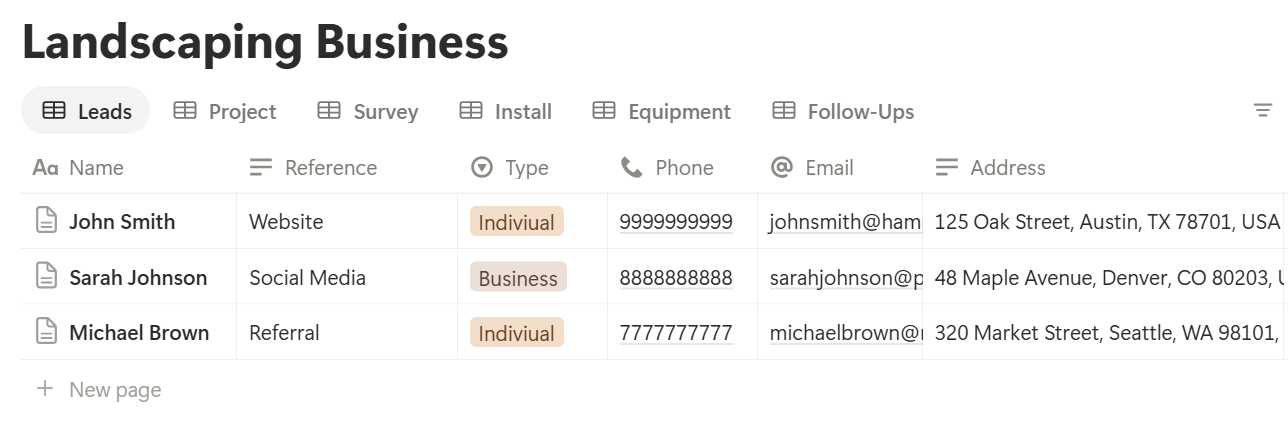
A relation connects a record in one database to a record in another. Link Site Surveys, Installs, Equipment Installed, and Follow-ups to Projects. Now a project page shows its survey, its install days, its serial numbers, and its follow-ups together.
For the project Stage property, use a short list: Lead, Survey, Quote, Accepted, Permit and Grid, Ordering, Install Scheduled, Installed, Commissioned, and Handed Over. A board view of Projects grouped by Stage shows where everything stands.
Stage 1: Lead and First Call
Record: who they are, why they’re interested, and what they already know.
On Leads, add a follow-up formula:
*Days since contact: dateBetween(now(), prop("Last Contact"), "days") Follow-up flag: if(or(prop("Status") == "New", prop("Status") == "Quote Sent") and prop("Days since contact") >= 3, "Follow up", "")*
The flag shows Follow up for leads and quotes that have waited three days. Change the number to suit you. Use a First call template with these questions: what they want to achieve, roof type, whether they own the property, rough electricity use (what they’re comfortable sharing), timeline, and how they heard about you.
Done when: every new lead has a record, a next step, and a date.
Stage 2: The Site Survey
Record: everything the designer needs, in the same order every time.
Use a Site survey template with these sections:
A consistent form means a designer in the office can work from a survey done by someone else. If the survey needs a second visit, record why. Check the safety rules for survey work, especially on roofs, and follow your procedures.
Add a formula on Projects for speed:
Days to quote: if(prop("Quote Sent") != "", dateBetween(prop("Quote Sent"), prop("Survey Date"), "days"), "")
A survey that waits two weeks for a quote loses customers. A view of surveys done with no quote sent shows where the queue is.
Done when: the survey is complete, the photos are stored, and a designer has what they need.
Stage 3: Design and Quote
Record: the system size, the price, and what’s included.
On Projects, enter Panel Count and Panel Watts from your design, and add:
System Size (kW): prop("Panel Count") prop("Panel Watts") / 1000 Price per Watt: if(prop("System Size (kW)") > 0, prop("Price") / (prop("System Size (kW)") 1000), 0)
Here is a made-up system. Amounts are in your own currency.
| Item | Value |
|---|---|
| Panels | 12 |
| Watts per panel | 400 |
| System size | 4.8 kW |
| Price | 7,200 |
| Price per watt | 1.50 |
Say plainly in the quote that estimates depend on the roof, weather, and use, and that results vary. Check the rules on how savings and returns can be described where you work.
Write what’s included, such as panels, inverter, mounting, installation, permits, and commissioning, and what’s excluded, such as roof repairs, scaffolding if required, or an electrical panel upgrade.
Notion Proposal Template shows how to structure a document that wins agreement. Add a Valid Until date, because equipment prices change.
Done when: the quote is sent as a PDF, the Stage is Quote, and Quote Sent is dated.
Stage 4: Acceptance, Permits, and Grid Application
Record: what was agreed, and the date every application went in and came back.
When a customer accepts, tick Accepted, set the Stage, and store the signed agreement securely. Many places have cooling-off periods and strict rules for contracts, so check what applies to you, and have your agreement checked by someone qualified.
Then handle the applications. Permit and grid applications can take weeks, and each one is a place where a project goes quiet. On Projects, add:
*Permit days waiting: if(prop("Permit Submitted") != "" and prop("Permit Approved") == "", dateBetween(now(), prop("Permit Submitted"), "days"), 0) Permit flag: if(prop("Permit days waiting") > 14, "Chase", "")*
The flag shows Chase for any application that has waited more than 14 days. Set the number to match the typical wait where you work.
Make a view called Waiting on permits, sorted by days waiting, and call the authority or grid operator on a schedule. Record every call in the project notes.
Don’t book an install date that depends on an approval you don’t have yet, and tell the customer honestly when delays happen.
Done when: the permit and grid approvals are recorded, with dates, and the Stage moves on.
Stage 5: Ordering Equipment
Record: what was ordered, when, and when it should arrive.
Tick Equipment Ordered, and enter Delivery Expected. Panels, inverters, and batteries can have long lead times and shortages, so check dates with suppliers, and record them in the project. A formula helps:
Delivery flag: if(prop("Delivery Expected") != "" and prop("Install Date") != "" and prop("Delivery Expected") > prop("Install Date"), "Delivery after install", "")
The flag shows if the equipment would arrive after the planned install date. Make a view of projects with that flag, so you can move the date before a crew turns up to nothing.
When the delivery arrives, check it against the order, and photograph any damage. Record the real serial numbers when the items are fitted, as in Stage 7.
A Delivery checklist template keeps it consistent: counts match, packaging is intact, models are right, and storage is dry and secure.
Done when: the equipment is ordered, the delivery date is known, and it fits the install date.
Stage 6: Install Days
Record: who’s going, what they need, and what happened.
For each install day, create an Install record linked to the project. Use these views:
A Job sheet for the crew should include the address and time, how to get in (never a code), the scope from the quote, the equipment list, the hazards from the survey, and the safety checks required. Keep it short and specific.
Large systems take more than one day. A rough formula for crew days helps with planning:
Crew Days: prop("Labour Hours") / (prop("Crew Size") prop("Hours per Day"))*
Weather matters on a roof. Record delays with a reason, tell the customer the same day, and set a new date. Safety rules for wind, rain, and heat come first. Notion doesn’t tell you what’s safe, so follow your procedures.
Done when: each install day is recorded, hours are entered, and any issue is noted.
Stage 7: Commissioning and Sign-Off
Record: that the system was tested and signed off, in the form your rules require.
Commissioning is the point where the system is tested, connected, and certified. The tests, the certificates, and who may sign them off are set by your local regulations and standards. Keep the official records and certificates in the format and place required, and treat Notion as the project tracker and the pointer to them.
In Notion, record:
For each piece of equipment, add Warranty Years and the install date, and a formula:
Warranty End: dateAdd(prop("Install Date"), prop("Warranty Years") 12, "months")*
Here is a made-up inverter record.
| Item | Value |
|---|---|
| Item | Inverter |
| Install date | 12 March |
| Warranty | 10 years |
| Warranty ends | 12 March, ten years later |
Done when: commissioning is recorded, the certificates are filed, and every serial number is in the database.
Stage 8: The Handover Report
Record: a clear summary of what the customer now owns, and how to look after it.
A handover report is the document a customer keeps for years, and the one a future buyer of the house may ask for. It should be accurate, complete, and easy to read.
A good report includes:
Put the key facts in report-ready fields on the Project, so a template can show them directly:
Fill them in at commissioning, from the Equipment Installed records. A project with several panel batches or multiple inverters needs a few more fields, so add what you need. Because the facts sit on one record, a report template doesn’t need to list linked items.
Have the report wording and any safety instructions checked by someone qualified. A wrong shutdown instruction is a safety problem, so test the report on a made-up project and read it as a customer would.
Done when: the report is generated, checked, and sent, and the Stage is Handed Over.
Stage 9: Warranty and Follow-Up
Record: the calls and checks you promised, and the warranty dates that matter.
Create Follow-up records at handover: a call after the first month, and a check after a year, or whatever your service promises. Add a flag:
Follow-up flag: if(prop("Status") == "To Do" and dateBetween(prop("Due Date"), now(), "days") <= 7, "Due soon", "")
A view called Follow-ups due shows what’s coming. A short call after the first month catches small problems, such as a monitoring connection that never worked, before they turn into complaints. Ask how it’s going, and record the answer.
Add a view of equipment with a warranty ending in the next year, if you plan to offer a check before the warranty expires. Many referrals come from happy customers a few months after installation, so ask for one, with the customer’s permission to use their name.
A short Warranty query template records the date, the problem, the equipment and serial number, what you did, and who you contacted at the manufacturer. Keep the thread in one place.
Done when: every handed-over project has its follow-ups scheduled.
Your Numbers: The Funnel
A solar business lives or dies on conversion. Notion can show you where leads fall away.
On Projects and Leads, count how many reach each stage. Here is a made-up quarter.
| Stage | Count |
|---|---|
| Leads | 120 |
| Site surveys | 60 |
| Quotes sent | 40 |
| Accepted | 14 |
| Installed | 12 |
| Lead to accepted | 11.7% |
| Quote to accepted | 35% |
Quote to accepted: if(prop("Quotes Sent") > 0, prop("Accepted") / prop("Quotes Sent"), 0)
Also watch the time between stages. A project that sits for three weeks between survey and quote is a project that might die. Check the numbers against a calculator, and remember that a small sample can mislead. These figures leave out costs and cash timing, so use them as a guide, and check the full figures with an accountant.
A Thursday at a Six-Person Installer
To see how the pieces fit, here is one made-up Thursday.
8:00 am. The operations manager opens the project board. Eleven projects are active. The Waiting on permits view shows one application at 17 days, so she calls the authority and logs the call.
9:00 am. The Follow up view shows three quotes waiting for three days. A sales adviser sends each a short, personal message, and updates Last Contact.
10:30 am. A surveyor finishes a roof survey, and fills in the template on his phone. He ticks that the photos are stored. The Days to quote clock starts.
12:00 pm. The Delivery flag shows a project where the inverter arrives two days after the install date. She moves the install, and phones the customer.
1:30 pm. Rain stops one crew’s roof work. She sets the install to Weather Delay, and slots it into Monday.
3:00 pm. A finished system is commissioned. The installer records the certificate reference and serial numbers, and the handover report is generated as a preview for checking.
4:30 pm. The Follow-ups due view shows two first-month calls. A customer service person makes them, and records the answers.
Nothing waited in someone’s inbox.
The Documents That Leave Notion
Customers, authorities, and suppliers don’t use your workspace, so some records need to become files:
For a single page, you can use Notion’s export option. How to Export Notion to PDF shows the settings.
Crews and project stages work much like other crew businesses, and How to Use Notion for a Construction Business and How to Use Notion for a Landscaping Business cover similar ground.
Customers judge an installer partly by the paperwork, and Notion’s own export gives you limited control over layout. How to Add Your Logo and Brand Colors to Notion PDFs explains how a template solves that.
Generating PDFs with PDFOutput
PDFOutput creates documents from your Notion data using a template. A template can be a Google document, a Word file, a PDF file, or a Notion page. If you already have a quote or report layout in Word or Google Docs, you can reuse it.
Here is how it works:
These are some of the status options:
The e-signed option may help with quote acceptance and handover acknowledgements.
Whether an electronic signature is valid for a given contract depends on your location, the type of document, and any cooling-off rules, so check before you rely on it. You can save the finished file to a property in your database, so a handover report stays on its project record. You can also save it to a Google Drive folder and store the link in a property.
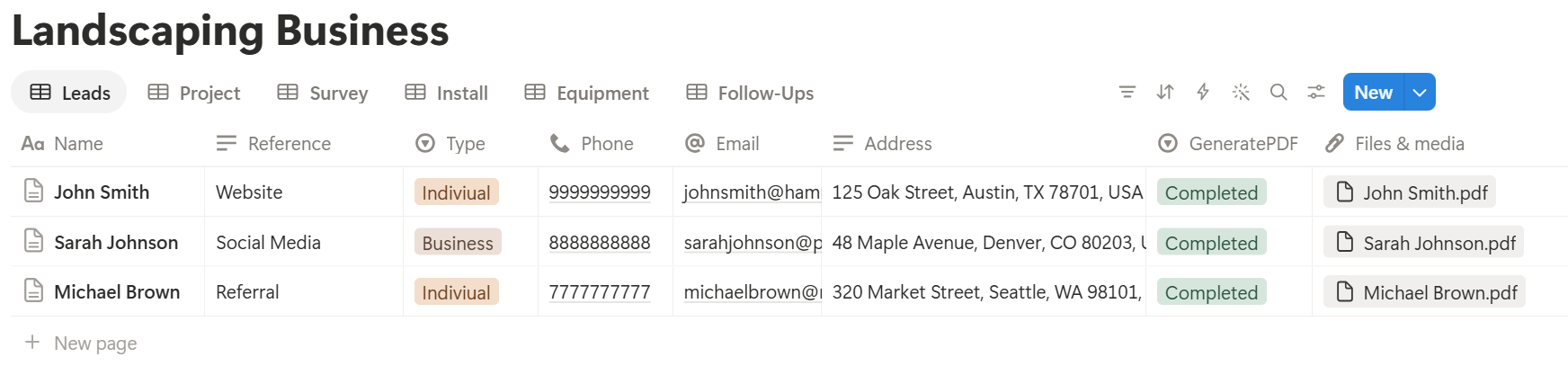
This is where the report-ready fields pay off. A handover report that uses fields from the project record, such as the models, serial numbers, dates, and warranty end dates, doesn’t depend on listing linked records. If your systems have many items and you’d like an itemized equipment list in the PDF, test a template with a sample project that has several, and check that each item appears.
If it doesn’t, keep the main items as fields, and add a short text summary of anything else.
Start with the quote or the handover report, whichever you send more often.
Use Preview first and check for empty fields, the right customer, and numbers that match your records. A handover report contains safety information, so have it checked by someone qualified before it goes out.
Key Takeaway: Give every project a stage, chase permits on a schedule, and record serial numbers when equipment is fitted. If those three habits are in place, quotes and handover reports come from data you already have.
Who Can See What
Your workspace will hold customer addresses, prices, and margins, so control access from the start.
Common Mistakes
Treating Notion as the safety record. Safety sign-offs and commissioning certificates must follow your rules. Use Notion as the tracker and the pointer.
Letting permits sit. An application with no chase date can stall a project for weeks.
Promising savings you can’t back up. Take production and savings from your design tool, and say that results vary.
Booking installs before equipment is confirmed. A delivery flag costs nothing and saves a wasted crew day.
Not recording serial numbers on the day. They’re hard to find later, and warranty claims need them.
Skipping follow-ups. A short call after the first month catches problems early and creates referrals.
Storing logins and codes. Keep passwords and access codes out of Notion.
Too many properties. If a survey takes thirty minutes to enter, the surveyors will skip it. Keep the template short and specific.
No owner for the structure. Pick one person responsible for the setup. Properties get renamed and formulas break, so tell that person not to rename properties used in PDF templates, because the placeholders must match exactly.
Skipping a test. Run a few made-up projects through the whole chain first, and fix what annoys the team before you use real records.
Frequently Asked Questions
Can Notion be used to run a solar installation company?
Yes, as a project tracking and records layer for leads, surveys, permits, install days, equipment, warranties, and handover reports. It isn’t design software, a safety system, or a permit portal, and it doesn’t replace official commissioning records.
How do I track solar projects in Notion?
Create a Projects database with a Stage property, and make a board view grouped by stage. Link surveys, install days, equipment records, and follow-ups to each project.
How do I calculate system size and price per watt in Notion?
Multiply the panel count by the watts per panel and divide by 1,000 for kilowatts. Divide the price by the system size in watts for the price per watt. Use your design software for production and savings estimates.
How do I track permit and grid applications in Notion?
Record the date each application was submitted and approved. Add a formula that counts the days waiting, and flag any that pass a set number of days, so you know when to chase.
How do I track equipment serial numbers and warranties in Notion?
Create an Equipment Installed database linked to each project, with a model, serial number, install date, and warranty years. Add a formula that adds the warranty period to the install date. Take warranty terms from the manufacturer’s documents.
Can I create handover reports from Notion?
You can export a page as a PDF, or use a template-based tool such as PDFOutput to fill a handover report template with data from each project record. Keep the key facts in clearly named properties, test it on a few sample projects, and have the final wording checked by someone qualified.
Is it safe to store customer information in Notion?
Notion lets you control who sees each page, but your duties depend on the rules where you work. Collect only what you need, keep logins, codes, and identity or bank details out, and share addresses and photos only with the people who need them.
Related Reading
Conclusion
A good solar installation setup in Notion gives every project a stage and a next step: surveys that follow one template, permits that get chased on a schedule, equipment that arrives before the crew does, and serial numbers that are recorded the day they’re fitted. Keep safety and official records in the systems your rules require, and run a few made-up projects through the chain first.
When your quotes and handover reports need to leave Notion, PDFOutput can fill your template from each project record and save the PDF to your chosen storage.
Want quotes and handover reports as clean PDFs? Try PDFOutput.