Guides
How to Use Notion for a Landscaping Business: Jobs, Crews, and Estimates
Learn how to set up Notion for a landscaping business with estimates, maintenance contracts, crew schedules, rain delays, and equipment, plus PDF estimates and job sheets.
By Sanat Biswal · 2026-10-28 · 5 min read
{/ synced-from-notion — do not edit manually /}
Landscaping has two businesses inside it.
One is maintenance: the same lawns and hedges, week after week, all season.
The other is projects: a new patio, a planting scheme, a retaining wall, each one different. The first needs a reliable rhythm. The second needs accurate estimates. And over both of them sits the weather, which doesn’t care what’s in the diary.
Notion can hold both businesses in one place. This guide is for small landscaping and garden companies. It shows how to set up clients, a price list, estimates, jobs, maintenance contracts, and equipment, how to work out materials and crew days, and how to handle rain delays. It also shows how to turn records into PDFs such as estimates and job sheets.
All of this is general information about organizing a business, and not to be considered as legal, safety, or financial advice.
Short answer on how to use Notion for Landscaping Business:
To use Notion for a landscaping business, create linked databases for Clients, a Price List, Estimates, Jobs, Maintenance Contracts, and Equipment.
Use formulas to work out materials from area and depth, estimate crew days, flag contracts that are due a visit, and flag equipment that needs service.
Add a “Rained Off” status so weather delays are recorded and rescheduled. Keep access codes out of Notion. Put the key estimate totals in report-ready fields, so an estimate PDF takes minutes.
Notion works well for landscapers as a planning and records workspace. Each client, estimate, job, contract, and machine is a record, and the records are linked, so a client page shows its estimates, its visits, and its invoices.
A formula turns an area and a depth into a volume of soil or mulch, and another turns labour hours into crew days. Notion isn’t a route planner, a weather forecast, a measuring tool, or a payment system.
It works best beside those tools. For documents that clients receive, you can export a page as a PDF or generate one from a template.
Table of Contents
What Notion Can and Can’t Do for a Landscaping Business
Notion is good for:
- Keeping clients, sites, and notes in one place.
- Pricing estimates from a consistent price list.
- Working out materials and crew days.
- Tracking maintenance contracts through the season.
- Scheduling crews and recording rain delays.
- Tracking equipment hours and service.
- Creating consistent estimates, job sheets, and invoices.
- Planning the shortest route between jobs.
- Weather forecasts.
- Measuring a garden or drawing plans.
- Tracking crew location or clock-in times.
- Taking payments, payroll, or tax.
- Never store gate codes, alarm codes, or Wi-Fi passwords in Notion. Write how access works, such as “side gate, key with the client,” and keep codes in a secure tool.
- Record hazards, not secrets. “Dog in the back garden” and “overhead cables near the oak” are exactly the notes a crew should see.
- Underground services. Many places have rules or services to check for buried pipes and cables before digging. Check what applies where you work, and record that the check was done. Don’t treat a Notion tick as the check itself.
- Chemicals. Applying pesticides, herbicides, or fertilizers is regulated in many places, and you may need a licence, training, and application records in a set format. Keep official records as required, and link to product labels and safety sheets.
- Photos. Before and after photos of a client’s property need their permission, and shouldn’t show people, documents, or house numbers if the client prefers.
- Payment details such as card numbers should never be stored in Notion.
- Clients stores each client and site. Add these properties: Name, Address, Phone, Email, Site Area (in square meters), Access Note (how to get in, never the code), Hazards, and Status (Active, Paused, or Past).
- Price List stores your costs. Add: Item, Category (Material, Plant, Labour, Equipment, or Disposal), Unit (for example cubic meter, each, meter, or hour), Cost per Unit, and Supplier.
- Estimates stores each quote. Add: Estimate Name, Client (relation), Date, Status (Draft, Sent, Accepted, or Declined), Materials Total, Plants Total, Edging and Hard Landscaping Total, Labour Hours, Labour Total, Equipment and Disposal Total, Subtotal (a formula), Markup, Price (a formula), and Valid Until.
- Jobs stores each visit or project day. Add: Client (relation), Estimate (relation), Date, Crew (Crew A or Crew B), Job Type (Maintenance, Project, or Cleanup), Hours Estimated, Hours Actual, Status (Scheduled, In Progress, Done, Rained Off, or Issue), and Notes.
- Maintenance Contracts stores recurring work. Add: Client (relation), Service (Mowing, Hedge Trimming, Seasonal Cleanup, or Other), Frequency (Weekly, Fortnightly, or Monthly), Season Start, Season End, Price per Visit, Last Visit, and Next Visit (a formula).
- Equipment stores your machines. Add: Name, Type, Serial Number, Hours Meter, Hours at Last Service, Service Interval (hours), and Notes.
- Today by crew: today’s jobs, grouped by Crew and sorted by date.
- Week calendar: a calendar view, so you can see gaps and clashes.
- Rained off: jobs with the status Rained Off, to be rescheduled.
- Issues: jobs with the status Issue, such as blocked access or a missing delivery.
- Address and time
- Client contact and how to get in (not the code)
- Scope of work, from the estimate
- Materials to load, with quantities
- Hazards, such as dogs, overhead cables, or slopes
- Safety equipment needed
- Space for notes and before and after photos
- Estimates: scope, price, and validity. Notion Proposal Template shows how to structure one.
- Maintenance agreements: services, frequency, season, price, and terms, with wording checked by someone qualified
- Job sheets: a printable page for each crew, with no access codes
- Materials orders: a clear list for the nursery, the stone yard, or the supplier
- Invoices and receipts: what the client owes or has paid. Notion Receipt Template shows how to structure one.
- Visit schedules: the dates of a client’s seasonal visits
- Completion summaries: what was done, with before and after photo notes
- Equipment service records: for your files and for resale
- Chemical application records: only in the format your regulator requires
- Create your template with your company name, logo, and layout.
- Add placeholders in double curly braces where the data should go, such as
{{Estimate_Name}}or{{Price}}. - Make sure each placeholder matches the name of a Notion property.
- Start the document with a Notion database button or a status property.
- Ready to Generate creates a PDF from the database record.
- Generate Page converts the Notion page into a PDF.
- Generate PDF and Doc creates a PDF and a Google document.
- Preview creates a Google document so you can check it before making the final PDF.
- Generate E-Signed Doc creates an e-signed PDF in the database workflow.
- Give each crew access to its own jobs and job sheets, not to prices, margins, or other crews’ clients.
- Keep the price list, markups, and contract revenue in views that only the owner and manager can open.
- Never store gate codes, alarm codes, or passwords.
- Don’t give clients or suppliers access to your workspace. Send them a finished PDF.
- Keep photos of properties limited to the people who need them.
- Remove access on the day someone leaves, including seasonal staff.
- Review who has access every few months.
- How to Use Notion for a Construction Business
- How to Use Notion for a Cleaning Business
- How to Use Notion for Property Management
- Notion Proposal Template
Notion is not made for:
If you already use a route tool, a measuring app, or accounting software, treat Notion as the planning and records layer beside them. Link to the file or the plan, and don’t try to copy it.
If you work with poor phone signal on site, test how Notion behaves there, and plan to add notes once you’re back in range.
Sites, Codes, Chemicals, and Safety
A landscaper works on other people’s property, with sharp tools and sometimes chemicals. Keep a few rules.
Licensing, safety, and privacy rules differ by country and region, so check what applies to you. While you are testing, use made-up clients and sites.
Use of The 6 Databases
Start with these 6. You can add more later.
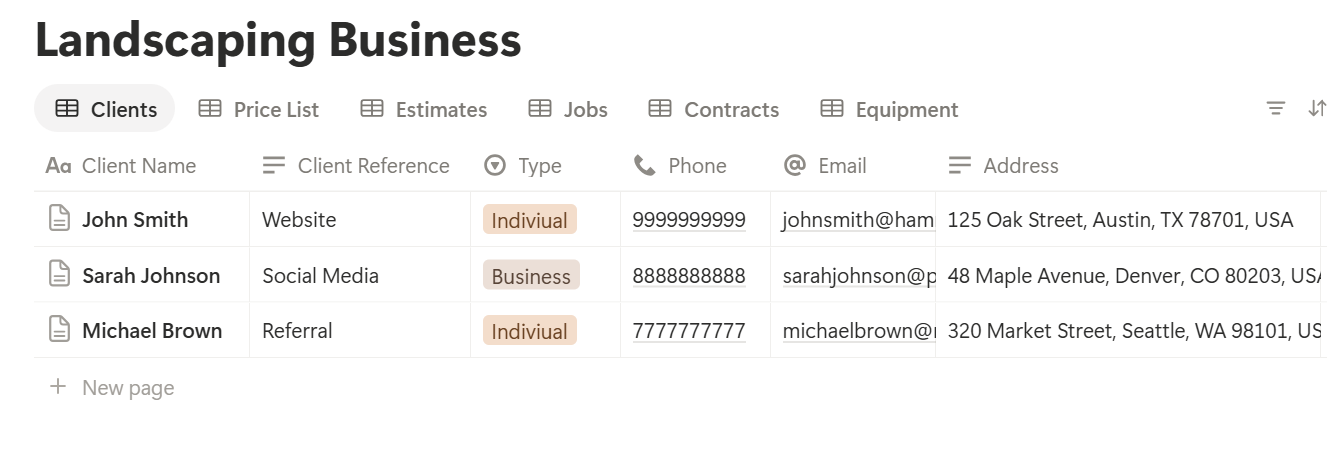
A relation connects a record in one database to a record in another. Link Estimates to Clients, Jobs to Clients and Estimates, and Maintenance Contracts to Clients. Now a client page shows their estimates, their contracts, and every visit.
The Price List: Your Costs in One Place
Estimates go wrong when costs are guessed. Put your real costs in one table, and use them every time.
Fill the Price List with what you actually pay and charge: mulch, topsoil, gravel, edging, plants by size, labour per hour, skip hire or waste disposal, and equipment hire. Add a Last Updated date to each line. Suppliers change prices, and a price list from last spring can quietly lose money.
Review the list at the start of each season. A view called Needs checking, showing items with a Last Updated date older than six months, reminds you.
Estimates That Don’t Lose Money
A good estimate has four ingredients: the right quantities, the right costs, enough time, and a margin. Notion can help with all four.
Quantities: Area and Depth
Soil, mulch, gravel, and sand are bought by volume, and a small mistake in depth is a big mistake in cost. To work out a volume, multiply the area by the depth in meters. Add a waste allowance for spillage, settling, and uneven ground.
On a quantity line, add these formulas:
Volume: prop("Area") prop("Depth") Volume to Order: prop("Volume") (1 + prop("Waste"))
Format Waste as a percent. Here is a made-up mulch calculation.
| Item | Value |
|---|---|
| Area | 40 sq m |
| Depth | 0.07 m (7 cm) |
| Volume | 2.8 cu m |
| Waste allowance | 10% |
| Volume to order | 3.1 cu m (rounded) |
A Full Estimate
Here is a made-up estimate for a small patio garden refresh. Amounts are in your own currency, and tax is not included.
| Item | Quantity | Unit cost | Total |
|---|---|---|---|
| Mulch | 3.1 cu m | 45 | 139.50 |
| Plants | 24 | 8 | 192.00 |
| Edging | 18 m | 6 | 108.00 |
| Labour | 12 hours | 40 | 480.00 |
| Equipment and disposal | 1 | 60 | 60.00 |
| Subtotal | 979.50 | ||
| Markup (20%) | 195.90 | ||
| Price | 1,175.40 |
*Subtotal: prop("Materials Total") + prop("Plants Total") + prop("Edging and Hard Landscaping Total") + prop("Labour Total") + prop("Equipment and Disposal Total") Price: prop("Subtotal") (1 + prop("Markup"))
Both approaches work. The second makes the estimate PDF easier later, because every number sits in its own property. Test the formulas with made-up estimates and check them with a calculator.
Add a Valid Until date to every estimate, because material prices and your schedule change. Write what’s included and what isn’t, such as “removal of existing turf included, tree work not included.”
A clear scope prevents the most common arguments. Notion Proposal Template shows how to structure a document that wins agreement.
Pro Tip: Add a small contingency line to every project, and say so in the estimate. Hidden roots, rubble, and poor drainage turn up on a surprising number of jobs.
Crew Days: Will It Fit in the Schedule?
An estimate that doesn’t fit your calendar is a problem for later. Convert labour hours into crew days.
On Estimates, add two properties, Crew Size and Hours per Day, and a formula:
Crew Days: prop("Labour Hours") / (prop("Crew Size") prop("Hours per Day"))*
With the estimate above, 12 labour hours with a crew of two working an eight-hour day is 0.75 of a crew day. So the job fits in a single day, with time to spare for loading and travel. A 60-hour project with a crew of three working eight hours is 2.5 crew days.
Make a view called Booked crew days, showing accepted estimates grouped by month, with a sum of Crew Days. Compare it with the crew days you have available. In spring, you’ll see the squeeze coming before it arrives, and you can decide whether to hire, subcontract, or set a start date further out. Always allow for travel, loading, and weather. A figure of 0.75 days is the work itself, not the day.
Maintenance Contracts: The Seasonal Rhythm
Maintenance is the steady income that carries you through slower weeks. It works because it repeats, and it breaks when a visit is missed.
On Maintenance Contracts, add these formulas:
*Interval: if(prop("Frequency") == "Weekly", 7, if(prop("Frequency") == "Fortnightly", 14, 28)) Next Visit: dateAdd(prop("Last Visit"), prop("Interval"), "days") In Season: and(now() >= prop("Season Start"), now() <= prop("Season End")) Due flag: if(prop("In Season") and prop("Next Visit") <= dateAdd(now(), 3, "days"), "Due", "")*
The flag shows Due for contracts that are in season and have a visit coming within three days. Make a view called To schedule, showing them sorted by next visit.
Update Last Visit when a visit is marked Done, and create the next job from a template, or with a database automation if your plan has one.
Grass doesn’t grow at the same speed all year. Many landscapers shorten or lengthen the interval with the season, and some contracts pause entirely in winter. Season Start and Season End handle that, and you can change the interval when the season changes.
For money, add a rollup that counts visits done, and a formula:
Season Revenue: prop("Visits Done") prop("Price per Visit")*
A view of contracts grouped by service, with a sum of season revenue, shows which services pay the bills. Write your terms for weather, access, and missed visits into the maintenance agreement, with wording checked by someone qualified.
Jobs, Crews, and Rain Delays
A job record is a single day’s work for a crew. Create one for each maintenance visit and each project day.
The Schedule
Make these views of Jobs:
Rain Delays
You can’t forecast the weather in Notion, but you can handle its effects calmly. When a job can’t go ahead, set its status to Rained Off, add the reason, and set a new date. A view of rained-off jobs, sorted by original date, becomes your priority list for the next dry day. Tell the client the same day, with the new date.
A rollup that counts rained-off jobs by month tells you how much weather costs you. For projects, include weather days in your timeline, and say so in the estimate.
The Job Sheet
A crew should see one page for each job, with:
Keep it short, and write it so a new crew member could follow it. A Notion form can make closing a job quicker on a phone. Check what your plan allows, and test it on the devices your crews actually use.
Equipment: Service by Hours
Mowers, trimmers, and blowers fail at the worst moment. Most manufacturers give service intervals by hours of use, and a simple formula keeps track.
On Equipment, add:
*Hours Since Service: prop("Hours Meter") - prop("Hours at Last Service") Service flag: if(prop("Hours Since Service") >= prop("Service Interval"), "Service due", if(prop("Hours Since Service") >= prop("Service Interval") 0.9, "Service soon", ""))
Here is a made-up mower.
| Item | Value |
|---|---|
| Hours meter | 1,240 |
| Hours at last service | 1,195 |
| Hours since service | 45 |
| Service interval | 50 hours |
| Flag | Service soon |
Estimate Versus Actual: Learn From Every Job
Estimates improve when you compare them with what really happened.
After each project, enter the actual hours on the job. On Jobs, add:
*Hours Variance: prop("Hours Actual") - prop("Hours Estimated") Over flag: if(prop("Hours Estimated") > 0 and prop("Hours Actual") > prop("Hours Estimated") 1.15, "Over estimate", "")
The flag shows Over estimate when a job took more than 15 percent longer than planned. Make a view of those jobs, and write a short note on each: was it ground conditions, access, a change from the client, or a poor estimate?
After a dozen jobs, patterns appear, such as slope work always taking longer, or planting always being quicker than you thought. Adjust your price list and your labour figures to match.
These comparisons leave out overheads such as vehicles, insurance, and your own time, so use them as a guide to estimating, and check the full figures with an accountant.
A Tuesday in May for a Two-Crew Business
To see how the pieces fit, here is one made-up Tuesday.
7:00 am. The owner opens Today by crew. Crew A has five maintenance visits, and Crew B has the first day of a patio garden project. Each job sheet lists the scope, the materials to load, and the hazards.
7:30 am. Crew B loads the mulch, plants, and edging against the checklist. The client has a dog, which the hazards note mentioned.
10:00 am. Rain starts. Crew A finishes the visit in hand, and the owner sets the next two to Rained Off, with new dates. She messages both clients.
11:00 am. The Rained off view shows four jobs to fit in over the next dry days. She slots them into Thursday.
1:00 pm. She sends a new estimate to a client, using the price list and the markup. The Valid Until date is three weeks away.
3:00 pm. The Service due view shows a mower at 47 of 50 hours. She books the service for Friday.
4:30 pm. The To schedule view shows eleven contracts due within three days. She confirms Wednesday’s route.
Nothing depended on memory, and the rain didn’t cause chaos.
The Documents That Leave Notion
Clients, suppliers, and crews don’t all use your workspace, so some records need to become files:
For a single page, you can use Notion’s export option. How to Export Notion to PDF shows the settings.
If you run a crew business in another trade, How to Use Notion for a Cleaning Business and How to Use Notion for a Construction Business cover similar ground.
Clients judge a landscaper partly by the paperwork, and Notion’s own export gives you limited control over layout. How to Add Your Logo and Brand Colors to Notion PDFs explains how a template solves that.
Generating PDFs with PDFOutput
PDFOutput creates documents from your Notion data using a template. A template can be a Google document, a Word file, a PDF file, or a Notion page. If you already have an estimate layout in Word or Google Docs, you can reuse it.
Here is how it works:
These are some of the status options:
The e-signed option may help with estimate approvals and maintenance agreements. Whether an electronic signature is valid for a given agreement depends on your location and the type of document, so check before you rely on it. You can save the finished file to a property in your database, so an estimate stays on its record. You can also save it to a Google Drive folder and store the link in a property.
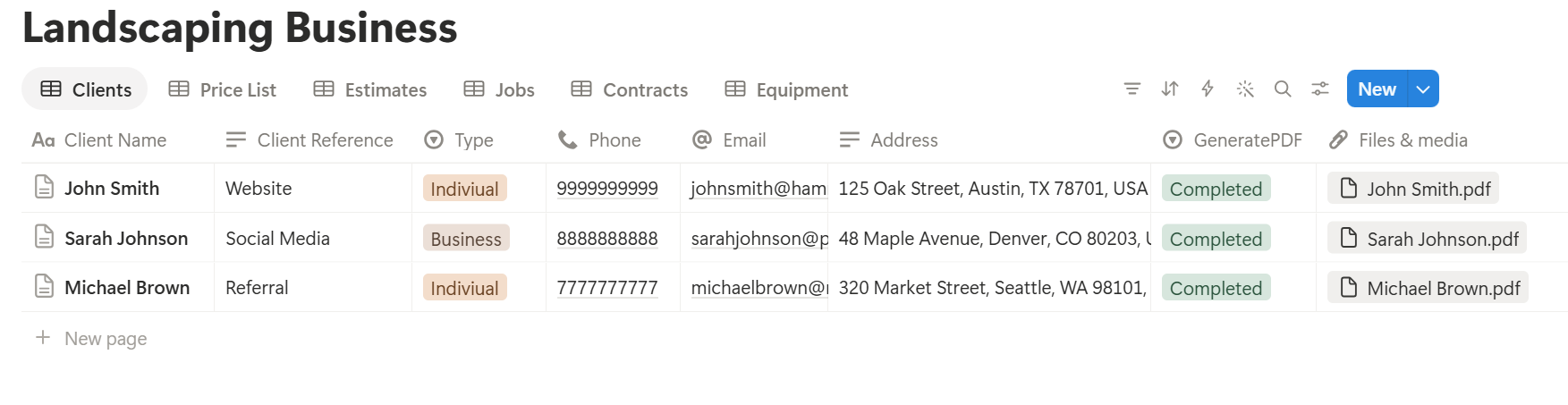
This is where the estimate’s category totals pay off. If your estimate keeps Materials Total, Plants Total, Labour Total, and the rest as properties on one record, a template can show them without listing linked line items. If you’d like an itemized list in the PDF, test a template with a sample estimate that has several lines, and check that each appears. If it doesn’t, keep the totals by category, plus a short text description of what’s included.
Start with the estimate, since every project needs one. Use Preview first and check for empty fields, the right client, and totals that match your formula.
Key Takeaway: Price from a real price list, convert hours into crew days before you promise a date, and record rain delays instead of hiding them. Do that, and estimates, job sheets, and invoices come straight from data you already have.
Who Can See What
Your workspace will hold client addresses, prices, and margins, so control access from the start.
Common Mistakes
Estimating from memory. A price list with dates beats a guess, and it makes every estimate faster.
Forgetting waste. Soil and mulch settle, spill, and get left in the bag. Add an allowance.
Promising dates without checking crew days. Convert hours into days before you commit.
Hiding rain delays. Record them, tell the client the same day, and plan the catch-up.
Skipping the compare. If you never check actual against estimated hours, your prices drift away from your costs.
Ignoring machine hours. A missed service costs more than the service.
Storing codes and secrets. Keep gate and alarm codes in a secure tool.
Too many properties. If a job takes five minutes to log, a busy crew will skip it. Keep it short.
No owner for the structure. Pick one person responsible for the setup. Properties get renamed and formulas break, so tell that person not to rename properties used in PDF templates, because the placeholders must match exactly.
Skipping a test. Run a week of made-up clients and jobs first, and fix what annoys the crews before you use real data.
Frequently Asked Questions
Can Notion be used to run a landscaping business?
Yes. It can organize clients, price lists, estimates, jobs, maintenance contracts, and equipment. It doesn’t plan routes, forecast weather, measure gardens, or take payments, so use dedicated tools for those.
How do I estimate materials like mulch or soil in Notion?
Multiply the area by the depth in meters to get the volume, then multiply by one plus a waste allowance. Check what unit your supplier sells in, and check the result with a calculator.
How do I schedule recurring lawn visits in Notion?
Create a Maintenance Contracts database with a frequency, a season start and end, and a last visit date. Add a formula that adds the interval to the last visit to give the next visit, and make a view of contracts due in the next few days.
How do I handle weather delays in Notion?
Add a Rained Off status to your jobs, record the reason, and set a new date. A view of rained-off jobs, sorted by original date, becomes your priority list for the next dry day.
How do I track equipment service in Notion?
Record each machine’s hours meter and the hours at its last service, and use a formula that subtracts one from the other. Compare the result with the manufacturer’s service interval, and flag machines that are due.
Can I create estimates and job sheets from Notion?
You can export a page as a PDF, or use a template-based tool such as PDFOutput to fill an estimate or job sheet template with data from each record. Keep category totals on the estimate record for the simplest result, and test it on a few sample records first.
Is it safe to store client information in Notion?
Notion lets you control who sees each page, but your duties depend on the rules where you work. Collect only what you need, keep gate codes and card details out, and share addresses only with the people who need them.
Related Reading
Conclusion
A good landscaping setup in Notion handles both halves of the business: a seasonal rhythm for maintenance, and accurate estimates for projects. Start with a price list and the estimate formulas, add the contract flags, and record rain delays and machine hours as they happen. Run a week of made-up clients through the system first. When your estimates, job sheets, and invoices need to leave Notion, PDFOutput can fill your template from each record and save the PDF to your chosen storage.
Want estimates and job sheets as clean PDFs? Try PDFOutput.