Guides
How to Use Notion for a Moving Company: Quotes and Move Day Checklists
Learn how to set up Notion for a moving company with quotes, jobs, crews, trucks, move day checklists, and payments, plus PDF quotes and work orders.
By Sanat Biswal · 2026-10-30 · 5 min read
{/ synced-from-notion — do not edit manually /}
A moving company sells a promise: your things will arrive intact, on the day we said.
Keeping that promise depends on small details that are easy to lose. The staircase the customer forgot to mention. The piano that wasn’t on the inventory.
The crew that got double-booked. The price someone quoted over the phone that nobody wrote down. Most small movers hold all of this in text messages, a whiteboard, and one person’s memory, and the cost shows up on move day.
Notion can hold it in one place. This guide is for owner-operators and small moving companies, local or long-distance, that run a few crews and trucks.
It follows a job from the first inquiry to the final payment. It shows how to set up leads, quotes, jobs, crews, vehicles, and payments, how to build a move day checklist your crew will actually use, and how to turn records into PDFs such as quotes, work orders, and invoices. It also covers customer privacy.
It is general information about organizing a business, not to be considered as legal, insurance, or regulatory advice.
Moving is regulated in many places, with rules on licensing, insurance, liability coverage, and long-distance moves, so check what applies where you work.
Quick answer on how to use Notion for moving company:
To use Notion for a moving company, create linked databases for Leads, Quotes, Jobs, Crew, Vehicles, and Payments.
Build quotes from a few consistent inputs, such as volume, crew size, hours, and surcharges, and let formulas add up the total and the deposit.
Turn every booked move into a job with a crew, a truck, and a move day checklist. Use flags to show which jobs need confirming and which payments are late. Keep customer data minimal, and put the key facts in report-ready fields so a quote or work order PDF takes minutes.
Notion works well for movers because a move is a series of handoffs. A lead becomes a quote, a quote becomes a job, and a job pulls in a crew, a truck, a checklist, and payments.
Each of those is a record linked to the one before it. A formula turns your inputs into a price, and another turns a move date into a countdown. Notion isn’t a dispatch system, a GPS tracker, a payment tool, or a legal contract platform.
It doesn’t send reminders by itself, so it works best beside your phone, your calendar, and your payment tool. For documents customers receive, you can export a page as a PDF or generate one from a template.
Table of Contents
What Notion Can and Can’t Do for a Moving Company
Notion is good for:
- Tracking inquiries, quotes, and bookings.
- Building consistent quotes with a total and a deposit.
- Scheduling crews and trucks across jobs.
- Giving every move a checklist from the night before to close-out.
- Tracking deposits, balances, and late payments.
- Creating consistent quotes, work orders, and invoices.
- Live dispatch or GPS tracking.
- Online booking with live availability.
- Taking payments.
- Automatic reminders to customers or crew.
- Legally binding contracts, bills of lading, or insurance paperwork.
- Never store door codes, alarm codes, or key locations in Notion. Tell the crew lead by phone or use a secure method, and keep only a note such as “Access arranged with customer.”
- Keep addresses and contact details to what you need. Collect what’s required for the quote and the move, and nothing more.
- Don’t store card numbers or bank details in Notion. Payments happen in your payment tool.
- Keep inventory notes practical. Note high-value or fragile items for handling. You don’t need a detailed record of everything someone owns.
- Photos and videos of the home and belongings belong in secure storage. Link to them from the job, and delete them as your policy says.
- Tell customers what you keep. Say what you store, why, and for how long, in your terms.
- Leads stores people who’ve asked about a move. Add these properties: Name, Phone, Email, Source, Move Size, Preferred Date, Status (New, Quote Sent, Booked, Lost, or Not Now), Last Contact, and Notes.
- Quotes stores each price you give. Add: Lead (relation), Quote Date, Volume, Crew Size, Cu Ft per Mover Hour, Minimum Hours, Estimated Hours (a formula), Rate per Mover Hour, Labor (a formula), Truck Fee, Travel, Materials, Surcharges, Total (a formula), Deposit % (a percent), Deposit (a formula), Valid Until (a formula), and Status (Draft, Sent, Accepted, Declined, or Expired).
- Jobs is the main database. Add: Job Name, Lead (relation), Quote (relation), Move Date, Start Time, Origin, Destination, Crew (relation), Vehicle (relation), Status (Booked, Confirmed, In Progress, Complete, or Cancelled), Days Until Move (a formula), Confirm Flag (a formula), Total (rolled up from the quote), Paid Total (rolled up from Payments), Balance (a formula), Damage Reported (a checkbox), and Closed Out (a checkbox).
- Crew stores your people. Add: Name, Role (Lead, Mover, or Driver), Phone, Certifications, and Notes. A rollup of linked Jobs shows who’s working when.
- Vehicles stores trucks and equipment. Add: Name, Type, Capacity, Next Service Date, Insurance Renewal Date, and a Service Flag (a formula).
- Payments stores money in. Add: Job (relation), Type (Deposit, Balance, or Extra), Amount, Due Date, Paid On, Method, Status (Due, Paid, or Late), and Paid Amount (a formula).
- Follow up: quotes with the flag, sorted by date.
- Open quotes: a board grouped by Status.
- This month: quotes sent this month, for the numbers later.
- Today: jobs with a move date of today, sorted by start time.
- This week: a calendar view of move dates.
- To confirm: jobs with the flag.
- By crew: a timeline view grouped by Crew, so you can see who is working when.
- [ ] Customer confirmed: time window, addresses, parking, lift or elevator
- [ ] Crew and truck confirmed
- [ ] Truck fuelled and checked
- [ ] Equipment loaded: blankets, straps, dollies, ramps, tape, tools
- [ ] Packing materials counted against the quote
- [ ] Crew lead has the job details and a phone number for the customer
- [ ] Greet the customer and confirm the scope
- [ ] Walk through the home with the customer, room by room
- [ ] Note existing damage and high-value or fragile items
- [ ] Photograph anything that matters, and store the photos securely
- [ ] Confirm any changes to the quote before work starts
- [ ] Protect floors, doorways, and banisters
- [ ] Disassemble furniture, and keep hardware together and labelled
- [ ] Load heavy items first and secure everything
- [ ] Final sweep of every room, cupboard, and the garage
- [ ] Confirm the destination layout with the customer
- [ ] Protect the new home’s floors and doorways
- [ ] Place furniture and reassemble
- [ ] Unload and check items against the inventory
- [ ] Final walkthrough with the customer
- [ ] Any damage or missing items noted before the crew leaves
- [ ] Customer signs off, using your signed paperwork process
- [ ] Balance payment taken, or invoice sent
- [ ] Truck returned, cleaned, and refuelled
- [ ] Job set to Complete
- Damage. Tick Damage Reported on the job and write what happened, factually and briefly, with the time and who was present. Link to the photos in your secure storage. Follow your insurance and claims process, because deadlines and liability rules differ by place and by policy.
- Delays. Note the reason and the time on the job, and message the customer straight away.
- Changes. If the customer adds items, rooms, or hours, record the change and the new price before you continue, and have them agree to it in writing, such as in a message.
- Quotes: the inputs, the price breakdown, how the price can change, and how long it’s valid
- Move confirmations: the date, the time window, the addresses, and what the customer needs to do
- Work orders or job tickets: the details and the move day checklist for the crew lead
- Inventory lists: what’s going, with notes on fragile or valuable items
- Invoices and receipts: the work done, the payments received, and any balance
- Customer move prep guides: how to prepare, what not to pack, and what to expect
- Service agreements and bills of lading: wording checked by someone qualified, and following the rules where you work
- Create your template with your company name, your logo, and your layout.
- Add placeholders in double curly braces where the data should go, such as
{{Customer_Name}}or{{Total}}. - Make sure each placeholder matches the name of a Notion property.
- Start the document with a Notion database button or a status property.
- Ready to Generate creates a PDF from the database record.
- Generate Page converts the Notion page into a PDF.
- Generate PDF and Doc creates a PDF and a Google document.
- Preview creates a Google document so you can check it before making the final PDF.
- Generate E-Signed Doc creates an e-signed PDF in the database workflow.
- Give crew leads access only to their own jobs and checklists, or send them a work order PDF instead.
- Keep pricing, margins, payments, and revenue in views that only the owner can open.
- Never give customers access to the workspace. Send each customer only their own PDFs.
- Keep door codes, card details, and ID documents out of Notion.
- Keep crew phone numbers and personal details visible only to those who need them.
- Remove access on the day someone leaves.
- Review who has access every few months.
- How to Use Notion for a Cleaning Business
- How to Use Notion for IT Services
- How to Use Notion for Freelancers
Notion is not made for:
If you already use a phone, a calendar, a payment tool, and a signed agreement process, treat Notion as the records layer beside them.
Link to the signed paperwork and the photos on the job record, and don’t try to replace them.
Customer Privacy and Security
Movers know where people live, when they’re leaving, what’s in the house, and when it will be empty. That’s sensitive information.
Privacy and consumer rules differ by country and region, so check what applies to you. While you are testing, use made-up customers.
Use These 6 Databases
Start with these 6 databases. You can add more later, such as Claims or Storage Units.
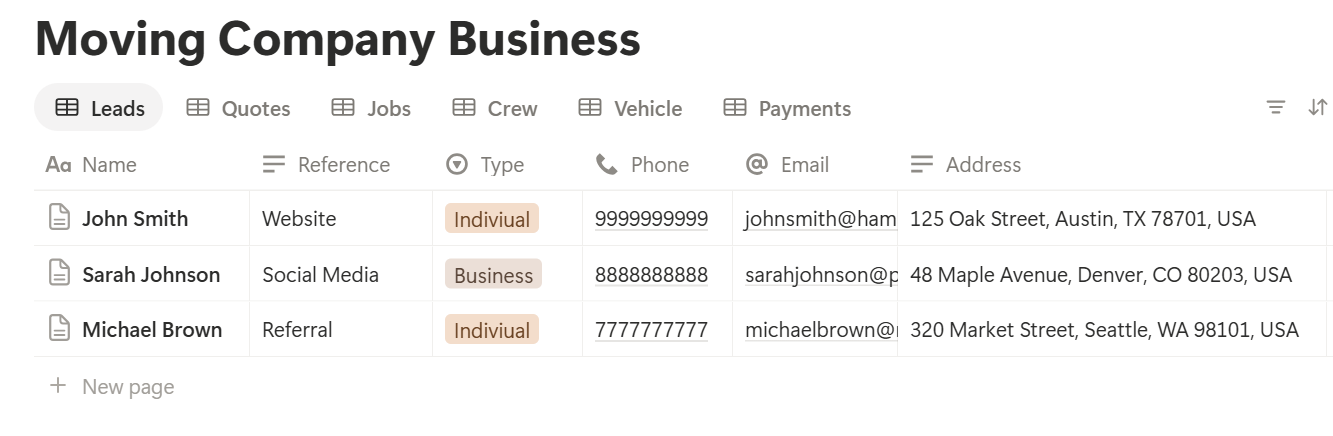
A relation connects a record in one database to a record in another. Link Quotes to Leads, Jobs to Quotes, Crew, and Vehicles, and Payments to Jobs. Now a job’s page shows its customer, its price, its crew, its truck, and its payments together.
Quotes: Price the Job Consistently
Quoting from memory leads to quotes that vary by who answers the phone. A short set of inputs makes prices consistent and easy to explain.
Collect the same details every time: the size of the move, an estimate of the volume, the distance, the floors and stairs at each end, any long carries from the truck to the door, and heavy or awkward items such as a piano or a safe.
A video walkthrough or a photo list helps you estimate better. Remember that an estimate is not always a final price. The rules on binding and non-binding quotes differ by place, so state clearly on every quote how the price can change.
On Quotes, add these formulas:
Estimated Hours: max(prop("Minimum Hours"), ceil(prop("Volume") / (prop("Crew Size") prop("Cu Ft per Mover Hour"))))
Labor: prop("Crew Size") prop("Estimated Hours") prop("Rate per Mover Hour")
Total: prop("Labor") + prop("Truck Fee") + prop("Travel") + prop("Materials") + prop("Surcharges")
Deposit: prop("Total") * prop("Deposit %")
Valid Until: dateAdd(prop("Quote Date"), 14, "days")*
The Cu. Ft per Mover Hour figure is your own number. Start with a guess, then tune it against your finished jobs until the estimated hours match the real ones.
The Minimum Hours property stops a tiny move from being priced below what a crew visit costs you.
Here is a made-up quote for a two-bedroom apartment. Amounts are in your own currency.
| Item | Value |
|---|---|
| Volume | 800 cu ft |
| Crew | 3 movers at 55 cu ft per mover hour |
| Estimated hours | 5 (800 ÷ 165 = 4.85, rounded up) |
| Labor (3 × 5 × 40) | 600 |
| Truck fee | 150 |
| Travel | 60 |
| Materials | 85 |
| Surcharges (stairs) | 50 |
| Total | 945 |
| Deposit at 20% | 189 |
*Follow up: if(prop("Status") == "Sent" and dateBetween(now(), prop("Quote Date"), "days") >= 2, "Follow up", "")
Expired: if(prop("Status") == "Sent" and dateBetween(now(), prop("Valid Until"), "days") > 0, "Expired", "")*
Make these views of Quotes:
> 💡 Pro Tip: After every finished job, compare the estimated hours to the real hours and note the gap on the quote. After twenty jobs, you’ll know exactly how to adjust your Cu Ft per Mover Hour for each type of move.
From Quote to Booked Move
When a customer accepts, do four things in order: set the quote to Accepted, create the job and link the quote, take the deposit, and confirm the date and the crew.
On Jobs, add two formulas:
*Days Until Move: dateBetween(prop("Move Date"), now(), "days")
Confirm Flag: if(prop("Status") == "Booked" and prop("Days Until Move") >= 0 and prop("Days Until Move") <= 2, "Confirm with customer", "")*
The flag shows every booked move within two days that hasn’t been confirmed. Change the number to suit your pace.
Confirming means calling or messaging the customer, checking the time window, the addresses, the parking, the lift or elevator booking, and anything that changed.
Then set the status to Confirmed. Notion doesn’t send the message, so use your own tool.
Make these views of Jobs:
Crews and Trucks: Who Is Where
Double-booking a crew or a truck is expensive and embarrassing. Notion can’t block it for you, but it can make it easy to see.
Link each job to a crew and a vehicle.
The By crew timeline shows each person’s jobs on a row, so overlaps are obvious before you promise a date. Add a second timeline grouped by Vehicle.
Before you confirm a new booking, check both.
On Vehicles, add a service flag:
Service Flag: if(dateBetween(prop("Next Service Date"), now(), "days") <= 14, "Service due", "")
It shows trucks due for service within two weeks, so a breakdown doesn’t cancel a move. Add a similar flag for the insurance renewal date.
Keep certifications, such as a driver’s licence class, on the Crew record, and check the dates on a schedule that suits your rules.
The Move Day Checklist
Move day goes wrong in the same places every time: missing equipment, no walkthrough, a rushed load, an unrecorded problem.
A checklist stops those.
Build it as a Move Day template on Jobs, so every new job starts with it.
The day before
On arrival
Loading
Delivery
Close-out
Keep the template short enough that the crew lead will use it on a phone. A page of forty checkboxes gets skipped.
Remember that the crew can’t see the workspace unless you give them access, so see the access section below, or send the checklist as a PDF.
Damage, Delays, and Changes on the Day
Things go wrong on some moves. The difference between a complaint and a lost customer is often how well you recorded it.
Create a view called Needs attention with every job where Damage Reported is ticked and Closed Out isn’t. It stops an open problem from being forgotten.
Payments, Deposits, and Closing the Job
Most movers take a deposit to hold the date and the balance on completion. Write the terms in your agreement, and use Notion to track them.
For each job, create two Payment records: the deposit and the balance. Here is a made-up example for the 945 quote.
| Payment | Due | Amount | Status |
|---|---|---|---|
| Deposit (20%) | At booking | 189 | Paid |
| Balance | On completion | 756 | Due |
| Total | 945 | Balance: 756 |
Paid Amount: if(prop("Status") == "Paid", prop("Amount"), 0)
On Jobs, roll up Paid Amount as Paid Total, and then add:
Balance: prop("Total") - prop("Paid Total")
On Payments, add a late flag:
Late flag: if(prop("Status") == "Due" and dateBetween(now(), prop("Due Date"), "days") > 0, "Late", "")
A view called Payments due shows what’s coming and what’s late. Payments happen in your payment tool, and you update the status in Notion when the money arrives.
If the final price changed on the day, add an Extra payment, or adjust the balance, so the record matches what the customer was charged. Tax rules differ by country, so check what applies to you.
A job is closed when the work is done, the customer has signed off, the balance is paid, and any damage is dealt with. Tick Closed Out only then. Afterwards, send a short thank-you and, if the customer is happy, ask for a review.
Your Business Numbers
A moving company has a few numbers worth watching. Here is a made-up month.
| Item | Value |
|---|---|
| Quotes sent | 30 |
| Quotes accepted | 12 |
| Quote to booking rate | 40% |
| Average job value | 945 |
| Revenue from new bookings | 11,340 |
If the rate is high but quotes are few, your marketing needs attention. If it’s very high, you may be pricing too low.
Also watch the gap between estimated and real hours, the share of jobs with damage reported, late payments, and where leads come from.
A small sample can mislead, so treat these as guides. They leave out fuel, wages, repairs, insurance, and tax, so check the full figures with an accountant. Test every formula with made-up numbers and check it with a calculator.
A Thursday for a Small Moving Company
To see how the pieces fit, here is one made-up Thursday.
7:00 am. The owner opens the Today view. Two moves are booked, with two crews. Each job shows its crew, truck, addresses, and checklist.
8:00 am. The To confirm view shows a move on Saturday. She calls the customer, confirms the window and the parking, and sets the job to Confirmed.
10:00 am. The Follow up view shows three quotes sent two days ago. She sends a short, friendly message to each.
12:00 pm. A crew lead finishes a delivery, completes the close-out checklist, and notes a scuffed table leg with a photo. The owner ticks Damage Reported and starts the claims process.
2:00 pm. The By crew timeline shows a customer wants a move on a day when a crew is already out. She offers another date, and no one is double-booked.
4:00 pm. The Payments due view shows a balance due on a finished job. She sends a friendly reminder.
5:00 pm. She sets one job to Closed Out and sends a quote PDF for tomorrow’s walkthrough.
Nothing depended on her memory.
The Documents That Leave Notion
Customers and crews don’t use your workspace, so some records need to become files:
For a single page, you can use Notion’s export option. How to Export Notion to PDF shows the settings.
Customers judge a moving company partly by its paperwork, and Notion’s own export gives you limited control over layout. How to Add Your Logo and Brand Colors to Notion PDFs explains how a template solves that.
Generating PDFs with PDFOutput
PDFOutput creates documents from your Notion data using a template. A template can be a Google document, a Word file, a PDF file, or a Notion page. If you already have a quote or work order layout in Word or Google Docs, you can reuse it.
Here is how it works:
These are some of the status options:
The e-signed option may help with quotes and service agreements.
Whether an electronic signature is valid for a given document depends on your location and the type of document, and moving paperwork can have specific rules, so check before you rely on it.
You can save the finished file to a property in your database, so a quote stays on its record. You can also save it to a Google Drive folder and store the link in a property.
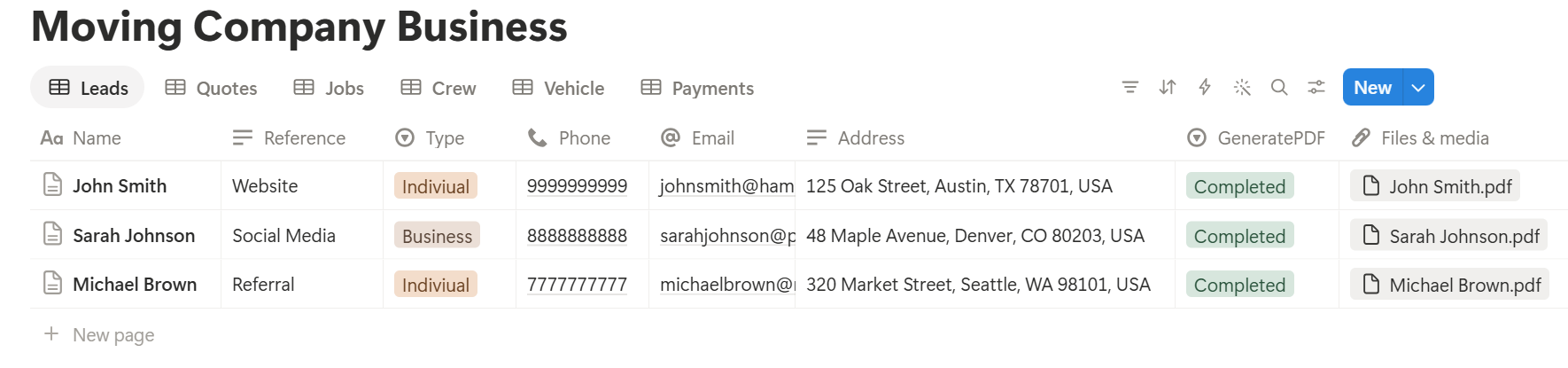
Two kinds of document work well.
A quote PDF uses fields on one quote record: the customer, the volume, the crew size, the hours, each charge, the total, the deposit, and the valid-until date.
A work order uses fields on one job record: the date, the addresses, the crew, the truck, and the checklist as text. If you’d like a list of every payment or inventory item in a PDF, test a template with a sample job that has several, and check that each appears.
If it doesn’t, keep the details as text on the job, and use that in the template.
Before using any document tool with information about your customers, ask the provider how data is handled, where it’s stored, and what agreements are available, and keep the answers with your records.
The safest approach is to generate documents from records that hold only what the recipient should see. Never put door codes or other access details on a document. Check the name and address on every document before you send it.
Start with the quote PDF, since you’ll send it most often. Use Preview first and check for empty fields, the right customer, and a price you’re happy to be held to.
> 📌 Key Takeaway: Quote from the same inputs every time, give every job a crew, a truck, and a move day checklist, and record problems on the day. Then quotes, work orders, and invoices come from records you already have.
Who Can See What
Your workspace will hold personal information about your customers, so control access tightly.
Common Mistakes
Quoting from memory. Two people give two prices for the same move. Use the same inputs and the same formulas.
Ignoring stairs and long carries. They’re the most common reason a move runs over. Ask about them every time.
Forgetting to confirm. A move booked three weeks ago and never confirmed is a no-show waiting to happen. Use the confirm flag.
Double-booking crews and trucks. Check the timelines before promising a date.
Storing access codes. Keep door and alarm codes out of Notion entirely.
Skipping the walkthrough. Without a record of existing damage, you can’t show what was there before.
Letting damage notes go stale. Open problems need an owner and a deadline.
Too many properties. If a job takes twenty minutes to set up, it won’t get done. Keep the templates short.
No owner for the structure. If more than one person edits the workspace, pick one person responsible for the setup. Properties get renamed and formulas break, so tell that person not to rename properties used in PDF templates, because the placeholders must match exactly.
Skipping a test. Run a month with made-up customers first, and fix what annoys you before you use real records.
Frequently Asked Questions
Can Notion be used to run a moving company?
Yes, for the records side. It can organize leads, quotes, jobs, crews, trucks, checklists, and payments. It doesn’t offer dispatch, GPS tracking, online booking, payments, or automatic reminders, so use dedicated tools for those.
How do I create a moving quote in Notion?
Create a Quotes database linked to each lead, with inputs for volume, crew size, rate, truck fee, travel, materials, and surcharges. Use formulas for the estimated hours, the labor, the total, and the deposit, and a formula for the date the quote expires.
How do I make a move day checklist in Notion?
Build a template on your Jobs database with sections for the day before, arrival, loading, delivery, and close-out. Every new job then starts with the same checklist. Keep it short enough for a crew lead to use on a phone.
How do I schedule crews and trucks in Notion?
Link each job to a crew and a vehicle, and make timeline views grouped by Crew and by Vehicle. Overlaps become visible before you confirm a date. Notion doesn’t block double-booking by itself.
How do I track deposits and balances in Notion?
Create a Payments database linked to each job, with an amount, a due date, and a status. Add a helper formula that returns the amount only when the status is Paid, roll it up on the job, and subtract it from the total for the balance.
Is it safe to store customer information in Notion?
Notion lets you control who sees each page, but your duties depend on the rules where you work. Collect only what you need, keep door codes, card details, and ID documents out, and limit access to the people who need it.
Can I create quotes and work orders from Notion?
You can export a page as a PDF, or use a template-based tool such as PDFOutput to fill a quote or work order template with data from each record. Put the key facts in clearly named properties on one record, test it on a few sample records first, and check each document before you send it.
Related Reading
A good moving setup in Notion keeps the promise between the quote and the final signature: a consistent price, a confirmed date, a crew and a truck that aren’t double-booked, a checklist for move day, and a record of anything that went wrong. Keep customer data minimal, keep access codes out, and run a month with made-up customers first.
When your quotes, work orders, and invoices need to leave Notion, PDFOutput can fill your template from each record and save the PDF to your chosen storage.
Want quotes and work orders as clean PDFs? Try PDFOutput.