Guides
How to Use Notion for an IT Services Company: Clients, Tickets, and Contracts
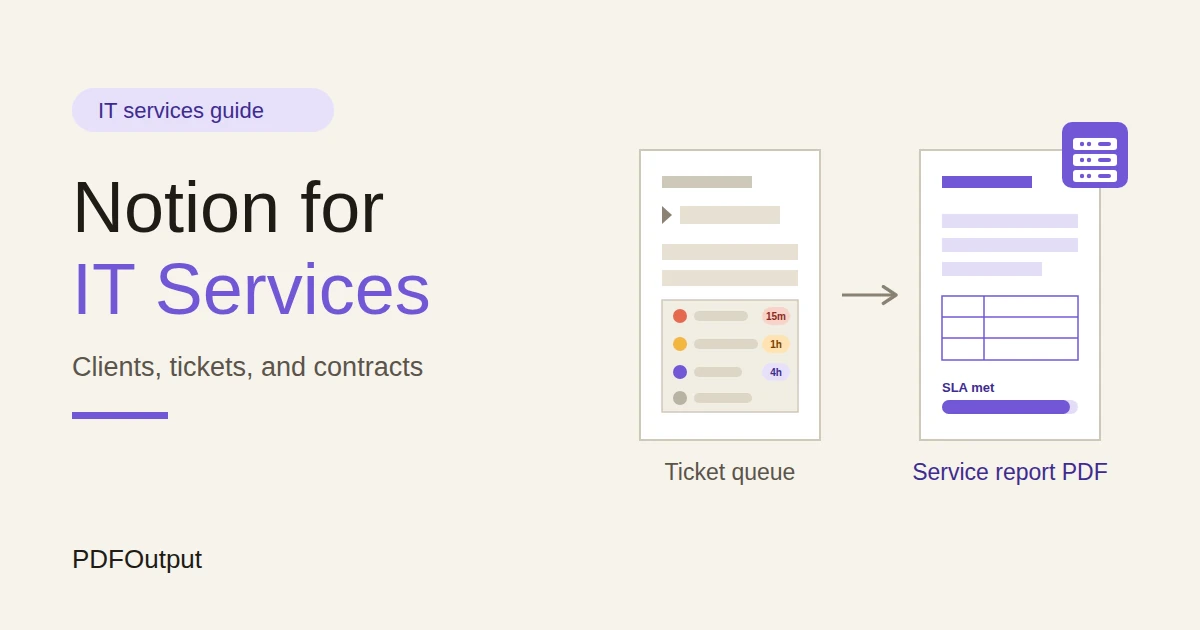
Learn how to set up Notion for an IT services company with clients, support tickets, SLA tracking, contracts, and renewals, plus PDF monthly service reports and invoices.
By Sanat Biswal · 2026-10-29 · 5 min read
{/ synced-from-notion — do not edit manually /}
An IT services company sells reliability, and reliability is mostly boring routine.
Answer the ticket within the promised time. Renew the domain before it expires. Replace the laptop before the warranty ends. Send the client a clear account of what you did this month.
The routine breaks when it lives in an inbox, a ticket tool, a spreadsheet of renewals, or someone’s head.
The failures it causes are the embarrassing kind: a website that goes down because a certificate expired, or a client who says “I never hear from you.”
Notion can hold that routine in one place.
This guide is for small IT support companies and managed service providers. It shows how to set up clients, contracts, tickets with response targets, assets, and renewals, how to prepare monthly service reports, and how to turn records into PDFs such as reports, quotes, and invoices.
It also explains what must never go into Notion. It is a general information about organizing a business, not to be considered as security, legal, or financial advice.
Short answer on using Notion for IT Services:
To use Notion for an IT services company, create linked databases for Clients, Contracts, Tickets, Assets, Renewals, and Monthly Reports.
Use formulas to work out response and resolution deadlines, flag tickets at risk of missing their targets, calculate monthly fees and overage, and flag renewals at 60 and 30 days. Never store passwords, keys, or recovery codes.
Put each month’s key numbers in a monthly report record, so a service report PDF takes minutes.
Notion works well for small IT companies as an account management and tracking layer. Each client, contract, ticket, asset, and renewal is a record, and the records are linked, so a client page shows its contract, its tickets this month, its devices, and what’s about to expire.
Notion isn’t a full service desk, a remote monitoring tool, or a password manager, and it doesn’t turn emails into tickets without an integration. It works best either for a small team with low ticket volume, or beside a ticketing tool that handles the queue.
For documents that clients receive, you can export a page as a PDF or generate one from a template.
Table of Contents
What Notion Can and Can’t Do for an IT Services Company
Notion is good for:
- Keeping clients, contracts, and contacts in one place.
- Logging tickets and tracking response and resolution deadlines.
- Recording the devices and services you support.
- Tracking domain, certificate, licence, and warranty expiry dates.
- Working out monthly fees, included hours, and average.
- Preparing monthly service reports.
- Storing procedures, runbooks, and onboarding checklists.
- Remote monitoring and management of devices.
- Turning emails into tickets automatically.
- Measuring SLAs in business hours with holidays.
- Storing passwords or other secrets.
- Replacing a full service desk tool at high ticket volume.
- Passwords, passphrases, and recovery codes.
- API keys, tokens, and private keys.
- Multi-factor codes and backup codes.
- VPN configuration files and remote access credentials.
- Wi-Fi passwords and device logins.
- Network diagrams, IP addresses, and configurations help attackers. Keep them in a secure documentation tool, and link to them.
- Client data. Keep notes about the work, not copies of the client’s files or personal data.
- Contracts and NDAs. Many client agreements limit where information can be stored and who can see it. Read what you signed.
- Your own security. Treat your workspace as something that could one day be exposed, and store only what you’d be able to defend. Turn on the strongest sign-in protection your plan offers, and keep the number of people with access small.
- Clients stores who you support. Add these properties: Company, Main Contact, Email, Phone, Users, Devices, Industry, Start Date, and Status (Active, Onboarding, or Ended).
- Contracts stores each agreement. Add: Client (relation), Plan (Basic, Standard, or Premium), Start Date, End Date, Price per User, Price per Device, Included Hours per Month, Overage Rate, Notice Period (days), and Status (Active, Renewing, or Ended).
- Tickets stores each request. Add: Ticket ID (a Unique ID with a prefix like T), Client (relation), Requester, Summary, Category (Email, Network, Hardware, Security, Software, or Other), Priority (P1 to P4), Status (New, In Progress, Waiting on Client, Resolved, or Closed), Created, First Response At, Resolved At, Time Spent (hours), Assigned To, and Billable (checkbox).
- Assets stores what you support. Add: Name, Client (relation), Type (Laptop, Server, Router, Phone, or Other), Make and Model, Serial Number, Purchase Date, Warranty End, and Owner.
- Renewals stores expiry dates. Add: Item, Client (relation), Type (Domain, Certificate, Licence, Warranty, or Subscription), Provider, Expiry Date, Renewal Cost, Auto-Renew (checkbox), and Owner.
- Monthly Reports stores the summary for each client each month. Add: Client (relation), Period, Tickets Closed, Closed Within SLA, SLA Percent (a formula), Hours Used, Hours Included, Average First Response (minutes), Highlights, Upcoming Renewals, and Recommendations.
- Needs attention: tickets with a Response late, Resolution late, or At risk flag, sorted by due time.
- My tickets: open tickets assigned to each person.
- Waiting on client: tickets with that status, so you can chase them.
- By client: tickets grouped by client, for reviews.
- Expiring soon: renewals with a flag, sorted by date.
- By client: renewals grouped by client, for reviews and reports.
- Not on auto-renew: items where Auto-Renew isn’t ticked, because those are the ones that fail.
- Agreement signed and stored securely.
- Contacts and escalation path agreed.
- Devices and services listed in Assets.
- Renewals listed with owners.
- Access arranged through your secure tools (no secrets in Notion).
- Backups and security basics reviewed, with findings noted.
- Welcome message and how to raise tickets sent.
- Notice recorded, with the end date.
- Handover of documentation agreed.
- Access removed from your systems, and credentials rotated by the right people.
- Final invoice sent.
- Data returned or deleted as your agreement says.
- Feedback call booked.
- Monthly service reports: tickets, SLA, hours, renewals, and recommendations
- Managed services agreements and SLAs: with wording checked by someone qualified
- Quotes and proposals for projects and refreshes. Notion Proposal Template shows a structure that works.
- Invoices and receipts: the monthly fee and any overage. Notion Receipt Template shows how to structure one.
- Renewal notices: what expires, when, and who is responsible
- Asset summaries: counts, ages, and warranty status, without sensitive configuration
- Incident summaries: what happened, impact, cause, and fix, written with care and checked before sending
- Onboarding and offboarding checklists
- Create your template with your company name, logo, and layout.
- Add placeholders in double curly braces where the data should go, such as
{{Client}}or{{SLA_Percent}}. - Make sure each placeholder matches the name of a Notion property.
- Start the document with a Notion database button or a status property.
- Ready to Generate creates a PDF from the database record.
- Generate Page converts the Notion page into a PDF.
- Generate PDF and Doc creates a PDF and a Google document.
- Preview creates a Google document so you can check it before making the final PDF.
- Generate E-Signed Doc creates an e-signed PDF in the database workflow.
- Give technicians access to tickets, assets, and runbooks, not to pricing, margins, or contract values.
- Keep contract prices, billing, and renewal costs in views that only the owner and account managers can open.
- Never give clients access to the workspace. Send them finished PDFs, or give them a separate ticket portal built for that.
- Turn on the strongest sign-in protection your plan offers, and review who has access every few months.
- Never store passwords, keys, tokens, or recovery codes.
- Remove access on the day someone leaves, including contractors.
- Write down your rules for what may and may not be stored in Notion, and make sure every new team member reads them.
- How to Use Notion for a SaaS Startup
- How to Use Notion for Consultants
- How to Use Notion for an Agency
- Notion to Excel
Notion is not made for:
If you already use a ticketing tool or remote monitoring software, treat Notion as the account management layer beside it.
Link to the ticket or the device, and bring over the numbers you need for reports.
Never Store Secrets: Security and Client Data
An IT company holds the keys to its clients’ businesses, so this section matters more than any formula.
Never store these in Notion:
Use a password manager built for teams for those, and link to the entry by name, never by its contents.
A note like “admin account in the password vault, entry: Acme Router” is fine.
Be careful with sensitive details:
Security, privacy, and contract rules differ by country and by client, so check what applies to you. While you are testing, use made-up clients and devices.
Use These 6 Databases
Start with these 6 databases. You can add more later, such as Projects and Vendors.
A relation connects a record in one database to a record in another.
Link Contracts, Tickets, Assets, Renewals, and Monthly Reports to Clients.
Now a client page shows its contract, its tickets, its devices, its renewals, and its monthly reports together.
Clients and Contracts
A contract is both a promise and a price list. Put its key terms in Notion, so the whole team sees what was promised.
Set up three or four plans, with a clear scope. For example:
| Plan | Price per user | Price per device | Included hours | Response target (P2) |
|---|---|---|---|---|
| Basic | 30 | 4 | 5 | 4 hours |
| Standard | 40 | 5 | 10 | 1 hour |
| Premium | 55 | 6 | 20 | 30 minutes |
Add a formula for contract end dates on Contracts:
*Days to end: dateBetween(prop("End Date"), now(), "days") Renewal flag: if(prop("Status") == "Active" and prop("Days to end") <= prop("Notice Period") + 30, "Review renewal", "")*
The flag shows Review renewal in the notice period plus 30 days before the end, so you have time to talk to the client, adjust pricing, and meet any notice rules.
Make a view called Contracts to review, sorted by end date.
Tickets and Response Targets
A ticket is a request with a clock. The clock is what makes IT support feel professional or sloppy.
If you use a dedicated ticketing tool, keep tickets there, and bring over summary numbers each month. If your volume is low and you want everything in Notion, log tickets in the Tickets database.
A Notion form can create a ticket from a link you give clients, or your team can add tickets from an email. Check what your plan allows. Notion doesn’t turn incoming email into tickets by itself.
Use a Ticket template with four short sections: what happened, what the requester needs, what you did, and the outcome. Keep notes factual, because clients and auditors may read them.
Priorities and Targets
Agree your priorities and targets with each client in the contract. A common structure looks like this.
| Priority | Meaning | First response | Resolution target |
|---|---|---|---|
| P1 Critical | Business stopped | 15 minutes | 4 hours |
| P2 High | Major problem, workaround exists | 1 hour | 8 hours |
| P3 Normal | Single user affected | 4 hours | 3 days |
| P4 Low | Question or minor request | 1 business day | 7 days |
SLA Tracking: Are You Keeping Your Promises?
An SLA, or service level agreement, is a promise about response and resolution times. Notion can show you how you’re doing against it.
On Tickets, add properties for Response Target (minutes) and Resolution Target (hours), filled from the priority, and these formulas:
*Response Due: dateAdd(prop("Created"), prop("Response Target (minutes)"), "minutes") Resolution Due: dateAdd(prop("Created"), prop("Resolution Target (hours)"), "hours") Response Flag: if(prop("First Response At") == "" and prop("Response Due") < now(), "Response late", "") Resolution Flag: if(prop("Status") != "Resolved" and prop("Status") != "Closed" and prop("Resolution Due") < now(), "Resolution late", if(prop("Status") != "Resolved" and prop("Status") != "Closed" and prop("Resolution Due") < dateAdd(now(), 1, "hours"), "At risk", ""))*
The flags show Response late when a first reply is overdue, and Resolution late or At risk as the deadline approaches. Here is one made-up P2 ticket.
| Item | Value |
|---|---|
| Created | 9:00 am |
| Priority | P2 (1 hour response, 8 hour resolution) |
| Response due | 10:00 am |
| Resolution due | 5:00 pm |
Check how your contracts define the clock. Test the formulas with made-up tickets and check them against a clock.
Make these views:
When you reply, set First Response At at once. If you forget, your own numbers will make you look slower than you are. Waiting on Client should pause the clock in your thinking, so record it, and explain it in reports if your contract allows pausing.
Pro Tip: Set First Response At with the first human reply, and not an automatic acknowledgement. Clients can tell the difference, and your numbers should reflect what they experience.
Assets: Know What You Support
You can’t support what you don’t know about. A simple asset list prevents a lot of surprises.
For each client, add their devices and services: laptops, servers, routers, printers, phones, and cloud accounts. Record the make and model, the serial number, the purchase date, the warranty end, and who uses it. Do not record logins or configurations.
Add a flag on Assets:
Warranty flag: if(dateBetween(prop("Warranty End"), now(), "days") < 0, "Out of warranty", if(dateBetween(prop("Warranty End"), now(), "days") <= 90, "Ending soon", ""))
A view called Replace soon shows devices with warranties ending in the next 90 days, or already out of warranty. It’s a useful sales conversation, too. A client with eight laptops out of warranty needs a refresh plan, and you can present it before they break.
Sort the view by client to make quotes quickly. Be honest about the reasons, because a warranty end date isn’t always a reason to replace.
If you use a remote monitoring tool, it holds the real inventory. Use Notion for the account view, such as counts by type and age, and link to the tool. Notion to Excel explains how to bring in a CSV export of devices, including the date problems that trip people up.
Renewals: The Outages You Can See Coming
Expired domains, certificates, and licences cause some of the most avoidable outages in IT. Everyone assumes someone else is watching. A renewals database makes it someone’s job.
On Renewals, add:
*Days to expiry: dateBetween(prop("Expiry Date"), now(), "days") Renewal flag: if(prop("Days to expiry") < 0, "Expired", if(prop("Days to expiry") <= 30, "30 days", if(prop("Days to expiry") <= 60, "60 days", "")))*
The flag shows 60 days, 30 days, or Expired. Add a rule for who acts, such as the account manager at 60 days, and the client contact at 30.
Make these views:
Auto-renew helps, but it fails when a card expires, a contact changes, or a provider’s rules shift. Check the dates anyway. Record the owner of each renewal, whether you or the client, and tell the client in writing.
Keep the actual account details and payment methods out of Notion.
If the renewal is the client’s responsibility, send a short notice with the date and what happens if it lapses. How to Export a Notion Database to PDF helps if you want to send a client a list of their renewals.
Billing: Fees, Hours, and Overage
Most managed service contracts have a monthly fee based on users and devices, with some included support hours, and an hourly rate for extra work.
On Contracts, add a rollup from the client’s Users and Devices, or enter them, and then:
Monthly Fee: prop("Users") prop("Price per User") + prop("Devices") prop("Price per Device")
On each client for the month, roll up Time Spent from billable Tickets, and add:
*Overage Hours: max(prop("Hours Used") - prop("Hours Included"), 0) Overage Charge: prop("Overage Hours") * prop("Overage Rate") Invoice Total: prop("Monthly Fee") + prop("Overage Charge")*
Here is a made-up month for one client. Amounts are in your own currency, before tax.
| Item | Value |
|---|---|
| 25 users at 40 | 1,000 |
| 30 devices at 5 | 150 |
| Included hours | 10 |
| Hours used | 13 |
| Overage: 3 hours at 80 | 240 |
| Invoice total | 1,390 |
Monthly Reports: Show the Value You Deliver
IT support is invisible when it works. Clients see the value only when something breaks. A short monthly report fixes that, and reduces the chance of a client asking, “What am I paying for?”
At the end of each month, create a Monthly Report record for each client. Enter the numbers from your tickets, or use rollups, and add one formula:
SLA Percent: if(prop("Tickets Closed") > 0, prop("Closed Within SLA") / prop("Tickets Closed"), 0)
Here is a made-up month.
| Item | Value |
|---|---|
| Tickets closed | 48 |
| Closed within SLA | 45 |
| SLA percent | 93.8% |
| Hours used | 13 of 10 included |
| Average first response | 22 minutes |
| Upcoming renewals | Domain in 41 days |
Because all the key numbers sit on one record, a report template can show them directly, and doesn’t need to list individual tickets. If a client wants the ticket list, export a filtered view. Check the numbers against your ticket data before sending, and have a person read every report.
Onboarding and Offboarding
The start and end of a client relationship are the riskiest moments.
Use an Onboarding template with a checklist, such as:
Use an Offboarding template when a client leaves:
Removing access promptly is a security matter, so follow your procedures. Notion keeps the checklist, and the real actions happen in your tools.
A Monday at a Five-Person IT Company
To see how the pieces fit, here is one made-up Monday.
8:30 am. The service manager opens Needs attention. Two tickets show At risk, and one shows Response late from Sunday evening. She assigns them, and sends a first response on the late one.
9:15 am. The Expiring soon view shows a certificate for a client’s website with 29 days left. It isn’t on auto-renew. She emails the client contact, and sets a call for Wednesday.
10:30 am. A client calls about a slow network. A technician logs a P2 ticket, and the response and resolution due times appear.
12:00 pm. The Contracts to review view shows a contract ending in 75 days with a 30-day notice period. She plans a review conversation for next week.
2:00 pm. The Replace soon view shows a client with six laptops out of warranty. The account manager prepares a quote, using Notion Proposal Template as a guide.
4:00 pm. It’s the end of the month, so she creates Monthly Report records. Most of the numbers come from rollups, and she writes the highlights.
5:00 pm. The reports go out as PDFs, after a read-through.
No secret was written down, and no expiry date was left to luck.
The Documents That Leave Notion
Clients don’t use your workspace, so some records need to become files:
For a single page, you can use Notion’s export option. How to Export Notion to PDF shows the settings. If you build a product or run a software team, How to Use Notion for a SaaS Startup covers a related setup, and How to Use Notion for Consultants covers status reports.
Clients judge an IT company partly by its reports, and Notion’s own export gives you limited control over layout. How to Add Your Logo and Brand Colors to Notion PDFs explains how a template solves that.
Generating PDFs with PDFOutput
PDFOutput creates documents from your Notion data using a template. A template can be a Google document, a Word file, a PDF file, or a Notion page. If you already have a report layout in Word or Google Docs, you can reuse it.
Here is how it works:
These are some of the status options:
The e-signed option may help with agreements and acknowledgements. Whether an electronic signature is valid for a given contract depends on your location and the type of document, so check before you rely on it. You can save the finished file to a property in your database, so a monthly report stays on its record. You can also save it to a Google Drive folder and store the link in a property.
This is where the Monthly Reports database pays off. Each report record holds the key numbers and the written sections for one client and one month, so a template can use them directly, without listing linked tickets or renewals.
If you’d like the full ticket list in the PDF, test a template with a sample client who has several tickets, and check that each appears. If it doesn’t, keep the summary numbers on the report, and attach an exported ticket list from Notion’s own export.
Before using any document tool with information about your clients, ask the provider how data is handled, where it’s stored, and what agreements are available, and keep the answers with your security records.
The safest approach is to generate documents from records that hold only summaries, dates, and figures, as in this guide, and never from records that hold secrets.
Start with the monthly report or the invoice, whichever you send more often. Use Preview first and check for empty fields, the right client, and numbers that match your ticket data.
Key Takeaway: Log tickets with clocks, track every renewal with an owner, and summarize each month in a report record. If those three habits are in place, invoices, reports, and renewal notices come from data you already have, and no secret ever touches the workspace.
Who Can See What
Your workspace will hold client details, contract prices, and ticket notes, so control access from the start.
Common Mistakes
Storing credentials. It’s the mistake that turns a planning tool into a risk. Use a password manager, and link by name.
Counting calendar time when the contract says business hours. Your SLA numbers will mislead you. Match the formula to the contract, or use a tool that handles business hours.
Forgetting First Response At. Without it, the response flags don’t work, and your reports understate your speed.
Renewals without owners. A date with no name next to it will be missed.
Trusting auto-renew. Cards expire and contacts leave. Check the date anyway.
Reports that hide bad weeks. Honesty about misses builds more trust than a perfect-looking chart.
Too many properties. If a ticket takes two minutes to log, technicians will skip it. Keep the template short.
No owner for the structure. Pick one person responsible for the setup. Properties get renamed and formulas break, so tell that person not to rename properties used in PDF templates, because the placeholders must match exactly.
Skipping a test. Run a month with made-up clients and tickets first, and fix what annoys the team before you use real records.
Frequently Asked Questions
Can Notion be used to run an IT services company?
Yes, as an account management and tracking layer for clients, contracts, tickets, assets, and renewals. It isn’t a full service desk, a remote monitoring tool, or a password manager, and it works best either at low ticket volume or beside a dedicated ticketing tool.
Can I track SLAs in Notion?
Yes, with response and resolution targets on each ticket and formulas that work out the deadlines and flag tickets at risk. These formulas count calendar time, so they only match your contracts if the contracts do too. If your SLAs use business hours, use a tool built for that.
Should I store passwords or keys in Notion?
No. Never store passwords, API keys, tokens, private keys, or recovery codes in Notion. Use a password manager, and link to the entry by name.
How do I track domain, certificate, and licence renewals in Notion?
Create a Renewals database linked to clients, with an expiry date and an owner. Add a formula that flags items at 60 and 30 days, and make a view of what’s expiring soon.
How do I calculate managed service fees and overage in Notion?
Multiply users and devices by their prices for the monthly fee. Subtract the included hours from the hours used, keep the result at zero or above, and multiply by the overage rate. Check the numbers against a calculator.
Can I create monthly service reports from Notion?
You can export a page as a PDF, or use a template-based tool such as PDFOutput to fill a report template with data from each report record. Keep the key numbers and written sections on one record, test it on a few sample records first, and have a person read each report before it goes out.
Is it safe to store client information in Notion?
Notion lets you control who sees each page, but your duties depend on your contracts and the rules where you work. Keep notes about the work and not copies of client data, keep secrets and configurations out, use strong sign-in protection, and limit access.
Related Reading
Conclusion
A good IT services setup in Notion keeps the routine visible: tickets with clocks, renewals with owners, contracts with clear terms, and a monthly report that shows the value you deliver. Keep every secret out of the workspace, match your formulas to your contracts, and run a month of made-up clients through the system first. When your service reports, invoices, and renewal notices need to leave Notion, PDFOutput can fill your template from each record and save the PDF to your chosen storage.
Want monthly reports and invoices as clean PDFs? Try PDFOutput.