Guides
How to Use Notion for a Food Truck: Schedules and Daily Sales
Learn how to set up Notion for a food truck with a weekly schedule, location results, prep planning, daily sales, and permits, plus a PDF weekly schedule and catering quotes.
By Sanat Biswal · 2026-11-09 · 5 min read
{/ synced-from-notion — do not edit manually /}
A food truck is a restaurant that has to be in the right place at the right time, with the right amount of food.
Park at a good spot and sell out by 1 pm, and you’ve left money behind. Park at a bad one and throw away a third of your prep, and you’ve paid to feed the bin. The difference is information: which locations earn the most per hour, how much to prep, and when each permit runs out. Most owners have the information in a notebook, a till report, and memory.
Notion can bring it together. This guide is for one-truck and small multi-truck businesses. It follows the truck’s week, from planning the schedule to reviewing the results.
It shows how to set up locations, service days, menu items, stock, permits, and catering, and how to turn records into PDFs such as a weekly schedule and a catering quote. It is general information about organizing a business, not legal, food safety, or financial advice.
Short answer on how to use Notion for food truck business:
To use Notion for a food truck, create linked databases for Locations, Service Days, Menu Items, Stock, Permits, and Events and Catering. Record each day’s location, hours, sales, and leftovers on one Service Day record, and use formulas to work out sales per hour, average ticket, food cost, and waste. Compare locations by sales per hour, and use past results to decide where to go and how much to prep. Flag permits that are about to expire. Put the week’s plan in report-ready fields, so a weekly schedule PDF takes minutes.
Notion works well for a food truck as a planning and records workspace. Each location, service day, menu item, permit, and booking is a record, and the records are linked, so a location page shows every day you’ve worked there and what it earned. Notion isn’t a point-of-sale system, a payment tool, or a live map, and it doesn’t replace the food safety records your local authority requires in a set format. It works best beside your till and your social media. Mobile signal at events can be poor, so test how Notion behaves where you work.
For documents that customers and organizers receive, you can export a page as a PDF or generate one from a template.
Table of Contents
What Notion Can and Can’t Do for a Food Truck
Notion is good for:
- Planning a weekly schedule of locations and events.
- Recording each day’s hours, sales, and leftovers.
- Comparing locations by sales per hour.
- Working out prep amounts from past results.
- Tracking permits, inspections, and insurance dates.
- Quoting and tracking catering jobs.
- Creating a clean weekly schedule and quotes.
- Taking card payments or running a till.
- Showing your live location to customers.
- Posting to social media.
- Replacing food safety logs in the format your authority requires.
- Permits and inspections. You may need a business licence, a health permit, a fire inspection, a propane or generator check, a vehicle inspection, and insurance. Parking rules and approved spots differ too. Check what applies where you work, and keep the official documents safe.
- Food safety records. Temperature logs, cleaning records, and supplier records may be required in a specific format. Treat Notion checklists as working reminders, and keep the required logs in the form your authority expects.
- Allergens and labels. Rules about allergen information and labelling differ. Follow them, and don’t rely on a Notion note for safety-critical information.
- Payment details. Never store card numbers, till logins, or bank details in Notion.
- Customer and staff data. Catering clients’ details and staff information are personal data. Collect only what you need.
- Locations stores each place you sell. Add these properties: Location Name, Type (Street Spot, Brewery or Venue, Office Park, Market, Festival, or Private), Address or Area, Fee Type (None, Flat Fee, or Percent of Sales), Fee Amount, Permit Needed (checkbox), Contact, and Notes.
- Service Days is the main database. Add: Date, Location (relation), Status (Planned, Done, Cancelled, or Weather Off), Open Time, Close Time, Hours Open (a formula), Gross Sales, Refunds, Net Sales (a formula), Transactions, Average Ticket (a formula), Sales per Hour (a formula), Spot Fee (a formula), Food Cost, Labour Cost, Fuel and Propane, Rough Profit (a formula), Weather Notes, and Notes.
- Menu Items stores what you sell. Add: Item, Price, Portion Cost, Margin (a formula), Ingredient per Portion, and Notes.
- Stock stores what you keep. Add: Ingredient, Unit, On Hand, Par Level, Supplier, and Reorder (a formula).
- Permits stores the paperwork. Add: Permit or Check, Issuer, Reference Number, Issue Date, Expiry Date, Cost, and Document Link.
- Events and Catering stores bookings and applications. Add: Name, Type (Festival Application, Private Catering, or Corporate), Date, Contact, Guests, Price per Head, Status (Applied, Accepted, Waitlisted, Declined, or Confirmed), Deposit Paid, and Application Deadline.
- Week Starting: the date
- Monday to Sunday: each as text, such as “Brewery lot, 11 to 4”
- Special Notes: menu specials, events, or weather plans
- Open time and close time
- Gross sales and refunds
- Number of transactions
- Food cost, labour, fuel, and propane for the day
- Spot fee, if it’s not calculated
- Weather and anything unusual
- Before service: generator and propane connections checked, fridges and freezers at the right temperature, handwashing set up, fire extinguisher in date, and the truck stocked.
- After service: equipment cleaned and shut down safely, waste handled, and leftovers recorded.
- Weekly: a deeper clean, an inspection of hoses and connections, and a review of supplies.
- Weekly schedule: where the truck will be each day, for customers and social media
- Catering quotes and agreements: the menu, price, deposit, and terms, with wording checked by someone qualified
- Event application packs: menu, insurance, permits, and a one-page summary for organizers
- Menus and price lists: a clean, printable version
- Prep sheets: a printable list for the day
- Daily close-out sheets: a one-page record for your files
- Permit and inspection register: a list of dates, for your files and for inspectors
- Invoices and receipts for catering. Notion Receipt Template shows how to structure one.
- Supplier orders
- Create your template with your truck’s name, logo, and layout.
- Add placeholders in double curly braces where the data should go, such as {{Monday}}
or{{Guests}}`. - Make sure each placeholder matches the name of a Notion property.
- Start the document with a Notion database button or a status property.
- Ready to Generate creates a PDF from the database record.
- Generate Page converts the Notion page into a PDF.
- Generate PDF and Doc creates a PDF and a Google document.
- Preview creates a Google document so you can check it before making the final PDF.
- Generate E-Signed Doc creates an e-signed PDF in the database workflow.
- Give staff access to prep sheets, checklists, and the schedule, not to sales, costs, or pay.
- Keep sales, margins, and profit in views that only the owner can open.
- Keep catering clients’ details limited to the people who handle bookings.
- Never store card numbers, till logins, or bank details.
- Don’t give customers or organizers access to the workspace. Send them finished PDFs.
- Remove access on the day someone leaves, including seasonal staff.
- Review who has access every few months.
- How to Use Notion for a Restaurant
- How to Use Notion for Event Planners
- How to Use Notion for a Retail Store
- Notion Proposal Template
Notion is not made for:
If you already use a point-of-sale system and social media, treat Notion as the planning layer beside them. Take the day’s totals from the till report, and put the weekly plan on your social accounts from your schedule.
Permits, Food Safety, and Business Data
Mobile food businesses are regulated in most places, and the rules often vary by city, event, and type of food.
Rules for food businesses differ by country and by city, so check yours. While you are testing, use made-up locations and sales.
The Six Databases
Start with these six. You can add more later, such as Staff and Suppliers.
A relation connects a record in one database to a record in another. Link Service Days to Locations. Now a location page shows every day you’ve worked there, with its sales and costs.
Plan: Locations and the Weekly Schedule
A schedule has two jobs: put the truck where the money is, and tell customers where it’ll be.
Each week, create a Service Day record for each day you’ll trade, with the status Planned, the location, and the planned hours. A calendar view of Service Days shows the week. A Planning view, showing the next two weeks, lets you see gaps and clashes.
Use results to choose locations. A Location scorecard view shows each location with the average sales per hour, the number of days you’ve worked there, and the average rough profit. The next section explains how to build it. Decide with numbers, not with the memory of one great day.
For events, record the application deadline, and add a flag on Events and Catering:
``
Deadline flag: if(prop("Status") == "Applied" or prop("Status") == "Waitlisted", "", if(prop("Application Deadline") != "" and dateBetween(prop("Application Deadline"), now(), "days") <= 14 and dateBetween(prop("Application Deadline"), now(), "days") >= 0, "Apply soon", ""))
`
The flag shows Apply soon for events with a deadline in the next 14 days that you haven’t applied to. Festival and market applications often close months ahead, and the best spots go early. Make a view called Apply soon to catch them.
The Weekly Schedule for Customers
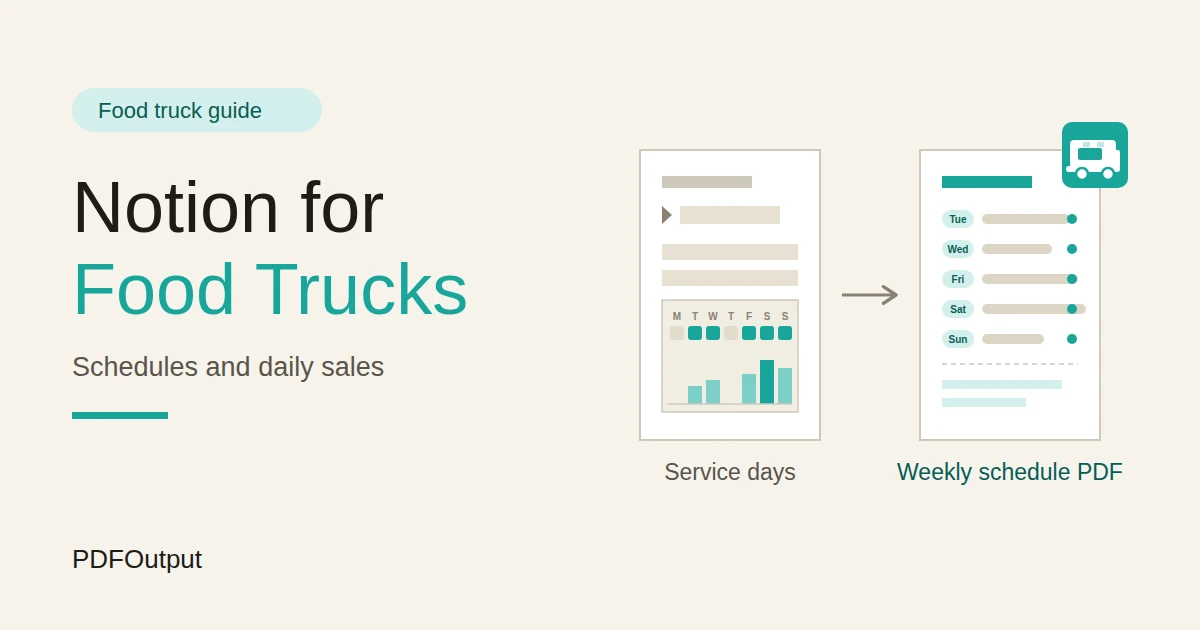
Customers want to know where you’ll be. Make a Weekly Schedule page or record each week, with report-ready fields for each day:
Fill it in on Sunday evening from your Service Days, and share it as a PDF and on your social media. Keep the plan honest. A truck that isn’t where it said it’d be loses regulars. If plans change, update it the same day.
Prep: How Much to Make
Prep is where food trucks make or lose money. Too little and you run out. Too much and you throw it away.
Use history. For each location type, find the average portions sold of your main items, from past Service Days. Then add formulas to a Prep Plan page or database for each item:
`
Expected Portions:  prop("Average Portions Sold")
Prep Portions:      ceil(prop("Expected Portions") * (1 + prop("Buffer")))
Ingredient Needed:  prop("Prep Portions") * prop("Ingredient per Portion")
`
Format Buffer as a percent. Here is a made-up example.
| Item | Value |
|---|---|
| Item | Pulled pork tacos |
| Average sold at this location | 80 portions |
| Buffer | 10% |
| Prep portions | 88 |
| Pork per portion | 120 g |
| Pork needed | 10.56 kg |
Add a Prep sheet template for each service day, with the items, the prep amounts, the stock to load, and the checks to do. Print it, or keep it on a phone. Keep the check list short.
For stock, a simple flag helps:
`
Reorder: if(prop("On Hand") <= prop("Par Level"), "Reorder", "")
`
How to Use Notion for a Restaurant covers ingredient tracking and supplier orders in more depth.
Pro Tip: Record what you prepped for every service day, not only what you sold. Without the prepped number, you can't tell the difference between a slow day and a day you ran out.
Serve: The Daily Close-Out
The best time to record a day is the moment it ends. Five minutes at close-out gives you data you’ll use for months.
On each Service Day, enter these from the till report and your own notes:
Then add formulas:
`
Hours Open:      dateBetween(prop("Close Time"), prop("Open Time"), "minutes") / 60
Net Sales:       prop("Gross Sales") - prop("Refunds")
Average Ticket:  if(prop("Transactions") > 0, prop("Net Sales") / prop("Transactions"), 0)
Sales per Hour:  if(prop("Hours Open") > 0, prop("Net Sales") / prop("Hours Open"), 0)
Spot Fee:        if(prop("Fee Type") == "Percent of Sales", prop("Net Sales") * prop("Fee Amount"), if(prop("Fee Type") == "Flat Fee", prop("Fee Amount"), 0))
Rough Profit:    prop("Net Sales") - prop("Spot Fee") - prop("Food Cost") - prop("Labour Cost") - prop("Fuel and Propane")
`
Bring the fee type and amount into the Service Day with rollups from the linked location. Here is a made-up Saturday. Amounts are in your own currency.
| Item | Value |
|---|---|
| Location | Brewery lot, 10% of sales |
| Hours open | 5.5 |
| Net sales | 1,850 |
| Transactions | 74 |
| Average ticket | 25 |
| Sales per hour | 336.36 |
| Spot fee (10%) | 185 |
| Food cost | 573.50 |
| Labour | 300 |
| Fuel and propane | 40 |
| Rough profit | 751.50 |
If your till exports a daily CSV, you can import it. Notion to Excel explains how CSV files behave, including the date problems that trip people up.
Review: Which Spots Pay?
After a month or two, the numbers start to tell you where to go.
Make a table view of Service Days with Status Done, grouped by Location. Under each group, show the average of Sales per Hour, the average of Rough Profit, and the count of days. Sort the groups by sales per hour. This is your location scorecard.
Here is a made-up scorecard.
| Location | Days worked | Avg sales per hour | Avg rough profit |
|---|---|---|---|
| Brewery lot | 8 | 330 | 720 |
| Office park (lunch) | 12 | 280 | 410 |
| Weekend market | 6 | 240 | 380 |
| Quiet street spot | 5 | 120 | 90 |
Also record why a day went well or badly: a nearby event, a closed road, a competitor, a heatwave. Notes make the numbers meaningful.
Waste and Food Cost
Food cost is the number that decides whether a truck makes money, and waste is the part you can control.
On each Service Day, add the prepped portions and the sold portions for your top items, or total portions, and two formulas:
`
Leftover:       prop("Portions Prepped") - prop("Portions Sold")
Waste Percent:  if(prop("Portions Prepped") > 0, prop("Leftover") / prop("Portions Prepped"), 0)
Food Cost %:    if(prop("Net Sales") > 0, prop("Food Cost") / prop("Net Sales"), 0)
`
Format both percents. If you prepped 88 portions and sold 79, the leftover is 9, and the waste is 10.2%. A food cost of 573.50 on net sales of 1,850 is 31%. Aim for numbers that suit your menu and your market. Look for patterns: which items are always left over, and which sell out. A tight menu with fewer items often wastes less.
Handle leftovers safely. Rules on reusing, donating, or selling prepared food are strict in many places, so follow what applies to you. Record what you did with leftovers, and don’t rely on memory.
Add a Menu Items formula to see margins:
`
Margin: if(prop("Price") > 0, (prop("Price") - prop("Portion Cost")) / prop("Price"), 0)
`
A view of Menu Items sorted by margin shows which items earn their place. Prices, costs, and rules about displaying prices differ by place, so check what applies to you.
Events and Catering
Private bookings and festivals can be the best days of the year. They also need quotes, deposits, and extra planning.
For catering, create an Events and Catering record with the date, the contact, the guest count, and the price per head. Then add:
`
Food Total:  prop("Guests") * prop("Price per Head")
Total:       prop("Food Total") + prop("Travel Fee")
Balance:     prop("Total") - prop("Deposit Paid")
`
Here is a made-up booking. Amounts are in your own currency.
| Item | Value |
|---|---|
| Guests | 60 |
| Price per head | 18 |
| Food total | 1,080 |
| Travel fee | 60 |
| Total | 1,140 |
| Deposit paid | 300 |
| Balance due | 840 |
For festivals, track applications and fees, since many have an application fee, a booth fee, and a deposit. A view of Accepted events sorted by date shows what’s coming, and a rollup of fees by event shows the real cost of each one. A big crowd isn’t always a big profit once the fee is paid, so compare it with your scorecard.
Permits and Equipment Checks
An expired permit can close a truck for a day, or worse. A short list of dates prevents it.
On Permits, add:
`
Days to expiry:  dateBetween(prop("Expiry Date"), now(), "days")
Permit flag:     if(prop("Days to expiry") < 0, "Expired", if(prop("Days to expiry") <= 30, "30 days", if(prop("Days to expiry") <= 60, "60 days", "")))
`
The flag shows 60 days, 30 days, or Expired. Make a view called Renewals due, sorted by date. Include everything with a date, such as your business licence, health permit, fire and propane checks, vehicle inspection, insurance, and commissary agreement. Store the documents in a secure place and link to them. Renewal times vary, and some permits take weeks to process, so start early.
For equipment, create short checklists as database templates:
Safety checks on gas, electricity, and fire matter more than any formula. Follow your equipment’s instructions and the rules that apply, and use Notion as the reminder, and not the check itself.
A Saturday for a One-Truck Business
To see how the pieces fit, here is one made-up Saturday.
6:30 am. The owner opens Today. It’s a brewery lot day, 11 to 4, with a sunny forecast. The prep plan says 88 pork tacos, 70 bowls, and 50 sides, based on the last eight Saturdays there.
7:30 am. She preps from the sheet. The Reorder view shows she’s low on limes, so she picks them up on the way.
10:00 am. She runs the before-service checklist: gas, fridge temperatures, handwashing, and the extinguisher date. Everything’s fine.
11:00 am. Service starts. The brewery lot fee is 10 percent of sales, which the Service Day will calculate later.
3:00 pm. She’s sold out of bowls early. She notes it for next time.
4:15 pm. After close, she enters the day: net sales 1,850, 74 transactions, food cost, labour, and fuel. The formulas show an average ticket of 25 and sales per hour of 336.
5:30 pm. The Renewals due view shows her health permit renews in 52 days, so she calls the office on Monday.
9:00 pm. She fills in next week’s schedule, and shares it as a PDF and on social media.
Nothing depended on memory.
The Documents That Leave Notion
Customers, organizers, and clients don’t use your workspace, so some records need to become files:
For a single page, you can use Notion’s export option. How to Export Notion to PDF shows the settings. If you also plan events, How to Use Notion for Event Planners and How to Use Notion for a Retail Store cover similar ground. Customers and organizers judge a truck partly by how professional its documents look, and Notion’s own export gives you limited control over layout. How to Add Your Logo and Brand Colors to Notion PDFs explains how a template solves that.
Generating PDFs with PDFOutput
PDFOutput creates documents from your Notion data using a template. A template can be a Google document, a Word file, a PDF file, or a Notion page. If you already have a menu or schedule design in Word or Google Docs, you can reuse it.
Here is how it works:
These are some of the status options:
The e-signed option may help with catering agreements. Whether an electronic signature is valid for a given agreement depends on your location and the type of document, so check before you rely on it. You can save the finished file to a property in your database, so a quote stays on its booking record. You can also save it to a Google Drive folder and store the link in a property.
Two documents fit this approach well. The weekly schedule uses the seven day fields on one record. A catering quote uses fields on one booking: the guests, the price per head, the totals, and the deposit. A prep sheet that lists many items depends on linked records, and I don’t know whether a template can list several of them. Test it with a sample day that has several items, and check that each appears. If it doesn’t, keep the prep list as text on the Service Day.
Start with the weekly schedule, since you’ll send it every week. Use Preview first and check for empty fields, the right dates, and locations that match your permits.
Key Takeaway: Record each day's hours and sales the same evening, and compare locations by sales per hour. If the daily records are there, schedules, prep plans, and quotes come from data you already have.
Who Can See What
Your workspace will hold sales, costs, and permit details, so control access from the start.
Common Mistakes
Choosing spots by memory. One great day isn’t a trend. Use average sales per hour over several days.
Not recording prepped amounts. Without it, you can’t tell a slow day from running out.
Ignoring weather. Record it, and learn how each location behaves in rain and heat.
Letting permits slip. One missed renewal can close the truck for a day.
Treating rough profit as real profit. It leaves out many costs.
Posting a schedule you can’t keep. Customers remember when you’re not there.
Counting event crowds, not event profit. After fees, a big festival can earn less than a quiet weekday.
Too many properties. If close-out takes twenty minutes after a long day, you won’t do it. Keep the Service Day short.
No owner for the structure. If you have a team, pick one person responsible for the setup. Properties get renamed and formulas break, so tell that person not to rename properties used in PDF templates, because the placeholders must match exactly.
Skipping a test. Run two weeks with made-up locations and sales first, and fix what annoys you before you use real records.
Frequently Asked Questions
Can Notion be used to run a food truck?
Yes, as a planning and records workspace for locations, schedules, daily sales, prep, permits, and catering. It doesn’t take payments, show your live location, or replace the food safety records your authority requires in a set format.
How do I track daily sales in Notion?
Create a Service Days database with the date, location, hours, gross sales, refunds, and transactions. Add formulas for net sales, average ticket, and sales per hour, and take the numbers from your till report each evening.
How do I decide which locations are worth it?
Group your Service Days by location, and compare the average sales per hour, the average rough profit, and the number of days worked. Look at several days before deciding, and note events and weather that explain the results.
How do I plan how much food to prep?
Use the average portions sold at the same type of location, add a buffer, and round up. Record what you prepped and what you sold on every service day, so the next plan is better.
How do I track permits and inspections in Notion?
Create a Permits database with an expiry date and a document link, then add a formula that flags items at 60 and 30 days. Make a view of what’s due, and start renewals early.
Can I create a weekly schedule and catering quotes from Notion?
You can export a page as a PDF, or use a template-based tool such as PDFOutput to fill a schedule or quote template with data from each record. Keep the key facts in clearly named properties on one record, and test it on a few sample records first.
Is it safe to store business information in Notion?
Notion lets you control who sees each page, but your duties depend on the rules where you work. Keep card details and logins out, share sales and profit figures only with the people who need them, and keep official food safety records in the format required.
Related Reading
Conclusion
A good food truck setup in Notion turns each day into data: where you parked, how long you were open, what you made, and what you threw away. Record the numbers the same evening, compare locations by sales per hour, plan prep from real history, and keep permits on a calendar. Run two weeks of made-up days through the system first. When your weekly schedule, catering quotes, and event packs need to leave Notion, PDFOutput can fill your template from each record and save the PDF to your chosen storage.
Want your weekly schedule and catering quotes as clean PDFs? Try PDFOutput.