Guides
How to Use Notion for a Retail Store: Inventory, Suppliers, and Sales Reports
Learn how to set up Notion for a physical retail store with stock, suppliers, purchase orders, stock counts, and daily sales, plus PDF orders and reports.
By Sanat Biswal · 2026-10-25 · 5 min read
{/ synced-from-notion — do not edit manually /}
A shop is a small machine with a lot of moving parts.
Stock comes in, goes on shelves, and goes out the door. Some of it sells in a week, and some sits for a year. A supplier changes a price. The shelf is empty on the one day a customer asks for that item. At the end of the month, the numbers don’t quite match the stock in the back room. Most of this can be seen coming, if the information lives in one place.
Notion can hold that information. This guide is for independent shops with a physical store, such as clothing, gifts, hardware, books, homewares, or groceries.
It shows how to set up products, suppliers, purchase orders, stock counts, and daily sales, and how to turn records into PDFs such as supplier orders and sales reports. It is general information about organizing a business, not legal, tax, or financial advice.
Quick Answer on How to Use Notion for Retail Store Owners:
To use Notion for a retail store, create linked databases for Products, Suppliers, Purchase Orders, Stock Counts, and Daily Sales.
Use formulas to calculate margins, reorder points, weeks of stock left, and shrinkage, and views to show what to order and what to mark down.
Keep your till or point-of-sale system for taking payments and use Notion for planning. When you need to give someone a document, such as a supplier order or a sales report, create a PDF from the record.
Notion works really well for independent shops as a planning and records workspace. Each product, supplier, order, count, and day of sales is a record, and the records are linked, so a product page shows its supplier, its margin, its stock, and its history.
Notion isn’t a point-of-sale system. It doesn’t scan barcodes, take payments, or update stock by itself when something sells.
It’s only as accurate as what you put in, so the design below keeps data entry small. For documents that suppliers and owners receive, you can export a page as a PDF or generate one from a template.
Table of Contents
What Notion Can and Can’t Do for a Retail Store
Notion is good for:
- Keeping products, prices, and supplier details in one place.
- Working out margins and reorder points.
- Planning purchase orders and tracking deliveries.
- Recording stock counts and spotting losses.
- Flagging slow-moving stock.
- Recording daily sales and weekly results.
- Creating consistent orders, count sheets, and reports.
- Taking payments or running a till.
- Scanning barcodes.
- Updating stock automatically when an item sells.
- Accounting, tax, and payroll.
- Customer details. If you keep a loyalty list or customer orders, store only what you need, and only for people who agreed. Check the privacy rules where you work.
- Payment details. Never store card numbers or bank logins in Notion.
- Cash and security. Don’t record safe codes, alarm codes, or the times cash is moved. Write “cash counted by two people” and not the details.
- Supplier terms and margins. Your costs and margins are valuable. Keep them out of views that all staff can open.
- Staff information. Rotas, pay, and personal details belong in a restricted place.
- Products stores what you sell. Add these properties: Product Name, SKU or Code, Category, Supplier (relation), Cost, Price, On Hand, Average Weekly Sales, Lead Time (weeks), Safety Stock, Target Stock, Reorder Point (a formula), and Received On.
- Suppliers stores where you buy. Add: Company, Contact, Phone, Email, Minimum Order, Payment Terms, and Typical Lead Time.
- Purchase Orders stores what you order. Add: PO Number (a Unique ID with a prefix like PO), Supplier (relation), Order Date, Expected Date, Status (Draft, Sent, Part Received, or Received), and Total.
- Stock Counts stores your checks. Add: Date, Product (relation), Expected, Counted, Variance (a formula), and Notes.
- Daily Sales stores your daily totals. Add: Date, Gross Sales, Refunds, Net Sales (a formula), Transactions, Average Basket (a formula), Cash Expected, Cash Counted, and Notes.
- Reorder list: products with the Reorder flag, grouped by supplier, so one order covers several items.
- Low cover: products with fewer than two weeks of cover, sorted by cover.
- Out of stock: products with On Hand at zero.
- Open orders: orders not yet Received, sorted by expected date.
- Late deliveries: orders where the expected date is in the past and the status isn’t Received.
- By supplier: orders grouped by supplier, so you can see who is reliable.
- Count the boxes against the delivery note
- Check the items against the order, one by one
- Check for damage, and photograph it
- Record any short, wrong, or damaged items on the order
- Update On Hand for each product, and Received On
- Mark the order Received or Part Received
- Put the stock away, and price it if needed
- This week: the last seven days, with a sum of Net Sales.
- By weekday: Daily Sales grouped by weekday, with an average of Net Sales, to see your slow and busy days. Use it to plan staffing.
- Month so far: a sum of Net Sales for the current month, compared with last month.
- Supplier orders: a clean purchase order with items, quantities, and delivery date
- Receiving sheets: a printable checklist for delivery day
- Stock count sheets: a printable list of products to count, with blank spaces for the numbers
- Weekly and monthly sales reports: net sales, average basket, and top sellers, for the owner or an accountant
- Mark-down lists: items and new prices for staff
- Staff rotas: a printable weekly schedule
- Invoices and receipts for trade customers. Notion Receipt Template shows how to structure one.
- Returns to supplier forms: items, reasons, and quantities
- Create your template with your shop’s name and layout.
- Add placeholders in double curly braces where the data should go, such as
{{Supplier_Name}}or{{PO_Number}}. - Make sure each placeholder matches the name of a Notion property.
- Start the document with a Notion database button or a status property.
- Ready to Generate creates a PDF from the database record.
- Generate Page converts the Notion page into a PDF.
- Generate PDF and Doc creates a PDF and a Google document.
- Preview creates a Google document so you can check it before making the final PDF.
- Generate E-Signed Doc creates an e-signed PDF in the database workflow.
- Give shop staff access to the stock list, receiving checklists, and count sheets, not to costs, margins, or supplier terms.
- Keep daily sales, margins, and cash figures in a view that only the owner and manager can open.
- Don’t give suppliers access to your workspace. Send them a finished PDF order.
- Keep staff pay and personal details in a restricted place.
- Don’t store safe codes, alarm codes, or card details.
- Remove access on the day someone leaves.
- Review who has access every few months.
- How to Use Notion for an E-commerce Business
- How to Use Notion for a Restaurant
- How to Use Notion for a Manufacturing Business
- Notion to Excel
Notion is not made for:
If you already use a till or point-of-sale system, treat Notion as the planning and records layer beside it. Let the till record each sale. Export a daily or weekly summary, and use Notion to decide what to do next.
If you also sell online, How to Use Notion for an E-commerce Business covers that side.
Keep Customer and Cash Information Safe
A shop holds less sensitive information than many businesses, but a few things need care.
While you are testing, use made-up products and sales.
Use The 5 Databases
Start with these 5 databases. You can add more later.
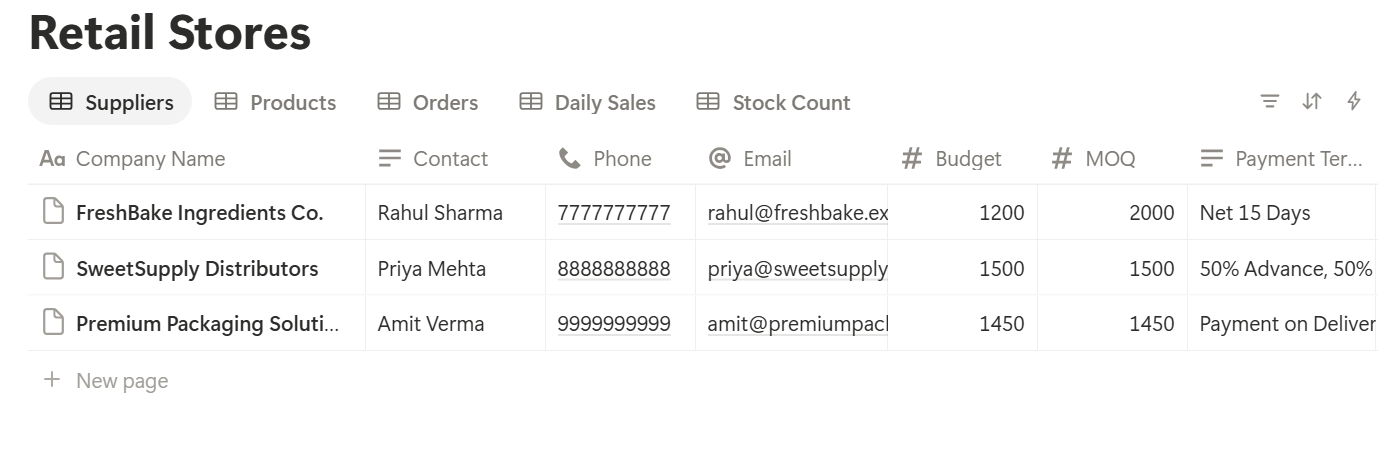
A relation connects a record in one database to a record in another. Link Products to Suppliers, Purchase Orders to Suppliers, and Stock Counts to Products. Now a supplier page shows every product you buy from them and every order you’ve placed.
Products: Margins and Prices
Margin is the share of the price that you keep after paying for the item. A shop that doesn’t know its margins is guessing.
On Products, add two formulas:
*Margin: if(prop("Price") > 0, (prop("Price") - prop("Cost")) / prop("Price"), 0) Markup: if(prop("Cost") > 0, (prop("Price") - prop("Cost")) / prop("Cost"), 0)*
Format both as percents. Margin and markup are different numbers, and mixing them up is a common mistake. Here is a made-up product. Amounts are in your own currency.
| Item | Value |
|---|---|
| Cost | 12 |
| Price | 20 |
| Profit per item | 8 |
| Margin | 40% |
| Markup | 66.7% |
Pro Tip: When a supplier sends a new price list, update the Cost property first, then look at the Low margin view. It shows which prices you need to change before you lose money on every sale.
Reordering: Know What to Buy and When
The most expensive shelf is an empty one. A reorder point tells you when to order, so you don’t run out while waiting for a delivery.
The idea is simple. While a new order is on its way, you’ll keep selling. So you need enough stock to cover the sales during the supplier’s lead time, plus a little spare.
On Products, add:
Reorder Point: ceil(prop("Average Weekly Sales") prop("Lead Time (weeks)")) + prop("Safety Stock") Reorder flag: if(prop("On Hand") <= prop("Reorder Point"), "Reorder", "") Suggested Qty: if(prop("On Hand") <= prop("Reorder Point"), max(prop("Target Stock") - prop("On Hand"), 0), 0) Weeks of cover: if(prop("Average Weekly Sales") > 0, prop("On Hand") / prop("Average Weekly Sales"), "")*
Here is a made-up item.
| Item | Value |
|---|---|
| Average weekly sales | 12 |
| Lead time | 2 weeks |
| Safety stock | 6 |
| Reorder point | 30 |
| On hand | 28 |
| Target stock | 60 |
| Suggested order | 32 |
| Weeks of cover | 2.3 |
Make these views:
Suppliers and Purchase Orders
Once the reorder list is grouped by supplier, creating orders is fast.
For each supplier, make a Purchase Order record with the order date, the expected delivery, and the status. Add the items, either as a short list in the page or as a linked Order Lines database with Product, Quantity, and Unit Cost. A rollup that sums the line totals gives the order Total. The second approach takes more setup, but it lets you receive items one by one.
Check each order against the supplier’s minimum order. If you’re under it, add a product with a high Weeks of cover warning in reverse, such as something that’s selling faster than expected.
Make these views of Purchase Orders:
Add a Supplier performance note over time: how often orders arrive late, how often items are short, and how the supplier handles problems. A supplier who is always late might need a bigger safety stock, or replacing.
If you want to send a clear order to a supplier, a PDF is best. Notion Proposal Template shows how to structure a document with a total, and the documents section below covers the PDF step.
Receiving Deliveries
A delivery that isn’t checked is a loss you find later.
Use a Receiving checklist template on each purchase order:
Updating On Hand at the moment of receiving is the most important habit in the system. Stock numbers go stale when no one updates them. Make receiving the one moment when it always happens.
If something is wrong, record it and tell the supplier the same day. Your rights to returns and credit depend on your agreement with them, so check your terms.
Stock Counts and Shrinkage
Your records say what you should have. A count says what you do have. The difference is called shrinkage, and it can come from theft, damage, mistakes, or supplier errors. You can’t fix what you can’t see.
Don’t count everything at once. A cycle count is easier: count a few products every day or week, and cover the whole shop over a month or so. Create a Count sheet view of Products grouped by category, and count one category at a time.
For each count, add a Stock Counts record with the product, the expected number, and the counted number. Then add:
*Variance: prop("Counted") - prop("Expected") Variance value: prop("Variance") prop("Cost")
Here is a made-up count. Amounts are in your own currency.
| Item | Value |
|---|---|
| Expected | 24 |
| Counted | 21 |
| Variance | -3 |
| Cost per item | 8 |
| Variance value | -24 |
Count with a second person where you can, and keep notes factual. Don’t draw conclusions about people from a number. Check your local rules about how you handle suspected theft, and about staff records.
Slow Sellers: Mark Down Before It’s Too Late
Stock that doesn’t sell ties up money and shelf space. The earlier you act, the less you lose.
On Products, add:
*Days in stock: dateBetween(now(), prop("Received On"), "days") Slow flag: if(prop("Days in stock") > 90 and prop("Weeks of cover") > 12, "Slow", "")*
The flag shows Slow for items that have been in the shop for more than 90 days and would take over 12 weeks to sell at the current rate. Change both numbers to suit your products. Seasonal goods need their own thinking, because a winter coat in summer isn’t slow, it’s out of season.
Make a view called Mark down, showing Slow items sorted by cost value, highest first. Decide what to do with each: a discount, a bundle, a display change, a move to the front, or a return to the supplier if they accept returns. Record what you tried and the result, so you learn what works.
Check pricing and consumer rules where you work, since some places have rules about how discounts and “was” prices are shown.
Daily Sales and Weekly Reports
Your till knows more than Notion ever will. What Notion adds is memory and comparison.
At closing, enter the day’s totals from the till report: gross sales, refunds, number of transactions, expected cash, and counted cash. Then add:
*Net Sales: prop("Gross Sales") - prop("Refunds") Average Basket: if(prop("Transactions") > 0, prop("Net Sales") / prop("Transactions"), 0) Cash Variance: prop("Cash Counted") - prop("Cash Expected")*
Here is a made-up day. Amounts are in your own currency.
| Item | Value |
|---|---|
| Gross sales | 2,450 |
| Refunds | 150 |
| Net sales | 2,300 |
| Transactions | 46 |
| Average basket | 50 |
| Cash expected | 620 |
| Cash counted | 618 |
| Cash variance | -2 |
Make these views of Daily Sales:
Add a Weekly review template with five lines: sales versus last week, best sellers, items out of stock, the main problem, and one thing to change next week. Fifteen minutes on Monday morning beats a long report once a year.
A Week in a Small Gift Shop
To see how the pieces fit, here is one made-up week for a shop with one owner and two part-time staff.
Monday. The owner opens the Reorder list. Nine items are below their reorder points, grouped by three suppliers. She creates three purchase orders from the suggested quantities, and checks each against the supplier’s minimum.
Tuesday. She sends the orders as PDFs. One supplier’s minimum is just above the total, so she adds a fast-selling candle to reach it.
Wednesday. A delivery arrives. The staff member works through the receiving checklist, finds two items short, and notes it on the order. On Hand is updated for everything that arrived.
Thursday. A quiet afternoon is used for a cycle count of the greeting cards. One box is three short. She updates the count, and adds a note.
Friday. The Mark down view shows four slow items, including a set of tea towels that arrived 110 days ago. She puts them at the front with a small discount sign, and records what she did.
Saturday. The shop is busy. At closing, the numbers go into Daily Sales in two minutes.
Sunday. She fills in the weekly review. The by-weekday view confirms that Saturday is the best day, and Tuesday is the slowest, so she moves a staff shift.
Nobody guessed what to order.
The Documents That Leave Notion
Suppliers, owners, and accountants don’t use your workspace, so some records need to become files:
For a single page, you can use Notion’s export option. How to Export Notion to PDF shows the settings, and How to Export a Notion Database to PDF helps with tables, such as a count sheet. Suppliers notice how clear your orders are, and Notion’s own export gives you limited control over layout. How to Add Your Logo and Brand Colors to Notion PDFs explains how a template solves that.
Generating PDFs with PDFOutput
PDFOutput creates documents from your Notion data using a template. A template can be a Google document, a Word file, a PDF file, or a Notion page. If you already have an order or report layout in Word or Google Docs, you can reuse it.
Here is how it works:
These are some of the status options:
The e-signed option may help with supplier agreements and trade account forms. Whether an electronic signature is valid for a given document depends on your location, so check before you rely on it. You can save the finished file to a property in your database, so an order stays on its purchase order record. You can also save it to a Google Drive folder and store the link in a property.
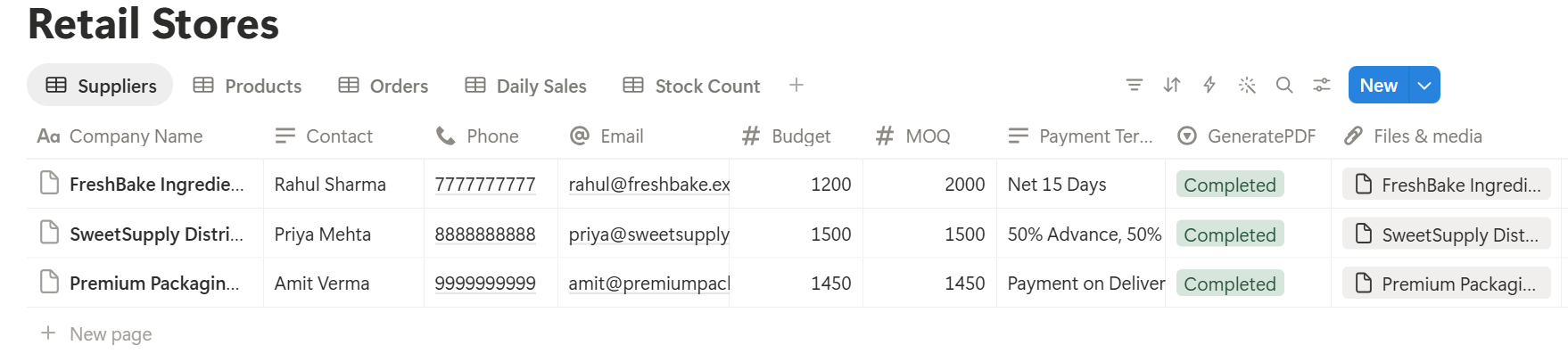
A purchase order lists many items, each stored as its own linked record. Before you rely on a template to list them all, test it with a sample order that has several items, and check that each appears the way you want. If it doesn’t, a simple fallback is to keep a short text list of items on the order, and use that in the template, or to export a filtered view with Notion’s own export.
Start with the supplier order, since you’ll send it every week. Use Preview first and check for empty fields, wrong date formats, and totals that don’t match your records.
Key Takeaway: Keep stock counts honest, use reorder points, and look at daily sales once a week. If those three habits are in place, supplier orders, count sheets, and reports come from data you already have.
Who Can See What
Your workspace will hold costs, margins, sales, and staff information, so control access from the start.
Common Mistakes
Letting On Hand go stale. Every flag depends on it. Update it when stock arrives, and after every count.
Mixing up margin and markup. A 66.7% markup is a 40% margin. Know which you’re talking about.
Reorder points from guesses. Use real weekly sales from your till, and review them each month.
Counting everything once a year. Small, frequent counts catch problems while you can still do something about them.
Ignoring slow stock. The longer it sits, the more it costs. Check the mark-down view weekly.
Copying the till into Notion. You don’t need every sale. Daily totals, plus a monthly import of product sales, are enough.
Too many properties. If a stock count takes more than a minute per product, it won’t happen. Keep it short.
No owner for the structure. Pick one person responsible for the setup. Properties get renamed and formulas break, so tell that person not to rename properties used in PDF templates, because the placeholders must match exactly.
Skipping a test. Run a week of made-up stock and sales first, and fix what annoys you before you use real data.
Frequently Asked Questions
Can Notion be used for a retail store?
Yes, for planning and records: products, suppliers, purchase orders, stock counts, and daily sales. It doesn’t take payments, scan barcodes, or update stock when an item sells, so keep your till for those.
How do I track inventory in Notion?
Create a Products database with On Hand, Average Weekly Sales, Lead Time, and Safety Stock properties, and a formula that calculates a reorder point and flags products at or below it. Update On Hand when stock arrives and after each count.
How do I calculate a reorder point?
Multiply average weekly sales by the supplier’s lead time in weeks, round up, and add a safety stock. Reorder when stock falls to that number.
What is the difference between margin and markup?
Margin is the profit as a share of the price. Markup is the profit as a share of the cost. A product that costs 12 and sells for 20 has a 40% margin and a 66.7% markup.
How do I measure shrinkage in Notion?
Record the expected and counted quantity for each product in a Stock Counts database, and use a formula that subtracts one from the other. Multiply the result by the product’s cost for the value of the difference.
Can I create supplier orders and sales reports from Notion?
You can export a page as a PDF, or use a template-based tool such as PDFOutput to fill an order or report template with data from each record. Test it on a few sample records first, especially orders with several items.
Can Notion connect to my till?
Notion doesn’t connect to every till on its own. Many point-of-sale systems can export reports as CSV files, which you can import into Notion. Check what your till offers.
Related Reading
Conclusion
A good retail setup in Notion helps you answer five questions each week: what to order, what’s arrived, what’s missing, what isn’t selling, and how the shop is doing. Start with products, reorder points, and a daily sales record, keep On Hand honest, and run a week of made-up stock through the system first. When your supplier orders, count sheets, and sales reports need to leave Notion, PDFOutput can fill your template from each record and save the PDF to your chosen storage.
Want supplier orders and sales reports as clean PDFs? Try PDFOutput.