Guides
How to Use Notion for a Coaching Business: Clients, Sessions, and Programs
Learn how to set up Notion for a coaching business with discovery calls, programs, sessions, action items, and payment plans, plus PDF action plans and program summaries.
By Sanat Biswal · 2026-10-29 · 5 min read
{/ synced-from-notion — do not edit manually /}
A coach’s work happens in the conversation.
Everything around it decides whether the conversation turns into change: remembering what the client said last time, holding them to what they promised, noticing when they’ve gone quiet, and showing them how far they’ve come.
That’s a lot to carry in your head across twenty clients. Most coaches carry it anyway, in scattered notes and a calendar, and then wonder why follow-up feels like a second job.
Notion can carry it for you.
This guide is for life, career, business, and executive coaches, and for small coaching practices. It follows a client through a program, from the first discovery call to graduation.
It shows how to set up clients, programs, sessions, action items, and payments, how to track accountability, and how to turn records into PDFs such as action plans and program summaries. It also explains how to handle confidentiality.
It is general information about organizing a business, not legal, financial, or clinical advice.
Quick Answer on how to use Notion for Coaching Business:
To use Notion for a coaching business, create linked databases for Leads, Clients, Programs, Sessions, Action Items, and Payments.
Write a short note after every session, and turn each commitment into an action item with a due date. Use formulas to show the week a client is in, the percent of actions completed, and what’s left to pay.
Keep client notes factual and minimal, because they’re personal. Put the key facts in report-ready fields, so an action plan or a program summary PDF takes minutes.
Notion works well for coaches because coaching is a series of conversations with commitments between them. Each session is a record linked to a client and a program, and each commitment is an action item linked to a session.
A rollup turns action items into a completion rate, and a formula turns a start date into the week of the program. Notion isn’t a booking tool, a video platform, a payment tool, or a clinical record system.
It doesn’t send reminders by itself, so it works best beside your calendar, your video tool, and your payment tool. For documents that clients receive, you can export a page as a PDF or generate one from a template.
Table of Contents
What Notion Can and Can’t Do for a Coaching Business
Notion is good for:
- Tracking discovery calls and enrollments.
- Keeping clients, programs, and goals in one place.
- Recording what happened in each session.
- Turning commitments into action items with dates.
- Showing progress through a program.
- Tracking payment plans and what’s left to pay.
- Creating consistent action plans, summaries, and invoices.
- Online booking or live availability.
- Video sessions or recordings.
- Taking payments.
- Automatic reminders to clients.
- Keeping clinical or therapy records.
- Keep notes minimal and factual. Write what the client wants, what they decided, and what they’ll do. Skip detailed accounts of private matters you don’t need to remember.
- Be clear about confidentiality. Tell clients what you keep private, and any limits, in your agreement. If someone else pays, such as an employer, agree in writing what you’ll share. Usually that means attendance and overall progress, never the content of sessions.
- Coaching is not therapy. If a client raises a mental health concern, a medical issue, or anything that needs a professional, follow your code of conduct, and refer them. Don’t record clinical details in Notion, and don’t use it as a clinical record. If your work overlaps with regulated practice, check the rules that apply to you.
- Recording sessions. Recording needs the client’s clear consent, and rules differ by place. If you record, store files in secure storage, link from the session, and delete them as your policy says. Don’t store recordings in Notion.
- Payment details such as card numbers should never be stored in Notion.
- Leads stores people who’ve shown interest. Add these properties: Name, Email, Source, Interest, Discovery Call Date, Status (New, Call Booked, Call Done, Enrolled, or Not Now), Last Contact, and Notes.
- Clients is the main database. Add: Name, Email, Program (relation), Start Date, Weeks in Program (rolled up from the program), End Date (a formula), Week Number (a formula), Status (Onboarding, Active, Paused, or Graduated), Sessions Completed, Actions Completed (percent), and report-ready fields (see the Graduation section).
- Programs stores what you sell. Add: Program Name, Length (weeks), Sessions Included, Session Frequency, Price, Payment Plan Options, and Description.
- Sessions stores each conversation. Add: Client (relation), Date, Number (for example “3 of 12”), Status (Booked, Done, Cancelled, or No-show), Focus, What Came Up, Insights, Commitments (text), and Recording Link.
- Action Items stores each commitment. Add: Action, Client (relation), Session (relation), Due Date, Status (Not Started, In Progress, or Done), and Notes.
- Payments stores money in. Add: Client (relation), Amount, Due Date, Paid On, Method, and Status (Due, Paid, or Late).
- Calls this week: a calendar view of discovery call dates.
- Follow up: leads with the flag.
- Pipeline: a board grouped by Status.
- Agreement signed and stored securely
- First payment received
- Welcome message and what to expect sent
- Intake questions completed
- First session booked, and the rest scheduled where possible
- Goals discussed and written down
- Confidentiality and how you work together confirmed
- Focus: what the session was about
- What came up: the main themes, in a line or two
- Insights: what the client realized, in their words where you can
- Commitments: what they’ll do before next time, as text
- For me to remember: anything for you only
- Today: sessions today, sorted by time.
- This week: a calendar view.
- Notes missing: sessions marked Done with an empty Insights box, so no note gets skipped.
- By client: sessions grouped by client, for reviews.
- Due this week: action items due in the next seven days, grouped by client.
- Overdue: items with the flag, for a gentle check-in.
- By client: all actions for one client, for the next session.
- Program Name, Start Date, and End Date
- Sessions Completed, as text, such as “8 of 8”
- Actions Completed, from the formula
- Goal 1, Goal 2, and Goal 3, each with a status and a short note
- Biggest Wins: two or three, in the client’s words
- What I Noticed: your observations, kind and specific
- Next Steps: what the client will do now, and any follow-up offer
- Coach Comment: a short, personal paragraph
- Action plans: the focus, the commitments, and due dates after each session
- Welcome and onboarding packs: what to expect, how sessions work, and how to prepare
- Coaching agreements: scope, fees, confidentiality, and terms, with wording checked by someone qualified
- Midpoint and graduation summaries: goals, progress, wins, and next steps
- Invoices, receipts, and payment plan schedules. Notion Receipt Template shows how to structure a receipt.
- Program calendars: the dates of all sessions
- Proposals for corporate coaching. Notion Proposal Template shows a structure that works.
- Certificates of completion
- Create your template with your name, your logo, and your layout.
- Add placeholders in double curly braces where the data should go, such as
{{Client_Name}}or{{Biggest_Wins}}. - Make sure each placeholder matches the name of a Notion property.
- Start the document with a Notion database button or a status property.
- Ready to Generate creates a PDF from the database record.
- Generate Page converts the Notion page into a PDF.
- Generate PDF and Doc creates a PDF and a Google document.
- Preview creates a Google document so you can check it before making the final PDF.
- Generate E-Signed Doc creates an e-signed PDF in the database workflow.
- If you work with associate coaches, give each coach access to their own clients only.
- Keep notes, insights, and “for me to remember” fields limited to the coach.
- Keep prices, payments, and revenue in views that only the owner can open.
- Never give clients access to the workspace. Send each client only their own PDFs.
- If an employer pays, share only what your agreement says, such as attendance, and never session content.
- Don’t store recordings, card details, or health information in Notion.
- Remove access on the day someone leaves.
- Review who has access every few months.
- How to Use Notion for a Tutoring Business
- How to Use Notion for Consultants
- How to Use Notion for Freelancers
- Notion Receipt Template
Notion is not made for:
If you already use a calendar, a video tool, and a payment tool, treat Notion as the records layer beside them. Link to the booking and the recording on the session record, and don’t try to replace them.
Confidentiality and Boundaries
People tell coaches things they don’t tell others: doubts, money worries, relationship strain, and health. Your notes are some of the most personal records a small business holds.
Privacy rules and professional standards differ by country, so check what applies to you. While you are testing, use made-up clients.
Use 6 Databases
Start with these 6 databases. You can add more later, such as Group Cohorts.
A relation connects a record in one database to a record in another. Link Clients to Programs, and link Sessions, Action Items, and Payments to Clients. Now a client’s page shows their program, their sessions, their action items, and their payments together.
Discovery Calls: From Interest to Enrollment
Most coaching starts with a conversation. The discovery call decides whether you and the person are a good fit. It isn’t a sales pitch.
On Leads, add a follow-up formula:
*Days since contact: dateBetween(now(), prop("Last Contact"), "days") Follow-up flag: if(or(prop("Status") == "Call Done", prop("Status") == "Not Now") and prop("Days since contact") >= 5, "Follow up", "")*
The flag shows Follow up for people who finished a call and haven’t heard from you in five days, and for those who said “not now,” so you can check in later. Change the number to suit your pace.
Use a Discovery call template with these sections: what they want to change, why now, what they’ve tried, what success would look like, and their questions about working together.
After the call, send a short, honest summary of how you could help, and what the program involves, including the price. Don’t promise results, because outcomes depend on the client, and check the rules about how you can describe results where you work.
Make these views:
Programs: Define What You Sell
A clear offer is easier to sell and easier to run. In the Programs database, define each one in plain terms.
For example:
| Program | Length | Sessions | Frequency | Price |
|---|---|---|---|---|
| Career Reset | 12 weeks | 8 | Every 1 to 2 weeks | 1,800 |
| Leadership Intensive | 6 weeks | 6 | Weekly | 1,500 |
| Monthly Support | Ongoing | 2 per month | Every 2 weeks | 300 per month |
Write your terms for rescheduling, missed sessions, refunds, and ending early in your coaching agreement, with wording checked by someone qualified. Notion holds the working summary, and the signed agreement should be stored securely.
Onboarding a New Client
A smooth start sets the tone. When someone enrolls, create the client record, link the program, and set the start date.
Use an Onboarding template as a checklist:
The Intake form should be short. Ask about their goals, what’s going well, and what’s hard, and leave out anything you don’t need. A Notion form can collect the answers into the client’s record.
Check what your plan allows. Don’t ask for sensitive details such as health information unless you truly need them, and follow your code of conduct.
Write three goals with the client, in their words and with a target date, such as “Have two interviews booked by week 6.” Store them on the client record. They’re the thread that runs through every session.
Sessions: Prepare, Coach, Record
Good sessions begin before the call and finish after it.
Before. Open the client’s page. Read the last session’s insights and commitments. Check which actions are done and which aren’t. You’ll start with a real question, such as “What got in the way of the networking calls?” and not “How was your week?”
During. Coach. Don’t type through the conversation. A short note at the end of the session is enough.
After. Within an hour, fill in a Session template, with these short sections:
Then turn each commitment into an action item, as in the next section. Keep notes factual and respectful. A client may have the right to see what you hold about them in some places, and you’d want them to feel fine about it.
Add formulas to count progress on Clients:
Sessions Completed: rollup count of Sessions where Status is Done
Make these views of Sessions:
Pro Tip: Write the commitments with the client in the last five minutes of the session, and read them back. A commitment the client helped word is far more likely to happen than one you wrote alone.
Action Items: Make Accountability Visible
Coaching works because of what happens between sessions. Action items make that visible, and they give you something specific to ask about next time.
For each commitment, create an Action Item linked to the client and the session, with a due date. Keep each one small and concrete. “Send three messages to people in my field” works better than “network more.”
On Action Items, add one formula:
Overdue: if(prop("Status") != "Done" and prop("Due Date") < now(), "Overdue", "")
On Clients, add two rollups from Action Items: the number of items, and the number Done. Then add:
Actions Completed: if(prop("Actions Total") > 0, prop("Actions Done") / prop("Actions Total"), 0)
Here is a made-up client.
| Item | Value |
|---|---|
| Actions set so far | 10 |
| Actions done | 7 |
| Completion rate | 70% |
Make these views:
Between sessions, a short message such as “How’s the networking going?” helps, if the client agreed to it. Notion doesn’t send messages, so use your own tool, and keep it supportive.
Where Is the Client in the Program?
Clients feel progress when they can see it, and you’ll coach better knowing where each person is.
On Clients, add two formulas, using the program length rolled up from the program:
End Date: dateAdd(prop("Start Date"), prop("Weeks in Program") 7, "days") Week Number: floor(dateBetween(now(), prop("Start Date"), "days") / 7) + 1*
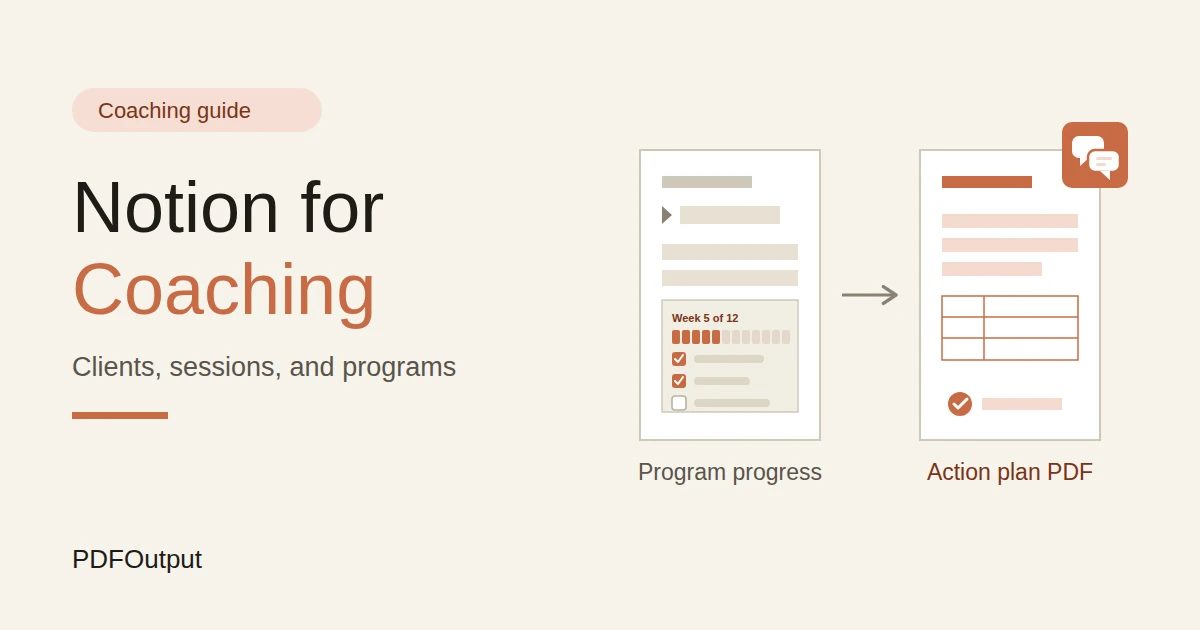
A client who started 29 days ago is in week 5 of a 12-week program, because 29 divided by 7 is 4 whole weeks, plus one. Show it as text, such as “Week 5 of 12,” with another formula if you like. Add a check:
Midpoint flag: if(prop("Status") == "Active" and prop("Week Number") >= prop("Weeks in Program") / 2 and prop("Week Number") < prop("Weeks in Program") / 2 + 1, "Midpoint review", "")
A view called Midpoint reviews shows who’s at the halfway mark. Another, called Ending soon, shows clients in their last two weeks, so you can plan graduation and offer next steps. Test the formulas with made-up clients, and check them against a calendar.
Payments and Payment Plans
Money conversations are easier when the details are clear and written down.
For each client, create Payment records for each installment, with an amount and a due date. Here is a made-up plan for an 1,800 program in three equal installments.
| Installment | Due | Amount | Status |
|---|---|---|---|
| 1 | Before the first session | 600 | Paid |
| 2 | Week 4 | 600 | Paid |
| 3 | Week 8 | 600 | Due |
| Total | 1,800 | Balance: 600 |
Balance: prop("Program Price") - prop("Paid Total")
On Payments, add a late flag:
Late flag: if(prop("Status") == "Due" and prop("Due Date") < now(), "Late", "")
A view called Payments due shows what’s coming and what’s late. Payments happen in your payment tool. Update the status in Notion when the money arrives. Follow your agreement’s terms, and be kind and clear if a payment is late.
Tax rules differ by country, so check what applies to you. Notion Receipt Template shows how to structure a receipt.
Midpoint Review and Graduation
Two moments matter most in a program: the middle, and the end.
Midpoint review. Around the halfway mark, step back with the client. Look at their goals, their actions, and what’s changed. Ask what’s working, what isn’t, and what they’d like more of. Record it in a Midpoint review template. Adjust the plan, and say so. A client who feels heard at the midpoint is much more likely to finish.
Graduation. At the end, help the client see how far they’ve come. Put the key facts in report-ready fields on the client record, so a summary can be made quickly:
Fill them in at the end, from your session notes and the client’s own words. It takes about fifteen minutes. The result is a record the client will value, and a natural moment to ask for feedback and, with their permission, a testimonial. Never share a client’s story or name without clear consent.
Set the status to Graduated. If they want to continue, create a new enrollment, and keep the old record for history.
Your Business Numbers
A coaching practice has a few numbers worth watching. Here is a made-up quarter.
| Item | Value |
|---|---|
| Discovery calls | 20 |
| Enrolled | 6 |
| Call to enrollment | 30% |
| Average program price | 1,800 |
| Revenue from new clients | 10,800 |
Call to enrollment: if(prop("Calls Done") > 0, prop("Enrolled") / prop("Calls Done"), 0)
Also watch renewals, since many coaches earn most from clients who continue. A view of graduated clients, sorted by end date, shows who to check in with in a month or two. A small sample can mislead, so treat these as guides. They leave out your time, costs, and tax, so check the full figures with an accountant. Test the formulas with made-up numbers and check them with a calculator.
A Wednesday for a Solo Coach
To see how the pieces fit, here is one made-up Wednesday.
8:30 am. She opens Today. Three sessions are booked. For each, she reads the last insights and commitments in two minutes.
9:00 am. The Follow up view shows one lead who finished a discovery call six days ago. She sends a warm note, and notes it on the record.
10:00 am. First session. She coaches without typing. Afterward, she writes the session note, and creates three action items with due dates, which the client helped word.
12:00 pm. The Overdue view shows two items from a client who’s gone quiet. She sends a short, kind message to check in, and not to chase.
2:00 pm. The Midpoint reviews view shows a client at week 6 of 12. She books a review for next week, and opens the template.
4:00 pm. The Payments due view shows an installment due Friday. She sends a friendly reminder.
5:00 pm. She spends fifteen minutes on a graduating client’s report-ready fields. Tomorrow a program summary will be a PDF.
Nothing depended on her memory.
The Documents That Leave Notion
Clients don’t use your workspace, so some records need to become files:
For a single page, you can use Notion’s export option. How to Export Notion to PDF shows the settings. If your work looks like tutoring or consulting, How to Use Notion for a Tutoring Business and How to Use Notion for Consultants cover similar ground.
Clients judge a coach partly by the care in the paperwork, and Notion’s own export gives you limited control over layout. How to Add Your Logo and Brand Colors to Notion PDFs explains how a template solves that.
Generating PDFs with PDFOutput
PDFOutput creates documents from your Notion data using a template. A template can be a Google document, a Word file, a PDF file, or a Notion page. If you already have a summary or plan layout in Word or Google Docs, you can reuse it.
Here is how it works:
These are some of the status options:
The e-signed option may help with coaching agreements. Whether an electronic signature is valid for a given agreement depends on your location and the type of document, so check before you rely on it. You can save the finished file to a property in your database, so a summary stays on the client’s record. You can also save it to a Google Drive folder and store the link in a property.
Two kinds of document work well.
A program summary uses the report-ready fields on the client record, so it doesn’t depend on listing linked records.
A session action plan uses fields on one session record: the date, the focus, the insights, and the commitments as text, so it works the same way. If you’d like a list of every action item in a PDF, test a template with a sample client who has several, and check that each appears. If it doesn’t, keep the commitments as text on the session, and use that in the template.
Before using any document tool with information about your clients, ask the provider how data is handled, where it’s stored, and what agreements are available, and keep the answers with your records. The safest approach is to generate documents from records that hold only what the client should receive. Check the name on every document before you send it.
Start with the action plan after a session, since you’ll send it most often. Use Preview first and check for empty fields, the right client, and wording you’re happy for them to keep.
Key Takeaway: Write a short note after every session, turn commitments into small action items, and fill in report-ready fields at graduation. Then action plans, summaries, and invoices come from records you already have.
Who Can See What
Your workspace will hold personal information about your clients, so control access tightly.
Common Mistakes
Writing too much about private matters. Keep notes factual and minimal. You don’t need a diary of someone’s life.
Treating coaching like therapy. If a client needs clinical help, refer them, and keep clinical details out of Notion.
Huge action items. “Change careers” will not get done. “Update my CV” might.
Reading completion rates as scores. They’re prompts for a conversation, and not grades.
Skipping the midpoint. Clients who feel stuck in the middle often drop out quietly.
Sharing a client’s story without consent. Ask clearly, and respect the answer.
Loose confidentiality with sponsors. Agree in writing what an employer will and won’t see.
Too many properties. If a session note takes twenty minutes, it won’t happen. Keep the template short.
No owner for the structure. If you work with other coaches, pick one person responsible for the setup. Properties get renamed and formulas break, so tell that person not to rename properties used in PDF templates, because the placeholders must match exactly.
Skipping a test. Run a month with made-up clients first, and fix what annoys you before you use real records.
Frequently Asked Questions
Can Notion be used to run a coaching business?
Yes. It can organize discovery calls, clients, programs, sessions, action items, and payment plans. It doesn’t offer booking, video sessions, payments, or automatic reminders, so use dedicated tools for those.
How do I track client progress in Notion?
Record goals with each client, write a short note after every session, and turn commitments into action items with due dates. Roll up the action items to show a completion rate, and use a formula to show the week of the program.
How do I track action items in Notion?
Create an Action Items database linked to each client and session, with a due date and a status. Add a formula that flags overdue items, and make a view of what’s due this week.
How do I manage payment plans in Notion?
Create a Payments database linked to each client, with an amount, a due date, and a status for each installment. Roll up the paid amounts, and use a formula to subtract them from the program price for the balance.
Is it safe to store coaching notes in Notion?
Notion lets you control who sees each page, but your duties depend on the rules where you work and on your agreement with clients. Keep notes minimal and factual, keep clinical and health details out, never store recordings or card details, and limit access.
Can I create action plans and program summaries from Notion?
You can export a page as a PDF, or use a template-based tool such as PDFOutput to fill a plan or summary template with data from each record. Put the key facts in clearly named properties on one record, test it on a few sample records first, and check each document before you send it.
Should I record coaching sessions?
Recording needs the client’s clear consent, and rules differ by place. If you record, store the files in secure storage, link to them from the session, and delete them as your policy says. Don’t store recordings in Notion.
Related Reading
Conclusion
A good coaching setup in Notion keeps the conversation going between sessions: a short note after each call, small action items with dates, a clear view of the week of the program, and a graduation summary the client will keep. Keep notes minimal, respect confidentiality, and run a month with made-up clients first. When your action plans, summaries, and invoices need to leave Notion, PDFOutput can fill your template from each record and save the PDF to your chosen storage.
Want action plans and program summaries as clean PDFs? Try PDFOutput.