Guides
How to Use Notion for a Tutoring Business: Students, Sessions, and Progress Reports
Learn how to set up Notion for a tutoring business with students, session packs, lesson notes, assessments, and goals, plus PDF progress reports for parents.
By Sanat Biswal · 2026-10-26 · 5 min read
{/ synced-from-notion — do not edit manually /}
A tutor’s real product is progress.
Parents don’t pay for an hour of maths. They pay for a child who is less afraid of maths a few months later.
The trouble is that progress is hard to see from inside the lessons.
Without records, a parent asks “how is she doing?” and the answer is a feeling. With records, the answer is a chart, a list of goals, and a plan.
Notion can hold those records. This guide is for solo tutors and small tutoring centers, in person or online. It shows how to set up students, session packs, lesson notes, assessments, and goals, and how to turn them into PDFs such as progress reports and invoices.
It is general information about organizing a business, not to be considered as educational, legal, or financial advice.
Quick answer on how to use Notion for tutoring business:
To use Notion for a tutoring business, create linked databases for Students, Packs, Sessions, Assessments, Goals, and Enquiries.
Record a baseline score for each student, a short note after each session, and a new score after each test.
Use formulas to count sessions left in a pack, flag renewals, and work out improvement. Put the key numbers in report-ready fields on each student’s page, so a progress report PDF takes minutes. Keep students’ sensitive details to a minimum.
Notion works well for tutors as a simple record of each student’s journey. A session is a record linked to a student and a pack, so Notion can count how many sessions are left.
An assessment is a record with a score, so you can show improvement over time. Notion isn’t a booking tool, a video lesson platform, or a payment system.
It doesn’t send reminders by itself, so it works best beside your calendar, your lesson tool, and your payment tool. For documents that families receive, you can export a page as a PDF or generate one from a template.
Table of Contents
What Notion Can and Can’t Do for a Tutoring Business
Notion is good for:
- Keeping students, parents, and subjects in one place.
- Tracking how many sessions are left in each pack.
- Recording what was covered and what homework was set.
- Charting assessment scores over time.
- Tracking goals for each student.
- Creating consistent progress reports, invoices, and agreements.
- Online booking or live availability.
- Video lessons or digital whiteboards.
- Taking payments.
- Automatic reminders to families.
- Keep it minimal. A first name, year group, subject, school, and parent contact are usually enough for tutoring.
- Learning needs and health notes are sensitive. If a parent tells you about a learning difference or a health condition that matters for teaching, record only what helps you teach, such as “needs instructions broken into steps.” Keep formal assessments and reports in a secure place, and link to them.
- Safeguarding. Rules about working with children, such as background checks, record keeping, and who may be alone with a child, differ by country and by setting. Check what applies to you, and write a simple safeguarding policy.
- Online lessons. Recording a lesson usually needs the consent of the family, and sometimes more. Don’t store recordings in Notion. Link to them in secure storage, and delete them as your policy says.
- Contact with students. Decide whether you contact the child or only the parent, and record that choice.
- Payment details such as card numbers should never be stored in Notion.
- Enquiries stores families who asked about lessons. Add these properties: Parent Name, Email, Child First Name, Year Group, Subject, Goal (in their words), Enquiry Date, Trial Date, and Status (New, Trial Booked, Trial Done, Joined, or Declined).
- Students is the main database. Add: First Name, Year Group, School, Subjects, Tutor, Parent Contact, Start Date, Status (Active, Paused, or Finished), Baseline Score, Latest Score, Improvement (a formula), Sessions This Term, Tutor Comment, and a few report-ready fields you’ll meet below.
- Packs stores the lessons a family has paid for. Add: Student (relation), Pack Name, Sessions Purchased, Price, Purchase Date, Sessions Used (a rollup), Sessions Remaining (a formula), and Status (Active, Used Up, or Expired).
- Sessions stores each lesson. Add: Student (relation), Pack (relation), Date and Time, Duration (in minutes), Subject, Mode (In Person or Online), Status (Booked, Done, Cancelled, Late Cancel, or No-show), Topics Covered, Homework, Next Focus, and Recording Link.
- Assessments stores each test or check. Add: Student (relation), Date, Type (Baseline, Mid-point, Mock, or End), Score, Out Of, Percent (a formula), and Notes.
- Goals stores what you’re working toward. Add: Student (relation), Goal, Target Date, and Status (Not Started, In Progress, or Achieved).
- New enquiries: status New, so each gets a reply the same day.
- Trials this week: a calendar view of trial dates.
- Follow up: enquiries with the flag.
- Topics covered: what you worked on
- How it went: what clicked, and what didn’t
- Homework: what’s set, and when it’s due
- Next focus: what to start with next time
- Today: sessions today, sorted by time.
- This week: a calendar view.
- Notes missing: sessions marked Done with no Topics Covered, so no note is skipped.
- By student: sessions grouped by student, for reviews and reports.
- “Move from a 52% to a 65% by the January mock.”
- “Be able to solve a two-step equation without help by half term.”
- “Read a chapter aloud with confidence by the end of term.”
- Report Period: for example “Autumn term”
- Sessions This Term: how many lessons took place
- Attendance: a short phrase, such as “10 of 10” or “9 of 10, one cancelled by family”
- Baseline Score and Latest Score, and the Improvement formula
- Goal 1, Goal 2, Goal 3, and a short status for each
- Strengths: two or three things the student does well
- Next Steps: what you’ll work on next
- Tutor Comment: a short, personal paragraph
- Progress reports: period, attendance, scores, goals, strengths, and next steps
- Trial lesson summaries: what you found and what you suggest
- Session summaries and homework sheets: a one-page note for a student or parent
- Pack agreements and terms: how packs, expiry, and cancellations work, with wording checked by someone qualified
- Invoices and receipts. Notion Receipt Template shows how to structure one.
- Timetables: a weekly schedule for a student
- Attendance summaries: for a school, if a family asks
- Certificates: for finishing a course or reaching a goal
- Create your template with your name, your logo, and your layout.
- Add placeholders in double curly braces where the data should go, such as
{{First_Name}}or{{Latest_Score}}. - Make sure each placeholder matches the name of a Notion property.
- Start the document with a Notion database button or a status property.
- Ready to Generate creates a PDF from the database record.
- Generate Page converts the Notion page into a PDF.
- Generate PDF and Doc creates a PDF and a Google document.
- Preview creates a Google document so you can check it before making the final PDF.
- Generate E-Signed Doc creates an e-signed PDF in the database workflow.
- If you work with other tutors, give each tutor access to their own students only.
- Keep fees, pack prices, and revenue in views that only the owner can open.
- Keep notes about learning needs and family circumstances limited to the people who need them.
- Never give parents or students access to the workspace. Send each family only their own PDF.
- Don’t store recordings, ID documents, or card details in Notion.
- Remove access on the day a tutor leaves.
- Review who has access every few months.
- How to Use Notion for a School
- How to Use Notion for Freelancers
- How to Use Notion for a Gym or Fitness Studio
- Notion Receipt Template
Notion is not made for:
If you already use a calendar, a video tool, or a payment tool, treat Notion as the records layer beside them.
Link to the lesson recording or the shared whiteboard on the session record, and don’t try to replace them.
Students, Privacy, and Safeguarding
Many tutoring students are children, so be careful with what you record.
Never give parents or students access to your workspace. It holds other families. Send each family only their own PDF. Privacy rules differ by country, so check yours. While you are testing, use made-up students.
Use of The 6 Databases
Start with these 6 databases. You can add more later.
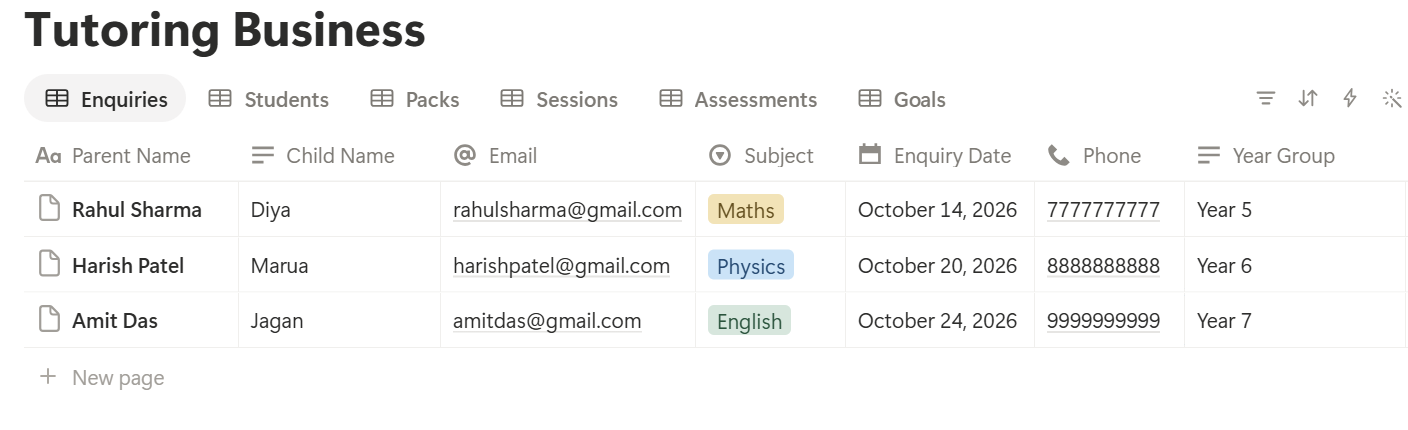
A relation connects a record in one database to a record in another. Link Packs, Sessions, Assessments, and Goals to Students, and link Sessions to Packs. Now a student’s page shows their packs, their sessions, their scores, and their goals together.
Enquiries and Trial Lessons
Most tutoring starts with a message from a parent who is a little worried. A calm, quick reply makes a big difference.
On Enquiries, add a follow-up formula:
*Days since enquiry: dateBetween(now(), prop("Enquiry Date"), "days") Follow-up: if(or(prop("Status") == "New", prop("Status") == "Trial Done") and prop("Days since enquiry") >= 2, "Follow up", "")*
The flag shows Follow up for enquiries and finished trials that have waited two days. Change the number to suit you.
Use a Trial lesson template with these sections: what the parent worries about, what the student says is hard, what you tried, what went well, and your suggested plan. The note is also the start of the baseline. After the trial, send the family a short summary and a clear next step.
Make these views:
Session Packs: Balance and Renewals
Many tutors sell packs, such as ten lessons, because it commits the family and simplifies payment. A pack needs a balance, so nobody loses count.
On Packs, add a rollup from Sessions that counts sessions with the status Done or Late Cancel, if your terms charge for late cancellations. Name it Sessions Used. Then add:
*Sessions Remaining: prop("Sessions Purchased") - prop("Sessions Used") Renewal flag: if(prop("Status") == "Active" and prop("Sessions Remaining") <= 2, "Renew soon", "") Price per session: if(prop("Sessions Purchased") > 0, prop("Price") / prop("Sessions Purchased"), 0)*
Here is a made-up pack. Amounts are in your own currency.
| Item | Value |
|---|---|
| Pack | 10 sessions |
| Price | 450 |
| Price per session | 45 |
| Sessions used | 8 |
| Sessions remaining | 2 |
| Flag | Renew soon |
Make a view called Renewals due, showing packs with the flag, sorted by sessions remaining. Write your terms for expiry, refunds, and rescheduling in a short agreement with wording checked by someone qualified, and apply them kindly and consistently. Test the formulas with made-up packs and check the numbers against a calculator.
Sessions: Plan, Teach, Record
A session note is the most useful thing a tutor writes, because it makes the next lesson better.
Use a Session template with four short boxes:
Write the note within an hour of the lesson, while you remember. Three lines are enough. Over time, these notes let you answer a parent’s question in seconds, and let a second tutor cover a lesson without a long handover.
Make these views of Sessions:
Keep tone professional in notes. A parent might one day see what you wrote, and the student might too.
Pro Tip: End each session by writing the "Next focus" line before the student leaves. It takes thirty seconds, and it saves you from rereading everything at the next lesson.
Assessments: Show the Progress
Progress needs a starting point. Without a baseline, “improvement” is only a feeling.
Give every student a baseline assessment in their first one or two sessions, such as a short test, a reading check, or a piece of work you mark. Record it as an Assessments record with the type Baseline. Then repeat at sensible points, such as every half term, before exams, and at the end.
On Assessments, add one formula:
Percent: if(prop("Out Of") > 0, prop("Score") / prop("Out Of"), 0)
Format it as a percent. On each student, enter the baseline and latest percent in the Baseline Score and Latest Score properties, and add:
Improvement: prop("Latest Score") - prop("Baseline Score")
Here is a made-up student. Scores are percents.
| Date | Assessment | Score |
|---|---|---|
| September | Baseline | 52% |
| November | Mid-point | 61% |
| January | Mock exam | 68% |
| Improvement | +16 points |
For a visual, make a chart view or a simple line from each student’s assessments, and put it in the progress report.
How to Export a Notion Database to PDF helps if you want to export a table of scores as it is.
Goals: What Are We Working Toward?
Parents like to see a target. Students like to see it ticked off.
Create two or three goals per student at the start, and write them in plain words and with a date:
Set each Status to Not Started, In Progress, or Achieved. A rollup on Students that counts achieved goals, and a view of goals due this month, keep them in sight.
Review goals with the student, and not just for them. A child who helped set the goal is more likely to work toward it.
Change goals when they stop making sense, and say why. A goal that was too easy, or too hard, is information.
Report-Ready Fields: Make Reports Take Minutes
Here is the practical trick. A progress report is mostly a few numbers and a few sentences. If those sit in clearly named properties on each student’s page, a report template can fill itself, without anyone copying and pasting.
Add these properties to Students:
Fill them in at the end of each term, from your session notes, assessments, and goals. It takes ten minutes per student, and it’s the human part of the report. Everything else is already recorded. The report is just these fields, laid out on a clean page.
Because the fields sit on one record, a template doesn’t need to list linked sessions or assessments. That makes the report simple to generate and easy to check.
Cancellations and Business Numbers
Tutoring is a small business with a few numbers worth knowing.
Add two properties to your sessions summary, or work from a table view with calculations. Here is a made-up month for a tutor, with amounts in your own currency.
| Item | Value |
|---|---|
| Sessions delivered | 80 |
| Average price per session | 45 |
| Revenue | 3,600 |
| Late cancellations | 6 |
| Late cancellation rate | 7.0% |
Group Sessions by month and student, with a sum of price and a count, in a table view. A quick monthly review of hours taught, income, and cancellations helps you decide when to open new spaces, raise prices, or hire another tutor. These numbers leave out your own time for planning and admin, and your costs and tax, so use them as a guide, and check the full figures with an accountant.
A Tuesday for a Solo Tutor
To see how the pieces fit, here is one made-up Tuesday for a tutor with 22 students.
8:00 am. She opens the Today view. Five sessions are booked. She reads each student’s last “Next focus” line in a minute, and has her materials ready.
9:00 am. The Follow up view shows a new enquiry from yesterday. She replies, books a trial for Thursday, and uses the trial template.
3:30 pm. The first lesson of the afternoon ends. She writes the session note before the next student arrives: topics, how it went, homework, and next focus.
5:00 pm. After the last lesson, the Notes missing view shows one session without a note. She fills it in.
5:30 pm. The Renewals due view shows two packs with two sessions left. She sends each family a short, friendly message about continuing.
6:00 pm. She spends ten minutes on one student’s report-ready fields for the end of term. A progress report for her will be a PDF by the evening.
Nothing relied on her memory at the end of a long day.
The Documents That Leave Notion
Families don’t use your workspace, so some records need to become files:
For a single page, you can use Notion’s export option.
How to Export Notion to PDF shows the settings. If a family wants an editable file, Notion to Google Docs explains the options.
Parents judge a tutor partly by the quality of the paperwork, and Notion’s own export gives you limited control over layout. How to Add Your Logo and Brand Colors to Notion PDFs explains how a template solves that.
Generating PDFs with PDFOutput
PDFOutput creates documents from your Notion data using a template. A template can be a Google document, a Word file, a PDF file, or a Notion page. If you already have a report layout in Word or Google Docs, you can reuse it.
Here is how it works:
These are some of the status options:
The e-signed option may help with pack agreements. Whether an electronic signature is valid for a given agreement depends on your location and the type of document, so check before you rely on it. You can save the finished file to a property in your database, so a progress report stays on the student’s record. You can also save it to a Google Drive folder and store the link in a property.
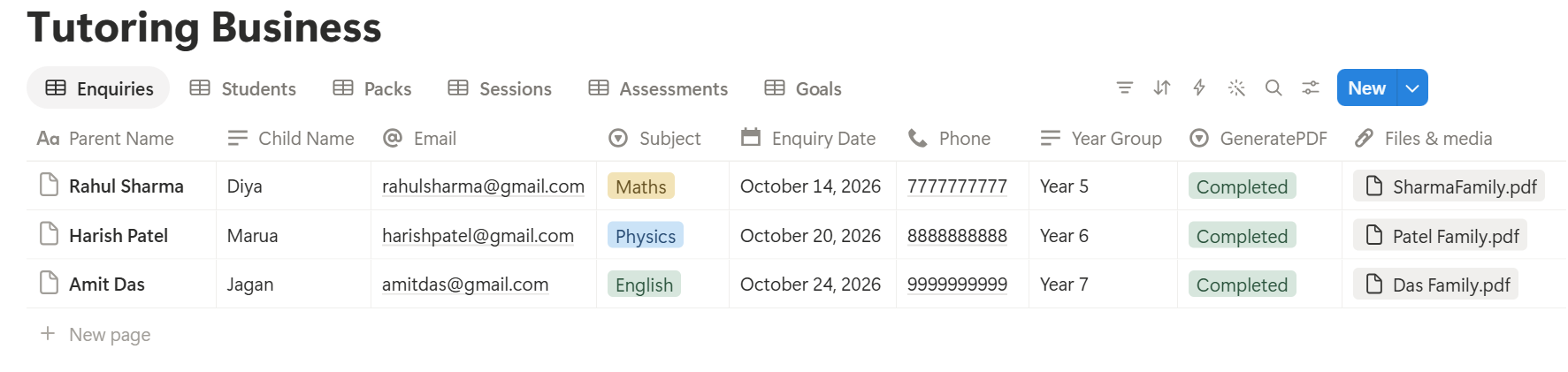
This is where the report-ready fields pay off. Your report template uses properties from the student’s own record, such as the period, the scores, the goals, and the tutor comment, so it doesn’t depend on listing linked sessions or assessments.
If you’d also like a list of every session in a report, test a template with a sample student who has several sessions, and check that each one appears. If it doesn’t, keep a short text summary on the student, and use that.
Start with the progress report, since it’s the document families value most. Use Preview first and check for empty fields, the right child’s name, and numbers that match your records. Check each report before you send it, because a report for one family must never reach another.
Key Takeaway: Record a baseline, write a short note after every session, and fill in report-ready fields at the end of each term. Do that, and progress reports, renewals, and invoices all come from data you already have.
Who Can See What
Your workspace will hold information about children and families, so control access from the start.
Common Mistakes
No baseline. Without a starting score, you can’t show progress, and families can’t see the value.
Notes that never get written. A thirty-second note after each lesson beats a long summary at the end of term.
Letting packs run out unannounced. Warn families when two sessions are left.
Treating one score as the whole story. Add context, and talk about effort and confidence too.
Sending the wrong child’s report. Check the name and the family every time.
Storing sensitive details. Record only what helps you teach, and keep formal reports in a secure place.
Goals that never get reviewed. Look at them with the student each half term.
Too many properties. If a student record takes ten minutes to update, you’ll stop. Keep it short.
No owner for the structure. If you work with a team, pick one person responsible for the setup. Properties get renamed and formulas break, so tell that person not to rename properties used in PDF templates, because the placeholders must match exactly.
Skipping a test. Run a month with made-up students first, and fix what annoys you before you use real records.
Frequently Asked Questions
Can Notion be used to run a tutoring business?
Yes. It can organize students, session packs, lesson notes, assessments, goals, and progress reports. It doesn’t offer online booking, video lessons, or payments, so use dedicated tools for those.
How do I track session packs in Notion?
Create a Packs database linked to each student, with the number of sessions purchased. Roll up the completed sessions from the Sessions database, and use a formula to subtract them. Add a flag when two or fewer sessions remain.
How do I track a student’s progress in Notion?
Record a baseline assessment, then repeat assessments at set points. Store each score in an Assessments database linked to the student, and use a formula to work out the improvement from baseline to latest.
Can I create progress reports from Notion?
You can export a student’s page as a PDF, or use a template-based tool such as PDFOutput to fill a report template with data from the student’s record. Put the key numbers and comments in clearly named properties on the student’s page, and test the layout on a few sample records first.
Is it safe to store student information in Notion?
Notion lets you control who sees each page, but your duties depend on the rules where you work, especially for children. Keep records minimal, keep sensitive details in a secure place, never share the workspace with families, and check your safeguarding and privacy rules.
How do I handle late cancellations?
Write your terms clearly in your agreement, record the status Late Cancel on each session, and count them in your pack balance if your terms say so. Track the late cancellation rate to see if the policy needs changing, and check the rules where you work.
Should I record lessons?
Recording usually needs the family’s consent, and rules differ by place. If you record, store the files in secure storage, link to them from the session, and delete them as your policy says. Don’t store recordings in Notion.
Related Reading
Conclusion
A good tutoring setup in Notion tracks progress: a baseline for every student, a short note after every session, a pack balance that warns you before it runs out, and report-ready fields that turn into a clean report each term. Start with students, sessions, and assessments, keep sensitive details to a minimum, and run a month with made-up students first. When your progress reports, agreements, and invoices need to leave Notion, PDFOutput can fill your template from each record and save the PDF to your chosen storage.
Want progress reports and invoices as clean PDFs? Try PDFOutput.