Compare
6 Tools to Automate PDF Creation from Notion and Other Workflows
Compare PDF document automation tools for Notion and other workflows. See what each supports and find a fit for your team’s document needs.
By Sanat Biswal · 2026-11-03 · 9 min read

{/ synced-from-notion — do not edit manually /}
PDF document automation can turn a Notion record into a finished file without copying its details by hand. The right tool depends on where your data lives and how you want documents made. Here are six options, starting with the Notion-focused workflow we built at PDFOutput.
1. PDFOutput
PDFOutput connects a Notion database to a document template, then fills matching placeholders with each record’s data. It suits teams that already manage work in Notion and want to generate PDFs from the same database.
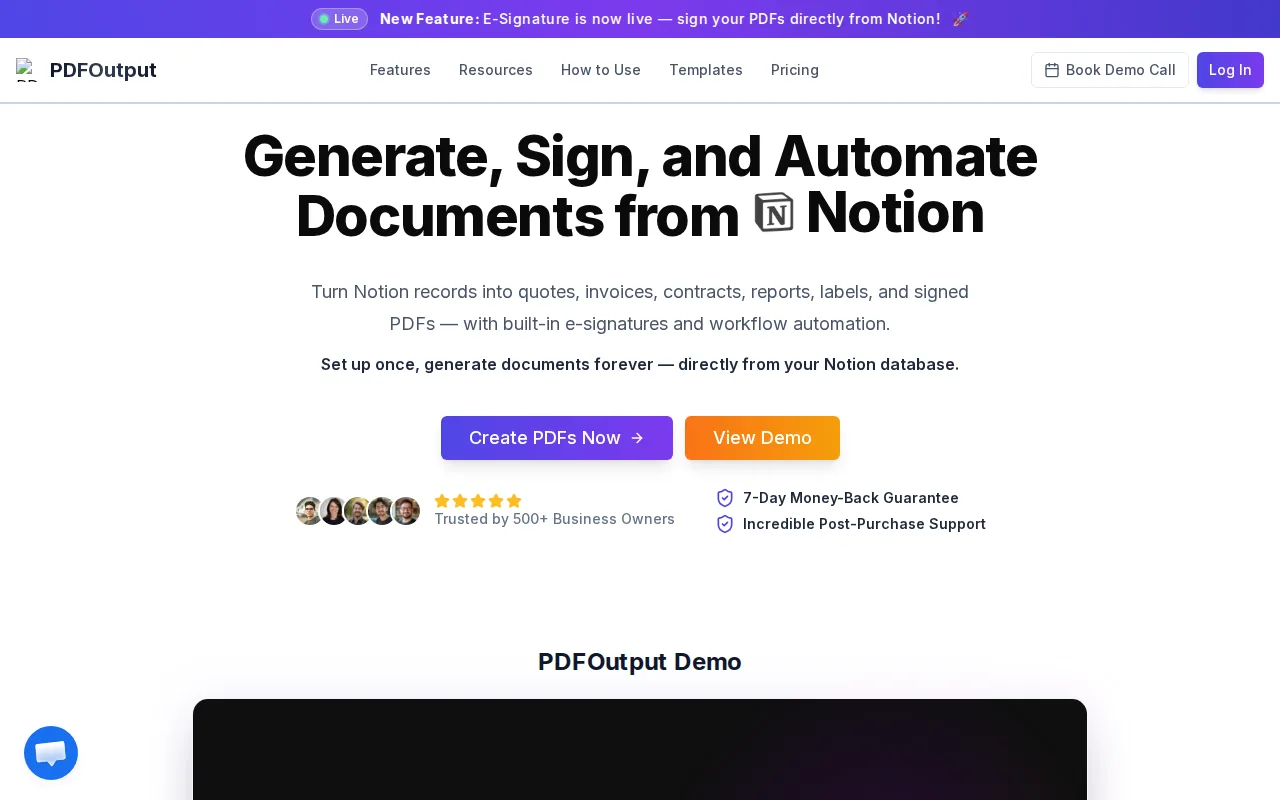
Templates can be Google Docs, Word files, PDFs, or Notion pages. Add a placeholder such as {{Client_Name}} and match it to the Notion property with the same name. PDFOutput can make PDFs, Google Docs, and PPTX files. It can also use related databases and rollups, which lets one invoice pull in connected line items.
A Notion button can start generation for an individual record. A status property can also put records into a ready-to-generate queue. That can suit a real estate team preparing a lease after a deal is approved, or an office manager creating a certificate from a student record. You can also generate documents in batches and save files to Google Drive.
We support several status actions: generate a PDF, convert a Notion page to PDF, make both a PDF and Google Doc, create an e-signed PDF, or preview a Google Doc before final generation. The PDFOutput setup walkthrough explains how to connect a database and map its properties to a template.
For teams whose records live in Notion, this keeps the data source and document trigger close together. If you want a person to check a record before making its file, a button-based workflow is a natural fit. See our guide to button automation in Notion.
> 📌 Key Takeaway: PDFOutput fits teams that want templates, triggers, and generated files tied to Notion records.
2. DocsAutomator: Notion page-triggered document generation
DocsAutomator uses Google Docs templates and can produce Google Docs or PDFs. It suits teams that want documents created when a Notion page is added or updated, rather than waiting for someone to click a manual trigger.
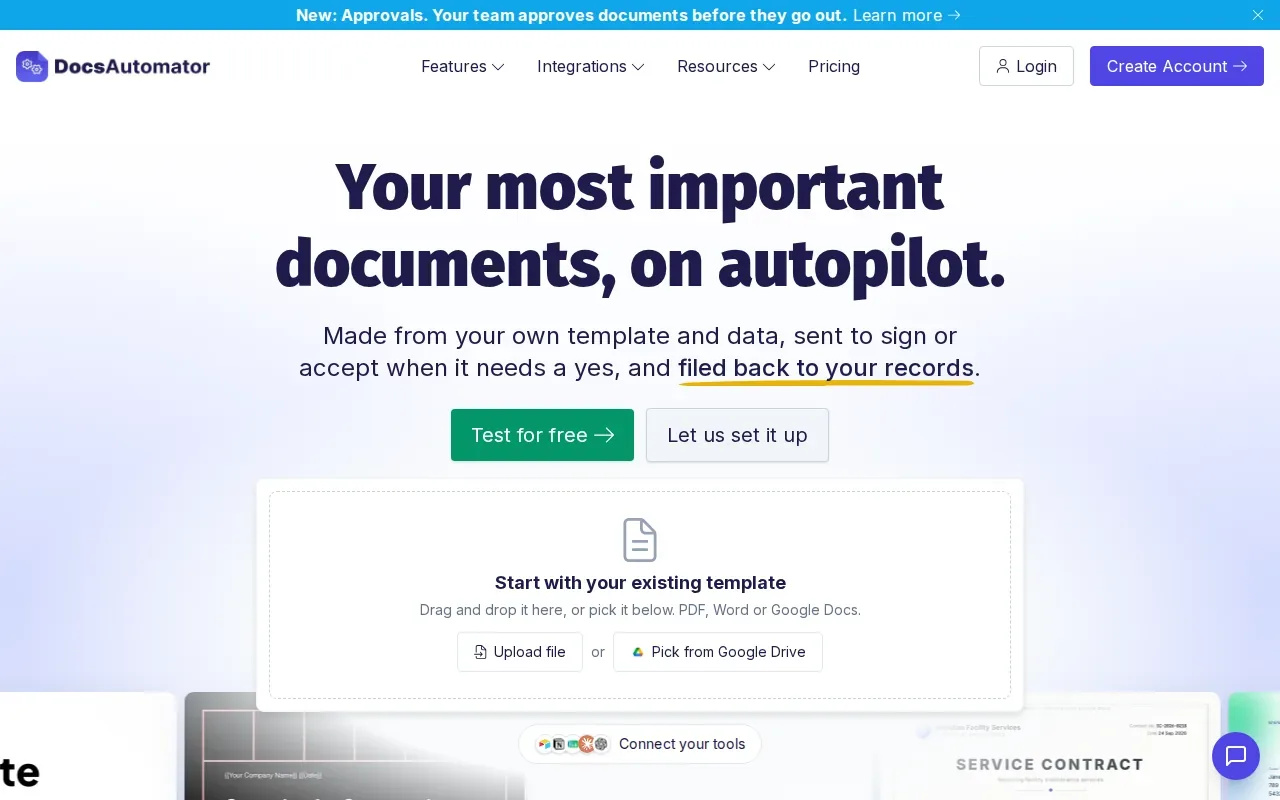
That event-based setup can help when a new record signals that a document is due. For example, a team might add a record after a service job and use the page event to start a report workflow. The trigger is tied to page creation or an update, so it’s important to choose the event that matches how the team enters and edits records.
DocsAutomator has a free tier. Its template input is Google Docs, which makes it a fit for teams that already draft and maintain their wording in that format. PDFOutput, by contrast, also accepts Word files, PDFs, and Notion pages as templates.
For a Notion-first team, compare the trigger with the point where a record is truly ready. A page can be created before all fields are complete. If the document needs a final human check, an explicit button or status selection may make that handoff easier to see.
3. ActiveMerge: Small batches with a manual trigger
ActiveMerge is a document generation tool with a manual click trigger for the workflow covered here. It suits teams that prefer to start each run themselves and want a free allowance for a small number of documents.
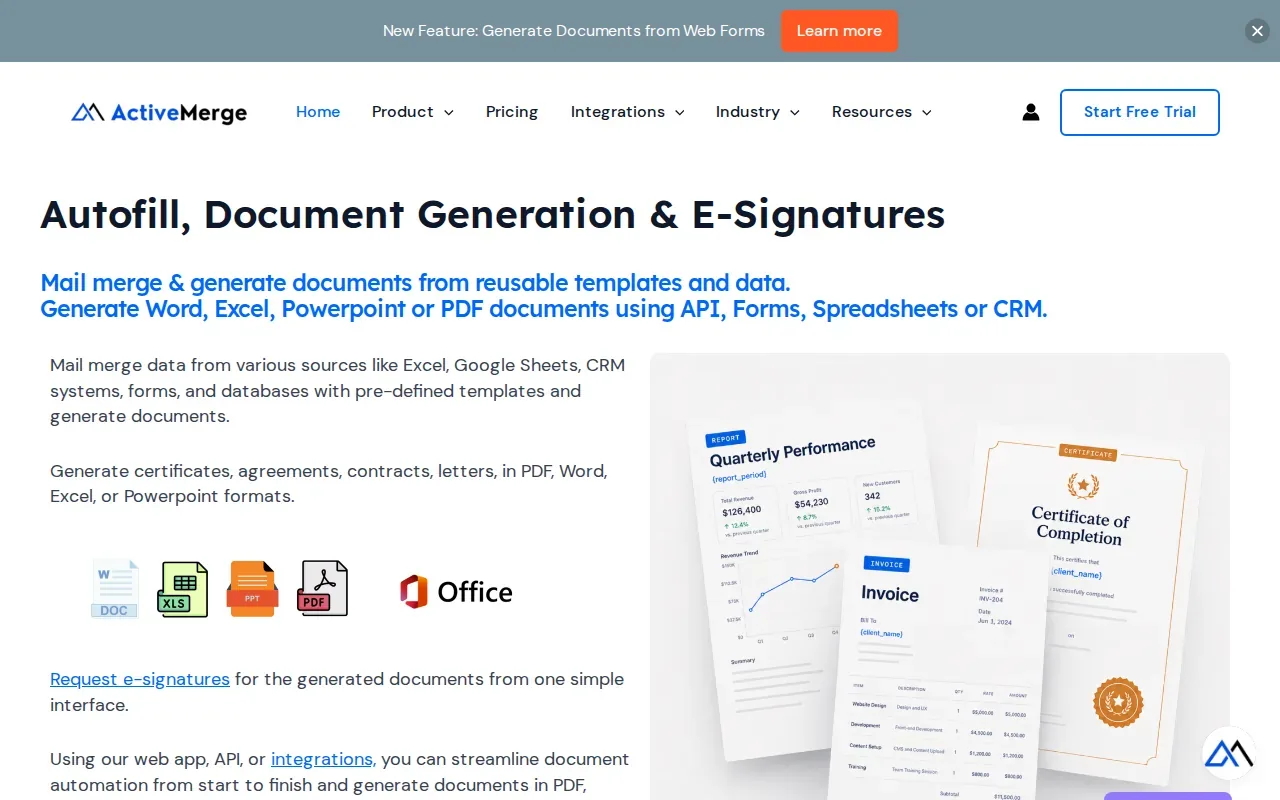
ActiveMerge outputs PDFs. Its free use covers up to 25 documents, and its free-tier bulk merge also caps at 25 documents per month. That may work for a small set of certificates or letters that staff create only when records are ready. For recurring volume above that cap, check the plan against your expected document count before choosing it.
The manual trigger gives staff control over when to create a file. The tradeoff is that someone has to start the run. That can be fine for occasional requests, but it adds a human step when a business generates documents each time a record changes.
4. Docupilot: Rule-based document generation at volume
Docupilot is a document automation tool for assembling documents in larger quantities from set rules. It may suit a team that needs repeated documents to change based on data, such as different clauses or sections for different records.
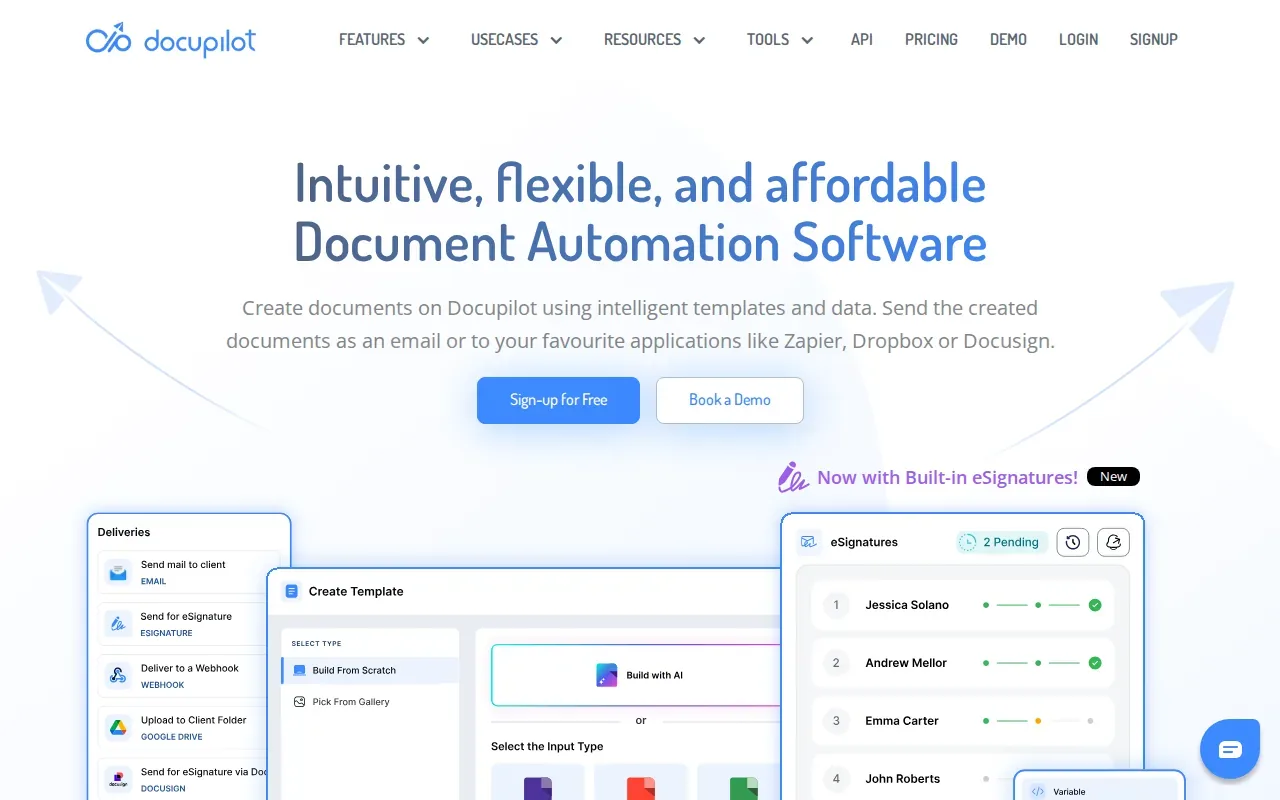
Teams using one template for several document cases may need to account for differences between records, such as the details required for different items in a sales order.
For a Notion workflow, the key question is how you’ll connect your Notion data and which trigger best matches your process. Confirm those details during setup before moving a live workflow over.
Volume alone doesn’t decide fit. A team with a few distinct document types may be better served by simple templates, while a team with many conditional variations may value rule-based assembly. Test one representative record, including the longest text and most complex case, before generating a batch.
5. PDF Butler: Salesforce-native document automation
PDF Butler is a document automation platform built natively for Salesforce. It suits teams whose customer and sales records are already managed in Salesforce, rather than Notion.
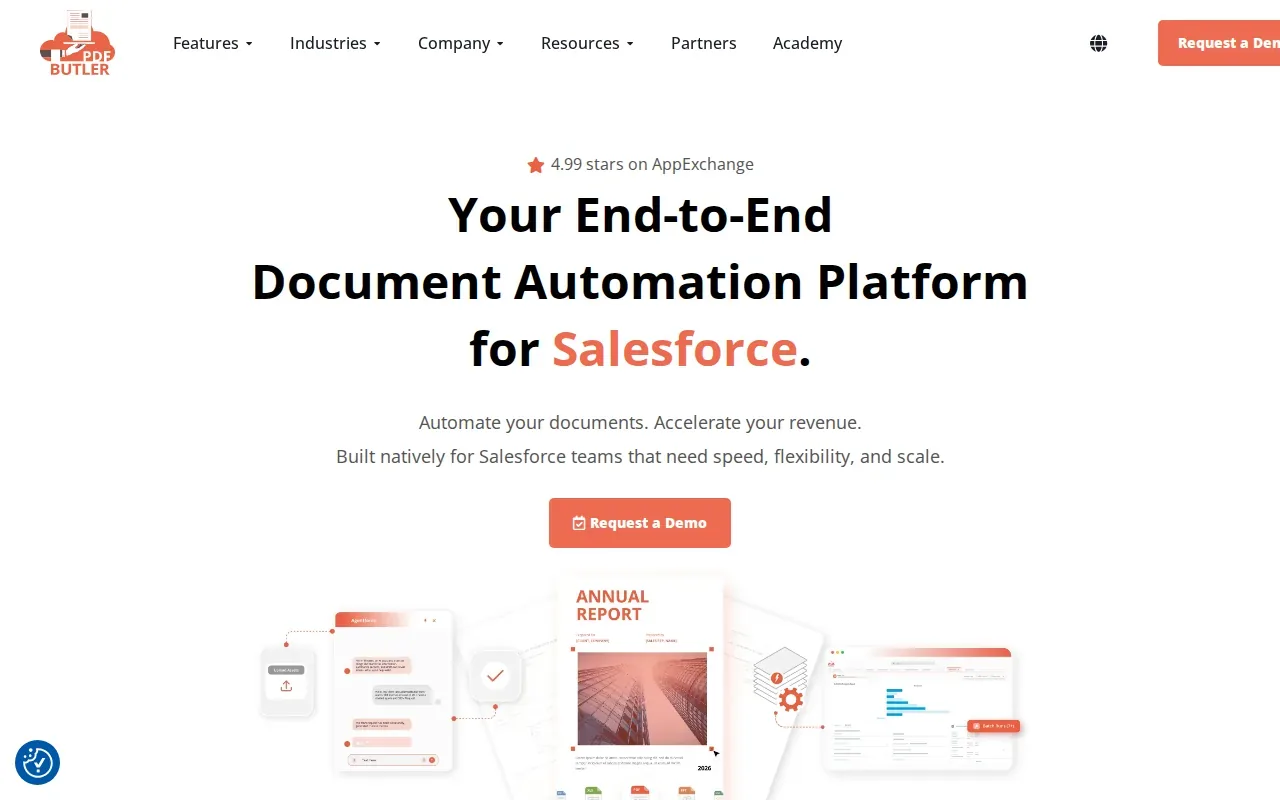
PDF Butler describes individual document creation as well as batch generation from record sets. Jobs can run manually, on a schedule, or through triggers. Its examples include proposals, product sheets, and reports created from Salesforce data. Keeping generation inside the CRM can help a sales team make a document from the record it already uses.
It also describes document storage through a cloud storage service or Google Drive, with files linked to Salesforce records. Teams comparing it with a Notion-based setup should focus on the system where their source data lives. A Salesforce-native tool is a more direct fit when staff work in Salesforce every day; a Notion database needs a workflow designed around Notion instead.
For a B2B team that is not looking to move its records into another system, the source of truth matters more than a long feature list. Pick the tool that keeps the document attached to the record your team will return to.
6. PDF24 Creator: Free offline PDF utilities
PDF24 Creator is desktop software that works offline. It suits teams that need PDF utilities on a local computer, rather than automated document generation from a Notion database.
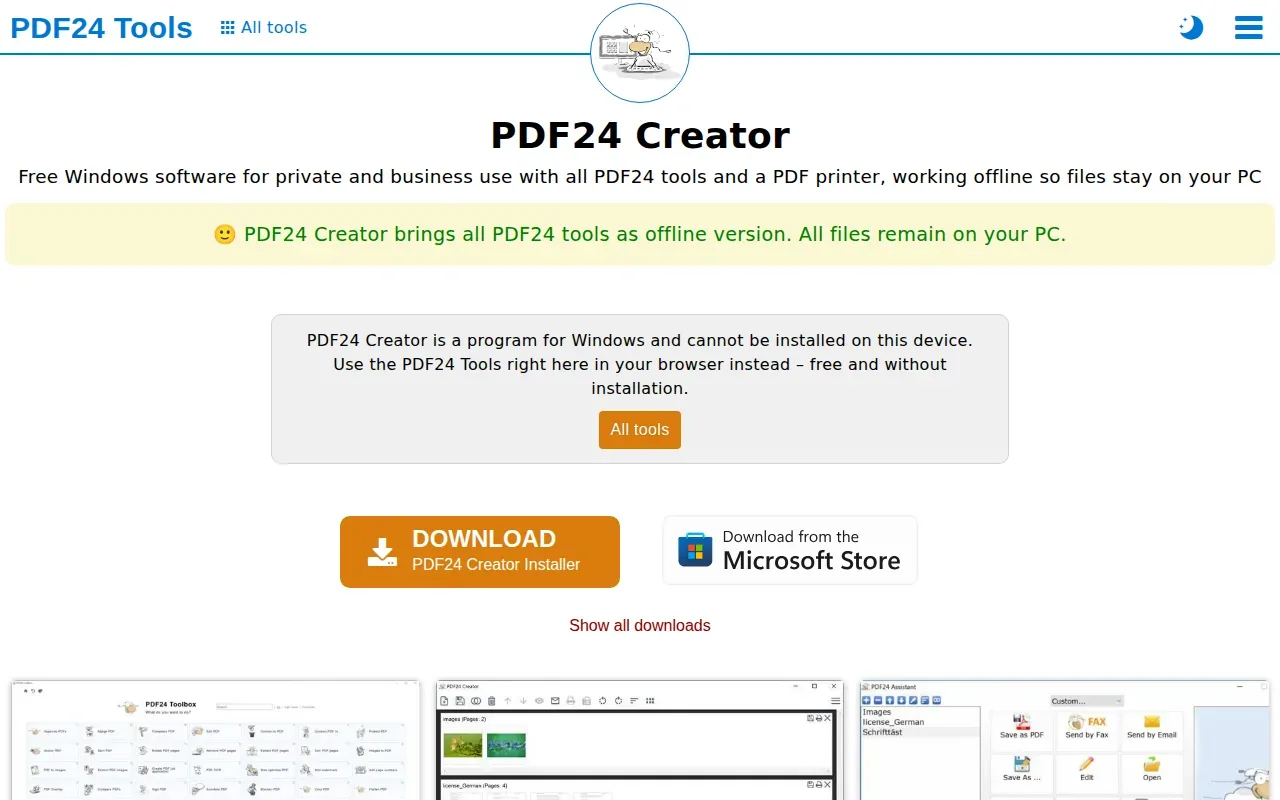
PDF24 Creator works offline, with no internet required. The software can also be used in a company for free. That local workflow may suit a staff member who needs to handle existing PDF files without sending them to an online service.
There’s an important distinction: PDF utilities help you work with PDF files, while database-driven automation fills a template from changing records. If a school needs to prepare one existing handout for printing, desktop tools may be enough. If it must produce a named certificate for each student record, it needs a repeatable data-to-document workflow.
Keep the task in view when comparing tools. An offline PDF utility is not the same kind of option as a Notion-triggered document generator.
Compare the PDF document automation tools by workflow fit
Use this table to narrow the options by the job you need done. It focuses on workflow fit, not a general score.
| Tool | Best used for | Trigger or workflow detail | Output detail |
|---|---|---|---|
| PDFOutput | Generating documents from Notion databases | Notion buttons and status properties | PDF, Google Docs, and PPTX |
| DocsAutomator | Google Docs templates with page-event generation | Page creation or page update | Google Docs and PDF |
| ActiveMerge | Manual generation and small free batches | Manual click; free tier covers up to 25 documents per month | |
| Docupilot | Rule-based document assembly at volume | Predefined rules | Document generation |
| PDF Butler | Document workflows based in Salesforce | Manual, scheduled, or trigger-based jobs | Documents from Salesforce records |
| PDF24 Creator | Offline PDF tasks | Desktop workflow | PDF utilities |
For more detail on setup, see our setup guide. Before turning on any process, test a record with complete data and check that the finished file contains the right values.
> 💡 Pro Tip: Choose one common document and test its full path, from a completed database record to the saved file, before setting up a batch run.
FAQ: PDF document automation
What is PDF document automation?
PDF document automation uses data and a template to make PDFs with less manual copying. A record supplies changing values, such as a client name or date, while the template sets the document layout. For a Notion workflow, the database holds the record and a generation tool matches its properties to template placeholders.
Can I create PDFs automatically from a Notion database?
Yes, you can use a document automation tool that connects to Notion and maps database properties to template placeholders. With PDFOutput, a button can start generation for a selected record, or a status property can mark it ready. The generated file can be saved back to the database, and a copy can be stored in Google Drive.
Which documents can I generate from Notion?
You can automate repeated documents whose fields come from Notion records. Common examples include invoices, agreements, contracts, certificates, reports, and letters. The best template depends on the document. For example, an invoice may use related line items, while a certificate may need only a person’s name and course details.
What should I check before turning on a PDF workflow?
Check that each template placeholder matches its Notion property name, including spaces, underscores, and capitalization. Preview a complete record before generating files for more rows. Review dates, amounts, long text, and linked data. Then confirm where the file will be stored and which team member can start generation.
Does PDFOutput make files other than PDFs?
Yes. PDFOutput can generate PDFs, Google Docs, and PPTX files from Notion data. Its status choices also include making a PDF and Google Doc together, converting a Notion page to PDF, creating an e-signed PDF, or preparing a Google Doc preview before final generation. Choose the action that matches the file your team needs.
Conclusion
If your team keeps its working records in Notion, PDFOutput is the option in this shortlist built around that workflow. Start with one document you already make often, connect its template to a test database record, and preview the result before enabling generation for the rest of your team.