Compare
Automated Document Generation Tools for Notion
Compare automated document generation tools for Notion, from database-to-PDF apps to broader document workflows, and find a fit for your team.
By Sanat Biswal · 2026-11-01 · 11 min read

{/ synced-from-notion — do not edit manually /}
Notion can hold the details for an invoice, property brief, or class report. Turning those records into a polished file takes a document tool. Here are five options for automated document generation, with a focus on what each can do with Notion data.
1. PDFOutput
PDFOutput is a document automation platform for Notion users. It connects a Notion database to a template and replaces matching placeholders with values from each record.
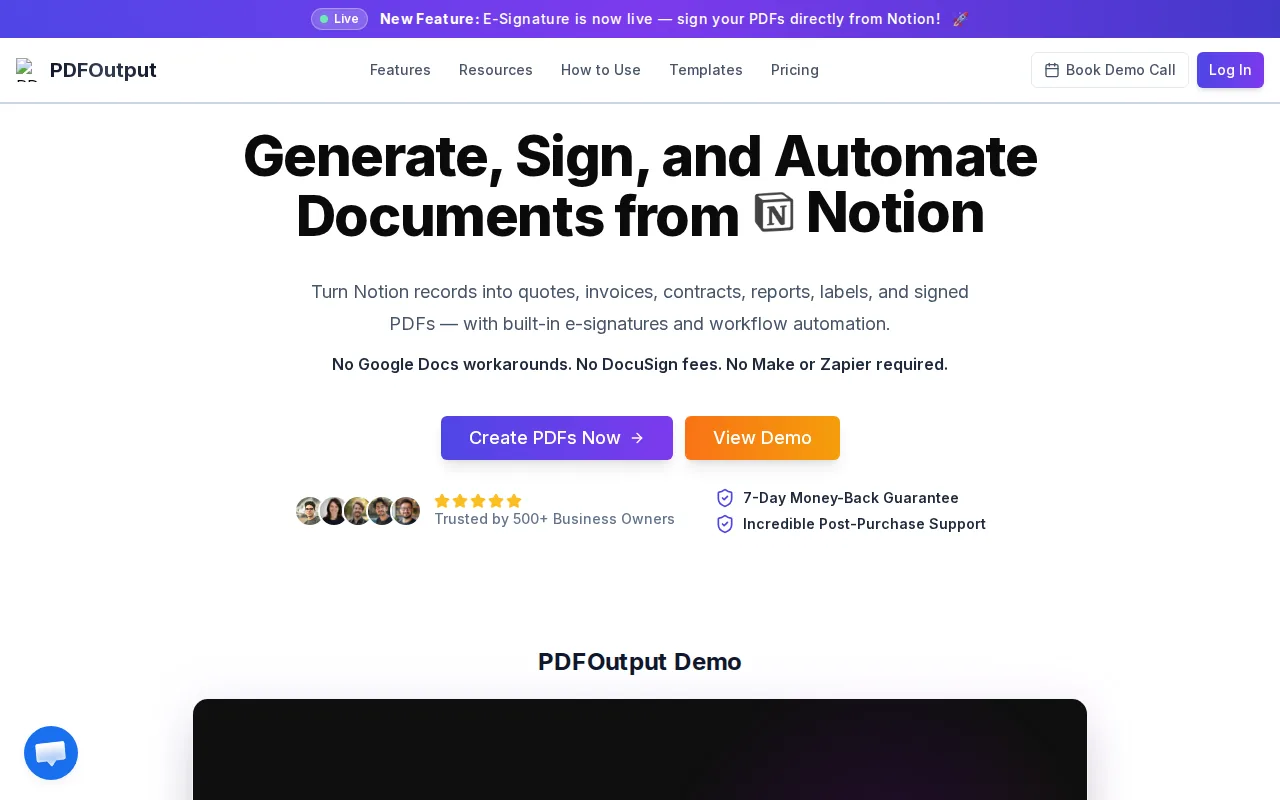
It suits teams that already manage work in Notion and want to make documents without code or a separate manual copy-and-paste routine. A real estate team could use one record for a property brief. A supplier could keep order details in Notion and use them to fill a delivery document.
Templates can come from a Google Doc, Word file, existing PDF, or Notion page. Add placeholders such as {{Client_Name}} to the template, then match them to the Notion property with the same name. Exact spelling matters, so capitalization and underscores should match too.
PDFOutput can generate PDFs, Google Docs, and PPTX files. It can also use related databases and rollups, which let a document pull details such as invoice line items from linked records. For repeat work, teams can create batches, merge PDFs, or generate files from Notion form entries.
The trigger can fit the way your team handles review. A button starts generation on demand. A status property can send a record into a ready-to-generate state. Other status choices can make a page PDF, create both a PDF and Google Doc, prepare an e-signed PDF, or create a Google Doc preview first. Read our guide to setting up button-based PDF generation in Notion for that one-click workflow.
Teams can also set up scheduled triggers and automatic Google Drive storage. PDFOutput uses a subscription with monthly or annual plans, and its free plan lets teams try the workflow. If a document needs a signature, see the guide to creating e-signed PDFs from Notion.
For teams that want documents to start and finish inside a Notion workflow, PDFOutput is the most direct fit in this shortlist.
> 📌 Key Takeaway: Use a matching database property and template placeholder, then pick a trigger that matches your review process.
2. DocsAutomator: For Notion-to-document workflows with conditional content
DocsAutomator turns database records into documents using templates in Google Docs, Word, or PDF format. It suits teams that need more than a fixed page of fields, such as a contract that changes based on the type of service.
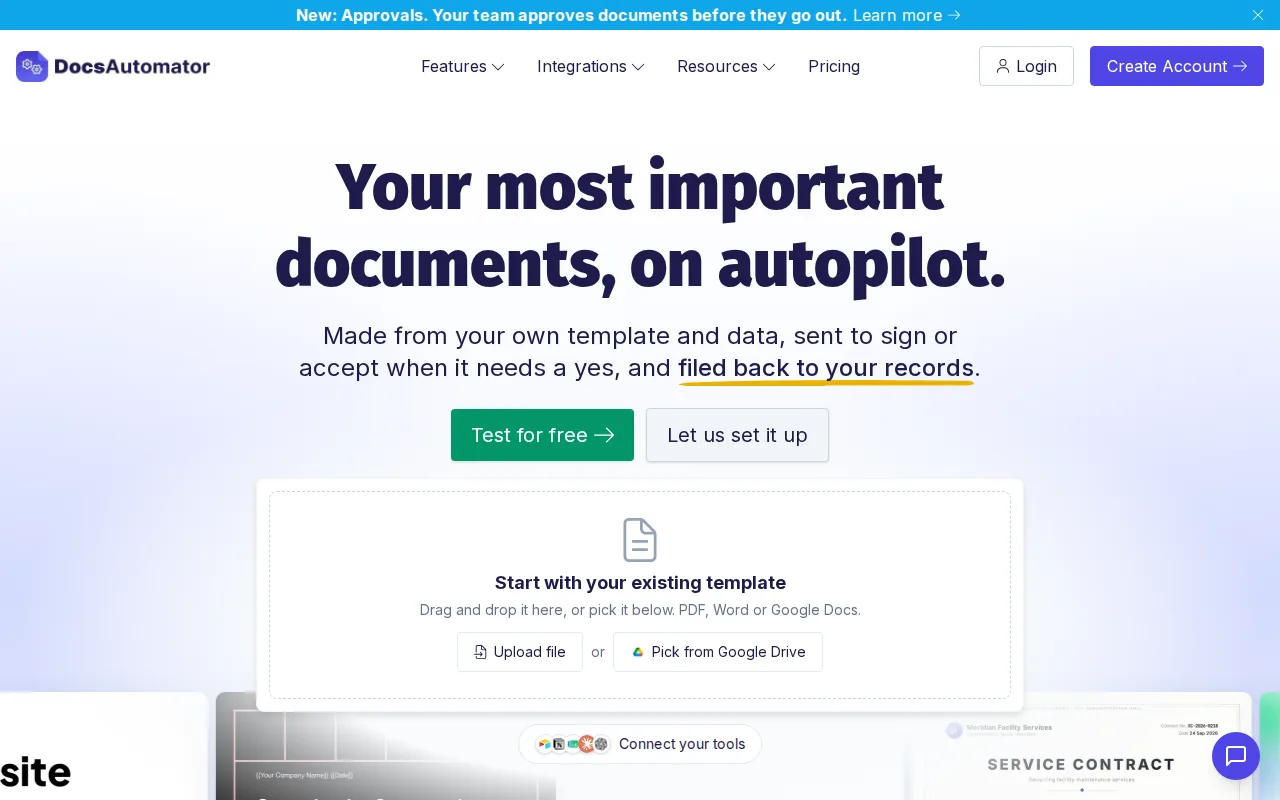
Its functions include conditional sections and dynamic images. A team could use conditions to show a particular agreement clause only when a record meets the rule, rather than keeping every version in a separate template. The tool also supports e-signature fields and can send a completed document for signature or acceptance.
DocsAutomator connects with Notion as well as other data sources, including Google Sheets, Airtable, and ClickUp. That broader source mix may fit a team whose records live across more than one system. A business that keeps its core workflow in Notion should still check that the chosen template and trigger match how staff update records.
Its stated examples cover common documents such as invoices, quotes, certificates, reports, shipping documents, and forms. The workflow can also send documents and save completed files back to a record or storage location.
DocsAutomator may suit teams that want conditional content or signatures in the same document workflow. PDFOutput is a more Notion-centered option when your main need is generating documents from database records.
3. The PDF Maker: For turning Notion pages into PDFs
The PDF Maker is a document generation tool that can use Notion pages as a source for PDFs. It suits teams that prefer to build around Notion content and need repeatable files such as proposals, offers, reports, or contracts.
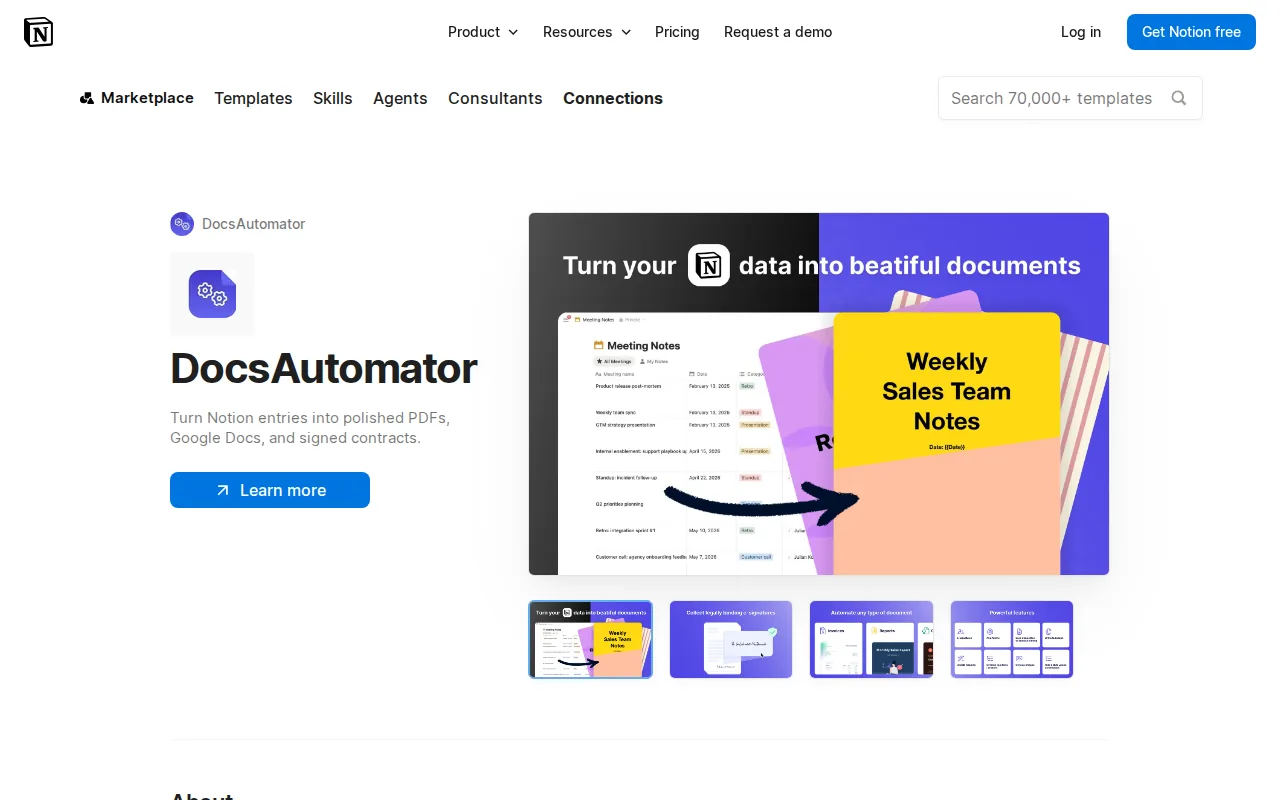
The listed Notion workflow is to connect a Notion account, set up a template, and generate PDFs. The files can be sent back to Notion, and the process can be automated. That pattern is useful when the page or database already holds the data and staff want a separate PDF for a client, student, or project file.
The PDF Maker also describes templates with dynamic variables. A placeholder marks where data should appear, while dynamic tables can handle repeating line items. That can help with invoices or proposals where the number of items varies by record.
Its broader material describes connections to other data sources and automation tools, including Google Sheets, forms, and workflow platforms. Those options may matter if your records later move beyond Notion. For a Notion-first setup, test a sample record and check how the final PDF handles long names, multi-line text, and a record with several line items.
The PDF Maker is a reasonable option when the key requirement is generating PDFs from Notion content. If you also need Google Docs or PPTX output from the same Notion workflow, compare those needs with PDFOutput before choosing.
4. BaseToPDF: For straightforward PDFs from Notion pages and databases
BaseToPDF generates PDFs from Notion pages and databases. It suits users who want a direct route from Notion content to a PDF, without a broad document workflow as the main focus.
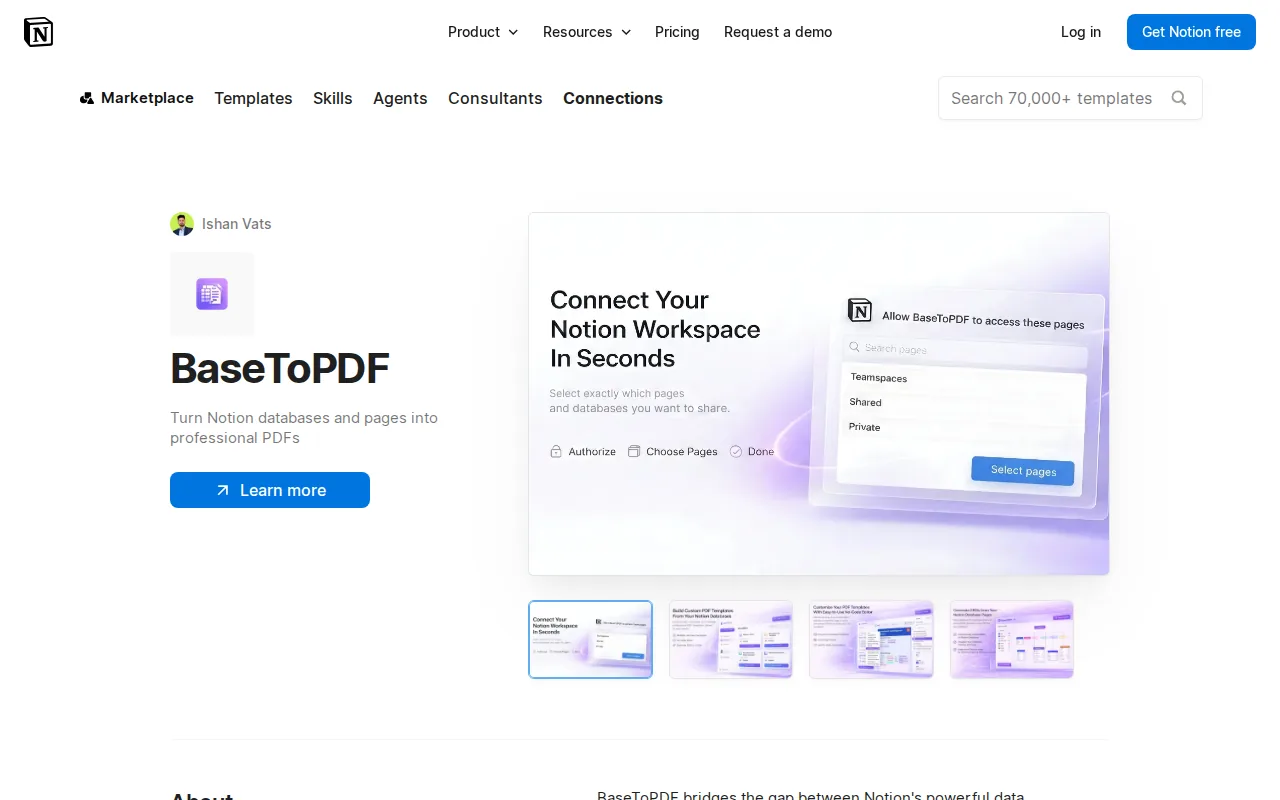
The available product information names Notion pages and databases as its input sources and PDF as its output. That makes it a fit to consider for repeatable files where a PDF is the required end product, such as a report or a record copy.
For a small business, the key question is how much control the team needs over the finished file. If a standard PDF from a Notion page is enough, a focused tool may be all that is needed. If a template must pull fields from related databases, produce more than one file type, or start from a Notion button, compare those workflow needs before you commit.
BaseToPDF is listed as free in the available Notion integration information. Check that the current workflow covers the format and trigger you need before moving a recurring business process into it.
Choose it when the job is specifically a Notion page or database to PDF, and keep the workflow simple.
5. Docupilot: For broader document workflows using mapped data
Docupilot maps data from sources such as CRM systems, forms, and databases into document templates. It suits teams that need conditional content or output beyond PDF.
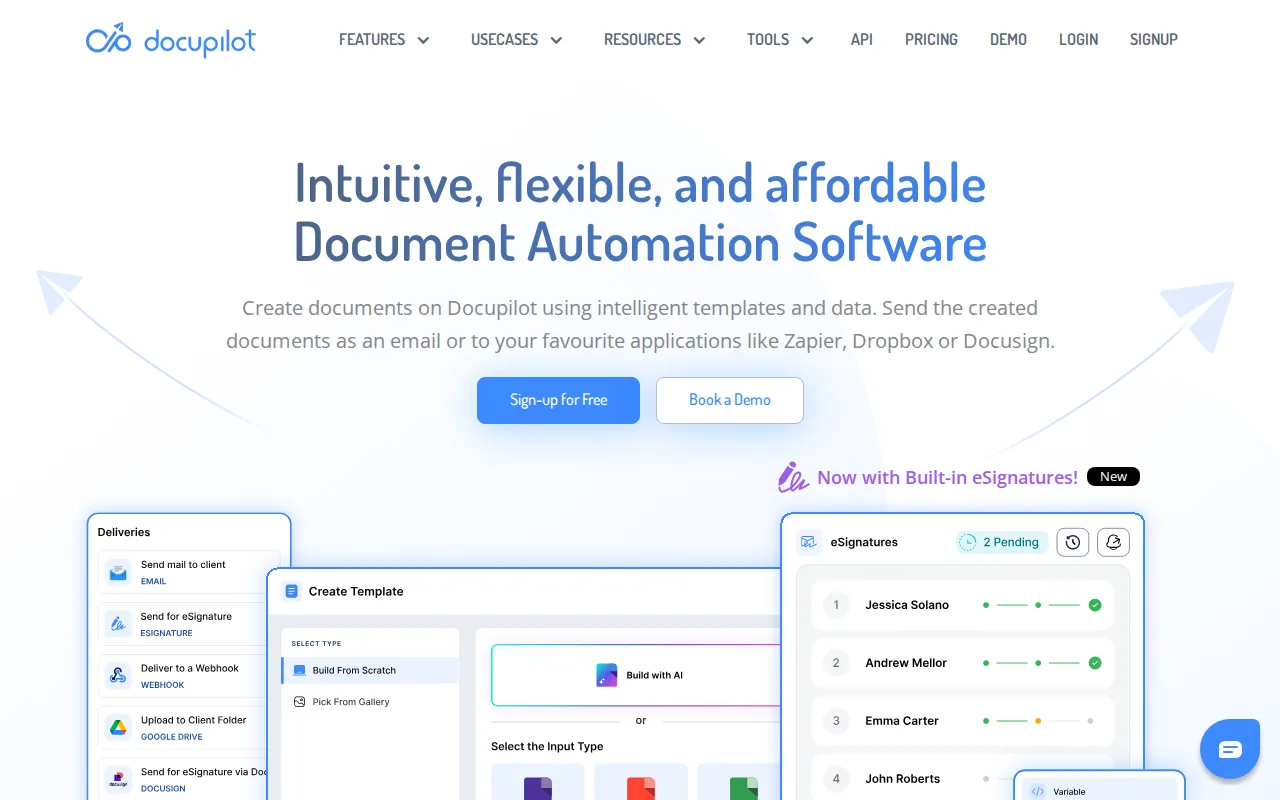
Its template tools support placeholders and conditional rules. Those rules can show or hide sections, or repeat blocks based on data. For example, a quote template could include a different section when a record describes a certain service. The team can keep the shared wording in a template instead of editing each file by hand.
Docupilot lists PDF, DOCX, and HTML as output formats. It also describes integrations with Zapier, Airtable, and Make, plus an API and webhooks for custom workflows. That gives a team more options to connect its document process with other systems, though it may add setup choices for staff who only need a simple Notion-to-PDF routine.
Use a sample record to test the mapping and conditional rules before applying the template to a full set. This is especially useful when the final document changes based on record values or must be sent to another system.
Docupilot is worth considering when the workflow spans several data sources or file types. For an in-Notion process centered on one-click document generation, PDFOutput keeps the setup closer to the database.
Automated document generation tools compared
These options differ most in how they use Notion content and what happens after a document is made. Use the table to narrow the shortlist by workflow, not by a feature count.
| Tool | Best used for | Template or input approach | Output noted |
|---|---|---|---|
| PDFOutput | Notion database records, buttons, and status-based triggers | Google Docs, Word, PDF, or Notion page templates | PDF, Google Docs, PPTX |
| DocsAutomator | Conditional content and signature workflows | Google Docs, Word, or PDF templates | PDF, Google Docs |
| The PDF Maker | PDFs from Notion content with dynamic variables | Notion page as a source; templates also described | |
| BaseToPDF | Direct PDF creation from Notion pages or databases | Notion pages and databases | |
| Docupilot | Conditional rules, integrations, and multiple file types | Mapped data in document templates | PDF, DOCX, HTML |
More involved automation can connect systems or add conditions, but each extra handoff needs to be tested. For a repeatable report process, an easy trigger and a clear place to find the finished file may matter more than a long integration list.
Which automated document generation tool fits your Notion workflow?
Start with the record that should produce a document. An invoice row may need a template with client details and line items. A school attendance record may become a report for a class or a certificate for one student. In each case, make sure the Notion properties contain the values the final file needs.
Next, decide how staff should start generation. A button works when someone checks the record first. A status change works when the team already marks records as ready. Scheduled triggers can fit recurring runs, while batch generation helps when many records need files at once.
Then look at the template. If the team already uses a Word or Google Docs file, keep that asset in the process. If it wants a simple PDF made from Notion content, a Notion-native option may be easier to maintain.
We recommend testing PDFOutput first when your team wants to generate files directly from Notion, use multiple template types, or save outputs back into its database. Our guide to automated PDF reports from Notion explains how a record, template, and trigger work together.
> 💡 Pro Tip: Test one ordinary record and one record with long text or several line items before you run a full batch.
If a workflow needs only an occasional one-off PDF, manual export may be enough. Automation makes more sense when staff repeat the same document task and need each file to follow the same layout.
Frequently asked questions
Can I generate PDFs automatically from a Notion database?
Yes, you can connect a Notion database to a document tool and use its records to fill a template. With PDFOutput, a button or a status property can start generation for a record. You can also set up batch or scheduled workflows when the task calls for multiple files or a recurring run.
What documents can I create from Notion data?
You can make any document whose changing details can be stored in your Notion records and placed into a template. Common examples include invoices, quotes, reports, contracts, certificates, and delivery documents. The best format depends on the reader and the workflow, so test a sample before producing a full set.
Do I need coding skills to set up document generation?
No coding is required for a basic placeholder-based setup in PDFOutput. You connect a database, add matching placeholders to a template, and choose a trigger. More complex workflows that use external services, APIs, or custom rules may need extra setup, so match the tool to your team’s comfort level.
Can a Notion automation create Google Docs as well as PDFs?
Yes. PDFOutput can generate Google Docs and PDFs from Notion data, and it can also create PPTX files. Other tools in this list focus on PDF output or support formats such as DOCX and HTML. Check the required output before you build the template, especially if your team needs an editable file.
When is manual PDF export enough?
Manual export can be enough when you create a document only now and then, or when each file needs a one-off layout. Automation is more useful when staff repeat the same task across many records. A reusable template also helps keep recurring files consistent without asking someone to re-enter the same details.
Conclusion
For a Notion-first team that wants an approachable setup, start with PDFOutput and test one real database record. Match its fields to a template, choose a button or status trigger, then check the output before automating the rest.