Guides
How to Send Notion PDFs Automatically by Email with Gmail
Learn how to send Notion pages as PDFs by email automatically with Gmail, using Zapier, Make, or a free Google Apps Script. Step-by-step setup.
By Sanat Biswal · 2026-11-09 · 5 min read
{/ synced-from-notion — do not edit manually /}
How to Send Notion PDFs Automatically by Email with Gmail
Slug: send notion pdf automatically gmail
Keywords: send Notion PDF by email
Meta description:
Learn how to send Notion pages as PDFs by email automatically with Gmail, using Zapier, Make, or a free Google Apps Script. Step-by-step setup.
Notion is great for writing invoices, reports, meeting notes and client updates. Getting those pages out of Notion and into someone's inbox as a clean PDF is where the manual work starts: export, download, open Gmail, attach, send. Repeat for every page.
This guide shows two ways to automate the whole flow so a Notion page turns into a PDF and lands in an inbox with no clicking. One needs no code. The other is free and uses a short Google Apps Script.
Why this is not a one-click feature
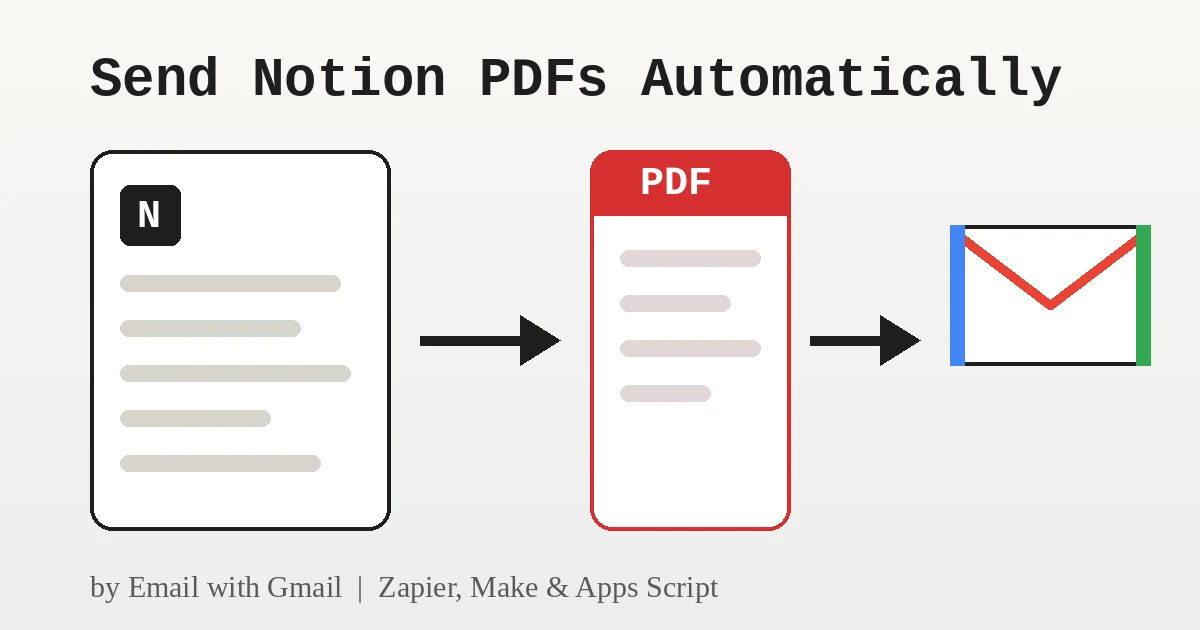
Notion lets you export any page as a PDF by hand (page menu, then Export). But Notion has no built-in way to schedule that export or email it, and its API returns page content as structured blocks rather than a ready-made PDF. So every automation needs three steps:
Set up your Notion database first
Both methods work best when your pages live in a database. Create these properties:
- Name (title): becomes the email subject and PDF file name.
- Email (email): the recipient address.
- Status (status): with options such as Draft, Ready to send and Sent.
- Create the trigger. Choose Notion as the trigger app and pick the event for a database item being added or updated. Connect your workspace and select your database.
- Filter. Add a filter so the workflow only continues when Status equals Ready to send.
- Convert to PDF. Add a PDF step from a document-generation service such as PDFMonkey, DocRaptor or CloudConvert. Map the page title and content into an HTML template, and the service returns a PDF file.
- Send with Gmail. Add a Gmail step, choose Send Email, map the Email property to the recipient and the Name property to the subject, and attach the PDF file from the previous step.
- Update Notion. Add a final step that sets Status to Sent.
- Test and turn it on. Run one test page to yourself before enabling it for clients.
- Go to Notion's integrations page and create a new internal integration.
- Copy the integration secret.
- Open your database in Notion, click the three-dot menu, choose Connections and add your integration so it can read the pages.
- Copy the database ID from the database URL (the 32-character string before the question mark).
- Keep formatting simple. Headings, lists and short paragraphs convert most reliably.
- Use a consistent template. Put a fixed structure in your Notion template so every PDF looks the same.
- Write a useful email body. Add a Message property in Notion and use it as the email text instead of the generic line above.
- Send to yourself first. Add a test recipient while you tune the layout.
- Nothing happens: confirm the integration is connected to the database and that the Status option is spelled exactly the same in the script.
- Property errors: the script expects properties named Name, Email and Status. Rename them in Notion or update the script.
- Emails stop sending: Apps Script and Gmail have daily sending quotas, so check Google's current limits if you send in bulk.
- Duplicate emails: make sure markSent runs successfully so the page leaves the Ready to send state.
- Create your template with your company name, logo, and layout.
- Add placeholders in double curly braces where the data should go, such as {{Property_Address}}
or{{Safety_Count}}`. - Make sure each placeholder matches the name of a Notion property.
- Start the document with a Notion database button or a status property.
- Ready to Generate creates a PDF from the database record.
- Generate Page converts the Notion page into a PDF.
- Generate PDF and Doc creates a PDF and a Google document.
- Preview creates a Google document so you can check it before making the final PDF.
- Generate E-Signed Doc creates an e-signed PDF in the database workflow.
The workflow fires when you change Status to Ready to send, and flips it to Sent afterwards so nothing goes out twice.
Method 1: No-code with Zapier or Make
This route suits you if you would rather click than code.
The trade-off: most of these tools limit free runs, and the PDF service is usually a separate account. Check each provider's current plans before building something you depend on.
Method 2: Free with Google Apps Script
If you already use Gmail and Google Drive, Apps Script can do everything inside your Google account. The script reads Ready to send pages from Notion, builds a temporary Google Doc, exports it as PDF, emails it with Gmail and marks the page as Sent.
Step 1: Create a Notion integration
Step 2: Add the script
Open script.google.com, create a new project and paste in the code below. Then go to Project Settings, Script Properties, and add a property named NOTION_TOKEN with your integration secret. Replace YOUR_DATABASE_ID with your own.
``js
const NOTION_TOKEN = PropertiesService.getScriptProperties().getProperty('NOTION_TOKEN');
const DATABASE_ID = 'YOUR_DATABASE_ID';
const HEADERS = {
'Authorization': 'Bearer ' + NOTION_TOKEN,
'Notion-Version': '2022-06-28',
'Content-Type': 'application/json'
};
function sendReadyPages() { const res = UrlFetchApp.fetch('https://api.notion.com/v1/databases/' + DATABASE_ID + '/query', { method: 'post', headers: HEADERS, payload: JSON.stringify({ filter: { property: 'Status', status: { equals: 'Ready to send' } } }) }); JSON.parse(res.getContentText()).results.forEach(sendPage); }
function sendPage(page) { const title = page.properties.Name.title.map(t => t.plain_text).join('') || 'Untitled'; const email = page.properties.Email.email; if (!email) return;
const doc = DocumentApp.create(title); const body = doc.getBody(); body.appendParagraph(title).setHeading(DocumentApp.ParagraphHeading.TITLE); getBlocks(page.id).forEach(b => appendBlock(body, b)); doc.saveAndClose();
const file = DriveApp.getFileById(doc.getId()); const pdf = file.getAs('application/pdf').setName(title + '.pdf'); GmailApp.sendEmail(email, title, 'Hi, please find the attached PDF: ' + title, { attachments: [pdf] });
file.setTrashed(true); markSent(page.id); }
function getBlocks(id) { const res = UrlFetchApp.fetch( 'https://api.notion.com/v1/blocks/' + id + '/children?page_size=100', { headers: HEADERS } ); return JSON.parse(res.getContentText()).results; }
function appendBlock(body, b) { const data = b[b.type]; if (!data || !data.rich_text) return; const text = data.rich_text.map(t => t.plain_text).join(''); switch (b.type) { case 'heading_1': body.appendParagraph(text).setHeading(DocumentApp.ParagraphHeading.HEADING1); break; case 'heading_2': body.appendParagraph(text).setHeading(DocumentApp.ParagraphHeading.HEADING2); break; case 'heading_3': body.appendParagraph(text).setHeading(DocumentApp.ParagraphHeading.HEADING3); break; case 'bulleted_list_item': body.appendListItem(text).setGlyphType(DocumentApp.GlyphType.BULLET); break; case 'numbered_list_item': body.appendListItem(text).setGlyphType(DocumentApp.GlyphType.NUMBER); break; default: body.appendParagraph(text); } }
function markSent(id) {
UrlFetchApp.fetch('https://api.notion.com/v1/pages/' + id, {
method: 'patch',
headers: HEADERS,
payload: JSON.stringify({ properties: { Status: { status: { name: 'Sent' } } } })
});
}
`
This version handles headings, bullet and numbered lists, and plain paragraphs. Images, tables and other block types are skipped, so extend appendBlock if your pages need them.
Step 3: Authorize and test
Set one test page to Ready to send with your own email address, then run sendReadyPages from the editor. Google will ask you to approve access to Drive, Docs, Gmail and external requests the first time. Check your inbox for the PDF and confirm the Notion page flipped to Sent.
Step 4: Run it automatically
Open Triggers (the clock icon), add a trigger for sendReadyPages, and choose a time-driven schedule such as every 15 minutes or every hour. From now on, changing a page to Ready to send is all it takes.
Tips for cleaner PDFs
Troubleshooting
How to send PDFs on automation from Notion Database
PDFOutput creates documents from your Notion data using a template. A template can be a Google document, a Word file, a PDF file, or a Notion page. If you already have an agreement or invoice layout in Word or Google Docs, you can reuse it.
Here is how it works:
These are some of the status options:
Wrapping up
Notion does not email PDFs on its own, but a small automation closes the gap. Use Zapier or Make if you want a point-and-click setup, or Apps Script if you want a free workflow that lives entirely in your Google account. Either way, the result is the same: mark a page as ready and the PDF arrives in the inbox without you touching Gmail.