Guides
PDF Generation API for Notion Workflows
Learn how a PDF generation API turns templates and data into documents, and how PDFOutput can automate PDF creation from your Notion database.
By Sanat Biswal · 2026-10-25 · 11 min read
{/ synced-from-notion — do not edit manually /}
A PDF generation API turns data into finished documents without someone filling in each file by hand. For a Notion team, the key question is how a template, a database record, and a trigger work together.
Here’s how the process works, where it fits in a Notion workflow, and what to check before you automate. We’ll also show how PDFOutput uses Notion properties, buttons, and status fields to start document generation.
What a PDF Generation API Does
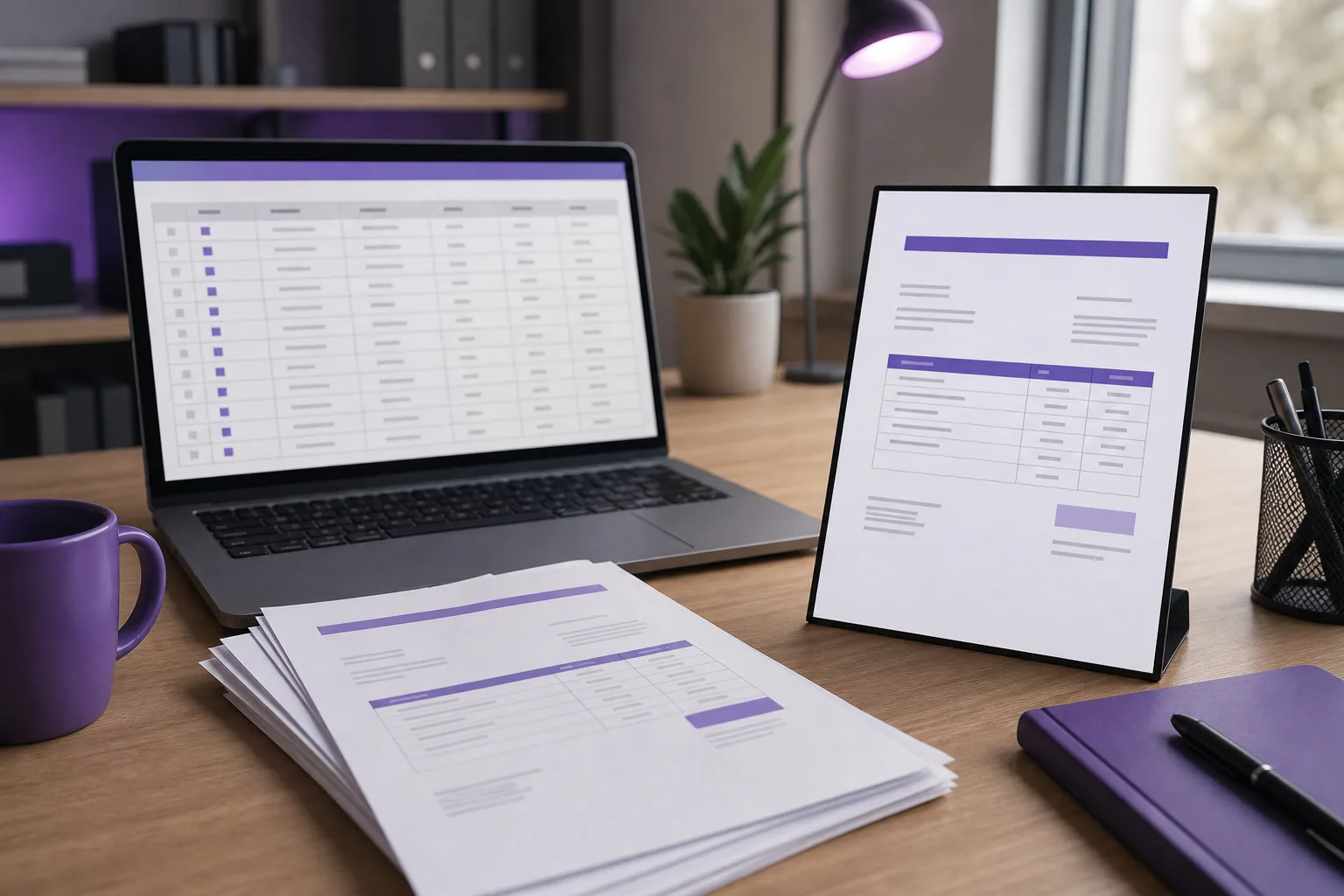
A PDF generation API takes a document template and data, then uses the data to fill in the template. The result is a new document with the same layout but details that change for each record. An invoice template, for example, can produce a separate invoice for every client.
Think of the template as the fixed part. It holds the layout and text that stay the same. The data holds the details that change, such as a client name, invoice number, or due date. A document engine matches each data value to a marked place in the template.
This approach is useful for repeatable business files. Teams may generate invoices, contracts, proposals, work orders, certificates, reports, or forms. A PDF generation API can also be part of a larger workflow that creates a file after a record changes or a person starts a request.
The core idea is the same across document-generation systems: a template contains tags for changing content, and input data supplies the values that replace those tags. An official overview of document services describes this template-and-data approach for producing business documents.
Some APIs accept HTML and CSS as the document layout. Others work with an existing document template. The input format affects who can set up the workflow. A developer may prefer code and a REST API call. A team that works in Notion may prefer to set up a template and trigger generation from a database.
PDFOutput is built for the latter use case. It connects a Notion database to a template and can produce PDFs, Google Docs, or PPTX files. If you’re weighing how this fits into your existing process, our guide to PDF generation services for Notion workflows explains how templates and triggers shape that setup.
How Templates, Data, and Triggers Produce a PDF
Most document workflows have three parts: the template, the data source, and the trigger. The template sets the page design. The data source provides the values. The trigger tells the system when to create the file.
1. Prepare the template
Start with the document your team already uses, or build a new one. A template might be a Word file, a Google Doc, a PDF, or a Notion page, depending on the system. Add placeholders where a value should appear. In PDFOutput, a placeholder uses double curly braces, such as {{Client_Name}}.
Keep placeholder names aligned with the related Notion property names. If a database property is named Invoice_No, use {{Invoice_No}} in the template. A spelling or case mismatch can stop a value from mapping to the right place.
2. Match data to the placeholders
The system reads a record and pairs its property values with the matching placeholders. For example, a record might hold an invoice number, client name, and amount. Those values replace {{Invoice_No}}, {{Client_Name}}, and {{Invoice_Amount}} in the document.
Some documents need repeating rows. An invoice may have several products or services, while a report may contain several tasks. A database relation links one record to related records. A rollup brings selected information from those linked records into the main record. PDFOutput can use relations and rollups when an output needs information from more than one database.
Template rules can also support optional or conditional content, as well as data-filled tables. For example, a section may appear only when a condition is met. The official guide to document template tags describes placeholders, conditions, and repeating table rows as common ways to handle changing data.
3. Set a trigger and check the result
A trigger can be a button, a status change, or another event in the workflow. In an API-based setup, the request usually identifies the template, sends the data, and uses authentication to show that the request is allowed. The system then returns the generated file or a response that lets the workflow retrieve it.
Before using a template for live records, test it with a sample entry. Check that each value lands in the right place. Review dates, amounts, long names, and records with several related line items. A preview can catch layout problems before the team creates files for customers.
Where PDF Generation Fits in a Notion Workflow
Notion can hold the data that drives a document. A database record might represent an invoice, a property, a student, a supplier order, or an inspection. When that record has the fields needed for a document, those fields can fill matching template placeholders.
The workflow can begin when a staff member is ready to issue a file. They can click a database button or change a status field. For recurring work, a scheduled trigger can start generation at a set time. The right trigger depends on who should make the call and when the document should be produced.
For example, a small supplier could keep order details in Notion. When an order is ready, its record can supply the buyer name, items, and delivery details for a document. A real estate team might use a similar pattern for a property report. The staff member works from the database rather than copying the same values into a separate file each time.
PDFOutput connects the template and Notion data so a user can start generation from within that workflow. Teams can generate a file for one record or create a batch when many records need the same document. The result can be attached to the relevant database record, keeping the file near the information used to make it.
Some API workflows use a separate integration layer to pass data between apps. That can be useful when a team needs extra routing or data changes before the document is made. But each added step needs to be set up and checked. A Notion-focused workflow can be easier for a less technical team when the data and trigger already live in Notion.
For the setup details, see our guide to automating PDF generation from Notion. It covers the connection between a database, template, and generation trigger.
Automation can also start with form entries that become database records. A school could use the submitted details to prepare a certificate. An NGO might use a record to create a donation document. The same pattern works only when the source record has the values the finished file needs.
How PDFOutput Triggers PDF Generation in Notion
Once the database and template are connected, PDFOutput can use a button or a status property to start document generation. A button suits an on-demand task: a person reviews a record and decides when to make the file. A status property suits a workflow where the record moves through clear stages.
For a status-based workflow, a team can set the GeneratePDF property to Ready to Generate. PDFOutput then generates a PDF for that record. The document can be returned to the database, so staff can find it beside the source information.
The status options can also guide the type of output. Use the choice that matches the task, rather than asking staff to remember separate steps outside Notion.
| Notion status | What it starts | Useful when |
|---|---|---|
| Ready to Generate | Generates a PDF. | You need a finished PDF from a database record. |
| Generate Page | Converts a Notion page to PDF. | The page itself is the source document. |
| Generate PDF and Doc | Generates a PDF and Google Document. | You need a PDF plus a document you can edit. |
| Generate E-Signed Doc | Generates an e-signed PDF inside the Notion database. | The workflow calls for an e-signature step. |
| Preview | Creates a Google Document preview before PDF generation. | You want to review the document before making the final PDF. |
PDFOutput also supports batch PDF creation and merged PDFs. That can help when a team is preparing many similar documents or needs to combine related files. For signed outputs, review the required signing steps and the final file before sending it for use.

When an API or Automated Document Workflow Makes Sense
Automation makes sense when the same type of document is made again and again from structured records. It can cut repeated copy-and-paste work and keep each file tied to its source record. A team that prepares a handful of one-off pages may not need a separate workflow. Manual export can be enough when volume is low and the layout is simple.
Look at the work before choosing a setup. Ask how often the document is made, who checks it, and what should start generation. Then list the values the template needs. If those values already live in Notion, using the database as the source can avoid retyping them into a second system.
PDFOutput can suit teams that want a Notion-based process without writing code. It accepts Word files, Google Docs, PDF files, and Notion pages as templates. It can make PDFs, Google Docs, and PPTX files. Teams can also use batch generation, relations, and rollups when a document needs data from connected records.
Check the output and the handoff, too. Decide where the file should appear, who needs to review it, and whether staff need an editable copy as well as a PDF. PDFOutput supports Google Drive storage as part of the workflow, along with generated files in the Notion database. A consistent file name and a clear status can help staff see which record is ready.
For a technical API integration, teams also need to plan how credentials are stored, what happens if a request fails, and how to handle sensitive records. Keep access limited to the people and systems that need it. Review the document content before sending it externally, especially when it includes financial, legal, or personal details.
Accessibility and compliance need their own review. A generated PDF should be checked for readable structure and content, not assumed to meet every standard because it was produced by software. If documents must follow a specific e-invoicing or signing rule, confirm that the workflow and output meet that requirement before relying on automation.
For a broader view of templates, triggers, and file handoffs, our guide to document workflow software for Notion can help you plan the process. Start with one document type, test a few records, and expand only after the output and trigger behave as expected.
Frequently Asked Questions
What is a PDF generation API?
A PDF generation API is a service that creates a PDF from a template and data. The template holds the layout and fixed text, while the data fills marked fields such as a name or amount. An API can let software request that file as part of a larger workflow, such as producing an invoice from a database record.
Can I generate PDFs from a Notion database?
Yes, you can use Notion database records as the source for PDF generation. With PDFOutput, you connect a database to a template, match template placeholders to Notion properties, then trigger generation with a button or status property. The generated file can be stored with the related database record.
Do I need to write code to automate PDFs in Notion?
No, PDFOutput uses templates and Notion triggers, so a coding step isn’t required for the workflow described here. You’ll need a database with the right fields, a template with matching placeholders, and a trigger such as a button or status. Test the output before using the setup for live records.
What documents can I make from Notion data?
You can make repeatable business documents such as invoices, contracts, reports, forms, or certificates when the template and database contain the needed details. PDFOutput can use Word, Google Docs, PDF files, or Notion pages as templates. It can generate PDFs, Google Docs, and PPTX files.
When should a team use batch PDF generation?
Use batch generation when many records need the same type of document, such as a set of invoices or certificates. Each record supplies its own values, while the template keeps the layout consistent. First test a few records, especially those with long text or linked data, then run a batch once the results look right.
Conclusion
A PDF generation API is useful when a repeatable template needs data from a system such as Notion. If your team makes the same files often, start by choosing one document type, matching its placeholders to database fields, and testing a trigger with a sample record. PDFOutput can help you run that workflow from Notion.