Guides
What is Notion and Why Businesses are Adopting It
A complete guide on what Notion is, how businesses can get started, key building blocks, collaboration features, permissions, templates, pricing plans, and common mistakes to avoid.
By Sanat Biswal · 2026-08-01 · 10 min read

Businesses struggle to find one place to manage everything such as notes, docs, managing databases or even project management in general.
Traditional tools such as Google Workspace, Trello or Excel lack in providing this flexibility and are thus limited with the day to day operations of business.
This is exactly where Notion shines and is a perfect replacement which combines sheet + docs + databases together.
Teams can work with shared workspace where everyone can collaboratively work together.
How to Get Started with Notion
In order to get started with Notion, signup for Notion and choose between personal vs team workspace for your work.
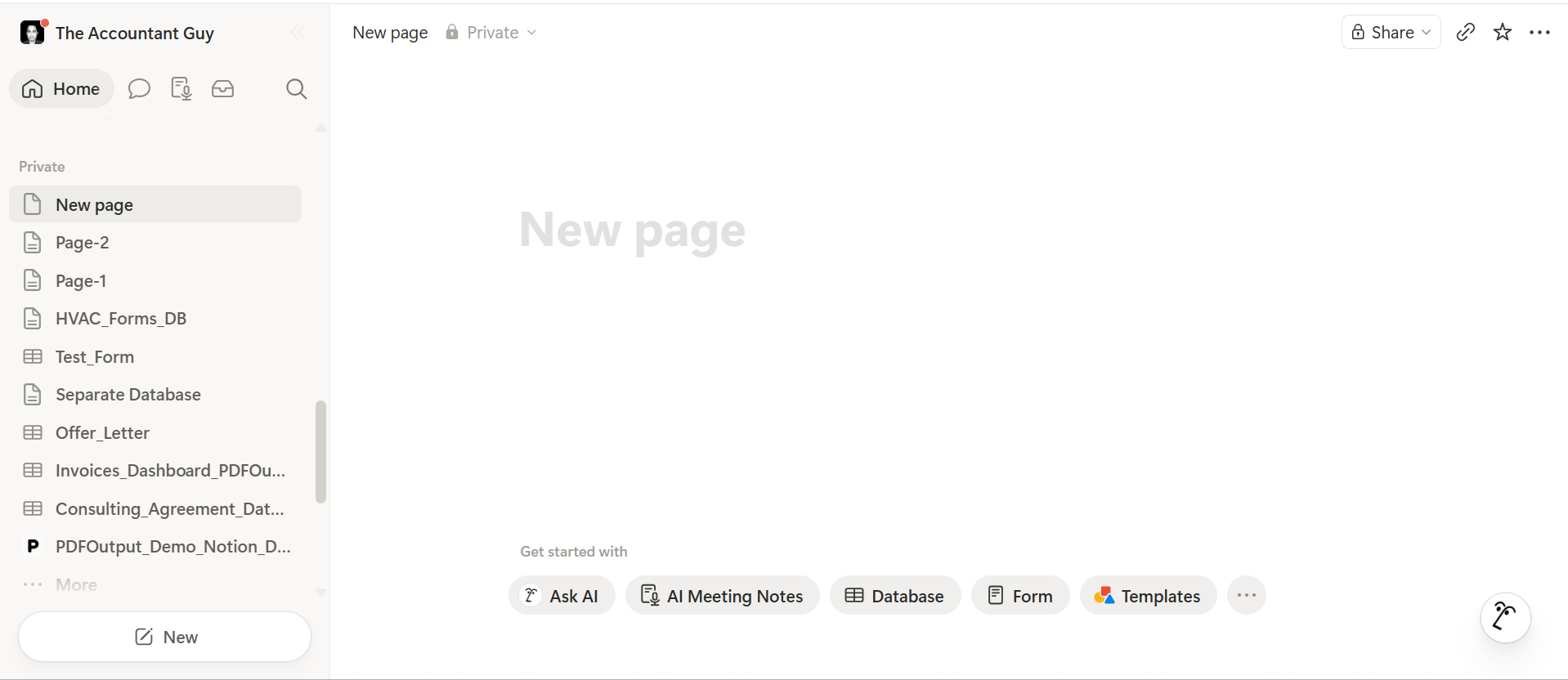
Once you signed in, you can find a blank canvas with a sidebar navigation which allows to navigate between pages.
Everytime you need to work on something, you can simply create a blank page and start adding content onto the page to add information.
Blocks are what defines how everything is arranged in the pages (covered later).
What are Key Building Blocks in Notion
Notion operates wholly on blocks. Everything that you will add onto Notion is nothing but a block.
This means a block can be an image, text, captions, databases, pages etc.
Now here's 3 things that are relevant for a business setting up Notion for the first time:
- Pages - Notion Pages is where you define the content much like Docs where you put the matter.
- Databases - Databases are defined in the form of tables, boards, calendars, or lists which helps put content in a database format (eg Invoices Database).
- Blocks - Blocks are what you add onto a page each time, it can be a text, image, caption anything you wish to add.
- Company Wiki - Notion serves as a centralized location for storing SOPs, policies and documentations of the business which can be accessed and viewed by others as required.
- Project Management - One of the best feature of Notion is its versatility to help track projects and tasks assigned along with the corresponding deadlines and status of each task progress.
- CRM - Tracking clients or leads is one of the major requirement for any business and notion helps to keep track of all the client details with their corresponding project deadlines in a beautiful CRM.
- Meeting Notes - Notion serves as the central hub to keep track of all the meeting notes in one place linked to respective projects assigned or teams alloted to.
- Over structuring the workspace early on with lot of advanced features without using any consistent naming tags.
- Trying to build everything from scratch including the setups already available as a template in the Notion Template Gallery.
- Learning every advanced feature which aren't necessary for a beginner to begin with rather than working on simpler systems at first.
Related Read : How to turn Notion Database to professional PDFs (Step by step guide)
What are Different Ways to Use Notion For Business
Notion can help serve a company with many different use case. Here's 5 key prominent use cases for using Notion:
Additional Read : How to turn Notion Meeting Notes to shareable PDFs
Collaboration with Team Members Using Notion
Notion allows collaboration with team members while working within a workspace. You can invite team members, set permissions (for viewing or editing or commenting) and let them work within a workspace.
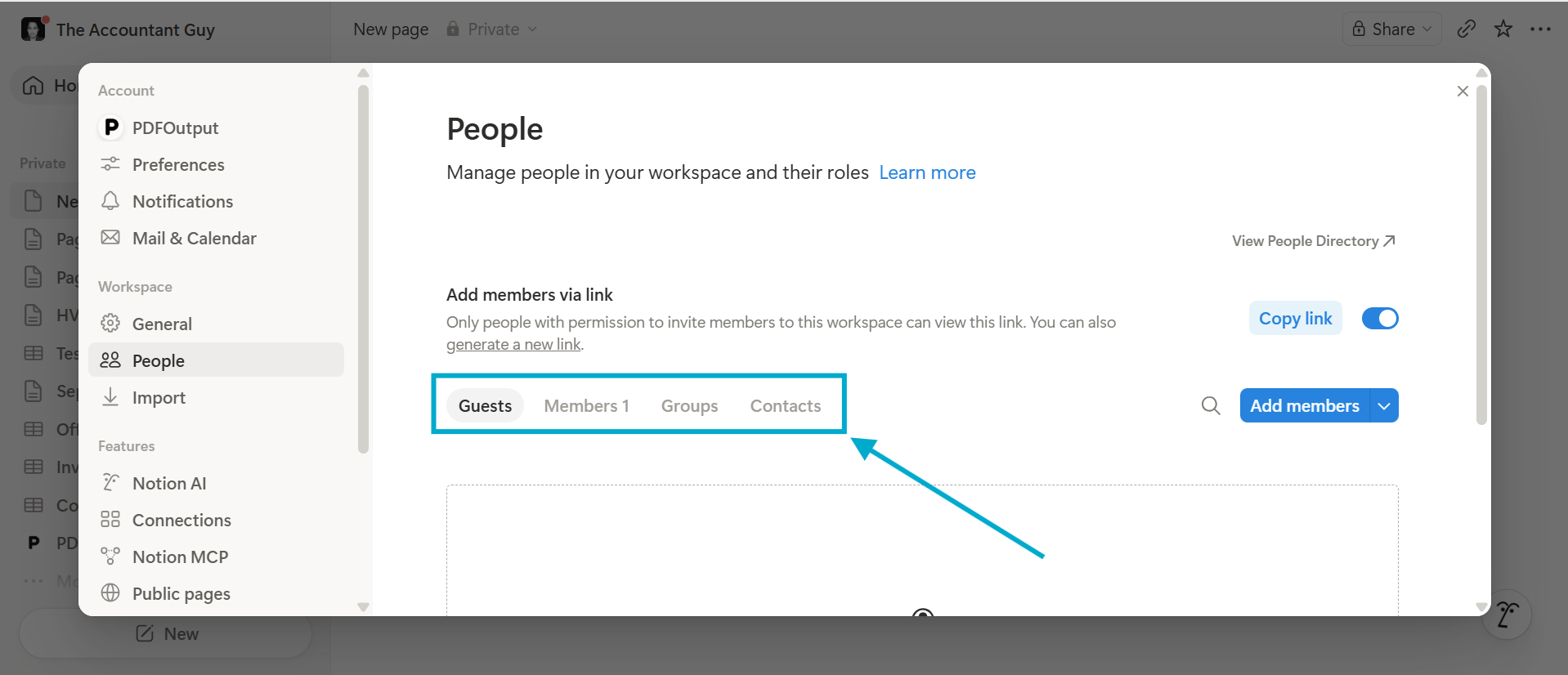
Inviting team members can help you assign 2 roles to the people invited, Members or Guests. Members get to enjoy the full access of the workspace on the basis of the page-level permissions that are defined.
Guests have a limited access to the page being shared with limited flexibility of the role being defined. They can edit and view the pages that they were created themselves.
In order to invite a team member to the workspace, simply go to the profile and then click on Add account to add a profile. Enter the email of the person to be invited and notion will send an invitation for this.
How to Set Permissions for Users Added onto Notion
Following are the different permissions and access levels defined in Notion:
| Permissions | What User Can Do |
|---|---|
| Full Access | User can edit, suggest, comment and share |
| Can Edit | User can edit, suggest and comment |
| Can Comment | Users can suggest and comment |
| Can view | Users have read-only view access |
How to Give Permission to the User
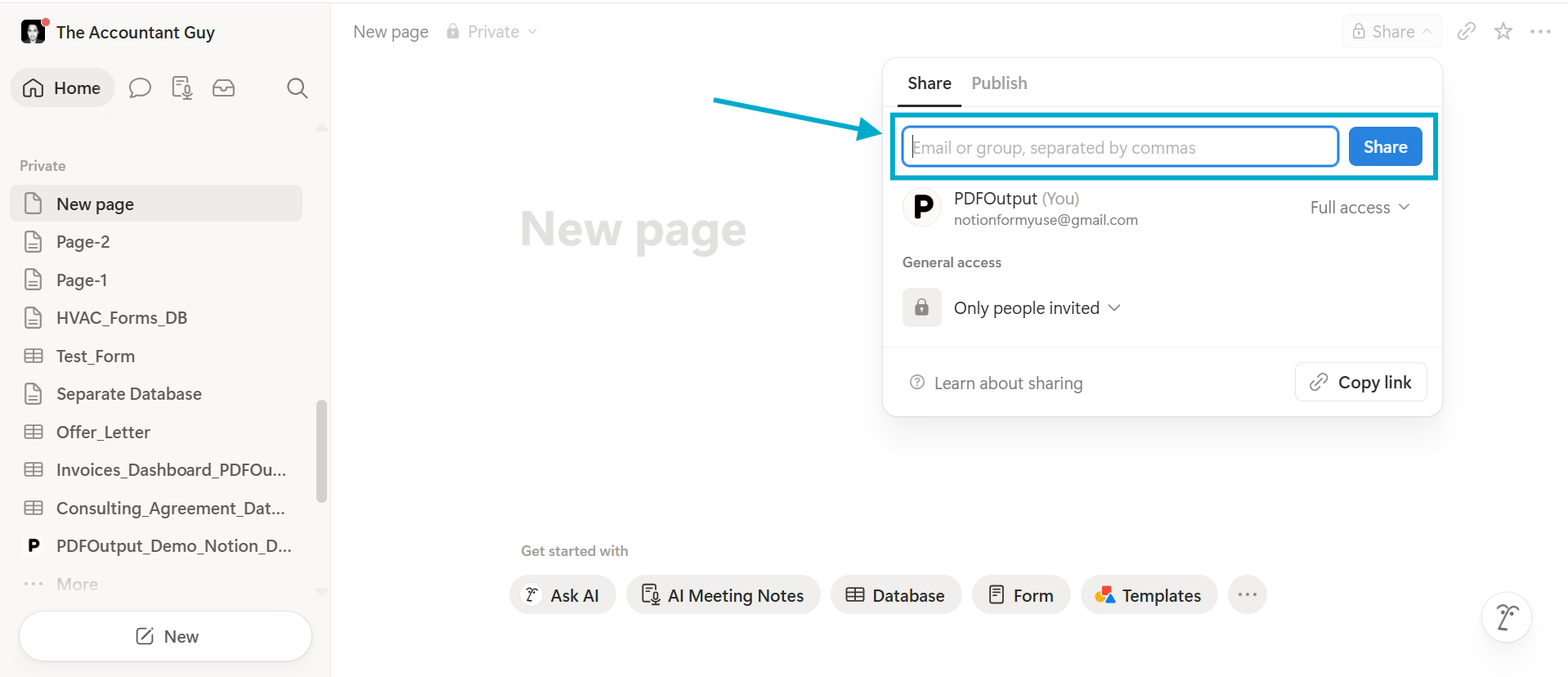
In order to give permission to the user, you can click on Share, add the team member's emails separated by using commas and Notion sends the invitations to the users added to the list.
For each user added you can define the member's permission for each user as needed.
For the teams who have larger team size, giving permission to each of the team member one by one is a very tedious and draining work.
Notion has a feature of Groups which allows you to define the permissions and relevant access to a group as a whole rather than an individual. This helps you add the desired team members to the groups in one go, give all a common desired permission and share the access with them.
Now whenever a new page is to be shared with all the people it can be shared with the Group and all the people will get their desired access as required.
Using Templates (Easiest Way to Get Started)
Templates are one of the powerful ways for a user to get started with using Notion. Predefined templates which are already created and developed by other users are available in the template gallery to be used to others.
You can duplicate the already available templates from the template gallery and start working using those templates. The templates can also be customized to suit your requirements, so it becomes a better starting point rather than beginning from scratch.
Common Mistakes Beginners Must Avoid
Some of the common mistakes that beginners must look to avoid includes:
Pricing Plan for Notion
Here's the pricing plan for Notion…
| Period | Free | Plus | Business | Enterprise |
|---|---|---|---|---|
| Monthly | $0 per member / month | $12 per member / month | $24 per member / month | Custom Pricing |
| Yearly | $0 per member / month | $10 per member / month | $20 per member / month | Custom Pricing |
One of the best feature of using a Business or Enterprise plan is the availability of the Notion Agent which provides inbuilt use of Notion AI that can be helpful across many use cases for users.
You can use AI agents to draft business documents, prep for the meetings, summarize your research work, auto-fill your databases, and even automate internal Q&A proceedings, onboard a new user, and even maintain the task/status workflows.
Businesses can also use it for cross-tool search such as (Slack, Google Drive, GitHub) and even use it for continuous background monitoring — such as triaging tickets or tracking project status without manual prompting.
Speaking of automation, PDFOutput is a document automation platform which helps generate PDFs directly inside a Notion Database. Its highly useful for Invoices, Reports, Contracts, Certificates, Quotes etc.
Conclusion
Notion is a versatile tool which always adapts to what your business needs. So start small with setting up a template or maybe building a small dashboard to get a feel of how the tool works and then scale your operations from there.
If you need any help with setting up any workspace or any help in generated, reach out to me at notionformyuse@gmail.com, I have created over 3000+ templates and helped numerous businesses setup their own as well.
So I can certainly help you as well.