Guides
How to Use Notion for a Pool Service Business: Routes and Customers
Learn how to set up Notion for a pool service business with customers, routes, weekly visits, chemical logs, and billing, plus PDF service reports and quotes.
By Sanat Biswal · 2026-10-31 · 5 min read
{/ synced-from-notion — do not edit manually /}
A pool service business runs on the route.
The same twelve stops, the same day each week, a gate that sticks at one house and a dog at another, and a customer who texts at 6 am because the water looks cloudy.
When the route works, it’s steady recurring income. When it slips, a missed visit turns into a green pool, an angry call, and a lost customer.
Most small operators keep the route in a notebook or a phone’s notes app, with the history in their head.
Notion can hold it in one place. This guide is for owner-operators and small pool service companies that run a few routes and technicians.
It follows a customer from the first inquiry to the weekly visit and the monthly bill.
It shows how to set up leads, customers, routes, visits, technicians, and payments, how to record each visit so customers can see the work, and how to turn records into PDFs such as service reports, quotes, and route sheets.
It also covers safety records and customer privacy. It is general information about organizing a business, not legal, technical, or safety advice.
Pool work involves chemicals, electrical equipment, and water safety, and is regulated in many places, with rules on licensing, chemical handling, and commercial pool records, so check what applies where you work.
Quick Answer on how to use Notion for Pool Servics:
To use Notion for a pool service business, create linked databases for Leads, Customers, Routes, Visits, Technicians, and Payments.
Give every customer a route, a stop order, and a visit interval. Let formulas show which customers are overdue and how long each route takes.
Record every visit with the same short template: the checklist, the readings, what was added, and any problems found.
Track skipped visits and access problems, and bill monthly from the same records. Put the key facts in report-ready fields, so a service report or a quote PDF takes minutes.
Notion works well for pool service because the work is a loop. A customer sits on a route, a route produces visits, and each visit adds to the pool’s history.
A rollup finds the date of the last completed visit, a formula compares it with the visit interval, and a flag shows who’s overdue.
Notion isn’t a route optimizer, a GPS tracker, a payment tool, or a replacement for the records your regulator requires. It doesn’t send reminders by itself, so it works best beside your phone, your maps app, and your payment tool.
For documents customers receive, you can export a page as a PDF or generate one from a template.
Table of Contents
What Notion Can and Can’t Do for a Pool Service Business
Notion is good for:
- Tracking inquiries, quotes, and new customers.
- Keeping each pool’s details and history in one place.
- Organizing customers into routes with a stop order.
- Showing which customers are overdue for a visit.
- Recording what was done on every visit.
- Tracking monthly billing and late payments.
- Creating consistent service reports, quotes, and route sheets.
- Route optimization or live GPS tracking.
- Online booking with live availability.
- Taking payments.
- Automatic reminders or “on my way” messages.
- Replacing licensing or the records your regulator requires.
- Know your rules. Many places require licenses for pool service, rules for chemical storage and transport, and records for commercial and public pools. Find out what applies to you and how long you must keep records.
- Follow labels and training. Notion can store which product was added and how much, but the label, the safety data sheet, and your training decide how it’s handled. Never treat a template as a safety instruction, and never mix products unless the labels say it’s safe.
- Record safety hazards. If you notice a broken gate latch, a damaged drain cover, a loose ladder, or an electrical problem, write down what you saw, what you did, and what you told the customer. Follow your procedures and local rules, and make sure the customer is told in writing.
- Never store access codes. Keep gate codes, alarm codes, and key locations out of Notion. Share them by phone or another secure method, and keep only a note such as “Gate access arranged.”
- Keep personal details minimal. Collect what you need to serve the customer. Be careful with details that show when a home is empty, such as vacation dates, and keep them out of shared views.
- Photos belong in secure storage. Link to photos of equipment and conditions from the visit, and be careful with images that show people, children, or the inside of a home.
- Payment details such as card numbers should never be stored in Notion.
- Leads stores people who’ve asked for service. Add these properties: Name, Phone, Email, Source, Request Type (Weekly Service, One-Time Clean, Repair, or Opening and Closing), Address, Status (New, Quote Sent, Booked, Lost, or Not Now), Last Contact, and Notes.
- Customers is the main database. Add: Customer Name, Address, Pool Type (Residential, Commercial, or HOA), Surface and Equipment Notes, Route (relation), Stop Order (a number), Visit Interval (days), Monthly Price, Status (Active, Paused, or Ended), Start Date, Last Visit (a rollup), Days Since Last Visit (a formula), Overdue Flag (a formula), Access Issues (a rollup), and Access Flag (a formula).
- Routes stores each route. Add: Route Name, Day, Technician (relation), Stops (a rollup count), Minutes per Stop, Drive Minutes, Route Hours (a formula), and Monthly Revenue (a rollup).
- Visits stores each stop. Add: Customer (relation), Route (relation), Technician (relation), Visit Date, Status (Scheduled, Done, Skipped, Rain Delay, or Access Problem), Completed Date (a formula), Access Issue (a formula), Checklist (checkboxes, such as skimmed, brushed, vacuumed, baskets emptied, filter checked), Readings (text or numbers), Products Added, Problems Found, Needs Repair Quote (a checkbox), Notes for Customer, and Photos Link.
- Technicians stores your people. Add: Name, Phone, License Number, License Expiry, Certifications, and Notes. A rollup of linked Visits shows who’s working when.
- Payments stores money in. Add: Customer (relation), Period, Amount, Due Date, Paid On, Method, Status (Due, Paid, or Late), and Paid Amount (a formula).
- By route: customers grouped by Route and sorted by Stop Order.
- Overdue: customers with the flag, so nobody is forgotten.
- Paused: customers who are away or on hold, so you don’t drive to an empty stop.
- New customers: customers who started in the last 30 days, for a quality check.
- Today: visits today, grouped by technician and sorted by stop order.
- By route: a board with a column per route day, for planning.
- Route sheet: the day’s visits as a clean list, to export as a PDF for a technician.
- Checklist: the standard tasks, as checkboxes, so each stop shows what was done
- Readings: the water test results you record, as your training and local rules require
- Products added: the product name and amount, exactly as your records require
- Equipment check: the pump, filter, heater, and cleaner, and anything that looks wrong
- Problems found: what was seen and where, in plain language
- Needs repair quote: a checkbox that adds the visit to your quote list
- Notes for customer: one or two plain lines, such as “Cleaned the filter; pump basket was full of leaves”
- Photos link: a link to secure storage
- Reschedule: visits with the status Rain Delay or Access Problem, so they get rebooked.
- Skipped this month: a record of what didn’t happen and why.
- Notes missing: visits marked Done with an empty checklist, so no record is skipped.
- Service reports: the visits in a period, what was done, readings, and notes
- Quotes for repairs and one-time jobs: what’s wrong, what’s recommended, the price, and how long it’s valid
- Service agreements: scope, visit frequency, price, access, and terms, with wording checked by someone qualified
- Route sheets: the day’s stops, in order, for a technician
- Invoices and receipts. Notion Receipt Template shows how to structure a receipt.
- Opening and closing checklists for seasonal work
- Commercial pool logs and summaries, in the format an operator or inspector requires
- Welcome packs: what to expect, how to give access, and who to contact
- Create your template with your company name, your license details, your logo, and your layout.
- Add placeholders in double curly braces where the data should go, such as
{{Customer_Name}}or{{Notes_for_Customer}}. - Make sure each placeholder matches the name of a Notion property.
- Start the document with a Notion database button or a status property.
- Ready to Generate creates a PDF from the database record.
- Generate Page converts the Notion page into a PDF.
- Generate PDF and Doc creates a PDF and a Google document.
- Preview creates a Google document so you can check it before making the final PDF.
- Generate E-Signed Doc creates an e-signed PDF in the database workflow.
- Give technicians access only to their own route and visits, or send them a route sheet instead.
- Keep pricing, payments, and revenue in views that only the owner can open.
- Keep technician license numbers and personal details visible only to those who need them.
- Never give customers access to the workspace. Send each customer only their own PDFs.
- Keep access codes, card details, and vacation dates out of shared views.
- Remove access on the day someone leaves.
- Review who has access every few months.
- How to Use Notion for an HVAC Company
- How to Use Notion for a Pest Control Business
- How to Use Notion for a Moving Company
- Notion Receipt Template
Notion is not made for:
If you already use a maps app, a phone, a payment tool, and an approved system for regulated records, treat Notion as the working layer beside them.
Link to the official record where one exists, and don’t assume a Notion page satisfies a legal requirement.
Safety, Compliance, and Privacy
Pool technicians work with chemicals, electrical equipment, and water, at people’s homes and businesses, often when the customer isn’t there.
Rules differ by country, state, and pool type, so check what applies to you. While you are testing, use made-up customers.
Use these 6 Databases
Start with these 6 databases.
You can add more later, such as Equipment or Chemical Inventory.
A relation connects a record in one database to a record in another. Link Customers to Routes, and link Visits and Payments to Customers.
Now a customer’s page shows their route, their visit history, and their payments together, and a route’s page shows every stop on it.
Customers: One Record per Pool
A good customer record means a technician who has never been to the house can do the job. Create one record per pool and fill it in at the first visit.
Record what the technician needs: the pool type and surface, the equipment (pump, filter, heater, cleaner, salt system), where the equipment is, how to get in (without codes), and any hazards, such as a dog, a low gate, or a slippery step.
Add the customer’s preferences, such as the time window, and who to contact if there’s a problem.
On Customers, add these formulas, after rolling up Completed Date from Visits using the latest date as Last Visit:
*Days Since Last Visit: dateBetween(now(), prop("Last Visit"), "days")
Overdue Flag: if(prop("Status") == "Active" and prop("Days Since Last Visit") > prop("Visit Interval") + 2, "Overdue", "")*
A weekly customer has an interval of 7, so the flag appears at nine days without a completed visit.
The two extra days allow for weather and reschedules, and you can change the number. New customers have no last visit, so give them a first visit date or filter them into a separate view.
Make these views of Customers:
> 💡 Pro Tip: Put a one-line “first thing to know” at the top of every customer record, such as “Latch sticks; lift while pulling.” The technician reads it in five seconds, and it prevents the most common small mistakes.
Routes and Stop Order
A route is a day, a technician, and an ordered list of stops. Notion can’t optimize the order, but it can store it, show it, and tell you how long the day will take.
Give each customer a Route and a Stop Order number, and sort the route view by that number.
Order the stops using your maps app and your own knowledge of traffic, then enter the order in Notion. Leave gaps in the numbers, such as 10, 20, 30, so you can add a stop in the middle without renumbering.
On Routes, roll up the count of customers as Stops, and add:
Route Hours: (prop("Stops") prop("Minutes per Stop") + prop("Drive Minutes")) / 60*
Here is a made-up route. Amounts are in your own currency.
| Item | Value |
|---|---|
| Stops | 12 |
| Minutes per stop | 25 |
| Drive time | 90 minutes |
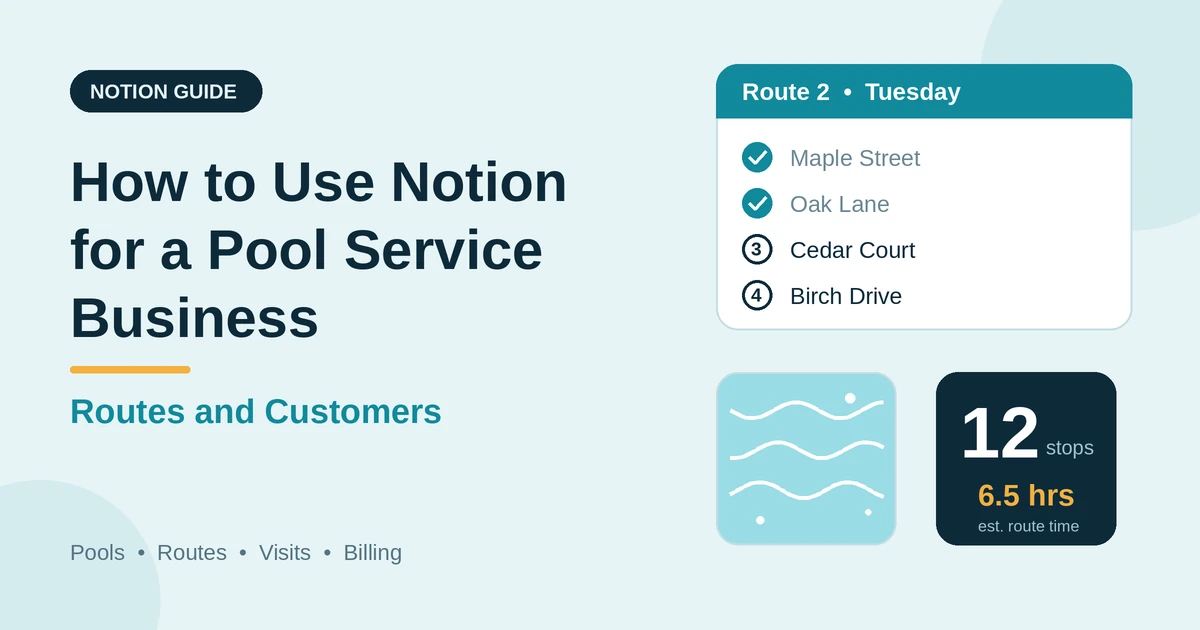
| Route time | 6.5 hours (12 × 25 + 90 = 390 minutes) |
| Average monthly price | 150 |
| Route monthly revenue | 1,800 |
When you add a customer, check the route’s hours first, and choose the route with the nearest stops and the most spare time.
Make these views of Routes and Visits:
The Service Visit Template
Every visit should leave the same short record. Build it as a Service Visit template, so a technician fills in the same fields at every stop, and the customer’s report is ready when they finish.
Keep it short enough to complete on a phone:
Write specific notes. “Pump making a grinding noise, recommend inspection” is useful. “Equipment issue” is not.
Customers who can see what you did are more likely to stay, and a written record protects you if there’s a dispute about when something broke.
Add a helper formula so completed visits feed the customer record, since a plain rollup can’t filter by status:
Completed Date: if(prop("Status") == "Done", prop("Visit Date"), empty())
Skipped Visits, Weather, and Access Problems
Some visits don’t happen. The record should show why, so you can tell weather from a problem.
Use clear statuses: Done, Skipped (you chose not to), Rain Delay (weather), and Access Problem (locked gate, dog, no entry).
Write a short reason on every skipped visit and tell the customer. A visit that couldn’t happen should never look like one that did.
To spot access problems, add a helper formula on Visits:
Access Issue: if(prop("Status") == "Access Problem", 1, 0)
On Customers, roll up Access Issue as a sum, and add:
Access Flag: if(prop("Access Issues") >= 2, "Contact customer", "")
Two access problems in a row is a conversation, not a coincidence. Contact the customer to fix the gate, the dog, or the instructions.
Tell them in writing what you can’t do without access, and what your terms say about missed visits.
Make these views of Visits:
Repairs, Quotes, and One-Time Jobs
Weekly service finds problems, and fixing them is where a lot of the extra revenue comes from. It’s also where trust matters most.
When a technician ticks Needs Repair Quote, the visit appears in a Quotes to send view. Write the quote with what’s wrong, what you recommend, the price, and how long it’s valid.
Be honest about what’s necessary and what’s optional, and don’t pressure the customer. Check whether the work needs a licensed electrician, a permit, or a manufacturer’s approval, and note it.
For one-time jobs, such as a green-pool cleanup, an opening or closing for the season, or a repair, create a Visit with its own price, and a Payment record to match. Take a deposit for larger jobs if your terms say so.
Be clear on the quote about what’s included, such as the cleanup only or the cleanup plus a return visit to check, and how results can vary with the pool’s condition.
Quotes that need a record to follow up can use a simple status: Draft, Sent, Accepted, or Declined, with a follow-up date.
Billing and Payments
Most pool service is billed monthly for a flat price, plus extras such as chemicals or repairs. Write the terms in your agreement, and use Notion to track them.
For each customer and period, create a Payment record with an amount and a due date. Notion can’t sum only the paid payments with a plain rollup, so use a helper formula on Payments:
Paid Amount: if(prop("Status") == "Paid", prop("Amount"), 0)
Add a late flag:
Late flag: if(prop("Status") == "Due" and dateBetween(now(), prop("Due Date"), "days") > 0, "Late", "")
A view called Payments due shows what’s coming and what’s late. Payments happen in your payment tool, which may handle automatic payments, and you update the status in Notion when the money arrives.
If a customer falls behind, check your agreement’s terms before you pause service, and be clear and kind in any reminder.
Be careful about stopping service on a pool, because an untreated pool can become unsafe or damaged, and say in your terms how you’ll handle it.
Tax rules differ by country, so check what applies to you. Notion Receipt Template shows how to structure a receipt.
Your Business Numbers
A pool service business has a few numbers worth watching. Here is a made-up quarter.
| Item | Value |
|---|---|
| Active customers | 60 |
| Average monthly price | 140 |
| Monthly recurring revenue | 8,400 |
| Visits scheduled | 780 |
| Visits completed | 764 |
| Completion rate | 98% |
| Customers lost | 3 |
| Quarterly churn | 5% |
Divide completed visits by scheduled visits for the completion rate, and customers lost by customers at the start of the quarter for churn.
A falling completion rate can point to a route that’s too long, a technician who’s overloaded, or a pattern of weather skips.
Rising churn often points to communication or reliability, so look at whether customers got reports and whether visits happened on the promised day.
Also watch route hours against your target, revenue per route day, overdue customers, the number of repair quotes sent and accepted, and where leads come from.
A small sample can mislead, so treat these as guides. They leave out chemicals, fuel, wages, equipment, insurance, and tax, so check the full figures with an accountant.
Test every formula with made-up numbers and check it with a calculator.
A Wednesday on Route 3
To see how the pieces fit, here is one made-up Wednesday.
7:00 am. The technician opens the Today view on his phone. Twelve stops are sorted by stop order, and each one shows the notes from last week, such as “Latch sticks; lift while pulling.”
8:00 am. At the first stop, he completes the checklist, records the readings, and notes the products added. He types one line for the customer: “Filter cleaned, baskets emptied.”
10:30 am. At the fifth stop, the gate is locked and the dog is out. He sets the status to Access Problem, writes the reason, and messages the customer with his own tool.
12:30 pm. He notices a cracked ladder anchor at a stop. He records it under Problems Found, tells the customer, and ticks Needs Repair Quote.
2:00 pm. Back at the office, the owner opens the Overdue view. One customer is at ten days, because last week’s visit was rained out. She books the customer for tomorrow.
3:30 pm. The Quotes to send view shows the ladder anchor. She writes the quote and sends it as a PDF.
5:00 pm. She sets a visit’s status to Ready to Generate. The monthly service report goes to a customer as a PDF.
Nothing depended on anyone’s memory.
The Documents That Leave Notion
Customers don’t use your workspace, so some records need to become files:
For a single page, you can use Notion’s export option. How to Export Notion to PDF shows the settings. Customers judge a pool service partly by the clarity of its paperwork, and Notion’s own export gives you limited control over layout.
Generating PDFs with PDFOutput
PDFOutput creates documents from your Notion data using a template.
A template can be a Google document, a Word file, a PDF file, or a Notion page. If you already have a service report or quote layout in Word or Google Docs, you can reuse it.
Here is how it works:
These are some of the status options:
The e-signed option may help with service agreements and quotes. Whether an electronic signature is valid for a given document depends on your location and the type of document, so check before you rely on it. You can save the finished file to a property in your database, so a report stays on the record. You can also save it to a Google Drive folder and store the link in a property.
Two kinds of document work well.
A visit report uses the fields on one visit record: the date, the technician, the checklist, the readings, the products added, the problems found, and the notes for the customer.
A route sheet uses fields on one route record: the day, the technician, and the stops as text. If you’d like a monthly report that lists every visit for a customer, test a template with a sample customer that has several, and check that each appears.
If it doesn’t, write a short monthly summary as text on the customer record, and use that in the template.
Before using any document tool with information about your customers, ask the provider how data is handled, where it’s stored, and what agreements are available, and keep the answers with your records.
The safest approach is to generate documents from records that hold only what the recipient should see. Don’t put access codes on a customer document, and don’t put one customer’s details on another’s.
If your regulator or a commercial customer requires specific information on a record, make sure your template includes it, and check the wording with someone qualified. Check the name and address on every document before you send it.
Start with the visit report, since you’ll send it most often. Use Preview first and check for empty fields, the right customer, and wording you’re happy for them to keep.
> 📌 Key Takeaway: Give every customer a route and a stop order, record every visit with the same short template, and let formulas show who’s overdue and how long a route takes. Then service reports, quotes, and route sheets come from records you already have.
Who Can See What
Your workspace will hold addresses, access notes, and details about people’s homes, so control access tightly.
Common Mistakes
Letting the route live in one head. If only one person knows the order and the quirks, a sick day breaks the route. Write it down.
Vague visit notes. “Pool done” tells the customer nothing. Record what was done and what was found.
Skipping the reason. A skipped visit with no reason looks like a missed one. Record weather and access problems every time.
Storing access codes. Keep gate and alarm codes out of Notion entirely.
Overloading a route. Check the route hours before adding a stop, or the whole day runs late.
Ignoring safety hazards. If a gate, ladder, or drain cover is unsafe, record it and tell the customer in writing.
Treating Notion as the official record. If your regulator requires a specific system for commercial or public pools, use it, and link to it.
Pausing service without a plan. An unserviced pool can turn green or become unsafe. Agree in your terms how late payments are handled.
Too many properties. If a visit record takes twenty minutes, it won’t get filled in. Keep the template short.
No owner for the structure. If more than one person edits the workspace, pick one person responsible for the setup. Properties get renamed and formulas break, so tell that person not to rename properties used in PDF templates, because the placeholders must match exactly.
Skipping a test. Run a month with made-up customers first, and fix what annoys you before you use real records.
Frequently Asked Questions
Can Notion be used to run a pool service business?
Yes, for the working records. It can organize leads, customers, routes, visits, technicians, and payments. It doesn’t offer route optimization, GPS tracking, online booking, payments, or automatic reminders, and it doesn’t replace any record your regulator requires.
How do I organize pool service routes in Notion?
Give each customer a route and a stop number, and sort the route view by that number. Leave gaps in the numbers so you can add stops later. Use the maps app to choose the order, and use Notion to store it and to calculate the route’s hours from the stops, minutes per stop, and drive time.
How do I track which pool customers are overdue?
Roll up the date of each customer’s last completed visit, calculate the days since then, and compare it with their visit interval. Add a flag for customers who are past the interval plus a few days, and make a view of them.
What should a pool service visit record include?
Typically the date, the technician, the checklist of tasks, the readings and products added as your rules and training require, the equipment condition, any problems found, notes for the customer, and photos. Check what your regulator and your commercial customers require.
How do I handle weather skips and locked gates in Notion?
Use separate statuses for Skipped, Rain Delay, and Access Problem, write the reason on each, and make a Reschedule view. Count access problems per customer and flag repeats, so you can contact the customer and fix the cause.
Is it safe to store customer information in Notion?
Notion lets you control who sees each page, but your duties depend on the rules where you work. Collect only what you need, keep access codes, card details, and vacation dates out of shared views, and limit access to the people who need it.
Can I create service reports and quotes from Notion?
You can export a page as a PDF, or use a template-based tool such as PDFOutput to fill a report or quote template with data from each record. Put the key facts in clearly named properties on one record, test it on a few sample records first, and check each document before you send it.
Related Reading
A good pool service setup in Notion keeps the route running: a record for every pool, a stop order for every route, a short and specific note for every visit, and a clear view of who’s overdue. Keep access codes and personal details out, follow your local rules on chemicals, safety, and records, and run a month with made-up customers first. When your service reports, quotes, and route sheets need to leave Notion, PDFOutput can fill your template from each record and save the PDF to your chosen storage.
Want service reports as clean PDFs? Try PDFOutput.