Guides
How to Use Notion for a Pharmacy: Stock, Suppliers, and Expiry Tracking
Set up Notion for a pharmacy: batch and expiry tracking, supplier orders, recall logs, fridge checks, and PDF orders and return requests, without patient data.
By Sanat Biswal · 2026-10-21 · 5 min read
{/ synced-from-notion — do not edit manually /}
A pharmacy runs on dates and deliveries.
Here’s what a pharmacy store faces everyday:
Most of this scenarios isn’t just clinical work. It’s the machinery that runs behind the counter, and it usually lives on shelf-edge stickers, a paper diary, and the head pharmacist’s memory.
Notion can help to hold that machinery in one place.
This guide is for pharmacies of any size. It shows how to set up stock by batch, expiry tracking, suppliers and orders, recall and alert logs, fridge checks, and training dates, and how to turn records into PDFs such as supplier orders and return requests.
It also explains what should stay out of Notion.
It is general information about organizing a pharmacy store, not to be considered a legal, clinical, or compliance advice by any means.
Short answer on how to use Notion for pharmacy stores:
To use Notion for a pharmacy store, build linked databases for Stock, Suppliers, Orders, Recalls and Alerts, Routine Logs, Equipment, and Staff Training.
Record stock by batch, then use formulas to flag items that are expiring or expired, flag items to reorder, work out the value of stock at risk, flag late orders, and work out each supplier’s fill rate.
Keep patient records, prescriptions, dispensing records, and controlled drug registers in systems built and approved for them.
When you need to give someone a document, such as a supplier order or a return request, create a PDF from the record.
Detailed guide on using Notion for pharmacy:
Notion works well as the stock and operations workspace for a pharmacy.
Each batch, supplier, order, alert, and log entry is a record, and the records are linked, so a supplier shows its orders and a recall notice can be checked against the batches you hold.
Notion isn’t a pharmacy management system, a patient medication record, a prescription tool, or a product verification system.
Whether any patient information can be stored in it depends on the laws where you work, your agreements with the provider, and your own policies, and the safest design is to keep patient-identifying details out.
For documents that suppliers, wholesalers, and inspectors receive, you can export a page as a PDF or generate one from a template.
Table of Contents
What Notion Can and Can’t Do for a Pharmacy
Notion is good for:
- Tracking stock by batch, with expiry dates and storage locations.
- Flagging short-dated stock and items to reorder.
- Managing suppliers, orders, and delivery problems.
- Logging recall and safety alerts and the action taken.
- Keeping fridge, cleaning, and other routine checklists.
- Recording equipment service dates.
- Storing procedures, policies, and training records.
- Creating consistent supplier orders and return requests.
- Patient medication records or clinical notes.
- Prescriptions, dispensing, and labelling.
- Controlled drug registers.
- Product verification or other checks your regulator requires in a specific system.
- Billing, claims, and reimbursement.
- Patient reminders and messages.
- Stock stores everything you hold, with one record per batch. Add these properties: Item, Category (Prescription Medicine, Pharmacy-only Medicine, General Sale, Health and Beauty, Appliance, or Other), Supplier (relation), Batch Number, Expiry Date, In Stock, Reorder Level, Unit Cost, Storage Location, and Needs Fridge (checkbox).
- Suppliers stores wholesalers and manufacturers. Add: Supplier, Account Number, Contact, Order Cut-off Time, Delivery Days, Minimum Order, Returns Policy, and Notes.
- Orders stores each order placed. Add: Order Reference, Supplier (relation), Ordered On, Expected Delivery, Received On, Lines Ordered, Lines Short, Status (Draft, Placed, Part Received, or Received), and Total Cost.
- Recalls and Alerts stores safety notices. Add: Alert Reference, Source, Product, Batch Numbers Affected, Received On, Action By, Action Taken, Checked By, and Action Completed (checkbox).
- Routine Logs stores checks and checklists. Add: Date, Routine (Opening, Closing, Weekly, Monthly, or Fridge Check), Completed By, Completed (checkbox), Min Temp, Max Temp, and Notes.
- Equipment stores each piece of kit. Add: Name, Type (Fridge, Thermometer, Label Printer, Scales, Blood Pressure Monitor, or Other), Serial Number, Location, Last Service, Service Interval (months), Warranty End, and Service Contact.
- Staff Training stores dates. Add: Person, Training, Date Completed, Expiry Date, and Certificate Link.
- Check deliveries against the order and the delivery note on the day they arrive.
- Enter the batch and expiry date at goods-in, and not later in the week.
- Put the storage location on every record, so stock checks follow the shelves.
- When a batch runs out, set In Stock to 0 instead of deleting the record. Your history stays intact.
- Expired: stock with the Expired flag, to be removed from sale and handled.
- Expiring soon: stock with the flag, sorted by date, for promotion, transfer, or return.
- By storage location: stock grouped by shelf, drawer, or fridge, so checks follow the shelves.
- Fridge stock: items where Needs Fridge is ticked.
- Open orders: orders not yet Received, sorted by expected delivery.
- Late orders: orders with the Late flag, for a phone call.
- By supplier: orders grouped by supplier, with the average fill rate.
- Short-supplied: orders with at least one short line, to chase for the missing items.
- Open alerts: records where Action Completed isn’t ticked, sorted by deadline, on the home page.
- Overdue: alerts with the Overdue flag.
- Completed this year: a record of what was received and what was done.
- Opening checklist: fridge reading logged, alarms and security checked, dispensary and counter set up, deliveries from the evening reviewed, and any open alerts checked
- Closing checklist: surfaces cleaned, stock put away, fridge checked, premises secured, and open orders reviewed
- Weekly checks: short-date check, stock count of selected items, and cleaning tasks
- Monthly checks: the things you check once a month, such as a review of reorder levels
- Today’s routines: logs for today, so the person opening the pharmacy sees what to complete.
- Missed routines: logs from earlier days where Completed isn’t ticked, for the pharmacist in charge.
- Fridge problems: fridge checks that are out of range.
- This month: all logs for the month, for review.
- Supplier orders: a clean order sheet for each supplier, with item, quantity, and reference
- Return and credit requests: products, batches, quantities, and reasons, for the supplier
- Short-supply reports: lines not delivered, to chase with a wholesaler
- Recall and alert action records: what was received, what was found, and what was done, by batch
- Equipment service records: the history of one fridge or device, for an engineer or an inspector
- Staff rotas: a printable weekly schedule
- Training records: a list of certificates and expiry dates
- Policy and procedure documents: copies for staff, with a sign-off page
- Routine and fridge check summaries: a monthly record of completed checks, as a working summary beside the official logs
- Monthly stock and waste reports: stock value, expired stock written off, and supplier fill rates, for the owner or accountant. Notion to Excel helps if your accountant wants the numbers in a spreadsheet.
- Create your template with your pharmacy’s name and layout.
- Add placeholders in double curly braces where the data should go, such as
{{Supplier_Name}}or{{Order_Date}}. - Make sure each placeholder matches the name of a Notion property.
- Start the document with a Notion database button or a status property.
- Ready to Generate creates a PDF from the database record.
- Generate Page converts the Notion page into a PDF.
- Generate PDF and Doc creates a PDF and a Google document.
- Preview creates a Google document so you can check it before making the final PDF.
- Generate E-Signed Doc creates an e-signed PDF in the database workflow.
- Give counter and dispensary assistants access to routines, stock, and open orders, not to staff pay, contracts, or supplier pricing.
- Keep supplier terms, costs, and the Stock Value fields limited to the pharmacist in charge and the owner.
- Keep staff training, registration details, and rota notes limited to the pharmacist in charge and the owner.
- Give an outside engineer only a finished PDF of the service record, and not workspace access.
- Don’t share the workspace with suppliers or wholesalers.
- Write down your rules about what may and may not be stored in Notion, and make sure every new team member, including locums, reads them.
- Remove access on the day someone leaves.
- Review who has access every few months.
- How to Use Notion for a Healthcare Clinic
- How to Use Notion for a Dental Clinic
- How to Use Notion for a Veterinary Clinic
- How to Export a Notion Database to PDF
Notion is not made for:
If you already use a pharmacy management system, treat Notion as the operations layer beside it.
It’s the dispensary’s back room, and not the patient’s record.
Patient Data: Draw the Line First
Pharmacy information is health information, even when it looks small.
A note that says a named person collects a certain medicine on Friday tells a reader something private about their health. Before you build anything, decide what will never go into Notion.
| Usually a good fit | Usually a poor fit |
|---|---|
| Stock levels, batch numbers, and expiry dates | Patient names with any medicine or condition |
| Supplier details and order history | Prescriptions and dispensing records |
| Recall and alert actions, by batch | Patient medication records and clinical notes |
| Fridge temperatures and routine checks | Delivery or collection lists with names and addresses |
| Equipment service history | Vaccination and consultation records |
| Staff rotas and training dates | Controlled drug registers |
| Procedures and policies | Anything that identifies a patient together with a medicine or condition |
Examples include HIPAA in the United States and GDPR in the European Union, among many others.
Pharmacy regulators also set rules for records, storage, and registers. Check which rules apply to your pharmacy, and ask a compliance professional if you’re not sure. If you can’t get a clear yes for a type of data, keep it out of Notion.
A simple design rule keeps most pharmacies safe:
use products and batches, not people.
Stock is tracked by item and batch number. An alert is checked against batches on the shelf. The link between a medicine and a patient lives in your pharmacy system, and not in Notion.
While you are testing everything, use made-up data only not real data.
Use of The 7 Databases
Start with these 7 databases. You can add more later.
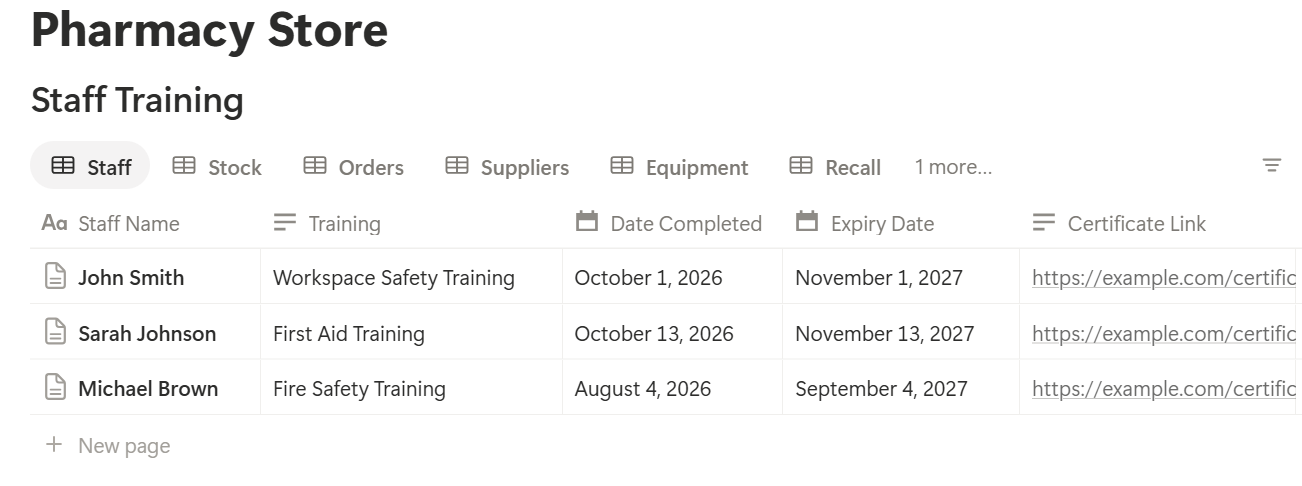
A relation connects a record in one database to a record in another.
Link Stock to Suppliers, and Orders to Suppliers, and a supplier page shows both what you buy from them and how their deliveries have gone.
Add a Service Log database linked to Equipment, and an equipment page shows its full history in one place.
Stock by Batch: The Foundation
Expiry tracking only works if stock is recorded the way it is stored: by batch. One product can sit on your shelves in three batches with three different expiry dates. If Notion holds one record for the product, it can only hold one date, and the wrong one will cost you.
So make one record per batch. When a delivery arrives, the person checking it adds a record for each new batch with the item, batch number, expiry date, quantity, and storage location. If a batch you already hold arrives again, update its quantity instead of adding a new record.
This takes a few extra minutes at goods-in, and saves hours later. When a recall notice names a batch number, you can search for it in seconds. When you look for short-dated stock, you are looking at real dates.
A few habits make the data trustworthy:
Product verification, serialisation, and other checks that your regulator requires happen in the system or process the rules specify. Notion can hold your batch records, but it does not replace those checks.
Expiry Tracking That Works
Out-of-date stock is a safety problem and a cost. Formulas watch the dates for you.
On Stock, add:
*Days to expiry: dateBetween(prop("Expiry Date"), now(), "days") Expiry flag: if(prop("In Stock") > 0, if(prop("Days to expiry") < 0, "Expired", if(prop("Days to expiry") <= 90, "Expiring soon", "")), "") Stock value: prop("In Stock") prop("Unit Cost")
The flag shows Expiring soon within 90 days of expiry, and Expired after the date.
Items with no stock left are ignored. Change the 90 days to match how fast each item sells. A fast-moving cough remedy can have a short window. A slow-moving appliance consumable may need a long one.
Expired items should be removed from use and handled as your protocols and the rules where you work require.
Here is a made-up example.
| Item | In Stock | Days to expiry | Flag |
|---|---|---|---|
| Eye drops 10 ml | 6 | 45 | Expiring soon |
| Antacid tablets x24 | 12 | 210 | |
| Cough syrup 100 ml | 4 | -3 | Expired |
| Plasters assorted | 0 | -20 |
On a database with a lot of rows, a rollup helps. Add a Stock Value Expiring rollup on a Suppliers or Category page that sums Stock value for items with the Expiring soon flag. It tells you how much money is at risk, and from which supplier.
Write down what happens to short-dated stock. Some suppliers accept returns for credit within a window. Some stock can be moved to a busier shelf. Some can be marked down. A flag with no plan is just a warning.
A weekly short-date check takes about fifteen minutes. Update In Stock as part of it, because the flags are only as good as the counts. Some items, such as opened bottles or products with a shorter life once opened, follow the manufacturer’s instructions and not the printed date alone.
Reordering Without Overstocking
Running out of a regular product loses a sale and may send a patient elsewhere. Overstocking ties up cash and creates the next expiry problem. The reorder flag sits between the two.
On Stock, add:
Reorder flag: if(prop("In Stock") <= prop("Reorder Level"), "Reorder", "")
The flag shows Reorder when stock is at or below the reorder level. Because each record is a batch, group by Item to see the total across batches, or add a rollup on an Items database if you keep one. Set reorder levels from how fast things sell and how long your supplier takes to deliver.
Make a Reorder list view with the Reorder flag, grouped by supplier. This is the starting point for each order. Check it against the supplier’s cut-off time, so the order goes in before the deadline.
Two habits reduce overstocking. First, review reorder levels every few months, because demand changes. Second, look at the Expiring soon view before ordering. If you hold the same product in a batch that is nearly out of date, think about whether you really need more.
Suppliers and Orders
A pharmacy often depends on a few wholesalers and a handful of manufacturers. Knowing which ones deliver reliably is worth the effort.
On the Suppliers database, keep what you need on a good day and a bad one: account number, contact, order cut-off time, delivery days, minimum order value, and returns policy. Put the cut-off time where the person ordering will see it.
On Orders, make one record per order, linked to the supplier. Fill in Lines Ordered when you place it. When it arrives, enter the received date and how many lines were short, which means not supplied or supplied in a smaller quantity. Then add:
*Order flag: if(prop("Status") != "Received" and dateBetween(now(), prop("Expected Delivery"), "days") > 0, "Late", "") Fill rate: if(prop("Lines Ordered") > 0, 1 - prop("Lines Short") / prop("Lines Ordered"), 0)*
Format Fill rate as a percent. For example, if you ordered 48 lines and 3 were short, the fill rate is about 94%. On the Suppliers page, add a rollup that averages Fill rate across their orders. After a few months you can see which supplier lets you down, and compare it to the price you pay.
Make these views:
Keep returns and credit requests in the same place. Add a Returns database linked to Suppliers with the product, batch, quantity, reason, the date requested, and the credit received. A return you never chased is money lost.
Recalls and Alerts
When a safety notice arrives, the clock starts. Someone has to check the shelves, remove any affected stock, and record what was done. A written log makes sure the check happens and proves it did.
On Recalls and Alerts, add a record for each notice as soon as it arrives. Fill in the reference, the source, the product, the batch numbers affected, the date received, and the deadline for action. Then add:
Alert flag: if(prop("Action Completed"), "", if(dateBetween(now(), prop("Action By"), "days") > 0, "Overdue", "Action needed"))
Make these views:
The process is simple. Receive the notice. Search Stock for the affected batch numbers. If you hold any, remove it from sale, quarantine it, and follow the instructions in the notice.
Write what you found and did, who checked, and the date. Keep any record the rules require in the format they require, and use Notion as the working log and reminder.
The rules about recalls, how quickly you must act, and who must be told differ by country and by the type of alert. Check what applies to you, and write it into your procedure.
Fridge and Storage Checks
Many medicines must be kept in a fridge or within a set temperature range.
A failure can spoil a whole shelf. Add a Fridge Check routine to Routine Logs, with the minimum and maximum temperature since the last check and who recorded them. Then add a formula:
Fridge status: if(prop("Min Temp") >= 2 and prop("Max Temp") <= 8, "In range", "Out of range")
The range of 2°C to 8°C is common, but follow the manufacturer’s instructions for each product and your regulator’s guidance.
Make a view of fridge checks with the Out of range status, so the pharmacist sees a problem at once. Write down in your procedure what happens next: who is told, how affected stock is handled, and who is asked for advice.
On Equipment, add each fridge and thermometer, with the service or calibration date, so the readings can be trusted. Room temperature checks for the dispensary and storage areas can use the same log with a different Routine type.
Daily and Weekly Routines
Routine checks are easy to skip when the queue is long, and hard to explain when someone asks about them later.
Make database templates for the routines you do, with a short checklist for each:
Each day, someone clicks New and gets the same list. They tick the items, add their name, and write a note if something was wrong. Keep each list short, because a long checklist gets ticked without being checked.
Controlled drug checks, registers, and other required records are governed by your regulator and your own protocols. Use the official format and frequency they require, and treat your Notion checklist as a working copy and a reminder. Don’t use it to replace a required register or log unless you’ve checked that it meets the rules.
Make views of Routine Logs:
> 💡 Pro Tip: Put the fridge check first on the opening checklist. If it is out of range, you want to know before the first delivery is put away.
Equipment and Service Dates
A pharmacy has less equipment than a clinic, but what it has matters. Fridges, thermometers, scales, label printers, and testing devices need to work and, in some cases, be checked or calibrated.
On Equipment, add:
*Next Service: dateAdd(prop("Last Service"), prop("Service Interval"), "months") Service flag: if(dateBetween(prop("Next Service"), now(), "days") < 0, "Service overdue", if(dateBetween(prop("Next Service"), now(), "days") <= 30, "Service soon", ""))*
The flag shows Service soon 30 days before the next date, and Service overdue after it. Set the interval from the manufacturer’s guidance and your regulator’s requirements.
Add a Service Log database linked to Equipment, with the date, what was done, who did it, and a link to the report or certificate. After each visit, update Last Service on the equipment record.
Make a Service due view sorted by date, and a By type view. If a fridge fails, a short Fault report template with the date, what happened, what you did, and what happened to the stock keeps the story straight. Check where such records must be kept under your rules.
Your Team: Rotas and Training Dates
Pharmacy teams hold a lot of dates that matter: registrations, accreditations, and training that expires.
On Staff Training, add:
*Days to expiry: dateBetween(prop("Expiry Date"), now(), "days") Training flag: if(prop("Days to expiry") < 0, "Expired", if(prop("Days to expiry") <= 90, "Renew soon", ""))*
A view of training with a flag, sorted by date, gives the pharmacist in charge one list to work through each month. Keep certificate files in a secure place and link to them. Professional registration numbers and personal details are sensitive, so store only what you need.
For the rota, use a Shifts database with person, date, start and end times, and role, shown as a calendar view. Make sure each shift has the cover your rules require, and put leave and training days on the same calendar so gaps are visible early.
A Day at a Community Pharmacy
To see how the pieces fit, here is one made-up day.
8:45 am. The pharmacist opens the home page. The Today’s routines view shows the opening checklist. The Open alerts view shows one safety notice that arrived yesterday afternoon.
8:55 am. The fridge reading is logged: minimum 3°C, maximum 6°C. The status shows In range.
9:10 am. She searches Stock for the batch numbers in the notice. One batch is on the shelf. She removes it, quarantines it, records what she did, and ticks Action Completed.
11:00 am. The Late orders view shows a delivery that should have come yesterday. She calls the wholesaler and gets a delivery time, and notes it on the record.
2:00 pm. A delivery arrives. The assistant checks it against the order, adds a record for each new batch with its expiry date, and notes two short lines on the order.
4:30 pm. The Reorder list shows three items below their levels. The Expiring soon view shows a batch of eye drops with 45 days left, so she moves it to the front, and decides not to order more.
6:00 pm. The closing checklist is ticked. The pharmacist creates the supplier order from the Reorder list, and sends it as a PDF.
No patient names were needed anywhere.
The Documents That Leave Notion
Suppliers, wholesalers, engineers, and inspectors don’t use your workspace, so some records need to become files. These all avoid patient information:
For a single page, you can use Notion’s export option.
Suppliers and inspectors notice how organized your records look, and Notion’s own export gives you limited control over layout.
Generating PDFs with PDFOutput
PDFOutput creates documents from your Notion data using a template. A template can be a Google document, a Word file, a PDF file, or a Notion page. If you already have an order or return layout in Word or Google Docs, you can reuse it.
Here is how it works:
These are some of the status options:
The e-signed option may help with policy acknowledgements. Whether an electronic signature is valid for a given document depends on your location, so check before you rely on it. You can save the finished file to a property in your database, so an order stays on its record. You can also save it to a Google Drive folder and store the link in a property.
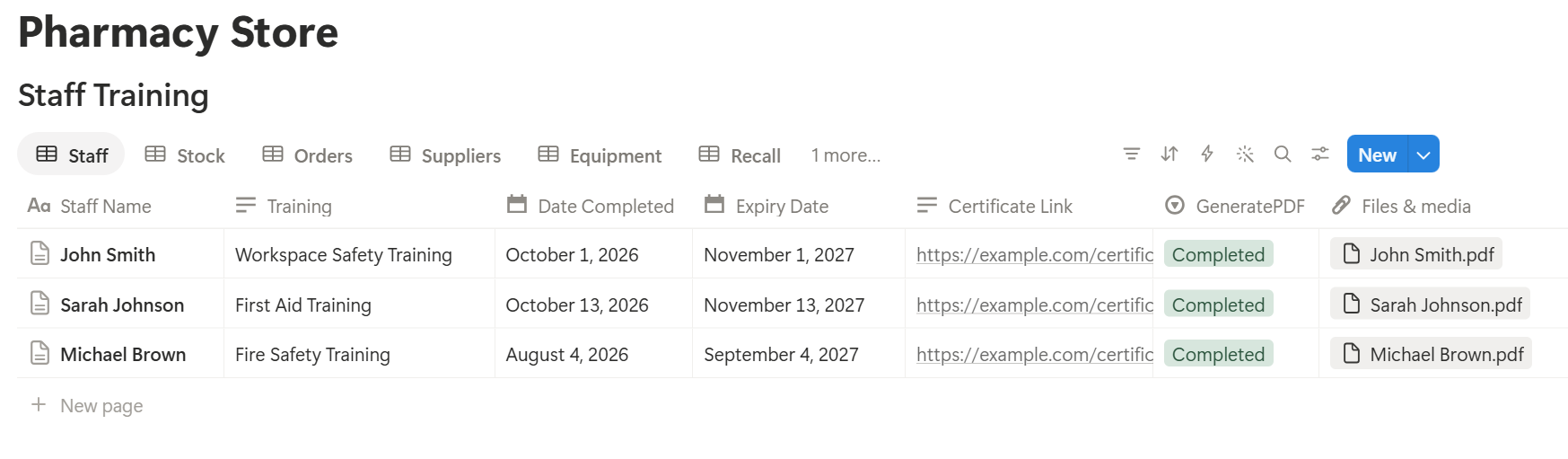
A supplier order lists many items, and a return request lists many batches, each stored as its own linked record. Before you rely on a template to list them all, test it with a sample record that has several, and check that each appears the way you want.
If it doesn’t, a simple fallback is to keep a short text summary on the record, and use that in the template.
Before using any document tool with health-related information, ask the provider how data is handled, where it’s stored, and what agreements are available, and keep the answers with your compliance records. The safest approach is to generate documents only from records that contain no patient information, as in this guide.
Start with the supplier order or the return request. Use Preview first and check for empty fields, wrong date formats, and details that don’t match your records.
> 📌 Key Takeaway: Use Notion for what keeps the shelves, suppliers, and dates in order, and your pharmacy system for what you know about patients. Batches, dates, and checklists give you most of the time savings with a fraction of the risk.
Who Can See What
Even without patient data, a pharmacy workspace holds information worth protecting, such as supplier prices and terms, staff details, and security routines.
Common Mistakes
Letting patient names creep in. It starts with “Mrs Jones’s order” in a note. Use product and batch records, and remind people regularly.
Tracking stock by product, not by batch. One date per product hides the batch that is about to expire, and makes recall checks guesswork.
Treating Notion as the official register. If your regulator requires a set format for controlled drugs, fridge logs, or recalls, keep that record, and use Notion as the working log and reminder.
Letting stock counts go stale. Flags only help if In Stock and expiry dates are updated when stock arrives and when it sells out.
Flags with no plan. An Expiring soon flag is only useful if someone knows whether to return, move, or mark down the stock.
Skipping the alert log. A notice that was read but not recorded can’t be shown later. Log every one, even when you hold none of the affected batches.
Ignoring the fridge. A failure can spoil a whole shelf. Log the readings, and decide in advance what to do when one is out of range.
Long checklists. People tick boxes without checking. Fewer items, done properly, beat a long list.
Not recording who did what. A tick without a name can’t answer a question later.
No owner for the structure. Pick one person responsible for the setup. Properties get renamed and formulas break, so tell that person not to rename properties used in PDF templates, because the placeholders must match exactly.
Skipping a test. Run a week with made-up data first, and fix what annoys the team before you use real records.
Frequently Asked Questions
Can Notion be used for a pharmacy?
Yes, for operations such as stock by batch, expiry tracking, suppliers and orders, recall logs, routine checklists, and training dates. It isn’t a pharmacy management system or a patient record, so keep patient information in a system built and approved for it.
Can I store patient information in Notion?
Only after you’ve confirmed that the laws, agreements, and settings that apply to you allow it. If you can’t get a clear answer, keep patient information out of Notion, and track products and batches instead of people.
Is Notion HIPAA compliant?
Whether a tool can be used for health data depends on the laws that apply to you, the plan you use, and the agreements you have with the provider. Check with Notion and a compliance professional before storing any identifiable patient information, and don’t assume a tool is suitable because others use it.
How do I track medicine expiry dates in Notion?
Create a Stock database with one record per batch, including the batch number and expiry date. Add a formula that calculates the days to expiry and flags items that are expiring soon or expired, then make views for each flag.
How do I manage recalls in Notion?
Create a Recalls and Alerts database with the alert reference, the batches affected, a deadline, and a checkbox for action completed. Search your Stock records for the batch numbers, record what you found and did, and keep any record your regulator requires in its official format.
How do I track supplier performance in Notion?
Create an Orders database linked to Suppliers, with the lines ordered and the lines short. Add a formula for the fill rate, and a rollup on the Suppliers page that averages it, along with a flag for late orders.
Can I create supplier orders and return requests from Notion?
You can export a page as a PDF, or use a template-based tool such as PDFOutput to fill an order or return template with data from each record. Test it on a few sample records first, and use records that contain no patient information.
Related Reading
Conclusion
The best Notion setup for a pharmacy is a quiet back room: stock tracked by batch, expiry dates that warn you early, suppliers you can compare, recalls you can prove you checked, and a fridge log you trust. Settle the patient data question first, track products and batches instead of people, and test with made-up data before you use real records. When your orders, return requests, and service records need to leave Notion, PDFOutput can fill your template from each record and save the PDF to your chosen storage.
Want clean supplier orders and return requests straight from Notion? Try PDFOutput.