Guides
How to Use Notion for a Home Inspection Business: Inspections and Clients
Learn how to set up Notion for a home inspection business with bookings, findings, report turnaround, fees, and agent referrals, plus PDF agreements, summaries, and invoices.
By Sanat Biswal · 2026-11-05 · 5 min read
{/ synced-from-notion — do not edit manually /}
A home inspector sells a report.
Everything else, such as the phone calls, the scheduling, the driving, the invoicing, and the follow-up, is the business around that report.
Most inspectors are good at the inspection and spend their evenings catching up on the rest: who booked, who paid, which report is overdue, which real estate agent keeps sending work, and which licence needs renewing.
Notion can run the business side, and keep your findings organized.
This guide is for solo inspectors and small inspection companies. It shows how to set up clients, inspections, findings, and agents, how to calculate fees and track report turnaround, and how to turn records into PDFs such as agreements, summary sheets, and invoices.
It also explains what Notion should not replace. It is general information about organizing a business, not legal, regulatory, or professional advice, and inspection rules differ widely by country and state.
Quick Answer on how to use Notion for home inspection business:
To use Notion for a home inspection business, create linked databases for Inquiries, Clients, Inspections, Findings, Agents, and Licences and Equipment.
Use formulas to calculate fees, set a report due date, and flag late reports. Record findings by system and severity, and roll up the counts into report-ready fields on each inspection.
Keep your full report in inspection software that follows the standards you must meet, and use Notion for bookings, a findings log, and PDFs such as the agreement, the summary sheet, and the invoice.
Notion works well for inspectors as a business and records workspace.
Each inquiry, client, inspection, finding, and agent is a record, and the records are linked, so an inspection page shows its client, its fee, its findings, and its report deadline. Notion isn’t dedicated inspection reporting software. It doesn’t offer standards-based report templates, comment libraries, or photo annotation, and it doesn’t replace the report your licence or regulator requires.
It works best beside your reporting tool. For documents that clients receive, you can export a page as a PDF or generate one from a template.
Table of Contents
What Notion Can and Can’t Do for a Home Inspector
Notion is good for:
- Tracking inquiries, bookings, and clients in one place.
- Calculating fees from size and add-on services.
- Logging findings by system and severity.
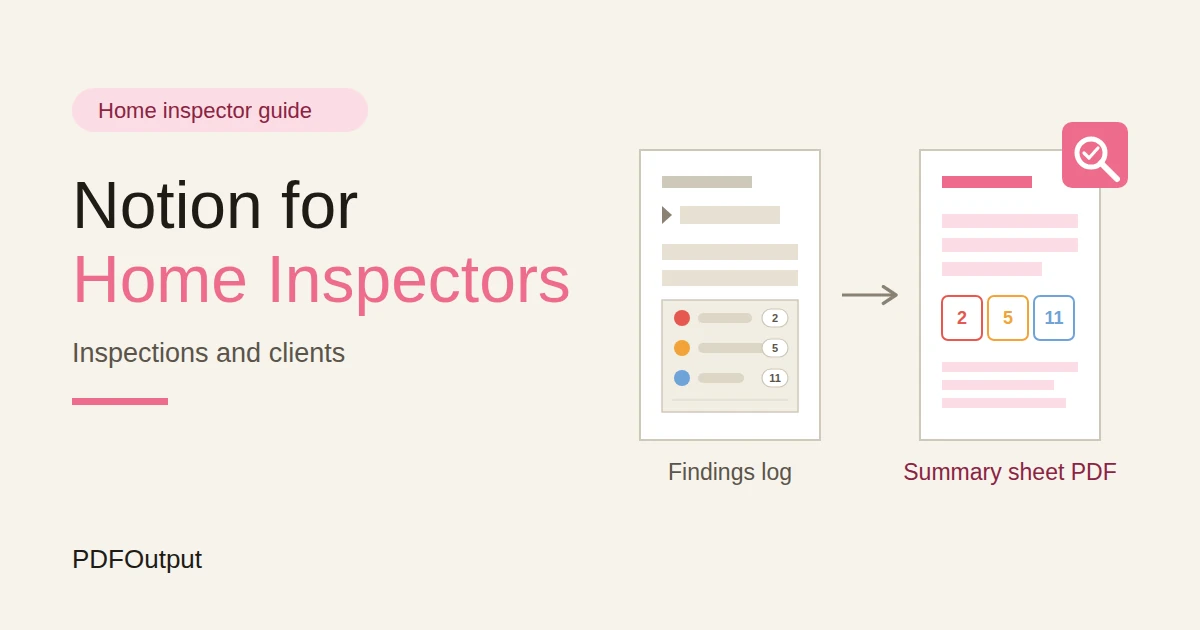
- Rolling up counts for a summary sheet.
- Watching report deadlines.
- Tracking agent referrals and thank-yous.
- Tracking licences, insurance, and equipment dates.
- Creating agreements, summary sheets, and invoices.
- Producing a full inspection report to a required standard.
- Annotating photos in a report.
- Storing large photo sets securely.
- Replacing the records your licence or regulator requires.
- Never store lockbox codes, alarm codes, or key locations in Notion. A list of empty houses and how to enter them is a risk. Write “lockbox, code from the listing agent,” and keep the code elsewhere.
- Client reports belong to the client. Share a report with an agent or anyone else only with the client’s permission, and as your agreement says.
- Photos of homes can show belongings, documents, and family. Store them in secure storage, and link to them. Don’t upload sets of photos into Notion.
- Payment details such as card numbers should never be stored in Notion.
- Inquiries stores people who contacted you. Add these properties: Name, Phone, Email, Property Address, Square Footage, Add-On Services (multi-select), Quoted Fee, Source, Date, Status (New, Quoted, Booked, or Lost), and Last Contact.
- Clients stores who you work for. Add: Name, Phone, Email, Type (Buyer, Seller, or Owner), and Notes.
- Inspections is the main database. Add: Property Address, Client (relation), Agent (relation), Inspection Date and Time, Square Footage, Base Fee, Extra Square Footage Fee, Add-On Fees, Total Fee (a formula), Agreement Signed (checkbox), Report Due (a formula), Report Delivered On, Payment Status (Unpaid, Paid, or Late), and the report-ready fields in the Summary section.
- Findings stores what you found. Add: Inspection (relation), System (Roof, Exterior, Structure, Electrical, Plumbing, Heating and Cooling, Interior, or Attic and Insulation), Severity (Safety Concern, Major Defect, Minor Defect, Maintenance Item, or For Information), Description, Recommendation, and Photos Taken (checkbox).
- Agents stores referrers. Add: Name, Agency, Phone, Email, Inspections Referred (a rollup), Last Referral, and Last Contacted.
- Licences and Equipment stores dates. Add: Item (Licence, Insurance, Training Credits, or Equipment Calibration), Issuer, Reference, Expiry Date, and Document Link.
- Agreement sent and signed, and stored with the inspection
- Fee and payment terms confirmed
- Access arranged (how to get in, never the code)
- Utilities on, with the seller or agent reminded
- Client told what to expect and how long it takes
- Attendance confirmed: client, agent, or neither
- Add-on services scheduled
- Weather or access problems noted
- Property Address, Inspection Date, and Client Name
- Safety Count, Major Count, and Minor Count
- Top Findings: the five most important, in plain words, as text
- Items Not Inspected: areas you couldn’t access, and why
- Recommended Next Steps: such as specialist evaluations
- Report Delivered On
- Inspector Comment: a short, calm paragraph
- Pre-inspection agreements: scope, fee, limits, and terms, with wording checked by someone qualified
- Booking confirmations and prep sheets: date, time, access, and what to expect
- Summary sheets: counts, top findings, and next steps, alongside the full report
- Invoices and receipts. Notion Receipt Template shows how to structure one.
- Re-inspection summaries: what was fixed and what wasn’t
- Follow-up notes: a thank-you and a request for a review, if the client agreed to hear from you
- Licence and insurance register: a list of dates for your files
- Create your template with your company name, logo, and layout.
- Add placeholders in double curly braces where the data should go, such as {{Property_Address}}
or{{Safety_Count}}`. - Make sure each placeholder matches the name of a Notion property.
- Start the document with a Notion database button or a status property.
- Ready to Generate creates a PDF from the database record.
- Generate Page converts the Notion page into a PDF.
- Generate PDF and Doc creates a PDF and a Google document.
- Preview creates a Google document so you can check it before making the final PDF.
- Generate E-Signed Doc creates an e-signed PDF in the database workflow.
- If you have associate inspectors, give each access to their own inspections only.
- Keep fees, revenue, and agent referral figures in views that only the owner can open.
- Never store lockbox codes, alarm codes, or key locations.
- Don’t give clients, agents, or sellers access to the workspace. Send finished PDFs.
- Share a report with an agent only if the client has agreed.
- Keep photos in secure storage, and link to them.
- Remove access on the day someone leaves.
- Review who has access every few months.
- How to Use Notion for Real Estate
- How to Use Notion for Property Management
- How to Use Notion for a Construction Business
- Notion Receipt Template
Notion is not made for:
If you already use inspection reporting software, treat Notion as the business layer beside it. Link to the report and the photos on the inspection record, and let your reporting tool produce the official report.
Rules, Liability, and Privacy
Inspection is a regulated and sometimes litigated profession. Before you build anything, think about three things.
Your standards and licence. Many places require a licence, a standard of practice for what you inspect and how you report, a set of required report contents, and record keeping for a number of years. Check what applies to you, and keep the official report and records in the format required.
Liability. Your agreement sets the scope of the inspection and the limits of what you’re responsible for. The wording should be written or checked by someone qualified. Keep a signed agreement for every inspection, and keep it with the report. Never describe an inspection as a guarantee of a property’s condition.
Privacy and security.
Rules differ by country and state, so check yours. While you are testing, use made-up clients and properties.
Use The 6 Databases
Start with these 6 databases. You can add more later, such as Add-On Services and Subcontractors.
A relation connects a record in one database to a record in another. Link Inspections to Clients and Agents, and Findings to Inspections. Now an inspection page shows its client, its agent, its fee, and every finding together.
Inquiries: Quote the Same Way Every Time
Most inspection work starts with a phone call, and the first question is “How much?” A quick, consistent answer wins jobs.
Set a pricing rule you can apply in a minute. For example: a base fee for homes up to a set size, an extra amount for each additional square foot or meter, and fixed fees for add-on services. On Inspections and Inquiries, add:
``
Extra Size Fee:  max(prop("Square Footage") - prop("Included Square Footage"), 0) * prop("Rate per Extra Square Foot")
Total Fee:       prop("Base Fee") + prop("Extra Size Fee") + prop("Add-On Fees")
`
Here is a made-up quote. Amounts are in your own currency.
| Item | Value |
|---|---|
| Home size | 2,600 sq ft |
| Included in base fee | 2,000 sq ft |
| Base fee | 350 |
| Extra: 600 sq ft at 0.10 | 60 |
| Add-on: radon test | 150 |
| Total fee | 560 |
Add a follow-up flag, because a quote that isn’t followed up is usually lost:
`
Days since contact:  dateBetween(now(), prop("Last Contact"), "days")
Follow-up flag:      if(prop("Status") == "Quoted" and prop("Days since contact") >= 2, "Follow up", "")
`
Buyers are on a clock, with an option period or a contract deadline, so speed matters. Make a view called Quotes to follow up. Ask about the contract deadline on the first call, and write it down.
Booking: Agreements, Prep, and Access
When someone books, three things must happen before the day: the agreement is signed, the access is arranged, and the client knows what to expect.
Use a Booking checklist template on each inspection:
Send the client a short prep sheet as a PDF, with the date, time, address, how long it’ll take, and what to expect. Ask that utilities stay on, and that access to the attic, panel, and crawlspace be clear. Most delays on the day come from blocked access.
Add a flag for a missing agreement:
`
Agreement flag: if(prop("Agreement Signed") == false and dateBetween(prop("Inspection Date and Time"), now(), "hours") <= 24, "No agreement", "")
`
The flag shows No agreement within 24 hours of an inspection that has no signed agreement. Don’t start without one. Make views for Today, This week (a calendar view), and Needs agreement.
On Site: The Findings Log
On site, you’re working with your eyes, your hands, and your tools. Notion is a secondary tool here, so keep it light.
If you use inspection software, record findings there, and let it produce the report. If you’d like to log findings in Notion as well, as working notes or as the source for a summary, keep the entry short. For each finding, create a record with the system, the severity, a one-line description, and a recommendation. Photos stay in your reporting tool or secure storage.
Use a clear severity scale, and define each level in your own words and in your agreement. For example:
| Severity | Meaning |
|---|---|
| Safety Concern | Could cause harm and needs prompt attention |
| Major Defect | Significant problem that affects use or value |
| Minor Defect | Small problem to fix in time |
| Maintenance Item | Routine upkeep |
| For Information | Noted, no action needed |
Basements, crawlspaces, and attics often have no phone signal, so test how Notion behaves where you work. Many inspectors collect notes on a phone or tablet in the reporting app, and enter them once they’re back in range. Wording matters a lot. Describe what you observed, and avoid statements that go beyond your inspection, such as guessing at causes you can’t see. Have your wording and templates checked by someone qualified.
The Summary: Turn Findings Into Counts
Clients read the summary first, and sometimes only the summary. A one-page sheet with counts and the top issues is useful, and it’s easy to build from your findings.
On Findings, add checkbox formulas:
`
Is Safety:  prop("Severity") == "Safety Concern"
Is Major:   prop("Severity") == "Major Defect"
Is Minor:   prop("Severity") == "Minor Defect"
`
On Inspections, add rollups from Findings that count the checked boxes, and name them Safety Count, Major Count, and Minor Count. Add one more for the total.
Then make report-ready fields on the Inspection, so a summary sheet can show them directly:
Write the Top Findings after you’ve finished the report, in language a first-time buyer can follow. A summary sheet doesn’t replace the full report, and it should say so. Check every figure and every sentence against the report before you send it. A summary that contradicts the report is a liability.
Report Turnaround: Never Be Late
Most inspectors promise a report within a set time, often 24 hours, and agents and clients remember when it’s late. A buyer with a contract deadline may need it sooner.
On Inspections, add:
`
Report Due:    dateAdd(prop("Inspection Date and Time"), prop("Turnaround Hours"), "hours")
Report flag:   if(prop("Report Delivered On") == "" and prop("Report Due") < now(), "Report late", if(prop("Report Delivered On") == "" and prop("Report Due") < dateAdd(now(), 6, "hours"), "Due soon", ""))
`
The flag shows Due soon within six hours of the deadline, and Report late afterwards. Change the numbers to suit your promise. A view called Reports due, sorted by due time, is the first thing to open each morning. Set Report Delivered On the moment you send the report, so the flag clears.
Also add payment flags. Many inspectors collect payment at or before the report, and your agreement and local rules decide what’s fair. A view of Unpaid inspections, sorted by date, keeps money from slipping. Test the formulas with made-up inspections and check the times against a clock.
Pro Tip: Ask for the contract deadline when the client books, and put it in the inspection record. A report that arrives after the option period ends isn't much use to a buyer.
Agents: Referrals Done Right
Real estate agents are a common source of work for inspectors. Tracking them well is good business. Handling them carelessly can be a serious problem.
On Agents, add a rollup of the number of inspections referred, and a flag:
`
Days since referral:  dateBetween(now(), prop("Last Referral"), "days")
Check in:             if(prop("Days since referral") >= 60, "Check in", "")
`
The flag shows Check in for agents who haven’t sent you work for 60 days. A short, personal message, such as “thanks for the last one, anything coming up?”, is better than a mass email.
Make views for Top referrers and Check in.
Be careful about ethics and the rules. In many places, there are strict rules on referral fees, kickbacks, gifts, and conflicts of interest for inspectors and agents, and breaking them can cost you your licence. Your duty is to your client. Check what applies to you, avoid anything that could look like paying for referrals, and don’t let an agent influence what you write in a report. A report is the client’s, so only share it with an agent if the client agrees.
Keep notes about agents professional, because they’re business contacts with personal details. Collect only what you need.
Licences, Insurance, and Equipment
A lapsed licence or insurance policy can stop you from working, and an uncalibrated tool can undermine a report.
On Licences and Equipment, add:
`
Days to expiry:  dateBetween(prop("Expiry Date"), now(), "days")
Renewal flag:    if(prop("Days to expiry") < 0, "Expired", if(prop("Days to expiry") <= 60, "Renew soon", ""))
`
The flag shows Renew soon within 60 days of expiry, and Expired afterwards. Include your licence, errors and omissions insurance, general liability insurance, continuing education credits, and any equipment that needs calibration or service, such as moisture meters, thermal cameras, and gas detectors.
A view called Renewals due, sorted by date, gives you one list. Check the rules for credits and deadlines, because they differ by place. Store documents in a secure place and link to them.
For equipment, add the date of the last check and the interval the manufacturer gives, and flag anything due. A tool that gives wrong readings is worse than none.
Your Business Numbers
A few numbers show how the business is doing. Here is a made-up month.
| Item | Value |
|---|---|
| Inquiries | 40 |
| Inspections booked | 28 |
| Inquiry to booking | 70% |
| Average fee | 480 |
| Revenue | 13,440 |
| Referred by agents | 17 |
| Share from agents | 60.7% |
`
Inquiry to booking: if(prop("Inquiries") > 0, prop("Booked") / prop("Inquiries"), 0)
`
If conversion is low, look at how fast you reply, how clearly you quote, and whether the price is the problem. If more than half your work comes from a handful of agents, that’s a risk if they change brokerages. Look at the lost reasons on your Inquiries. A small sample can mislead, so treat these as guides. They leave out your costs, insurance, vehicle, and tax, so check the full figures with an accountant.
A Wednesday for a Solo Inspector
To see how the pieces fit, here is one made-up Wednesday.
7:00 am. The inspector opens Today. Two inspections are booked, at 9:00 and 2:00. Both have signed agreements, and the Report flag shows one report due by noon from yesterday.
7:30 am. He finishes yesterday’s report, sends it, and sets Report Delivered On. The flag clears. He sends the summary sheet to the client.
9:00 am. First inspection. He works in his reporting software. In a crawlspace with no signal, he notes things on the tablet and syncs later.
1:00 pm. He logs the morning’s top findings and counts on the inspection record, ready for the summary.
2:00 pm. Second inspection. A client has asked whether an agent can see the report, and he notes the answer.
5:30 pm. The Quotes to follow up view shows two people who haven’t replied. He sends a short note to each.
6:00 pm. The Check in view shows an agent who hasn’t referred work for 70 days. He sends a friendly message.
6:30 pm. The Renewals due view shows his insurance renews in 45 days, so he books the call.
Nothing waited in his head.
The Documents That Leave Notion
Clients, agents, and authorities don’t use your workspace, so some records need to become files:
For a single page, you can use Notion’s export option. How to Export Notion to PDF shows the settings. If you also work in real estate or property, How to Use Notion for Real Estate and How to Use Notion for Property Management cover related ground. Clients judge an inspector partly by the professionalism of the paperwork, and Notion’s own export gives you limited control over layout. How to Add Your Logo and Brand Colors to Notion PDFs explains how a template solves that.
Generating PDFs with PDFOutput
PDFOutput creates documents from your Notion data using a template. A template can be a Google document, a Word file, a PDF file, or a Notion page. If you already have an agreement or invoice layout in Word or Google Docs, you can reuse it.
Here is how it works:
These are some of the status options:
The e-signed option may help with pre-inspection agreements. Whether an electronic signature is valid for a given agreement depends on your location and the type of document, so check before you rely on it. You can save the finished file to a property in your database, so an agreement stays on its inspection record. You can also save it to a Google Drive folder and store the link in a property.
A summary sheet works well here, because every item sits on one inspection record: the address, the counts, the top findings, the items not inspected, and the next steps. If you’d like every finding listed in a PDF, test a template with a sample inspection that has several findings, and check that each appears. If it doesn’t, keep the top findings as text on the inspection, and attach your full report from your reporting software.
Before using any document tool with client information, ask the provider how data is handled, where it’s stored, and what agreements are available, and keep the answers with your records. Generate documents from records that hold only what the recipient should see. Check the client and the property on every document before you send it, and never send a summary that doesn’t match the final report.
Start with the agreement or the invoice, whichever you send for every job. Use Preview first and check for empty fields, the right client and address, and a total that matches your fee rule.
Key Takeaway: Quote the same way every time, get the agreement signed before you start, and watch the report clock. Keep your full report in inspection software, and use Notion for the business around it.
Who Can See What
Your workspace will hold client details, property addresses, and fees, so control access from the start.
Common Mistakes
Replacing your reporting software. Notion isn’t built for standards-based reports. Use it for the business around them.
Starting without a signed agreement. It’s the protection for you and the client.
Storing access codes. Keep them in a secure tool, and write how access works.
Promising a turnaround you can’t meet. Set a deadline you can keep, and watch the flag.
Inconsistent severity labels. Use the same scale every time, and match your standards.
Sharing reports without permission. The report belongs to the client.
Mixing up referrals and ethics. Follow the rules on fees, gifts, and conflicts of interest.
Too many properties. If logging an inspection takes fifteen minutes, you’ll skip it. Keep the record short.
No owner for the structure. If you have a team, pick one person responsible for the setup. Properties get renamed and formulas break, so tell that person not to rename properties used in PDF templates, because the placeholders must match exactly.
Skipping a test. Run a month with made-up clients and properties first, and fix what annoys you before you use real records.
Frequently Asked Questions
Can Notion be used to run a home inspection business?
Yes, for the business side: inquiries, bookings, fees, findings notes, report deadlines, agent referrals, and licence dates. It isn’t inspection reporting software, so produce your full report in a tool that meets the standards you must follow.
How do I calculate inspection fees in Notion?
Set a base fee for homes up to a size, add a rate for each extra square foot, and add fixed fees for add-on services. Use a formula that adds them together, and check the result against a calculator.
How do I track report deadlines in Notion?
Record the inspection date and your promised turnaround in hours, and use a formula that adds them to give the due time. Flag reports that are due soon or late, and set the delivered date when you send the report.
How should I record findings in Notion?
Record the system, a severity from a clear scale, a short description, and a recommendation for each finding. Keep wording factual, follow your standards of practice, and keep your official report in your reporting software.
Can I create inspection summary sheets from Notion?
You can export a page as a PDF, or use a template-based tool such as PDFOutput to fill a summary template with data from each inspection record. Put the counts and top findings in clearly named properties on one record, test it on sample inspections first, and check each sheet against the final report.
Is it safe to store client and property information in Notion?
Notion lets you control who sees each page, but your duties depend on the rules where you work. Collect only what you need, never store lockbox or alarm codes, keep photos in secure storage, and share reports only with the client’s permission.
Can I share the report with the real estate agent?
Only if your client agrees, and as your agreement and local rules allow. The report belongs to the client, and agents shouldn’t influence what’s in it.
Related Reading
Conclusion
A good home inspection setup in Notion looks after the business around the report: a consistent quote, a signed agreement before the day, a report clock that warns you, findings that roll up into a clear summary, and agents you thank properly. Keep your full report in software built for it, keep access codes out of Notion, and run a month with made-up clients first. When your agreements, summary sheets, and invoices need to leave Notion, PDFOutput can fill your template from each record and save the PDF to your chosen storage.
Want agreements, summary sheets, and invoices as clean PDFs? Try PDFOutput.