Guides
How to Use Notion for a Daycare Center: Enrollment, Schedules, and Parent Updates
Learn how to set up Notion for a daycare center with enrollment, attendance, staff ratios, daily routines, and parent updates, plus PDF daily reports and invoices.
By Sanat Biswal · 2026-10-26 · 5 min read
{/ synced-from-notion — do not edit manually /}
A daycare center runs on trust.
Parents hand over their children and expect three things: that they’re safe, that they’re cared for, and that someone will tell them how the day went.
Behind that sits a pile of admin tasks. Waiting lists, enrollment forms, attendance, staffing ratios, routines, incident notes, and a daily message for every family.
When the admin lives in paper folders, a group chat, and a whiteboard, the details that matter most are the easiest to lose.
Notion can hold the admin stuff in one place. This guide is for small and mid-sized daycare centers and nurseries. It shows how to set up enrollment, attendance, rooms, schedules, and parent updates, and how to turn records into PDFs such as daily reports and invoices.
It also explains what should stay out of Notion. It is general information about organizing a center, not to be considered as legal, licensing, or child safety advice by any means.
Quick answer on how to use Notion for Daycare Center:
To use Notion for a daycare center, start with building linked databases for Enquiries, Children, Families, Rooms, Attendance, and Daily Updates.
Collect only the information you need, keep sensitive records such as medical details, emergency contacts, and pickup authorizations in the secure system your licensing rules require, and restrict access tightly.
Use formulas to work out ages, room ratios, and fees. When you need to give a family a document, such as a daily update or an invoice, create a PDF from the record.
Notion works well as the planning and records workspace for a daycare center’s operations. Each enquiry, child, family, room, attendance entry, and daily update is a record, and the records are linked, so a child’s page shows their room, their attendance, and their daily updates.
Notion isn’t childcare management software. It doesn’t offer a parent app, a check-in kiosk, or payments, and it doesn’t replace records that your licensing body requires in a set format.
Whether any information about children can be stored in it depends on the laws where you work, your agreements with the provider, and your own policies.
For documents that families receive, you can export a page as a PDF or generate one from a template.
Table of Contents
What Notion Can and Can’t Do for a Daycare Centers
Notion is good for:
- Managing a waiting list and enrolment steps.
- Recording attendance and checking staff ratios.
- Planning daily routines and weekly activities.
- Preparing daily reports for parents.
- Working out fees and preparing invoices.
- Keeping policies, procedures, and staff training notes.
- Creating consistent reports, newsletters, and invoices.
- A parent app with live messages and photos.
- Check-in kiosks or door access.
- Taking payments.
- Medication records and other regulated logs in a required format.
- Replacing the official records your licensing body requires.
- Collect less. First names and what staff need to care for the child are usually enough.
- Use alerts, not details. A flag that says “allergy plan on file” points staff to the secure record, and the details live there.
- Get permission for photos. Record whether a guardian agreed, and don’t store pictures of children in Notion unless your rules and your policy allow it.
- Never share the workspace with parents. Send finished PDFs, or use a parent communication tool built for it.
- Limit access. Only the people who need a record should see it.
- Enquiries stores families who asked about a place. Add these properties: Family Name, Contact Email, Child Age (in months), Days Wanted, Wanted Start, Enquiry Date, Status (New, Tour Booked, Offered, Waiting, Joined, or Declined), and Notes.
- Children stores enrolled children. Add: First Name, Birth Date, Age (a formula), Room (relation), Days Attending (Mon to Fri, as multi-select), Start Date, Status (Settling In, Active, or Left), Photo Consent (checkbox), Alert Flag (a short note, such as “see allergy plan”), and Family (relation).
- Families stores the billing and contact side. Add: Family Name, Billing Contact, Email, Phone, Fee Plan, and Notes. Keep emergency contacts and pickup authorizations in the secure system.
- Rooms stores each room. Add: Room Name, Age Group (Babies, Toddlers, or Preschool), Capacity, Max Children per Staff (set from your licensing rules), and Lead Staff.
- Attendance stores each day’s presence. Add: Date, Child (relation), Status (Present, Absent, or Late Collection), Arrival Time, and Departure Time.
- Daily Updates stores the day’s report. Add: Child (relation), Date, Meals, Nap Start, Nap End, Nap Minutes (a formula), Activities, Mood, Message to Parents, and Supplies Needed.
- New enquiries: enquiries with the status New, to reply to the same day.
- Waiting list: a table sorted by enquiry date, grouped by age group.
- Tours this week: a calendar view of tour dates.
- Places coming up: children whose status or leaving date suggests a space soon.
- Place offered and accepted, with the date
- Enrollment agreement signed (stored securely)
- Fees and start date agreed
- Required health and immunization records received (kept in the secure system, with only a tick here)
- Emergency contacts and pickup authorizations received (kept in the secure system)
- Photo consent decided and recorded
- Settling-in visits planned
- Room and key person assigned
- Welcome pack sent
- Arrival and free play
- Snack
- Circle time or group activity
- Outdoor play
- Lunch
- Nap or quiet time
- Afternoon activity
- Snack and pickup
- Meals: what they ate, and how much, in simple terms
- Nap: start and end times
- Activities: one or two things the child enjoyed
- Mood: a word or two
- Message to parents: something warm and specific
- Supplies needed: nappies, spare clothes, or sun cream
- Today’s updates: records for today, so staff can see who’s done and who isn’t.
- Missing updates: children marked Present with no update by mid-afternoon.
- This week: updates for one child, for a parent meeting.
- Opening check: the building, the outdoor area, and equipment
- Closing check: doors, heating, and children’s belongings
- Fire drill log: date, time taken, and notes
- Playground check: surfaces and equipment
- Daily reports: one page per child, for the family
- Weekly plans and newsletters: a calendar of activities for all families
- Enrollment packs: welcome letter, forms, and checklists
- Enrollment agreements: terms, fees, and policies, with wording checked by someone qualified
- Invoices and receipts: what the family owes or has paid
- Incident reports: a copy for the parent, in the form your rules require
- Staff rotas: a printable weekly schedule
- Menus: a weekly menu, with allergen information handled as your rules require
- Policies and procedures: copies for staff with a sign-off page
- Safety check summaries: a working record beside the official logs
- Create your template with your center’s name and layout.
- Add placeholders in double curly braces where the data should go, such as
{{Child_First_Name}}or{{Message_to_Parents}}. - Make sure each placeholder matches the name of a Notion property.
- Start the document with a Notion database button or a status property.
- Ready to Generate creates a PDF from the database record.
- Generate Page converts the Notion page into a PDF.
- Generate PDF and Doc creates a PDF and a Google document.
- Preview creates a Google document so you can check it before making the final PDF.
- Generate E-Signed Doc creates an e-signed PDF in the database workflow.
- Give room staff access to their own room’s children, attendance, and daily updates, and not to fees or other rooms.
- Keep fees, family billing details, and waiting list notes limited to the manager and office staff.
- Keep incident records limited to managers and senior staff.
- Never give parents access to the workspace. Send each family only their own child’s PDF.
- Don’t store photos of children unless your rules, your policy, and the guardian’s consent all allow it.
- Remove access on the day someone leaves, including students and volunteers.
- Review who has access every few months, and write down your rules for what may be stored.
- How to Use Notion for a School
- How to Use Notion for a Healthcare Clinic
- How to Use Notion for a Gym or Fitness Studio
- Notion Receipt Template
Notion is not made for:
If you already use childcare management software, treat Notion as the planning layer beside it.
Let the software handle sign-in, payments, and parent messaging if it offers them.
Children’s Data: Draw the Line First
Information about children needs the most care of any data in this series. Before you build anything, decide what will never go into Notion, and check the rules that apply to you.
| Usually reasonable to hold | Usually keep out, or only in a secure approved system |
|---|---|
| A child’s first name and age | Medical conditions, allergies in detail, and medication records |
| Which room and which days they attend | Emergency contacts and authorized pickup lists |
| Meals, naps, and activities from the day | Birth certificates, ID, and immunization records |
| A simple “alert” flag, such as “see allergy plan” | Photos and videos of children, unless guardians clearly agreed |
| Family billing contact and fee plan | Court orders, custody notes, and safeguarding concerns |
Check what applies to you, ask your licensing body what records you must keep and in what format, and ask a compliance professional if you’re unsure.
If you can’t get a clear yes for a type of data, keep it out of Notion.
Some simple design rules keep most centers safe:
While you are testing, use made-up children and families.
Use the Following 6 Databases
Start with these 6 databases. You can add more later, such as Staff, Shifts, and Invoices.
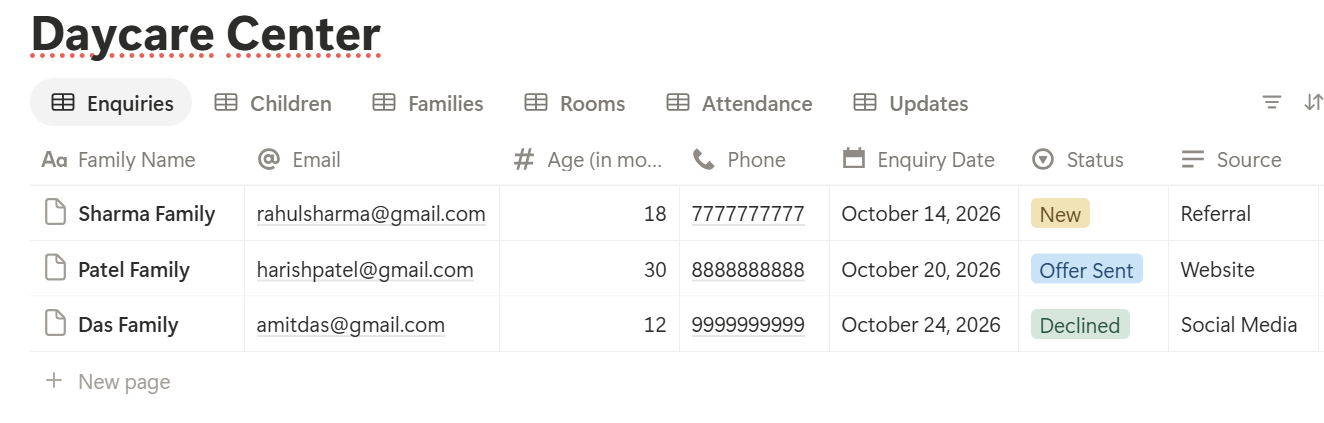
A relation connects a record in one database to a record in another. Link Children to Rooms and Families, Attendance to Children, and Daily Updates to Children.
Now a child’s page shows their room, their attendance, and their daily updates together.
Enquiries and Waiting Lists
Many centers have more families asking than places available. A waiting list that’s clear and fair protects relationships.
On Enquiries, add two formulas:
*Days waiting: dateBetween(now(), prop("Enquiry Date"), "days") Follow-up: if(or(prop("Status") == "New", prop("Status") == "Waiting") and prop("Days waiting") >= 14, "Follow up", "")*
The flag shows Follow up for families who haven’t heard from you in two weeks. Change the number to suit your center. Make these views:
Decide how you offer places, such as by date, by age group, or by siblings, and write it down. Be consistent and fair, and follow any rules on admissions that apply to you.
A short Tour notes template helps: what the family needs, which days, which room, and what they asked.
Enrollment: From Offer to First Day
When a place is offered, the paperwork begins. Use an Enrollment checklist template on each child, with items such as:
Notice that the checklist records that something was received, and doesn’t hold the content. That’s deliberate. A tick tells staff the step is done, and the sensitive document stays where it belongs.
A board view of Children grouped by Status shows who is settling in and who is fully enrolled. A Settling-in plan page for each new child, with a short schedule of visits, helps families feel looked after.
Every Day: Attendance and Staff Ratios
Attendance tells you who is in the building, which matters for safety, for ratios, and for billing.
Each morning, staff mark children Present or Absent. A table view of Attendance filtered to today, grouped by Room, makes marking quick. At the end of the day, record departure times, and note any late collections.
Many places set a maximum number of children per staff member, which depends on the age of the children. Check your licensing rules, and put the number in the Rooms database. Then make a Room Check database, with one record per room per day or per session: Date, Room, Children Present, Staff Present, and Max Children per Staff (rolled up from the room). Add two formulas:
*Staff Needed: ceil(prop("Children Present") / prop("Max Children per Staff")) Ratio flag: if(prop("Staff Present") < prop("Staff Needed"), "Short staffed", "")*
Here is a made-up check for one room. The ratio of 4 children per staff member is only an example, and your rules may differ.
| Item | Value |
|---|---|
| Children present | 11 |
| Max children per staff | 4 |
| Staff needed | 3 |
| Staff present | 2 |
| Flag | Short staffed |
Add a formula for ages on Children, to help with room moves:
*Age (months): dateBetween(now(), prop("Birth Date"), "months") Room hint: if(prop("Age (months)") < 24, "Babies", if(prop("Age (months)") < 36, "Toddlers", "Preschool"))*
The thresholds are examples. Set them to match your rooms and rules. A view called Moving up soon shows children within a few months of the next age group.
Pro Tip: Mark attendance at the door, not at the end of the day. A list made from memory is the one that goes wrong.
Daily Schedules and Weekly Plans
Young children do best with a predictable day, and staff do better with a plan.
Make a Daily routine template for each room, with times and activities:
Keep it short, and flexible. Routines should serve the children, and not the other way around.
For the week, add a Weekly plan database with Week, Room, Theme, Activities by day, and Notes. A calendar view shows the plan at a glance. Share a weekly plan with families as a PDF, so they can talk to their child about what’s coming up.
Also keep a rota. A Shifts database with Staff Member, Date, Start, End, and Room, shown as a calendar view, helps you see gaps before they happen. Put leave and training days on the same calendar. Working-time rules and breaks differ by place, so follow the rules that apply to you.
Parent Updates: The Daily Report
Parents often judge a daycare by the daily report. A clear, kind update makes them feel part of the day.
Each day, a staff member creates a Daily Updates record for each child, from a Daily update template with these sections:
Add a formula for the nap:
Nap Minutes: dateBetween(prop("Nap End"), prop("Nap Start"), "minutes")
Keep the language positive and factual. “Maya built a tall tower and laughed when it fell” tells a parent more than “good day.”
Be careful about what goes in an update. Health concerns, injuries, and behaviour worries should be handled by a conversation and your incident process, and not left as a line in a daily report. Only add a photo if the guardian agreed and your rules allow it.
Send the update to each family as a PDF, so parents get something tidy they can keep. The documents section below explains how. Make these views:
Incidents and Safety Checks
Even the best centers have bumps and scrapes, and sometimes more. A clear process protects children, families, and staff.
Create an Incident database, restricted to managers and senior staff, with these properties: Date and Time, Child (relation), What Happened, What Was Done, Staff Involved, Parent Informed (time and how), and Follow-up. Use a template so each report has the same sections, and fill it in the same day.
Your licensing rules decide what must be recorded, who must be told, and when, and the official record must follow the format required. Treat Notion as a working copy and a reminder, and not as a replacement. Keep reports factual: what you saw and what you did, without blame or guesses.
For safety checks, use database templates with short lists:
Make a view of Missed checks, where Completed isn’t ticked. Fire, safety, and inspection rules differ by place, so follow the ones that apply to you.
Fees and Invoices
Billing is simpler when attendance and fees live next to each other.
For each child, record the fee plan, such as a daily rate or a monthly fee. For daily-rate families, add a rollup from Attendance that counts the days present or booked in the period, and a formula for the fee:
Fee: prop("Days Charged") prop("Daily Rate")*
Here is a made-up family with two children and a 10 percent sibling discount on the second child. Amounts are in your own currency.
| Item | Amount |
|---|---|
| Child A: 12 days at 55 | 660 |
| Child B: 8 days at 55 | 440 |
| Sibling discount (10% on Child B) | -44 |
| Total | 1,056 |
Make these views of invoices:
To send (drafts for the current month), Unpaid (sent and past the due date), and By family.
Payments happen in your payment tool. Update the status in Notion when the money arrives. Notion Receipt Template shows how to structure a receipt.
A Day at a 30-Child Daycare
To see how the pieces fit, here is one made-up day.
7:30 am. The manager opens the home page. Today’s attendance view shows 26 children expected. The Room Check records are ready for each room.
8:00 am. As children arrive, staff mark them Present. The toddler room reaches 11 children, and the ratio flag shows Short staffed. The manager moves a team member over from the preschool room before the rush.
9:30 am. A new family tours the center. The manager creates a record from the tour notes template, and the family joins the waiting list.
12:30 pm. Staff start naps. They enter start times in the daily updates as the children settle.
2:30 pm. The Missing updates view shows three children without an update. Staff complete them with something specific about each child.
4:00 pm. A child bumps her head in the garden. The staff member fills in an incident record, tells the manager, and calls the parent, as the center’s process says. The manager reviews the record before it’s saved.
5:30 pm. The daily updates go to families as PDFs, and the closing checklist is ticked.
Nothing important lived only in someone’s memory.
The Documents That Leave Notion
Families, staff, and inspectors don’t all use your workspace, so some records need to become files:
For a single page, you can use Notion’s export option.
How to Export Notion to PDF shows the settings, and How to Export a Notion Database to PDF helps with tables, such as a rota.
Families notice how clear and warm your documents look, and Notion’s own export gives you limited control over layout.
How to Add Your Logo and Brand Colors to Notion PDFs explains how a template solves that.
Generating PDFs with PDFOutput
PDFOutput creates documents from your Notion data using a template. A template can be a Google document, a Word file, a PDF file, or a Notion page. If you already have a daily report or newsletter layout in Word or Google Docs, you can reuse it.
Here is how it works:
These are some of the status options:
The e-signed option may help with enrollment agreements and incident acknowledgements. Whether an electronic signature is valid for a given document depends on your location and the type of document, so check before you rely on it.
You can save the finished file to a property in your database, so a daily report stays on its record. You can also save it to a Google Drive folder and store the link in a property.
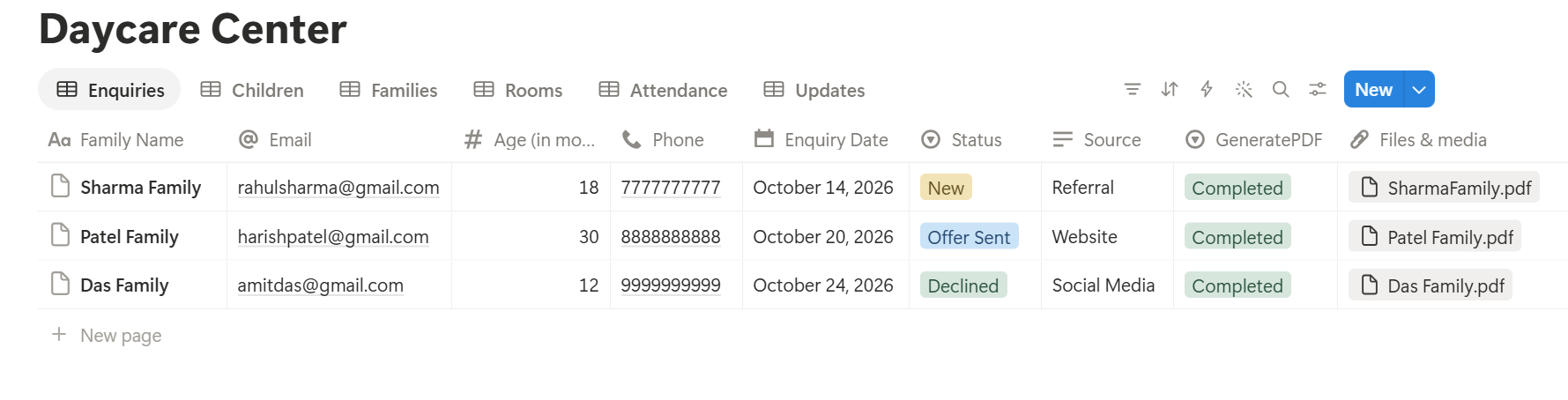
A weekly summary for a child lists several daily updates, each stored as its own linked record. Before you rely on a template to list them all, test it with a sample child who has several updates, and check that each appears the way you want.
If it doesn’t, a simple fallback is to keep a short weekly summary as text on the child’s record, and use that in the template.
Before using any document tool with information about children, ask the provider how data is handled, where it’s stored, and what agreements are available, and keep the answers with your compliance records.
The safest approach is to generate documents from records that contain only what the family needs, as in this guide. A daily report goes to one family, so check the child’s name and the family before each send.
Start with the daily report or the invoice, whichever you send more often. Use Preview first and check for empty fields, the right child’s name, and details that don’t belong.
Key Takeaway: Keep sensitive records in the secure system your rules require, and use Notion for attendance, ratios, routines, and updates. Tidy, warm documents are easy to make when the daily facts are already recorded.
Who Can See What
A daycare workspace holds information about children and families, so control access tightly.
Common Mistakes
Putting sensitive details in Notion. Medical information, emergency contacts, and pickup lists belong in the secure system. Use alerts and ticks instead.
Treating the ratio flag as the check. Ratios are a legal safety rule. Use the flag as an extra reminder, and follow your licensing rules.
Sending the wrong child’s report. Check the name and the family every time.
Vague updates. “Good day” tells a parent nothing. A specific, warm line builds trust.
Putting worries in a daily report. Health and behaviour concerns need a conversation and your incident process.
Too many properties. If a daily update takes five minutes per child, staff will skip it. Keep the template short.
No owner for the structure. Pick one person responsible for the setup. Properties get renamed and formulas break, so tell that person not to rename properties used in PDF templates, because the placeholders must match exactly.
Skipping a test. Run a week with made-up children first, and fix what annoys the staff before you use real records.
Frequently Asked Questions
Can Notion be used to run a daycare center?
For operations such as enquiries, enrollment steps, attendance, ratios, routines, and daily reports, yes. It isn’t childcare management software, so it doesn’t offer a parent app, check-in kiosks, or payments, and it doesn’t replace records your licensing body requires.
Is it safe to store children’s information in Notion?
That depends on the laws that apply to you, your agreements with the provider, and your policies. Collect only what you need, keep medical details, emergency contacts, and pickup lists in the secure system your rules require, and limit access. Check with a compliance professional if you’re unsure.
How do I track staff-to-child ratios in Notion?
Record children present and staff present for each room, divide children by the maximum children per staff member, and round up for the number of staff needed. Treat the flag as a reminder, and follow your licensing rules for the real check.
How do I manage a waiting list in Notion?
Create an Enquiries database with a date, an age, the days wanted, and a status. Add a formula that flags families who haven’t heard from you in a set number of days, and make a waiting list view grouped by age group.
Can I send daily reports to parents from Notion?
You can export each child’s daily update as a PDF, or use a template-based tool such as PDFOutput to fill a report template with data from each record. You then send the file to the family yourself. Test it on a few sample records first, and check the child’s name before each send.
Should parents have access to my Notion workspace?
No. Your workspace holds other children and families. Send each family only their own PDF, or use a parent communication tool built for that.
Can Notion keep my records for licensing inspections?
Notion can hold working records and reminders, but the official records must be in the format your licensing body requires. Ask them what you need to keep, and for how long.
Related Reading
Conclusion
A good daycare setup in Notion keeps the everyday running of the center clear: who’s here, whether the ratios are safe, what the day looks like, and what to tell each family. Settle the question of children’s data first, keep sensitive records in the secure system, and run a week with made-up children before you use real records.
When your daily reports, weekly plans, and invoices need to leave Notion, PDFOutput can fill your template from each record and save the PDF to your chosen storage.
Want daily reports and invoices as clean PDFs? Try PDFOutput.