Guides
How to Use Notion for a Coworking Space: Members, Bookings, and Invoices
Learn how to set up Notion for a coworking space with members, plans, room bookings, and monthly invoices, plus PDF agreements, invoices, and usage statements.
By Sanat Biswal · 2026-10-25 · 5 min read
{/ synced-from-notion — do not edit manually /}
A coworking space runs on selling the feeling of being there: a good desk, a quiet room when you need one, and someone who knows your name.
Behind that feeling sits a lot of small admin tasks which must be executed to keep everything in sync.
Who’s on which plan? Who booked the meeting room on Thursday? Who went over their included hours? Whose invoice is late? When the answers live in a booking tool, a spreadsheet, and a community manager’s head, month-end becomes a long evening.
Notion can hold the admin tasks all in one place.
This guide is for small and mid-sized coworking spaces, from ten desks to a few hundred. It shows how to set up leads, members, plans, spaces, bookings, and invoices, and how to turn records into PDFs such as agreements, invoices, and usage statements.
All of this is general information about organizing a business, not to be considered as any form of legal, tax, or financial advice.
Quick answer on how to use Notion for coworking space:
To use Notion for a coworking space, create linked databases for Leads, Members, Plans, Spaces, Bookings, and Invoices.
Use formulas to compare each member’s room hours with their plan, work out overage charges, calculate monthly invoice totals, and track occupancy.
Keep door access, payments, and live availability in the tools built for them. When you need to give someone a document, such as an agreement or an invoice, create a PDF from the record.
Notion works well for coworking spaces as the back office.
Each member, plan, desk, room, booking, and invoice is a record, and the records are linked, so a member page shows their plan, their bookings this month, and their invoices. Notion isn’t a door access system, a payment tool, or a member app.
It doesn’t stop two people booking the same room, though a timeline view makes clashes easy to see. It works best beside the tools that handle access, payments, and bookings.
For documents that members receive, you can export a page as a PDF or generate one from a template.
Table of Contents
What Notion Can and Can’t Do for a Coworking Space
Notion is good for:
- Tracking leads from first tour to signed membership.
- Keeping members, companies, and plans in one place.
- Seeing room bookings and spotting clashes.
- Comparing room use with plan allowances.
- Preparing monthly invoices.
- Watching occupancy and revenue.
- Creating consistent agreements, invoices, and statements.
- Door access, key cards, or locks.
- Taking payments or running subscriptions.
- Showing live room availability to members.
- Accounting and tax.
- Contact and company details are normal and expected.
- ID documents and tax numbers. Some places require them for invoices or agreements. Check the rules where you work, and store scans in a secure system built for documents. Link to them from Notion.
- Door codes, key card numbers, and Wi-Fi passwords should never be stored in Notion. Write how access works, such as “key card issued, number in the access system,” and keep the secret in the system that controls the door.
- Payment details such as card numbers should never be stored in Notion.
- Member activity. A log of who comes and goes is personal data. Keep what you need, and tell members what you record.
- Leads stores people who have shown interest. Add these properties: Name, Company, Email, Phone, Interested In (Hot Desk, Dedicated Desk, Private Office, or Meeting Room), Source, Tour Date, Status (New, Toured, Offer Sent, Joined, or Lost), and Last Contact.
- Members stores who is in the space. Add: Name, Company, Email, Phone, Plan (relation), Desk or Office (relation), Start Date, Notice Period (days), Status (Active, Notice Given, or Left), and Notes.
- Plans stores what you sell. Add: Plan Name, Monthly Fee, Included Meeting Room Hours, Overage Rate (per extra hour), and Notes.
- Spaces stores desks, offices, and rooms. Add: Name, Type (Hot Desk, Dedicated Desk, Office, or Meeting Room), Capacity, Floor, Occupied (checkbox, for desks and offices), and Hourly Rate (for rooms).
- Bookings stores room bookings. Add: Room (relation), Member (relation), Start, End, Hours (a formula), Status (Booked, Done, or Cancelled), and Notes.
- Invoices stores what you bill. Add: Invoice Number (a Unique ID with a prefix like INV), Member (relation), Period, Plan Fee, Overage Charge, Extras, Subtotal (a formula), Tax Rate, Tax (a formula), Total (a formula), and Status (Draft, Sent, Paid, or Overdue).
- Follow up today: leads with the flag, sorted by oldest contact.
- Tours this week: a calendar view of tour dates.
- Pipeline: a board of Leads grouped by Status.
- Lost leads: with a reason, such as price, location, or timing. The pattern tells you what to change.
- Room timeline: a timeline view of Bookings grouped by Room, so each booking shows as a bar. Overlapping bars show a clash.
- Today’s bookings: bookings with today’s date, sorted by start time, for the front desk.
- This week: a calendar view of Bookings.
- Cancelled: bookings with the status Cancelled, to spot patterns.
- To send: invoices with the status Draft for the current period.
- Unpaid: invoices that are Sent and past their due date, sorted by age.
- By member: all invoices for one member, for questions.
- Membership agreements: plan, fee, notice period, and house rules, with wording checked by someone qualified
- Quotes for teams and offices. Notion Proposal Template shows a structure that works.
- Monthly invoices and receipts. Notion Receipt Template shows how to structure one.
- Usage statements: hours used, included, and charged, so members can see how the bill was worked out
- Room booking confirmations
- Welcome packs and house rules: Wi-Fi name (not the password if you can avoid it), opening hours, and contacts
- Event schedules: a printable calendar of community events
- Monthly owner reports: occupancy, revenue, and cost summaries
- Maintenance work orders for contractors
- Create your template with your space’s name and layout.
- Add placeholders in double curly braces where the data should go, such as
{{Member_Name}}or{{Total}}. - Make sure each placeholder matches the name of a Notion property.
- Start the document with a Notion database button or a status property.
- Ready to Generate creates a PDF from the database record.
- Generate Page converts the Notion page into a PDF.
- Generate PDF and Doc creates a PDF and a Google document.
- Preview creates a Google document so you can check it before making the final PDF.
- Generate E-Signed Doc creates an e-signed PDF in the database workflow.
- Give front desk staff access to today’s bookings and the member list, not to revenue or other members’ invoices.
- Keep plan prices, occupancy, and revenue in views that only the owner and manager can open.
- Don’t give members access to your workspace. Send them a finished PDF, and use your booking app for their own bookings.
- Never store door codes, key card numbers, or Wi-Fi passwords.
- Remove access on the day someone leaves.
- Review who has access every few months.
- How to Use Notion for a Gym or Fitness Studio
- How to Use Notion for a Hotel
- How to Use Notion for Property Management
- Notion Receipt Template
Notion is not made for:
If you already use a booking app, an access system, or a payment tool, treat Notion as the records and planning layer beside them.
Copy the numbers you need, and let those tools do their jobs.
Member Data, Access Codes, and Privacy
A coworking space holds details about people and businesses.
Privacy and tax rules differ by country, so check what applies to you. While you are testing, use made-up members.
Use of The 6 Databases
Start with these 6 databases. You can add more later, such as Events and Maintenance.
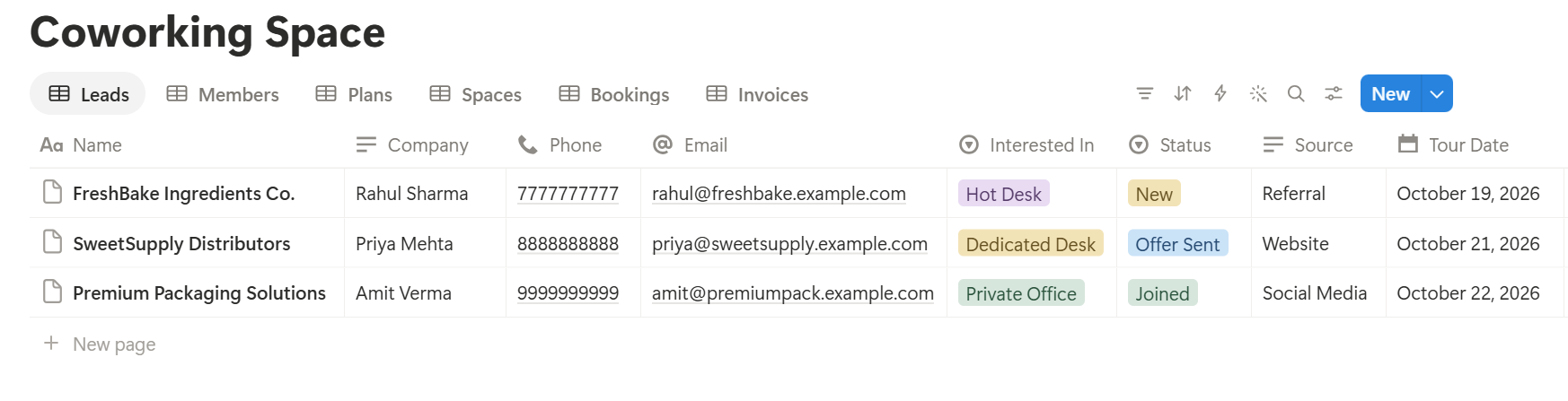
A relation connects a record in one database to a record in another. Link Members to Plans and Spaces, Bookings to Spaces and Members, and Invoices to Members. Now a member page shows their plan, their desk, their bookings, and their invoices together.
From Tour to Member: Tracking Leads
Most coworking sales happen on a tour. After that, the lead goes quiet unless someone follows up.
On Leads, add two formulas:
*Days since contact: dateBetween(now(), prop("Last Contact"), "days") Follow-up flag: if(or(prop("Status") == "Toured", prop("Status") == "Offer Sent") and prop("Days since contact") >= 3, "Follow up", "")*
The flag shows Follow up for toured leads who haven’t heard from you for three days. Change the number to suit your pace.
Make these views:
A short Tour notes template helps: what they do, how many people, when they need space, what they liked, and what worried them. A message that mentions something personal gets more replies than a generic one.
Plans and Members
Keep your plans simple. Three to five is plenty, with a clear fee and clear allowances. For example:
| Plan | Monthly fee | Included meeting room hours | Extra hour |
|---|---|---|---|
| Hot desk | 150 | 2 | 15 |
| Dedicated desk | 300 | 5 | 15 |
| Private office (2 people) | 900 | 15 | 12 |
Write your plan terms, notice periods, and house rules in your membership agreement, with wording checked by someone qualified. Notion keeps the working details, and the signed agreement should be stored securely.
Spaces and Bookings
Your spaces are your product. Add each desk, office, and room to the Spaces database, with a type and a capacity.
For bookings, add a Hours formula:
Hours: dateBetween(prop("End"), prop("Start"), "minutes") / 60
Then make these views:
About Double Bookings
Notion can’t stop two people booking the same room at the same time. The timeline view makes overlaps easy to see, if you look at it whenever you add a booking. If members book themselves through a booking app, let that tool handle availability, and copy completed bookings into Notion for allowances and invoices. Many booking tools can export a CSV file. Notion to Excel explains how CSV files behave, including the date problems that trip people up.
Pro Tip: Mark a booking Done at the end of the day. Allowances and invoices should only count bookings that really happened, and cancelled ones shouldn't be billed unless your terms say so.
Allowances and Overage: Who Used How Much?
This is where coworking billing gets interesting. Each plan includes some meeting room hours, and the extras are billed.
On Members, add a rollup from Bookings that sums Hours for bookings with the status Done this month, and name it Hours Used. Add a rollup from the member’s Plan that brings in Included Hours and Overage Rate. Then add:
*Overage Hours: max(prop("Hours Used") - prop("Included Hours"), 0) Overage Charge: prop("Overage Hours") prop("Overage Rate")
Here is a made-up member on the Dedicated desk plan, with 5 included hours.
| Item | Value |
|---|---|
| Included hours | 5 |
| Hours used this month | 8 |
| Overage hours | 3 |
| Overage rate | 15 per hour |
| Overage charge | 45 |
Make a view called Near allowance, showing members who have used more than 80 percent of their hours, so you can mention it before the bill arrives. Surprises on an invoice are bad for community. A friendly heads-up isn’t.
Monthly Invoices
Month-end shouldn’t take an evening. If the data is in Notion, an invoice is mostly arithmetic.
On Invoices, add these formulas:
*Subtotal: prop("Plan Fee") + prop("Overage Charge") + prop("Extras") Tax: prop("Subtotal") * prop("Tax Rate") Total: prop("Subtotal") + prop("Tax")*
Extras can be day passes, printing, extra storage, or event space. Here is a made-up invoice. Amounts are in your own currency.
| Item | Amount |
|---|---|
| Plan: dedicated desk | 300 |
| Overage: 3 meeting room hours at 15 | 45 |
| Extras: printing | 12 |
| Subtotal | 357 |
| Tax at 10% | 35.70 |
| Total | 392.70 |
Create each month’s invoices from a template, or with a database automation if your plan has one. Check what your plan offers. Then make these views:
Payments happen in your payment tool. Update the status in Notion when you see the money arrive, so the Unpaid view stays honest. Send reminders politely, and follow your agreement’s terms.
Occupancy and Revenue
Two numbers tell you how the space is doing: how full it is, and what it earns.
On a table of Spaces filtered to desks and offices, show the sum of the Occupied checkbox. For a quick percentage, use a rollup in a summary database, or just look at the footer calculation of Percent checked on the Occupied column.
Here is a made-up month. Amounts are in your own currency.
| Item | Value |
|---|---|
| Desks | 40 |
| Occupied | 31 |
| Occupancy | 77.5% |
| Monthly membership revenue | 9,300 |
| Revenue per occupied desk | 300 |
| Revenue per available desk | 232.50 |
Renewals and Leavers
Most members leave quietly. A few simple routines help.
On Members, add a notice flag:
Left soon: if(prop("Status") == "Notice Given", "Leaving", "")
Make a view called Leaving, showing members who have given notice, sorted by their last day. Use a Leaving checklist template: final invoice, key card returned, desk cleared, deposit handled as your agreement says, and a short feedback call. Ask why they’re leaving, and record it. After a few months, you’ll see which reasons come up most.
For members you want to keep, a simple Check-in note every few months works well: how’s it going, what would make the space better, and any changes to their needs. A member who feels noticed is much less likely to leave.
Check your agreement and local rules about notice periods and deposits before you act on any of this.
A Monday at a 40-Desk Space
To see how the pieces fit, here is one made-up Monday.
8:30 am. The community manager opens the home page. The Today’s bookings view shows three meeting room bookings. The Follow up today view shows two toured leads waiting three days.
9:15 am. She sends a personal message to each lead, mentioning something from the tour notes, and updates Last Contact.
10:30 am. A member asks about adding a second desk. She opens his page, sees his plan and invoice history, and sends a quote.
12:00 pm. The Near allowance view shows a member at 90% of her meeting room hours. She sends a friendly heads-up, with the extra-hour rate.
2:00 pm. She spots two overlapping bars on the room timeline for Thursday, calls the member who booked second, and moves the booking.
4:00 pm. It’s the 28th, so she starts the monthly invoices. The To send view lists 31 drafts. She checks five at random, and sends them as PDFs.
5:00 pm. She enters the month’s numbers in the summary: occupancy 77.5%, revenue 9,300. The gap between occupied and available desks is clear for the owner’s meeting.
Nobody stayed late to find a spreadsheet.
The Documents That Leave Notion
Members and prospects don’t use your workspace, so some records need to become files:
For a single page, you can use Notion’s export option. How to Export Notion to PDF shows the settings, and How to Export a Notion Database to PDF helps with tables, such as a booking list. Members judge a space partly by its paperwork, and Notion’s own export gives you limited control over layout. How to Add Your Logo and Brand Colors to Notion PDFs explains how a template solves that.
Generating PDFs with PDFOutput
PDFOutput creates documents from your Notion data using a template. A template can be a Google document, a Word file, a PDF file, or a Notion page. If you already have an agreement or invoice layout in Word or Google Docs, you can reuse it.
Here is how it works:
These are some of the status options:
The e-signed option may help with membership agreements. Whether an electronic signature is valid for a given agreement depends on your location and the type of document, so check before you rely on it. You can save the finished file to a property in your database, so an invoice stays on its record. You can also save it to a Google Drive folder and store the link in a property.
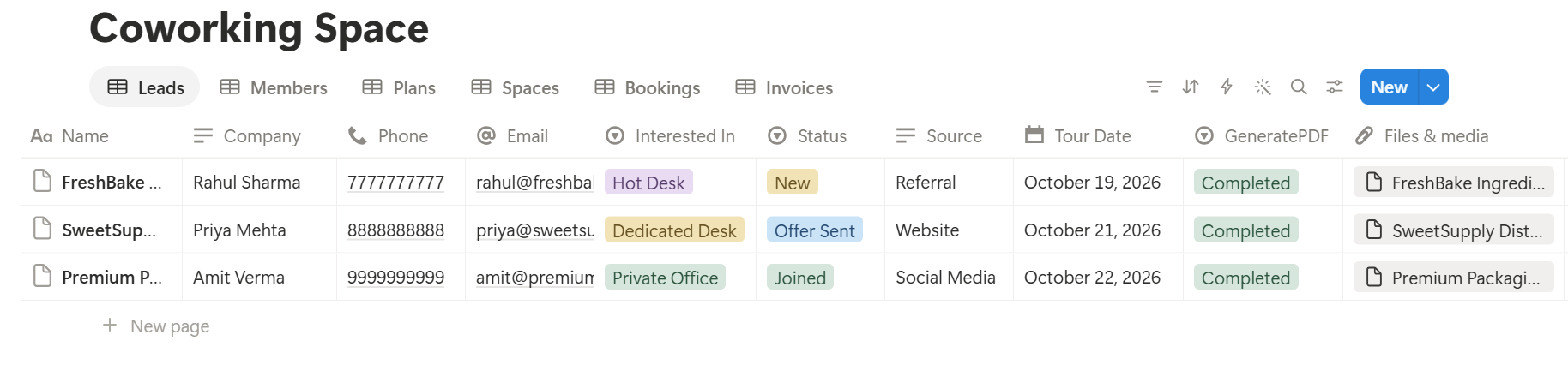
A usage statement lists many bookings, each stored as its own linked record. Before you rely on a template to list them all, test it with a sample member who has several bookings, and check that each appears the way you want. If it doesn’t, a simple fallback is to keep the hours summary as a number on the invoice, and use that in the template.
Start with the monthly invoice, since you’ll send dozens. Use Preview first and check for empty fields, wrong date formats, and totals that don’t match your records.
Key Takeaway: Track bookings against allowances all month, and invoices stop being an end-of-month scramble. The numbers are already there when it's time to send.
Who Can See What
Your workspace will hold member details, plans, and revenue, so control access from the start.
Common Mistakes
Counting cancelled bookings. Allowances and invoices should use bookings marked Done, unless your terms say otherwise.
Treating Notion as the booking system. It shows clashes, and doesn’t prevent them. Let a booking tool handle availability.
Surprising members with overage. Warn them at 80 percent of their hours.
Reading occupancy alone. Look at revenue per desk beside it.
Storing access secrets. Keep codes and passwords in a secure tool.
Too many plans. Three to five is enough, and more makes invoicing harder.
Too many properties. If a booking takes two minutes to log, nobody will log it. Keep it short.
No owner for the structure. Pick one person responsible for the setup. Properties get renamed and formulas break, so tell that person not to rename properties used in PDF templates, because the placeholders must match exactly.
Skipping a test month. Run a month with made-up members first, and fix what annoys the team before you use real data.
Frequently Asked Questions
Can Notion be used to run a coworking space?
Yes, for the back office: leads, members, plans, bookings, allowances, and invoices. It doesn’t control doors, take payments, or show live availability, so use dedicated tools for those.
How do I track meeting room hours in Notion?
Create a Bookings database linked to rooms and members, with a start, an end, and a formula that works out the hours. Roll up each member’s completed hours for the month, and compare them with their plan’s allowance.
How do I calculate overage charges in Notion?
Subtract the included hours from the hours used, keep the result at zero or above, and multiply by the overage rate. Check the numbers against a calculator.
Can Notion prevent double bookings?
No. A timeline view of bookings grouped by room shows overlaps as bars on top of each other, but it doesn’t block them. Let your booking tool handle availability.
How do I measure occupancy in Notion?
Add an Occupied checkbox to each desk or office, and use a Percent checked calculation on that column. Look at revenue per desk as well, because occupancy alone can mislead.
Can I create invoices and agreements from Notion?
You can export a page as a PDF, or use a template-based tool such as PDFOutput to fill an invoice or agreement template with data from each record. Test it on a few sample records first.
Is it safe to store member information in Notion?
Notion lets you control who sees each page, but your duties depend on the privacy rules where you work. Collect only what you need, keep door codes and card details out, and store ID scans in a secure document system.
Related Reading
Conclusion
A good coworking setup in Notion keeps the whole member journey in one place: the lead who toured, the plan they chose, the hours they’ve used, and the invoice they’ll get. Start with members, plans, and bookings, warn people before they go over, and run a month of made-up data through the system first. When your agreements, invoices, and usage statements need to leave Notion, PDFOutput can fill your template from each record and save the PDF to your chosen storage.
Want invoices and agreements as clean PDFs? Try PDFOutput.