Guides
How to Save Notion PDFs to Google Drive Automatically
Learn how to save Notion PDFs to Google Drive automatically using PDFOutput automation tool
By Sanat Biswal · 2026-11-10 · 5 min read
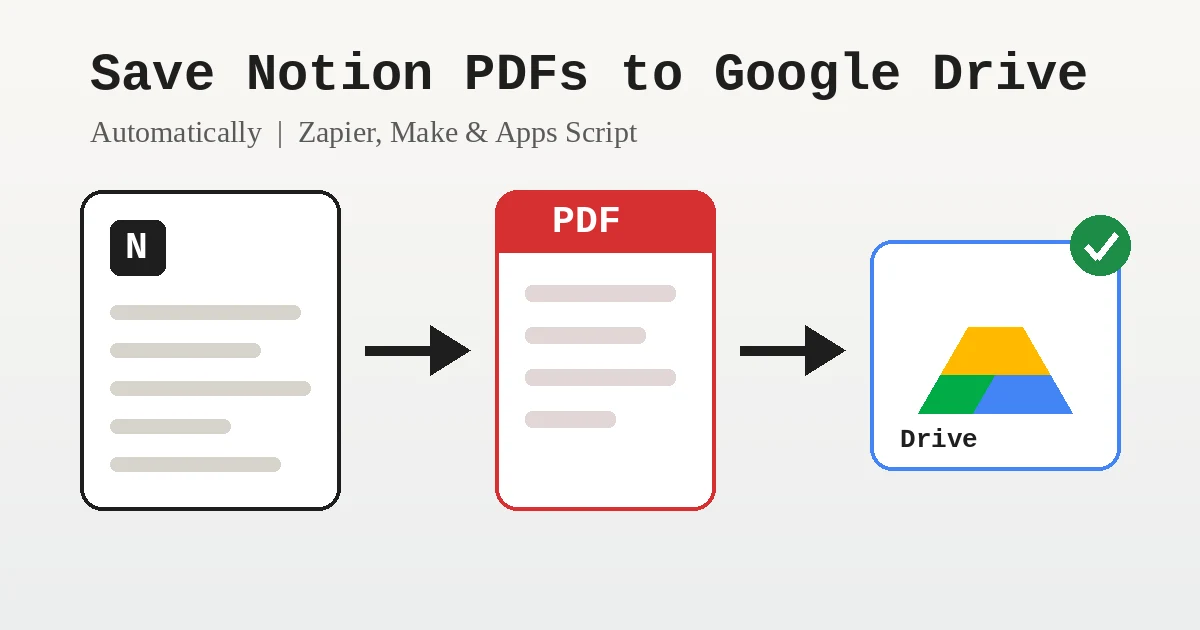
{/ synced-from-notion — do not edit manually /}
Notion is a comfortable place to write reports, contracts, meeting notes and client deliverables. Google Drive is where many teams actually store and share finished files.
The gap between the two is usually a manual routine: open the page, export as PDF, download it, find the right Drive folder, upload it.
This guide shows how to close that gap so a Notion page turns into a PDF and appears in the right Google Drive folder on its own.
You will see why PDFOutput is the solution most teams should start with: it works natively inside Notion, generates PDFs from your templates and syncs them to Google Drive without a separate workflow to build or maintain.
For comparison, the guide also covers a Zapier or Make workflow and a custom Google Apps Script.
Why you need an automation
Notion lets you export a page as a PDF by hand from the page menu. It does not, however, have a built-in way to schedule that export or send the file to Drive, and its API returns page content as blocks rather than as a finished PDF.
Any automation therefore has to do 3 things:
Prepare your Notion database
These methods work best when your pages live in a database. Add these properties:
- Name (title): becomes the PDF file name.
- Status (status): with options like Draft, Ready to save and Saved.
- Drive Link (URL): where the automation stores the link to the uploaded file.
- Connect your database. Link your Notion workspace and the database that holds your pages or records.
- Build a template. Use a Google Doc, a Word file, a PDF or a Notion page as the template. Add placeholders such as
{{Client_Name}}that match your column names, and PDFOutput fills them from each record. - Choose a trigger. Add a button property to the database for on-demand generation, or use the status property, which PDFOutput calls GeneratePDF. Setting it to Ready to Generate runs the job automatically, and Generate Page converts a Notion page to a PDF.
- Pick your Drive folder. During setup, choose the Google Drive folder where the generated PDFs should be synced.
- Generate. PDFOutput writes the PDF into an attachment field on the record (often named PDFFiles) and can also place a Google Drive link in a separate field, so the archived copy is one click away from the Notion page.
- Preview first if needed. Setting the status to Preview creates a Google Doc version so you can check layout and page breaks before committing to a PDF.
- Bulk generation. It can create up to 100 PDFs in a single batch run, and you can group several documents into one packet and store the bundle in Drive.
- Other formats. The same template can also produce Google Docs and PPTX files.
- E-signatures. Native e-sign support lets signed documents stay in the same Notion record.
- One place for data and files. The source data and the generated files live in the same workspace, which keeps versions easy to trace.
- Add the trigger. Choose Notion as the trigger app and pick the event for a database item being added or updated. Connect your workspace and select your database.
- Filter. Continue only when Status equals Ready to save.
- Create the PDF. Add a document-generation step from a service such as PDFMonkey, DocRaptor or CloudConvert. Map the page title and content into an HTML template and let the service return the PDF file.
- Upload to Drive. Add a Google Drive step that uploads a file. Choose the destination folder, set the file name from the Notion page title, and use the PDF from the previous step as the file.
- Update Notion. Add a final step that sets Status to Saved and writes the Drive file link into the Drive Link property.
- Test. Run one test page, confirm the file lands in the right folder, and then switch the workflow on.
- Setup is complicated. You have to connect a trigger, a filter, a PDF service, a Drive upload and a Notion update, map every field between those steps, and test the whole chain. A change in any one tool can break the workflow.
- Multiple databases do not work together smoothly. Documents such as invoices or handbooks draw on several related databases (clients, invoices, line items, policies). Notion relations and rollups do not arrive as a ready-made document, so each related record needs its own lookup step and repeating rows need extra looping logic.
- Template control is limited. The PDF is built in a separate service, so your layout lives outside Notion and has to be kept in sync with your database.
- It is not built for PDF generation. Zapier and Make are general-purpose automation platforms, so PDF creation is an add-on rather than the core feature.
- Open Notion's integrations page and create a new internal integration.
- Copy the integration secret.
- Open your database, click the three-dot menu, choose Connections and add your integration so it can read the pages.
- Copy the database ID from the database URL.
- No flexible template. The document is assembled line by line in code rather than from a template with placeholders, so every layout change means editing the script.
- Multiple line items are a problem. A document with repeating line items, such as an invoice, needs extra code to query the related database, loop through each record and format a table. The script above has no support for tables at all.
- Multiple databases need custom code. Combining data from related databases means writing and maintaining more API calls for each one.
- The process is inefficient. Each page's blocks are fetched one request at a time, long pages need pagination, the time-driven trigger runs on a schedule rather than instantly, and Google's daily quotas apply when volume grows.
- Use a naming convention. The date prefix in the script keeps files sorted and avoids name clashes.
- Organize by month or client. Create subfolders and choose the folder in the script based on a Notion property such as Client.
- Share the folder once. Set sharing on the parent folder so every new PDF inherits access for your team.
- Keep the link in Notion. The Drive Link property lets you jump from a page to its archived copy in one click.
- Archive finished work only. Save pages when they reach a final state so you do not collect dozens of drafts.
- Nothing happens: make sure the integration is connected to the database and that the Status option name matches the script exactly.
- Property errors: the script expects properties called Name, Status and Drive Link. Rename them or update the script.
- Files go to the wrong place: check that FOLDER_ID is the folder ID and not the whole URL.
- Duplicate uploads: confirm markSaved succeeds so the page leaves the Ready to save state.
- Formatting looks plain: the Apps Script route builds a simple document. For full design fidelity, use a PDF service with an HTML template as in Alternative 1, or switch to PDFOutput, whose templates keep your layout.
The workflow starts when you set Status to Ready to save, then switches it to Saved so the same page is never uploaded twice.
Also create a Google Drive folder for the PDFs, for example Notion Archive.
Recommended: Save PDFs to Google Drive with PDFOutput
PDFOutput generates PDFs directly from your Notion database records and can sync them to a Google Drive folder you choose during setup. It runs inside Notion, so you do not need Zapier, Make or custom code.
This is the simplest and most complete way to save PDFs to Drive if you create the same kinds of documents again and again, such as reports, letters, agreements or handbook packets.
A few things make PDFOutput a good fit for Drive archiving:
Template mapping is built for repeatable layouts, which is what most Drive archives are made of: invoices, reports, letters, agreements and handbook packets.
Because the source data lives in Notion, relations and rollups can pull records from several related databases into one document, and generation, storage and the Drive link all happen from the same Notion record, so there is nothing else to wire up.
For the exact Drive sync options and current plans, check PDFOutput's setup guides.
Alternative 1: A Zapier or Make workflow
This works if you already run a visual automation builder, but it chains several separate tools together.
Keep in mind that this setup involves several separate accounts (the automation platform, a PDF service and Google Drive), each with its own plans and limits, so there are more moving parts to maintain than with PDFOutput.
Where Zapier and Make fall short
Alternative 2: A custom Google Apps Script
Apps Script suits teams with a developer who is comfortable maintaining code. It can do the job inside your Google account, but you own the script, the authorization, the scheduling and every fix. The script finds pages marked Ready to save, builds a temporary Google Doc, exports it as a PDF, saves the PDF into your Drive folder, and updates the Notion page with the file link.
Step 1: Create a Notion integration
Step 2: Get your Drive folder ID
Open your Notion Archive folder in Google Drive. The folder ID is the last part of the URL after folders/.
Step 3: Add the script
Go to script.google.com and create a new project. Under Project Settings, add a Script Property named NOTION_TOKEN with your integration secret. Then paste in this code and replace the two placeholder IDs.
``js
const NOTION_TOKEN = PropertiesService.getScriptProperties().getProperty('NOTION_TOKEN');
const DATABASE_ID = 'YOUR_DATABASE_ID';
const FOLDER_ID = 'YOUR_DRIVE_FOLDER_ID';
const HEADERS = {
'Authorization': 'Bearer ' + NOTION_TOKEN,
'Notion-Version': '2022-06-28',
'Content-Type': 'application/json'
};
function savePagesToDrive() { const res = UrlFetchApp.fetch('https://api.notion.com/v1/databases/' + DATABASE_ID + '/query', { method: 'post', headers: HEADERS, payload: JSON.stringify({ filter: { property: 'Status', status: { equals: 'Ready to save' } } }) }); JSON.parse(res.getContentText()).results.forEach(savePage); }
function savePage(page) { const title = page.properties.Name.title.map(t => t.plain_text).join('') || 'Untitled'; const stamp = Utilities.formatDate(new Date(), Session.getScriptTimeZone(), 'yyyy-MM-dd');
const doc = DocumentApp.create(title); const body = doc.getBody(); body.appendParagraph(title).setHeading(DocumentApp.ParagraphHeading.TITLE); getBlocks(page.id).forEach(b => appendBlock(body, b)); doc.saveAndClose();
const docFile = DriveApp.getFileById(doc.getId()); const pdf = docFile.getAs('application/pdf').setName(stamp + ' - ' + title + '.pdf'); const saved = DriveApp.getFolderById(FOLDER_ID).createFile(pdf);
docFile.setTrashed(true); markSaved(page.id, saved.getUrl()); }
function getBlocks(id) { const res = UrlFetchApp.fetch( 'https://api.notion.com/v1/blocks/' + id + '/children?page_size=100', { headers: HEADERS } ); return JSON.parse(res.getContentText()).results; }
function appendBlock(body, b) { const data = b[b.type]; if (!data || !data.rich_text) return; const text = data.rich_text.map(t => t.plain_text).join(''); switch (b.type) { case 'heading_1': body.appendParagraph(text).setHeading(DocumentApp.ParagraphHeading.HEADING1); break; case 'heading_2': body.appendParagraph(text).setHeading(DocumentApp.ParagraphHeading.HEADING2); break; case 'heading_3': body.appendParagraph(text).setHeading(DocumentApp.ParagraphHeading.HEADING3); break; case 'bulleted_list_item': body.appendListItem(text).setGlyphType(DocumentApp.GlyphType.BULLET); break; case 'numbered_list_item': body.appendListItem(text).setGlyphType(DocumentApp.GlyphType.NUMBER); break; default: body.appendParagraph(text); } }
function markSaved(id, url) { UrlFetchApp.fetch('https://api.notion.com/v1/pages/' + id, { method: 'patch', headers: HEADERS, payload: JSON.stringify({ properties: { 'Status': { status: { name: 'Saved' } }, 'Drive Link': { url: url } } }) }); } ``
This version supports headings, bulleted and numbered lists, and plain paragraphs. Images, tables and other block types are skipped, so extend appendBlock if your pages rely on them. Pages longer than 100 blocks would also need pagination added to getBlocks.
Where Apps Script falls short
Step 4: Authorize and test
Set one test page to Ready to save, then run savePagesToDrive from the editor. Google will ask you to approve access to Drive, Docs and external requests the first time. Afterwards check three things: the PDF is in your Drive folder, the Drive Link property in Notion opens it, and Status changed to Saved.
Step 5: Run it on a schedule
Open Triggers (the clock icon), add a trigger for savePagesToDrive and choose a time-driven schedule such as every 15 minutes. From then on, setting a page to Ready to save is all you need to do.
Which option should you choose?
| Option | Setup | Runs in | Maintenance | Best for |
|---|---|---|---|---|
| PDFOutput (recommended) | Connect the database and map a template | Notion, no code | Low: templates and a Drive folder setting | Repeatable documents, bulk runs, Drive sync, e-sign |
| Zapier or Make | Chain a trigger, a PDF service and a Drive upload | Several separate tools | Medium: multiple accounts and steps to keep in sync | Teams already invested in these platforms |
| Apps Script | Write, authorize and schedule a script | Your Google account | High: you own the code and every fix | Teams with a developer and simple, text-only pages |
Tips for a tidy Drive archive
Troubleshooting
Wrapping up
Notion does not push PDFs to Google Drive by itself, and stitching together Zapier, a PDF service or a custom script adds tools and upkeep you do not need.
PDFOutput handles templates, generation, bulk runs, e-signatures and Drive storage inside Notion, so the whole routine comes down to one click or one status change. With PDFOutput, you mark a page as ready and the PDF is filed, linked and archived without you opening Drive. If you want this workflow running today, PDFOutput is the solution to start with.