Guides
How to Automate Client Communication Using Notion
Learn how to automate client communication in Notion — from onboarding emails and status updates to meeting notes, invoice reminders, and feedback requests using built-in automations, Zapier, Make, and PDFOutput.
By Sanat Biswal · 2026-08-22 · 14 min read
Everytime a new client signs up, sending a new welcome email helps to get things ongoing. But, this is not just one thing that needs to be done, it also includes sending meeting notes, updating the status details and everything else associated with the onboarding activities together.
Doing this once or twice feels normal, but when the scale and volume increases this becomes a tedious process to keep doing again and again and this asks for an automation which can save time, reduce errors, lower costs and most importantly remove stress as well.
Being a freelancer or an agency owner or solopreneur, you should be always spending time on growing business rather than putting time on updating all of the above eating out your billable hours or time.
In this guide, we are going to discuss how to use Notion (an inexpensive CRM) to develop an automated client communication portal that helps to first onboarding email to the final "project completion" message.
Let's get started…
Related Reading: How to use Notion as a solopreneurs (A simple setup Guide)
Is Notion Good Enough for Client Communication
Notion can't replace a dedicated CRM in itself which are build with many features built in, but it has the necessary things integrated which can make it a strong choice for most freelancers looking to get things started:
Serves as a single source of truth - It includes the client details, project status, files, and notes that all live in one connected database instead of emails and spreadsheets scattered across different sources.
Built-in automations - Provides built in automation systems within Notion (available for paying users) which can help trigger emails, notifications, and page updates directly from changes in properties. It also supports external third-party applications which can perform tasks in a customized manner.
Deep integrations - Use of tools like Zapier, Make helps connect Notion to several apps such as Gmail, Slack, or calendar apps, thus information can tend to flow both ways without ever requiring manual setup at all.
All of these mean, that a change in the client's status in the project tracker can become an email right inside the inbox of the client without any extra additional steps.
Related Reading: How to Build a Simple CRM in Notion (Step-by-Step Guide)
Now that we know why notion serves as a powerful tool for automation of client communications, lets build this 2 steps…
Setup a Client Hub Before Building Any Automation
Automation will work swiftly, when we have all the things organized before building out first automation in place.
For this, the first and foremost requirement is creating a Clients Database that has the desired properties:
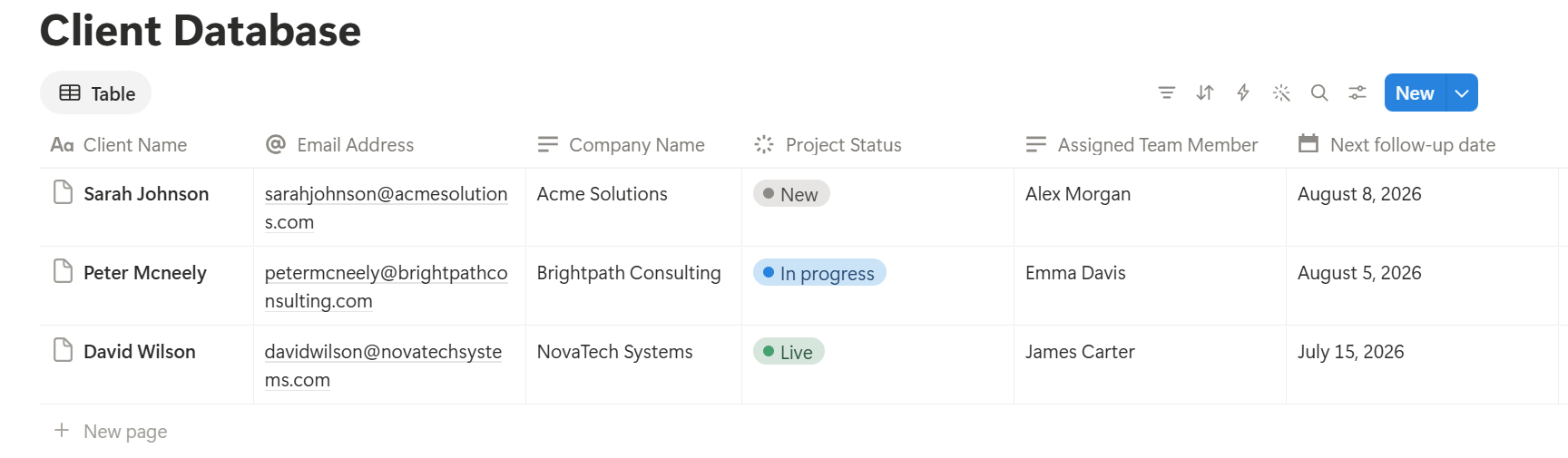
- Client name,
- Email address,
- Company name,
- Project status (e.g., Onboarding, In Progress, Review, Complete)
- Next follow-up date,
- Assigned team member
- Communication Logs etc
- Trigger an automation for sending the email whenever the client completes the onboarding. This can be triggered using Notion's 'Send email' automation (feature available to notion's paid users by default).
- Use automation such as Zapier / Make to help send a customized onboarding email to the onboarded user using a template.
- Use PDFOutput automation, which allows generating documents in the form of PDFs or Google Docs simply on click of a button or change of a property in the notion database.
This database will become the source of the trigger which will run the automation for us.
If you don't want to start from scratch each time and rather want to go ahead with existing template available, look for a template from the notion marketplace and duplicate the same to get started with.
Once the client database is setup properly, its time to start automation of the client communication records.
7 Ways to Automate Client Communication in Notion
1. Automation of Onboarding Sequences
Whenever a client onboards, an automation can be triggered which can send a welcome email to the client showcasing the next steps to be followed, with contract links and any booking pages to setup the next steps up ahead.
One can trigger the onboarding email through one of the following 3 ways:
Related Reading: How to generate PDFs in Notion using a button
2. Status-Change Notifications
An automation can also be triggered on the change of a status.
Set a Project Status property to change from "In Progress" to "Needs Review" and whenever the property will change, it will trigger sending an email or send the client a slack message right away along with the link of the things that changed.
This allows the clients to be informed of the changes in real-time and they receive an automated mail or message from the user right away as intended.
This is one of the best leverage of the automation that can be enabled to generate the PDFs right away.
3. Meeting Notes and Follow-Ups
Sending meeting notes and follow-up emails are also not difficult to be done, simply pair notion with an AI assisted meeting assistant or maybe use Notion AI in itself and connect the same to Zoom or Google Meet.
Once the client call is complete, the meeting transcripts are automatically extracted with a complete summary of things to do, decisions and action items being extracted and a new page is created directly inside the Meetings Notion Database with proper tag being set for the right client and attendees added up as well.
A follow up automation can be setup with PDFOutput that can send recaps to the client within minutes of the call being completed instead of taking hours to complete this task.
Related Reading: How to convert Notion Meeting Notes to PDFs
4. Centralized Email Capture
Connect your inbox directly with Notion so all the messages are always synced with the Notion Database with applicable filters used for the label, sender or even the keyword being used.
Popular mail service providers such as Gmail or Outlook have native integrations available that allows connecting Notion with them so that everything stays in sync always.
This allows you to keep everything intact and searchable within one centralized location and it gives you full control on what to give priority for.
Related Reading: 10 powerful Notion Automations Every Business Owner Must Setup
5. Deadline and Invoice Reminders
Setting up a date based trigger will help trigger a date based automation whenever a due date approaches (typical example for Invoice Payment Reminders), whenever a due date approaches change the payment status to "Overdue", once it changes to overdue status notion will send a reminder email to the client's billing department to clear the invoice due.
This helps setup automation removing any form of friction while chasing notion invoices that are meant to be cleared or settled.
Related Reading: How to create invoices on automation from Notion
6. Feedback and Testimonial Requests
Ideally when a project is marked as "Completed", one would like to seek feedback from the user or a testimonial for the services provided.
Often times, freelancers or agencies setup automated emails that clock in after a week or maybe 30 days or 60 days after launching their services or providing their services.
This can at times not go well considering the timely reminders that are crucial for every business operation. A feedback can be triggered directly from the notion database in itself the moment a project is marked as completed.
For this notion offers in-built automation sequence that can be triggered directly from the notion database in itself.
7. Team and Client Notifications via Slack
Slack notifications are always the first automation that anybody can aim. This can be triggered whenever a page or a deliverable is uploaded onto the database and then the slack message can be triggered which can send a slack message directly.
Notion has native slack integration which can help accomplish this easily as well.
Related Reading: How to generate PDFs from Notion Database
Which Tools Are Required for Notion Automation
Following are the tools available and can be chosen based on their complexity and ease of use:
| Tool | Best for |
|---|---|
| Notion's native automations | Simple, in-workspace triggers: property changes, page creation, basic emails and Slack pings |
| Zapier | Easiest no-code setup for connecting Notion to hundreds of apps (Gmail, Outlook, Slack, calendars) |
| Make.com | More advanced, multi-step workflows at a lower cost, with a steeper learning curve |
| Notion API | Custom automations if you're comfortable with light code (Pipedream is a popular middle ground) |
| PDFOutput | Useful for document automations which helps produce PDFs right inside Notion Database using a template |
If that doesn't come of much help or use, look to expand to other tools such as Zapier or Make which can help connect with other apps such as Gmail or Slack.
Let's understand this process with an example of a status update email that can be triggered right from Notion Database.
How to Automate Status Update Email from Notion
Let's understand the process of how to automate the process of sending a status update right from Notion:
> Note: If you are looking to stack more on top of this and create more automation like pinging Slack groups or sending emails, then connect this with Zapier or Make automation workflow and then messages can be sent to Slack groups and emails can also be sent as well.
Best Practices for Automating Client Communication
Keep automated messages personal - Use dynamic fields (such as client name, project name), so that emails don't read as generic blasts.
Don't automate everything - For messages which involves high-stakes conversations, including any scope changes, pricing pushback, sensitive feedback, they require human editing rather than automation.
Audit your automations quarterly - Make sure to check upon your automations every quarter to keep outdated triggers away and not affecting the current automations created.
Restrict client-facing views - Make sure to use the notion's inbuilt sharing permissions feature so that the clients can only view their own project, but not the entire workspace at a glance.
Start small - Always start small with setting up things correctly for one step at a time before creating a full fledged system for the user.
Frequently Asked Questions
Does Notion have built-in automations, or do I need Zapier?
Notion has native database automations (including sending emails and Slack notifications) for actions inside your workspace. You only need Zapier, Make, or a similar tool when connecting Notion to external apps like Gmail, Outlook, or calendar tools.
Is Notion a real client portal?
Notion doesn't have a dedicated "client portal" feature, but you can build one using shared pages and databases with restricted permissions — which is exactly what most freelancer and agency templates are designed to do.
Can I automate emails to clients for free?
Yes. Notion's native email automation action is available on both free and paid plans, and Zapier's free tier supports basic single-step automations.
Final Thoughts
Automating client communication in Notion isn't about removing the human element from your client relationships, it's actually about removing the repetitive parts that don't need your time and attention, so that the time you do spend talking to clients is of higher quality.
Start with one workflow (onboarding or status updates are always the easiest wins), get it working reliably and properly, and then layer on more automations as your client list grows further.