Guides
How to Add E-Signatures to Notion-Generated Contracts
Learn how to add e-signatures to contracts generated from Notion: contract data, templates, pre-send checks, signing status, signed copies, renewals, and the legal basics to check first
By Sanat Biswal · 2026-11-06 · 5 min read
{/ synced-from-notion — do not edit manually /}
A contract is a document with a deadline hidden inside it.
It has parties who must be named correctly, terms that must match what was agreed, signers who must be allowed to sign, a date when it takes effect, and a date when it ends or renews.
Most small businesses handle all of this by hand: copy last client’s agreement, change the names, fix the numbers, export a PDF, email it, chase the signature, and file the signed copy somewhere you hope to find again.
The contract itself is rarely the problem. The problems are the wrong company name in paragraph two, the version that went out before legal reviewed it, the signature that never came back, and the auto-renewal date nobody noticed until it had passed.
Notion can hold the data a contract is made from, and a template-based tool can turn each record into a finished document.
This guide shows how to put an e-signature step into that chain. It covers what an electronic signature is and when it’s enough, what Notion and PDFOutput do and don’t do, how to structure contract data, how to check a contract before it goes out, how to track signature status, how to store the signed copy, and how to track renewals and amendments afterward. It is general information about organizing a process, not legal advice.
An important boundary comes first.
Notion doesn’t sign anything. PDFOutput’s Generate E-Signed Doc status creates an e-signed PDF in the database workflow, but whether a particular e-signature is valid and enforceable for a particular contract depends on where the parties are, what kind of contract it is, and how the signature is captured and recorded.
Some document types are excluded or need extra formalities in many places. Before you rely on e-signatures for anything important, have your templates and your process reviewed by a qualified lawyer.
Short answer:
To add e-signatures to Notion-generated contracts, keep contract details in a Contracts database linked to counterparties, signers, and approvals.
Keep the standard wording in a template, and bring in only the variable details with placeholders.
Check the record with a formula before sending, require internal approval, and use Preview to read the document first.
Then use the Generate E-Signed Doc status to create the e-signed PDF, record when it went out, and flag signatures that are overdue.
Save the signed copy on the contract record, set the key dates with formulas, and track renewals, obligations, and amendments from the same record.
In more detail:
The key is to make the contract a view of the data. Names, addresses, fees, dates, and signer details live in Notion fields.
The template holds the legal text, and placeholders pull the fields in. A formula checks that nothing is missing, a status moves the contract through review and approval, and a rollup and a few formulas keep track of dates after signing.
Notion isn’t a legal advisor, an identity verification service, or a records archive. It doesn’t send reminders or emails by itself, so you’ll use your own email or messaging for that.
Check the current PDFOutput documentation for exactly how signers are specified, how signing is requested, and what record of the signing is produced, since those details matter for your process.
Table of Contents
What an E-Signature Is, and When It’s Enough
An electronic signature is, broadly, data in electronic form that’s attached to or logically associated with a document, and used by a person to show they intend to sign it.
It can be as simple as a typed name or a click, or as strong as a digital signature backed by a certificate and identity checks.
Many places have laws that give electronic signatures legal effect for many kinds of contracts, provided certain conditions are met, such as the signer’s intent to sign, consent to doing business electronically, the signature being linked to the record, and the record being kept in a form that can be reproduced.
Some places distinguish levels of signature, with stronger ones carrying more weight or being required for particular uses. For example, the EU’s framework distinguishes simple, advanced, and qualified electronic signatures, and other countries have their own rules.
Most places also exclude or treat differently some kinds of documents, such as wills, certain family law documents, some real estate transfers, powers of attorney, and anything that must be notarized or witnessed in person. Rules change, and they differ between countries and, inside countries, between regions.
A useful way to think about it is as a short checklist:
- Is this kind of contract allowed to be signed electronically where the parties are?
- Does the signature method show who signed, and that they meant to?
- Is there a record of the signing that you can produce later?
- Does anything about the contract require more, such as a witness, a notary, or a particular type of signature?
- Ready to Generate creates a PDF from the database record.
- Generate Page converts the Notion page into a PDF.
- Generate PDF and Doc creates a PDF and a Google document.
- Preview creates a Google document so you can check it before making the final PDF.
- Generate E-Signed Doc creates an e-signed PDF in the database workflow.
- Counterparties stores who you contract with. Add these properties: Legal Name, Trading Name, Entity Type (Individual, Company, Nonprofit, or Government), Registration Number, Registered Address, Country, Primary Contact, Email, Notes, and a Contracts relation. Keep it to what you need, and use the exact legal name from the company’s documents.
- Contracts is the main database. Add: Contract Number (a unique ID with a prefix, such as CT), Title, Type (Services Agreement, NDA, Statement of Work, Supplier Agreement, Employment, or Other), Counterparty (relation), Template (a select), Status (Draft, In Review, Approved, Ready to Generate, Out for Signature, Signed, Active, Expiring, Ended, or Superseded), Version, Parent Contract (relation, for amendments), Effective Date, Term Months, End Date (a formula), Notice Days, Notice Deadline (a formula), Auto-Renews (a checkbox), Value, Currency, Payment Terms, Governing Law, Our Signer (relation), Their Signer Name, Their Signer Email, Their Signer Title, Approvals Complete (a rollup), Ready Check (a formula), Sent for Signature On, Days Waiting (a formula), Signature Flag (a formula), Signed On, Signed PDF, Drive Folder Link, and Renewal Flag (a formula).
- Signers stores the people who sign. Add: Name, Title, Email, Organization, Authority Notes (what they may sign, up to what value), Our Side (a checkbox), and a Contracts relation. Use it when contracts have more than one signer on a side, or when you want a record of who has authority.
- Clauses stores optional wording blocks. Add: Clause Name, Category (Payment, Confidentiality, Liability, Termination, IP, Data Protection, or Other), Text, Approved By Legal (a checkbox), Last Reviewed On, and Status (Current or Retired). Use it to track the clauses your lawyer has approved, even if the template holds the final wording.
- Approvals stores internal review steps. Add: Contract (relation), Reviewer (relation), Role (Legal, Finance, Operations, or Executive), Status (Requested, Approved, Changes Requested, or Rejected), Requested On, Decided On, Comments, and Days Pending (a formula).
- Obligations stores what the contract requires after signing. Add: Contract (relation), Obligation, Owner (relation), Due Date, Status (Open, Done, or Missed), Recurring (Once, Monthly, Quarterly, or Yearly), and Overdue Flag (a formula).
- In the template: the standard terms, such as definitions, confidentiality, liability, termination, governing law wording, and the signature block layout
- In Notion fields (as placeholders): the parties’ legal names and addresses, the effective date, the term, the fee and payment terms, the deliverables or scope summary, the notice period, the signers’ names and titles, and the contract number
- My approvals: requested approvals for one reviewer.
- Waiting too long: approvals pending more than three days.
- By contract: all approvals for a contract, for a status check.
- Preview. Use the Preview status to create a Google document from the template. Read it from start to finish: the names, the dates, the numbers, the signer details, and the layout. Compare the key terms with the record in Notion and with what was agreed with the counterparty.
- Fix anything wrong in Notion, not in the preview. Change the data, and generate the preview again, so the record and the document always match.
- Set the status to Generate E-Signed Doc. This creates the e-signed PDF in the database workflow. Check the product’s documentation for how the signers are invited and in what order, and make sure the signer details in Notion are what it expects.
- Record it. Set the contract’s status to Out for Signature and record the date in Sent for Signature On. Notion doesn’t email the counterparty for you, so tell them it’s coming, using your own email, and say who it’s from and what to expect.
- Out for signature: contracts with that status, sorted by days waiting.
- Chase: contracts with the flag.
- Signed this month: contracts signed in the last 30 days, for a quick record.
- Renewals coming up: contracts with the renewal flag.
- Active contracts: all contracts with the status Active, grouped by type, with value and end date.
- Obligations due: open obligations due in the next 30 days.
- Ended recently: contracts ended in the last 90 days, for a final check of obligations and records.
- Witnessed documents. Some documents need a witness to the signature. Check whether your process supports a witness electronically, whether the law accepts it for that document, and whether the witness must be present.
- Notarized or sworn documents. Many places require a notary, in person or by an approved remote method. A standard e-signed PDF isn’t enough.
- Documents excluded from e-signature. Wills, some family law documents, some real estate transfers, and powers of attorney are commonly restricted. Check the rules for each place involved.
- Counterparties who insist on their own paper or system. Some large customers require you to sign in their portal. Record that in Notion, track the status the same way, and store the signed copy with the rest.
- Cross-border contracts. Different laws may apply to each party, and the stronger signature level may be needed in one place. Ask a lawyer about which rules govern, and what evidence you’ll want if there’s a dispute.
- Consumers. Many places require consumers to consent to electronic records and signatures, and to receive certain disclosures. Include that consent in your process, and check the rules.
- Minors and people lacking capacity. Special rules apply, and a guardian may need to sign.
- Employment and regulated agreements. Check whether the law requires particular formalities or notices.
- Limit who can see contracts. Commercial terms, fees, and negotiating positions are sensitive. Use restricted pages and views, and give each person only what they need.
- Don’t store identity documents or card details. Signer emails and titles are enough for most contracts. If identity checks are needed, do them in a purpose-built process, and keep the numbers out of Notion.
- Be careful with links. Don’t send a signed contract as an open link that anyone could forward. Use access controls, and send documents by a secure method.
- Avoid public pages. A published Notion page can expose contract details to anyone with the link. Check before you share.
- Know what personal data the signing process collects. Signing tools can record email addresses, times, and technical details. Ask the provider what’s collected, where it’s stored, for how long, and what agreements are available, and keep the answers with your records.
- Keep an access record. Know who can see, edit, and generate contracts, and review it every few months.
- Plan for deletion and retention. Follow your rules on how long to keep contracts and personal data, and how to delete them.
- Back up the originals. Keep signed contracts in storage with backup, and not only in a workspace.
- Test the data. Create contracts with long company names, accented characters, and unusual addresses, and check how they appear.
- Test the checks. Leave out each required field in turn, and confirm that the Ready Check stops the contract.
- Test the approvals. Reject one, request changes on another, and check the status and flags.
- Test the preview. Read it as a stranger would, and compare it with the record.
- Test the e-signed flow. Send one to an internal person with a personal email, and follow what they see on a phone and a computer.
- Test a decline and a correction. See how the process handles a signer who says the details are wrong, and how you void and reissue.
- Test storage. Confirm the signed PDF lands where you expect, with the right name, and that you can open it later.
- Test the dates. Check the end date, the notice deadline, and the flags against a calendar.
- Ask a lawyer to review a sample of the final signed document and the signing record, to confirm that it contains what you’d need if there were a dispute.
If you can’t answer yes to the first three and no to the fourth, ask a lawyer before you rely on e-signatures for that contract type.
For low-risk, routine agreements, many businesses are comfortable with a simple e-signature process. For high-value or regulated documents, they use stronger methods, or paper.
What Notion and PDFOutput Do in This Chain
It helps to be clear about each piece.
Notion holds the data: the counterparties, the contract terms, the signers, the approvals, the status, and the dates. It runs the formulas and rollups, the checks, and the views. It doesn’t produce a formatted contract, capture a signature, or verify identity.
PDFOutput creates documents from your Notion data using a template. A template can be a Google document, a Word file, a PDF file, or a Notion page. You add placeholders in double curly braces where the data should go, make sure each placeholder matches the name of a Notion property, and start the document with a Notion database button or a status property.
These are some of the status options:
You can save the finished file to a property in your database, so the contract stays on its record. You can also save it to a Google Drive folder and store the link in a property.
You still decide what the contract says, who must approve it, who may sign it, and whether e-signature is appropriate. And you do the follow-up: chasing signers, filing, and tracking dates.
Because the specifics of the e-signed workflow matter, check the product’s current documentation for: how signers’ names and emails are provided, whether multiple signers and signing order are supported, what the signer sees, what record of the signing is produced and where it’s stored, and how a declined or corrected document is handled.
This guide designs your Notion data so it’s ready for whichever of those options applies.
Use These 6 Databases
Start with these 6 databases. You can add more later, such as Templates or Vendors.
A relation connects a record in one database to a record in another. Link Contracts to Counterparties and Signers, link Approvals and Obligations to Contracts, and, if you like, link Contracts to the clauses they use.
Now a contract’s page shows who it’s with, who has approved it, who signs, and what you owe each other.
Keep the Legal Text in the Template
The most common mistake in automating contracts is trying to build the whole agreement out of Notion fields. Don’t. Keep the legal wording in the template, where your lawyer can read and revise it as a document, and use Notion only for the details that change.
A good split looks like this:
Placeholders go in double curly braces and match the property names with underscores in place of spaces, such as {{Counterparty_Legal_Name}}, {{Effective_Date}}, {{Term_Months}}, {{Value}}, {{Payment_Terms}}, {{Their_Signer_Name}}, and {{Contract_Number}}. Check how your template tool expects names to be written, and keep the property names stable, because renaming one in Notion breaks its placeholder.
If a contract has optional clauses, use a select or checkbox property to decide which template to use, or keep one template per variant. Don’t try to assemble long legal text from a formula. Text properties and formula outputs have length limits, and a contract assembled from fragments is hard to review. One template per contract type, owned by someone responsible for it, is easier to keep correct.
Version your templates. Put a version number and a “last reviewed” date in the template footer, and record the template and its version on each contract, so you can tell later which wording a contract used.
Check the Contract Before It Goes Out
Most contract errors are mundane: a missing date, the wrong legal name, a blank signer email. A pre-flight check catches them before a counterparty sees the document.
On Contracts, add:
``
Ready Check: if(and(prop("Counterparty") != "", prop("Effective Date") != "", prop("Term Months") > 0, prop("Value") > 0, prop("Their Signer Name") != "", prop("Their Signer Email") != "", prop("Our Signer") != "", prop("Approvals Complete") == "Yes"), "OK", "Missing details")
`
For Approvals Complete, roll up the Approvals database, and use a formula or a rollup setting so it reads “Yes” only when every required approval has the status Approved.
For example, add a helper formula on Approvals that returns 1 when the status is Approved, roll up the count of approvals and the sum of the helper, and compare them:
`
Approved Flag: if(prop("Status") == "Approved", 1, 0)
Approvals Complete: if(and(prop("Approval Count") > 0, prop("Approval Count") == prop("Approved Total")), "Yes", "No")
`
Add other checks that matter to you, such as a currency, a governing law, or a purchase order number for supplier contracts.
Make a view called Fix before sending, with every contract at the status Ready to Generate whose check isn’t OK. Only contracts with OK should be generated. Teach the team to look at the check first.
Also check who is signing. The person who signs must have authority to bind their organization, and the signer’s name, title, and email must be right.
Ask counterparties who will sign, confirm it, and record it. For larger contracts, ask for evidence of authority, such as a board resolution or a power of attorney, as your policy says.
Approval and Review
No contract should go out on the strength of one person’s quick glance. Build the review into the data.
When a contract is drafted, create Approvals for each reviewer who must sign off, such as legal, finance for the numbers, and an executive for contracts over a set value.
Set the contract’s status to In Review. Each reviewer changes their approval to Approved, Changes Requested, or Rejected, with a comment. A flag shows approvals that have waited too long:
`
Days Pending: if(prop("Status") == "Requested", dateBetween(now(), prop("Requested On"), "days"), 0)
`
Make these views of Approvals:
Use value thresholds to decide who must approve, such as legal review for anything outside your standard template, or executive approval above a certain amount. Write the thresholds in a short internal policy, and record the reason for any exception.
Don’t edit a contract after it’s approved without sending it back through review. If the terms change, move the status back to Draft or In Review, and record why. A common cause of disputes is a document that changed between approval and signature.
> 💡 Pro Tip: Add a “reviewed version” number to each approval. If the contract is changed after approval, the numbers won’t match, and the Ready Check can refuse to proceed.
Generate, Preview, and Send for Signature
When the check shows OK, work through the final steps in order.
If your process uses a separate approval before sending to the counterparty, such as a manager’s click, make it a status in the flow so it can’t be skipped.
Make the signing order deliberate. Many businesses sign first, so that the counterparty receives a document that is already signed by the authorized person, and others have the counterparty sign first. Pick one, write it down, and confirm that your setup supports it.
Track Signature Status and Chase Late Signers
A contract that’s sent and not signed is a risk: the work may start without an agreement, or the offer may expire. Make late signatures visible.
On Contracts, add:
`
Days Waiting: if(prop("Status") == "Out for Signature", dateBetween(now(), prop("Sent for Signature On"), "days"), 0)
Signature Flag: ifs(
prop("Days Waiting") >= 7, "Escalate",
prop("Days Waiting") >= 3, "Chase",
""
)
`
Add an Offer Valid Until date if your proposals have a deadline, and a second flag when it’s near. The thresholds are examples, so set them to the pace of your business.
Make these views of Contracts:
When chasing, be specific and kind: say what the contract is, when it was sent, what’s needed, and by when. Check whether the signer received the email, because spam filters and wrong addresses are the common causes.
Offer to resend, or to walk them through it. If a signer asks for changes, record them, move the status back to Draft or In Review, and issue a new version, rather than editing a document that’s already out for signature.
Don’t start work, release payments, or share confidential information until the signed contract is in, unless your policy and your risk assessment say otherwise, and record any exception.
Store the Signed Copy
The signed document is the record that matters, so decide where it lives and make it easy to find.
When signing is complete, save the signed PDF to the contract’s Signed PDF property, or to a Drive folder and store the link, and set Signed On and the status to Signed or Active.
If the signing process produces a certificate or an audit trail, such as a record of who signed, when, and how, keep it with the signed document. Check the product’s documentation for what is produced and where it goes, and don’t assume.
Use a consistent file name, such as the contract number, the counterparty’s name, the type, and the date, so documents are easy to find without opening them. Keep one folder per contract, with the signed document, the certificate if any, amendments, and relevant correspondence.
Think about retention. Contracts are often needed for years, and some must be kept for set periods under tax, employment, or industry rules. Find out what applies to you, keep the originals in storage with access control and backup, and link to them from Notion. Don’t rely on a Notion property as your only copy of a signed contract.
A short view called Signed but unfiled helps: contracts with the status Signed and no value in Signed PDF. It catches the gap between signing and filing.
After Signing: Dates, Renewals, and Obligations
Most of a contract’s value, and most of its risk, comes after it’s signed. Put the key dates in formulas so they can’t be forgotten.
On Contracts, add:
`
End Date: dateAdd(prop("Effective Date"), prop("Term Months"), "months")
Notice Deadline: dateAdd(prop("End Date"), -1 * prop("Notice Days"), "days")
Renewal Flag: if(and(prop("Status") == "Active", dateBetween(prop("Notice Deadline"), now(), "days") >= 0, dateBetween(prop("Notice Deadline"), now(), "days") <= 30), "Decide renewal", "")
`
Take a 12-month contract with a 60-day notice period. The notice deadline falls 60 days before the end date, and the flag appears 30 days before that. It’s the moment to decide whether to renew, renegotiate, or give notice.
Auto-renewing contracts are the ones that catch people out: a missed notice deadline can lock you in for another year. Tick Auto-Renews on those, and consider an earlier warning.
When the end date passes, change the status to Ended, or Active again if you’ve renewed, and record how.
Use the Obligations database for what each side must do: deliver by a date, pay on a schedule, report quarterly, review annually. Give each obligation an owner and a due date:
`
Overdue Flag: if(and(prop("Status") == "Open", dateBetween(now(), prop("Due Date"), "days") > 0), "Overdue", "")
`
Make these views:
Link payments and invoices to contracts if you generate them from Notion, so the contract’s value, the payment schedule, and what has been billed sit together.
Amendments and Versions
A signed contract should not be edited. Changes are made by amendment, or by a new version, and each is signed in the same way.
For an amendment, create a new Contract record of the type Amendment, link the original as the Parent Contract, record what it changes, and take it through the same review, check, and signature steps. Generate it from its own template, which refers to the original contract by number and date.
When the amendment is signed, the contract’s effective terms are the original plus the amendment, so record the changes in a short summary on the parent, such as a new end date or fee.
If a contract is replaced completely, set the old one’s status to Superseded, link it to the new one, and keep it in the records. If an unsigned draft is withdrawn or replaced, void it clearly, record why, and make sure no one signs an old version.
Check how your signing process handles a document that has been sent and then needs correcting, and write down the steps.
Keep version numbers meaningful: a new number for each issued document, and a note of what changed.
Special Cases: Witnesses, Notaries, and Wet Ink
Some contracts can’t, or shouldn’t, be signed with a simple e-signature process.
For each contract type, record in your internal policy whether e-signature is acceptable, and what else, if anything, is required.
Add a Signature Method property to Contracts, with options such as E-Signature, Wet Ink, Notarized, and Counterparty Portal, so everyone can see how a contract is to be signed, and the check can warn if the method doesn’t match the type.
Security and Privacy
Contracts are confidential, and signing involves personal data, so handle both with care.
Rules on data protection and confidentiality differ by country and industry, so check what applies to you. While you are testing, use made-up contracts and signers.
Test Before You Trust It
Before you use the process for a real contract, run it end to end with made-up data, and with colleagues acting as counterparties.
Troubleshooting
A placeholder is blank or shows as text. The placeholder name doesn’t match the property, or the property is empty. Check spelling and spaces.
The wrong signer received it. Check the signer name and email properties, and the Signers relation. Add a confirm-the-email step to the check.
A contract went out unapproved. The generation was triggered without checking the status. Add the approval check to the condition, and remove the ability to trigger from other statuses.
The signed copy isn’t on the record. Check the destination property or folder, and its permissions. Use the Signed but unfiled view regularly.
A date looks wrong. Check the date format and the time zone, and use a text date made with formatDate` for the contract text.
A renamed property broke the template. Keep one person responsible for the structure, and don’t rename properties that templates use.
A counterparty can’t or won’t sign electronically. Switch the signature method to wet ink or their portal, and record it.
The terms changed after approval. Send the contract back to review, and use versions.
Measure the Process
A contract process should be faster and safer. Measure both. Here is a made-up quarter.
| Item | Value |
|---|---|
| Contracts sent for signature | 30 |
| Signed within 3 days | 21 |
| Signed within 3 days rate | 70% |
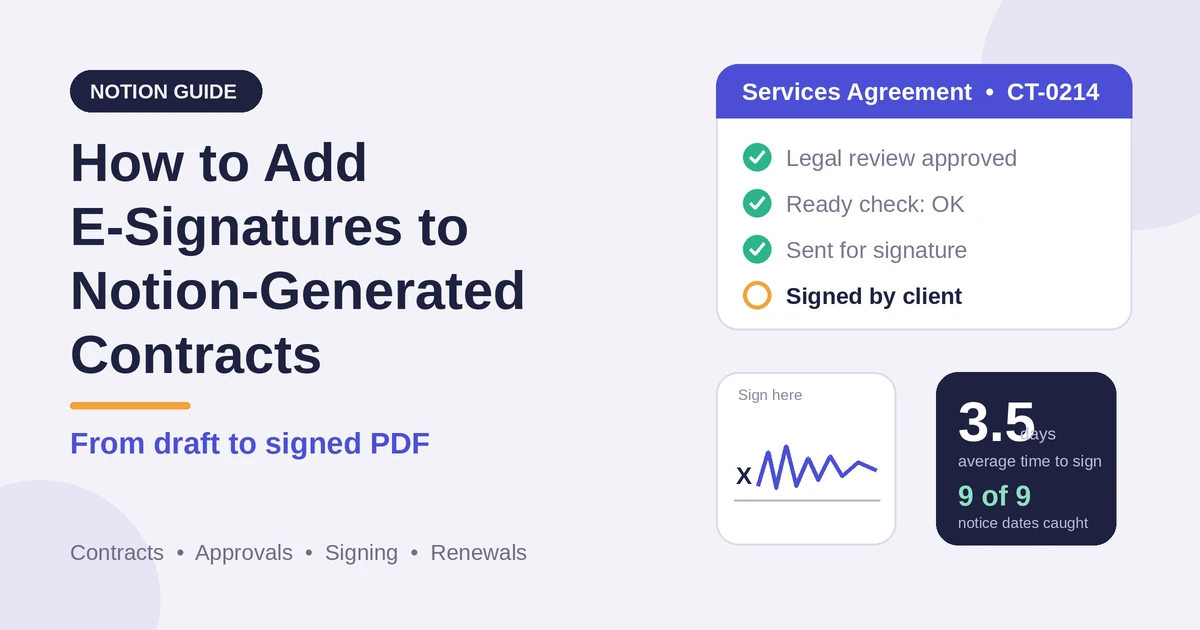
| Average days to signature | 3.5 |
| Reissued after an error | 4 |
| Reissue rate | 13.3% |
| Time to prepare by hand | 45 minutes |
| Time with templates and checks | 10 minutes |
| Hours saved per quarter | 17.5 (30 × 35 ÷ 60) |
| Notice deadlines caught in time | 9 of 9 |
A high reissue rate usually points to missing checks or unclear data entry, and a long time to signature often points to the wrong signer, an unclear email, or an unwieldy document. Track the notice deadlines caught, because each one is a renewal decision you made on purpose.
Also watch the contracts without a signed copy, obligations missed, and the value of contracts expiring in the next quarter. A small sample can mislead, so treat these as guides, and test every formula with made-up data.
Common Mistakes
Building the whole contract from fields. Keep the legal text in the template.
Skipping the preview. Read the document before it goes out.
No pre-send check. A missing name or date is easier to catch in Notion than in front of a customer.
Skipping approvals. Use value thresholds, and record who approved what.
Editing after approval. Send it back to review, and use versions.
Assuming e-signature is always valid. Check the contract type, the places involved, and the signature level.
Wrong or unauthorized signers. Confirm names, emails, and authority.
Starting work before signature. Use the flags, and your policy.
Losing the signed copy. Store it in a controlled place, with a consistent name, and watch the unfiled view.
Ignoring renewal and notice dates. Put the dates in formulas, and flag auto-renewals early.
Editing a signed contract. Use an amendment or a new version.
Putting contracts on public pages. Check every shared page.
Storing identity documents in Notion. Keep them out.
No owner for the structure. Properties get renamed and formulas break. Keep one person responsible.
Skipping a test. Run the whole process with made-up contracts first.
Frequently Asked Questions
Can Notion sign contracts?
No. Notion holds the contract data and the workflow. A template-based tool such as PDFOutput can create the document, and its Generate E-Signed Doc status creates an e-signed PDF in the database workflow. Check the current product documentation for exactly how signing works, and ask a lawyer whether it meets the requirements for your contract.
Are e-signatures legally valid?
In many places, and for many kinds of contracts, electronic signatures are legally recognized if conditions such as intent, consent, and a reliable record are met. Some document types are excluded or need more, and some places distinguish stronger signature levels. The answer depends on the contract, the parties, and the places involved, so ask a lawyer for anything important.
How do I make sure a contract is complete before it goes out?
Add a ready check formula that tests the required fields, such as the counterparty, the dates, the value, and the signer details, and require every approval to be complete. Only generate contracts that show OK, and read a preview first.
How do I track which contracts are waiting for a signature?
Record the date each contract was sent, use a formula to count the days waiting, and flag contracts that have been out for three or seven days. Make a view of contracts out for signature, and chase them with your own email.
Where should I store signed contracts?
In controlled storage with backup and access control, with a consistent file name and one folder per contract. Save the signed PDF and any signing record on the contract, or link to them, and don’t rely on a single property as your only copy.
How do I handle renewals and amendments?
Use formulas to calculate the end date and the notice deadline, and flag contracts a month before the deadline. For changes, create an amendment record linked to the original, take it through the same review and signing, and mark replaced contracts as superseded.
Is it safe to keep contracts in Notion?
Notion lets you control who sees each page, but your duties depend on the rules where you work and on your contracts. Restrict access, keep identity documents and card details out, avoid public pages, keep the originals in secure storage, and ask the providers how they handle data.
Conclusion
Adding e-signatures to Notion-generated contracts is about getting the steps in the right order: structured data, a template that holds the legal text, a check before anything goes out, a record of who approved it, a signing step you’ve tested, a signed copy stored somewhere safe, and dates that remind you before a deadline passes.
Use PDFOutput’s preview to read every document first, and its Generate E-Signed Doc status to create the e-signed PDF. Keep the legal questions with a lawyer, the confidential data in restricted places, and the originals in controlled storage, and run a few made-up contracts through the whole process before a real one. When it works, a contract moves from record to signed PDF without retyping, and nobody is surprised by a renewal.
Want contracts as clean, e-signed PDFs? Try PDFOutput.