Getting Started
Getting Started with Notion to PDF Automation
Learn how to set up your first automated PDF generation workflow using Notion databases and Google Docs templates.
By Sanat Biswal · 2026-03-15 · 5 min read
Why Automate PDF Generation?
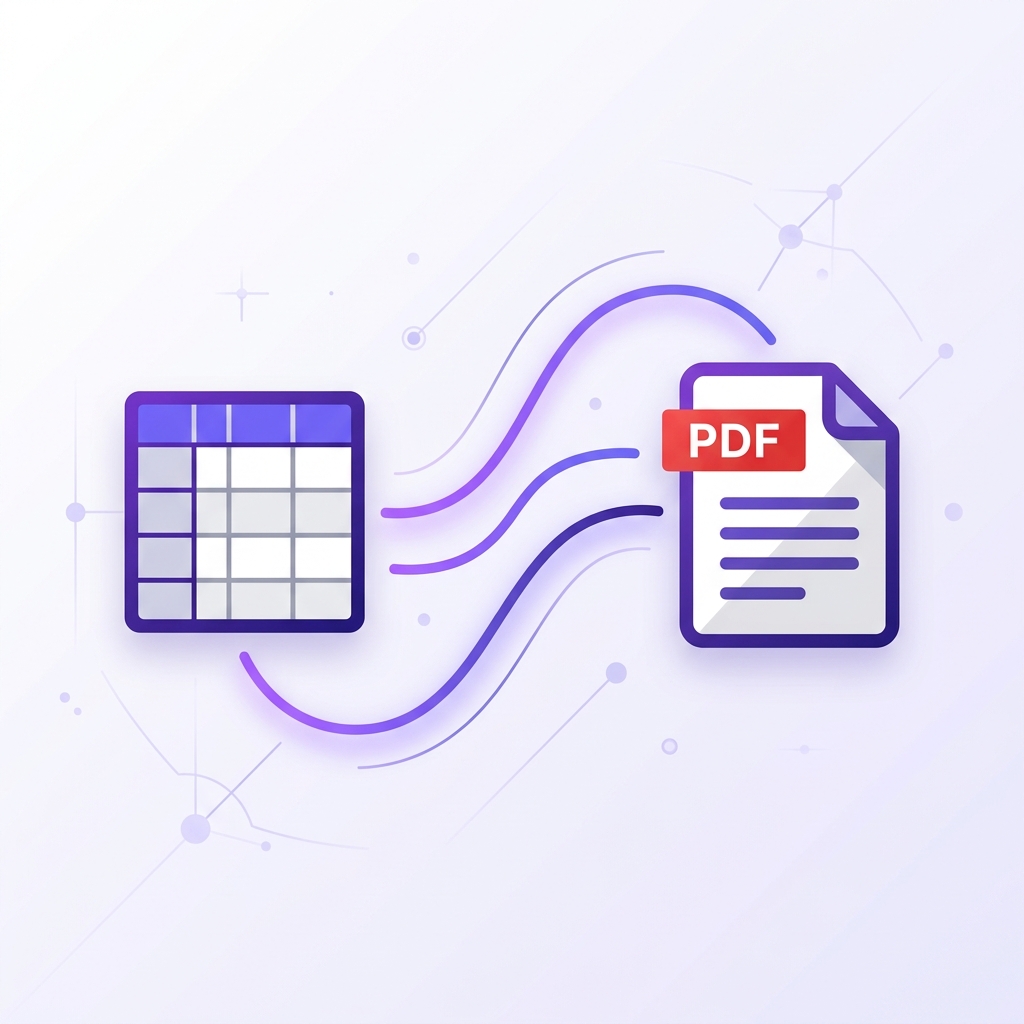
Manually creating PDFs from Notion data is time-consuming and error-prone. Whether you're generating certificates, invoices, or reports, automation saves hours every week.
What You'll Learn
- How to connect your Notion database to PDFOutput
- Setting up a Google Docs template with dynamic placeholders
- Triggering automatic PDF generation on new entries
- Delivering PDFs via email or Google Drive
Step 1: Connect Your Notion Database
Start by signing in to PDFOutput and selecting New Automation. You'll be prompted to connect your Notion workspace.
Step 2: Design Your Template
Create a Google Doc with placeholders like {{Name}}, {{Date}}, and {{Amount}}.
Step 3: Map Your Fields
In the automation setup screen, map each placeholder to the corresponding Notion property.
Step 4: Test and Activate
Run a test with sample data to preview the generated PDF. Once satisfied, activate the automation.