Tutorials
Generate event registration form submissions as PDFs on automation using Notion
A step-by-step guide on how to convert event registration submissions to PDFs from Notion using PDFOutput
By Sanat Biswal · 2026-05-24 · 10 min read
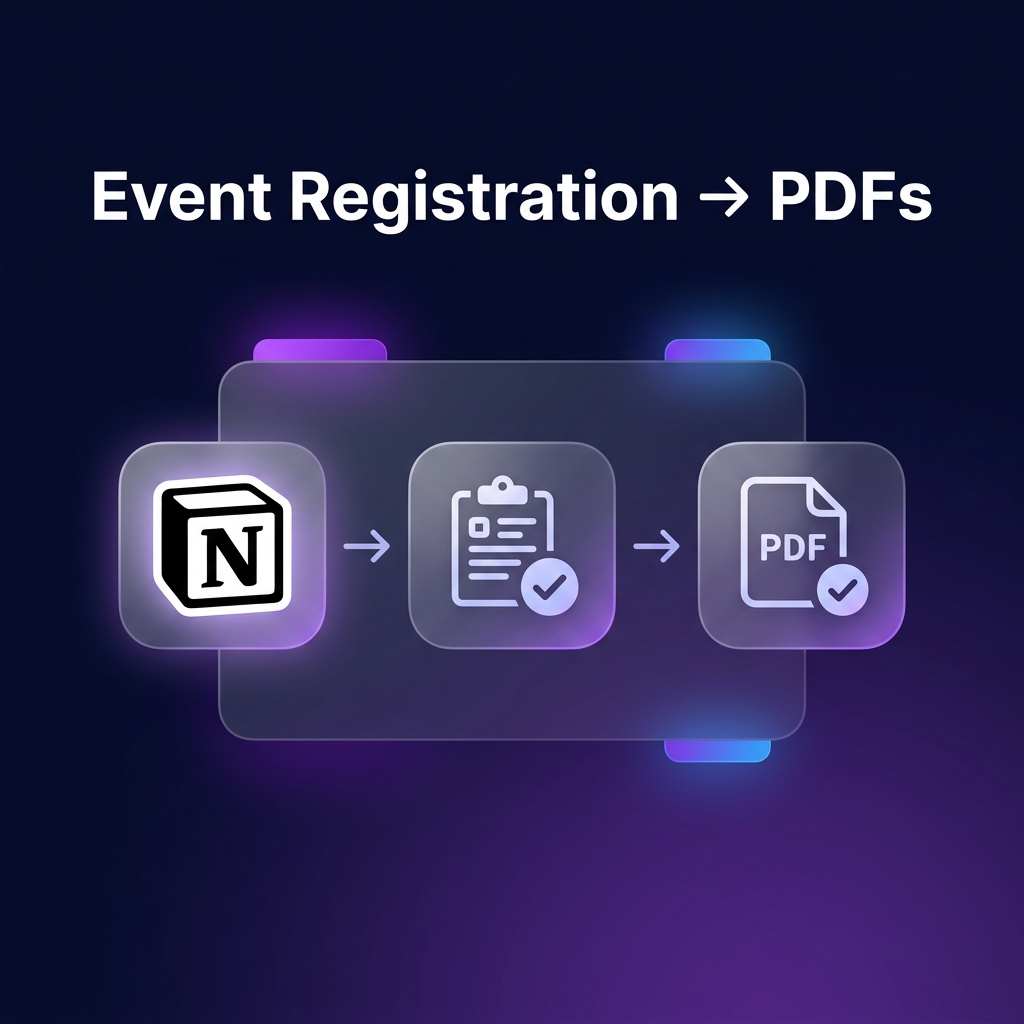
Organising an event requires registrations from applicants who need the registration confirmation PDFs to confirm their registration.
Creating registration confirmation PDFs manually not only consumes a lot of time but is also error prone and can produce inconsistent results.
Today, we will look at a powerful automation tool — PDFOutput — which not only helps to automate and generate PDFs directly inside a Notion Database but also helps manage the registrations within Notion.
Here's how it will work…
Watch the full tutorial step by step
Prerequisites to set up automation to generate registration submission PDFs
In order to generate PDFs from a Notion Database, here are 3 essential things required for setting up the automation:
1. Notion Account
The first thing required is a Notion Account where the user will set up the form to receive submissions.
For this we will use /form which will create a form for us — let's call it "Registration Form".

For this demonstration we are going to create an event registration form with the following fields:
| Field Name | Field Type | Purpose |
|---|---|---|
| Attendee Full Name | Title type | Identify name of attendee |
| Email Address | Email type | Identify email address of attendees |
| Phone Number | Phone Type | Store contact number of attendee |
| Number of Tickets | Number type | Store number of tickets of attendees |
| Payment Information | Text type | Store payment information details |
Once users start filling in the form with their responses, the entries get captured and stored within the database (as shown below):
!Sample form entries in Notion database

2. Google Account
A Google account is necessary for creating a template source which will be used to define how the PDF will look once it's generated.
A template can be added in one of the following 4 ways:
- Google Document
- Word File
- PDF File
- Choosing from an existing template
- Log In to the PDFOutput platform (free to get started).
- Click on "New Automation" — it will take you to the setup section, where you can configure the Notion Automation for generating PDFs.
- Click on the Connect Notion button to connect your Events Registration Database.
- Once you click on Connect Notion, click on "Select pages" to select the Notion pages.
- Search for your Events Registration Database and select the database appearing in the search window.
- Scroll down and click on Allow Access to give access to the database connected.
- GeneratePDF — This is a Select type property added by PDFOutput which is used to mark the records ready for generating PDFs inside the Notion Database. Set it to Ready to Generate to be able to generate PDFs directly inside the Notion Database.
- PDFFiles — This is a Files and Media type property added by PDFOutput. This is where the PDF Files will be saved once the PDFs are generated by PDFOutput.
- google\_drive\_file — This is a URL type property added by PDFOutput.
For this demonstration, we will be choosing from an existing template named "Registration" which already has a pre-built template created for our use.
3. PDFOutput
A PDFOutput account is essential for connecting both of the above and getting started with automating the PDFs.
How to generate PDFs from Notion Forms submissions using PDFOutput
PDFOutput will continue to work in automating PDFs in the following manner:
Notion Form Submission → Entries move to Database → Automation setup in PDFOutput → PDFs are Generated
Let's understand the automation step by step.
Step 1 — Connecting the Notion Database to the setup
In order to connect the Notion Form (Events Registration Form), here's what we need to do.


!Searching for Events Registration Database


Once the database is added, PDFOutput will automatically add 3 new properties to your Event Registration Form database:
Step 2 — Designing Your Template Source
!Template source selection screen

This is Step 2 of the automation workflow, where you select the template source that defines how the final PDF will look.
There are 4 different ways to add an Event Registration template here:
For this step, search for Event Registration and you will be able to find the pre-built template to select.
!Searching for Event Registration template

!Event Registration template selected

Click on Continue to proceed to the next step, where you will map the properties of the Event Registration form onto the Template Source.
Step 3 — Mapping the placeholder elements onto the document
In this step, we are going to map the placeholders — i.e. Notion Database properties — onto the Google Document one by one.
Mapping the properties onto the template file is simple and easy.
Here are the 2 steps required to map the properties onto the template source:
{{…}}.Once all the properties are copied and mapped onto the document, it's time to define additional settings for the PDF generation.
Additional Settings

Under additional settings, you will find 2 options:
> Note: You can rename the property used to trigger PDF generation (by default GeneratePDF) to anything you like and it will work absolutely fine.
Step 4 — Generating Output Preview and Setting Up Automation

After mapping all the properties, it's time to create a preview output file and check how the output appears.
When you click on the Preview Output button it will generate a preview of the document defined as the template, so you can verify it fits your needs.

Once you're happy with the preview, click on the Setup Automation button to activate the automation.
Different ways to generate event registration PDFs in PDFOutput
There are several ways to create a PDF from event registration submissions inside the Notion Database:
1. Using Button Automation
This is one of the best ways to generate PDFs directly inside Notion with a one-click button.

Click on the 3-dots menu for the automation created in the dashboard, then select Button Automation to view the button automation settings.
This will open a popup with a step-by-step guide on how to set up button automation inside your Notion Database. Once set up, clicking the button will generate PDFs directly from within Notion.
2. Using Preview Output

Clicking the Preview Output button creates a preview of the document in Google Document format directly inside the Notion Database. This is great for checking the output before committing to a full run.
3. Using Batch PDFs

Using the Batch PDFs option, you can generate up to 100 PDFs at one go. This is highly useful when expecting to generate PDFs in bulk for your event.
4. Using Ready to Generate Property
Simply change the record's GeneratePDF property to Ready to Generate and it will produce the PDFs directly inside the Notion Database. This serves as an alternative way to use buttons to trigger PDF generation.
Real world use cases of PDFOutput automation
Here are some of the real world use cases of this automation tool:
Why Automating PDF Generation Saves Time and Looks Professional
There are several key benefits to generating PDFs on automation:
Start Automating Event Registrations from Notion today
If you are consistently generating Event Registration PDFs manually, it's time to set up an automation.
Setting up a PDF automation workflow using PDFOutput allows you to produce professional-looking event registration PDFs on demand, right inside your Notion Database. When a form submission comes in, it can be converted to a PDF right away.
It usually takes less than 10 minutes to set everything up once — and then the automation runs forever.
Ready to automate your event registration PDF generation? Get started for free and create your first automation in minutes.
If you have any questions, please reach out at notionformyuse@gmail.com for further assistance.