Guides
Document Automation Tools for Notion and Business
Compare document automation tools for Notion and business workflows. See how PDFOutput, DocsAutomator, Docupilot, PandaDoc, and ActiveMerge differ.
By Sanat Biswal · 2026-10-31 · 10 min read

{/ synced-from-notion — do not edit manually /}
When the same invoice, certificate, or report gets rebuilt by hand, small errors and delays add up. Document automation tools fill templates with saved data, but few are designed around a Notion database. Here are four options, plus PDFOutput, and the workflows each one fits.
1. PDFOutput
PDFOutput connects a Notion database to a document template, then fills matching placeholders with each record’s data. It fits teams that keep client, order, property, or school records in Notion and want to generate documents from those records.
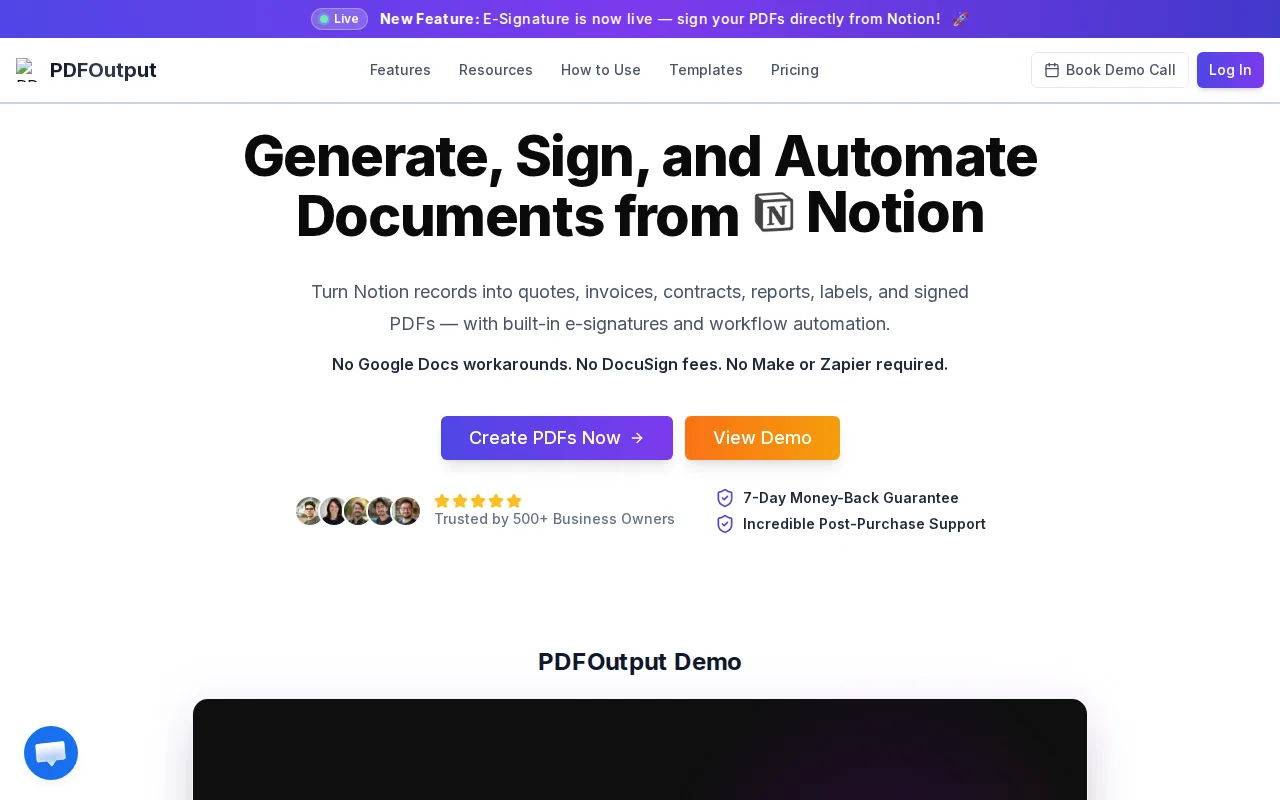
Templates can come from a Word file, Google Doc, existing PDF, or Notion page. Add placeholders such as \{\{Client_Name\}\} to the template, then match each placeholder to a Notion property. When a record runs, the related values fill those fields.
For an invoice, the template might include \{\{Invoice_No\}\}, \{\{Client_Name\}\}, and \{\{Invoice_Amount\}\}. A Notion database with matching properties supplies the values. Relations and rollups can bring linked information, such as a client address or invoice line items, into the same output.
PDFOutput can generate PDF, Google Docs, and PPTX files. It also supports bulk generation and merged PDFs. A button in the Notion database can start a document on demand, while a status property can mark a record for generation. Scheduled triggers and automatic Google Drive storage can help teams run recurring work and keep finished files in a shared location.
That setup can suit a small property team preparing repeated lease documents, or a school issuing certificates from student records. We also support e-signed PDFs and can create a Google Doc preview before the final PDF. Teams comparing setup details can use our review of PDF automation tools for Notion as a checklist.
PDFOutput is built around Notion records. If your source data lives elsewhere, a tool with broader input connections may be a better match.
2. DocsAutomator: A Notion-connected option for template-based documents
DocsAutomator turns records into documents and supports Notion as one of its data sources. It suits teams that want to use existing templates and create repeat documents from records across connected apps.
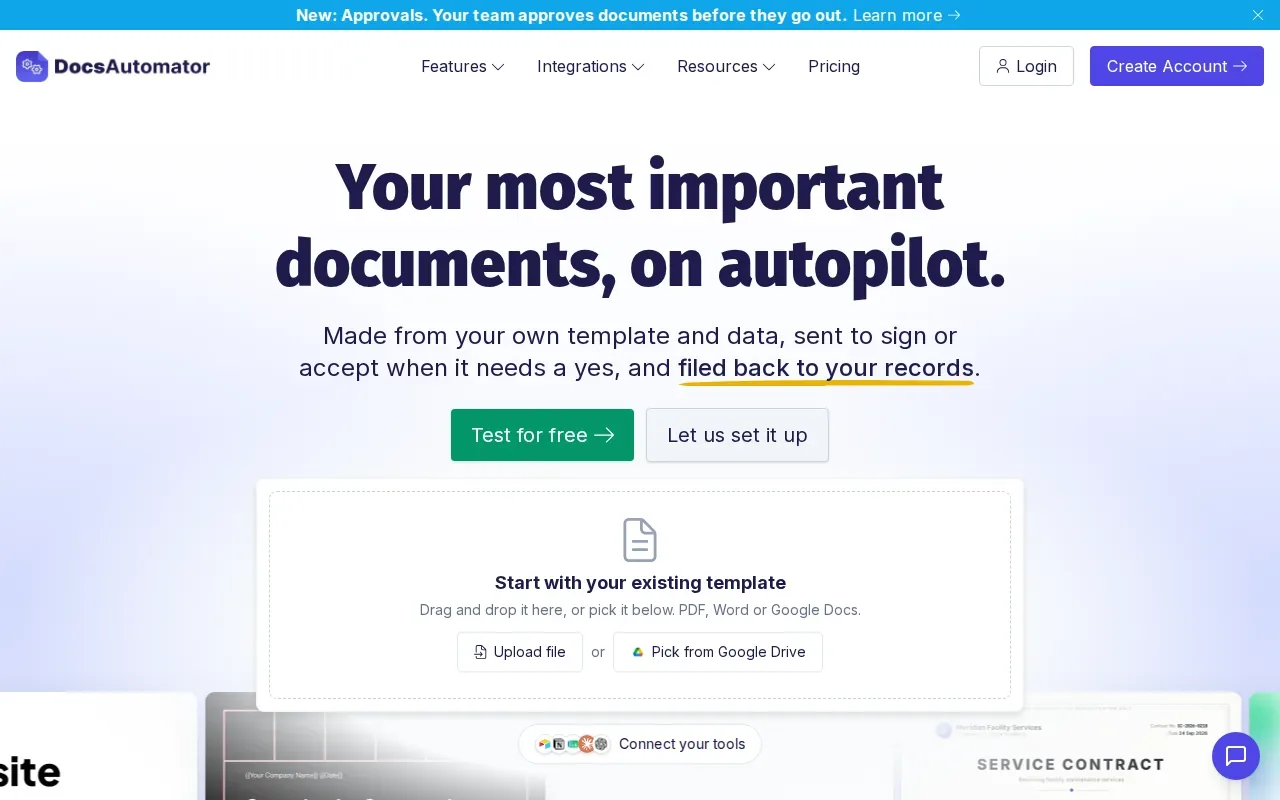
Its template inputs include PDF, Word, and Google Docs, and its listed output is PDF. The service describes workflows for invoices, quotes, contracts, certificates, reports, and delivery paperwork. A team can keep its wording in an existing Word file or Google Doc, then use placeholders to insert record data.
DocsAutomator also describes document sending, signature or acceptance steps, and saving finished files back to an app or Drive folder. Those steps can matter when a completed file must return to the same client or order record rather than sit in an inbox.
For example, an operations team could use a record to produce a delivery note, then file the finished document with that record. Conditional sections can show or hide content based on data. That can keep one template useful for cases where a document needs different wording.
One distinction for Notion users: DocsAutomator is a multi-source tool, while PDFOutput is built around Notion database generation. If you need to weigh several workflow types, our document automation software options page covers a wider range of use cases.
Consider DocsAutomator when your team works across several data sources. For a workflow centered on Notion buttons and database status changes, compare the trigger steps closely before choosing.
3. Docupilot: A document automation choice with multiple input formats
Docupilot creates documents from templates and business data. It fits teams that already keep templates in Word, PowerPoint, or Excel and need fields or repeated rows filled from connected data.
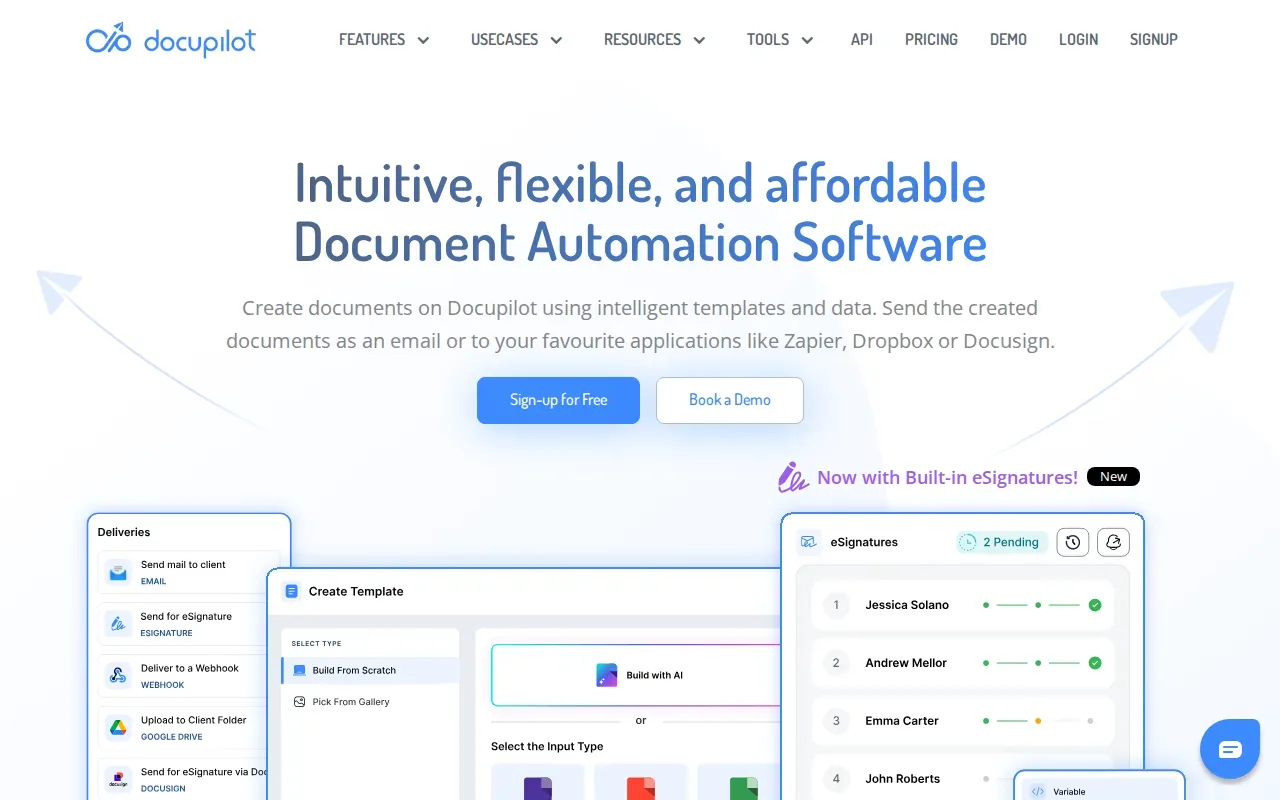
Docupilot’s supported template formats include Word and PowerPoint files.
That conditional logic can handle a simple invoice rule. For instance, a template could show payment details only when the record says they apply. A loop can repeat a block for multiple items, such as a list of products or service lines.
Docupilot can take data from sources such as CRMs, forms, and databases. It can generate PDFs and send created documents by email or to connected apps. The product context also describes delivery through Google Drive or Dropbox, plus e-signature through DocuSign.
One template detail to plan for: Docupilot supports Word templates, which may suit teams that already manage templates in Word.
Docupilot is worth considering when conditional content or repeating line items are central to the document. For a Notion-first process, check how records move from the database into the workflow before settling on a setup.
4. PandaDoc: Sales-document workflows with approvals and e-signatures
PandaDoc supports document creation and approval workflows, with e-signature generation. It fits sales teams that prepare proposals, quotes, or contracts and need review steps before sending them to a customer.
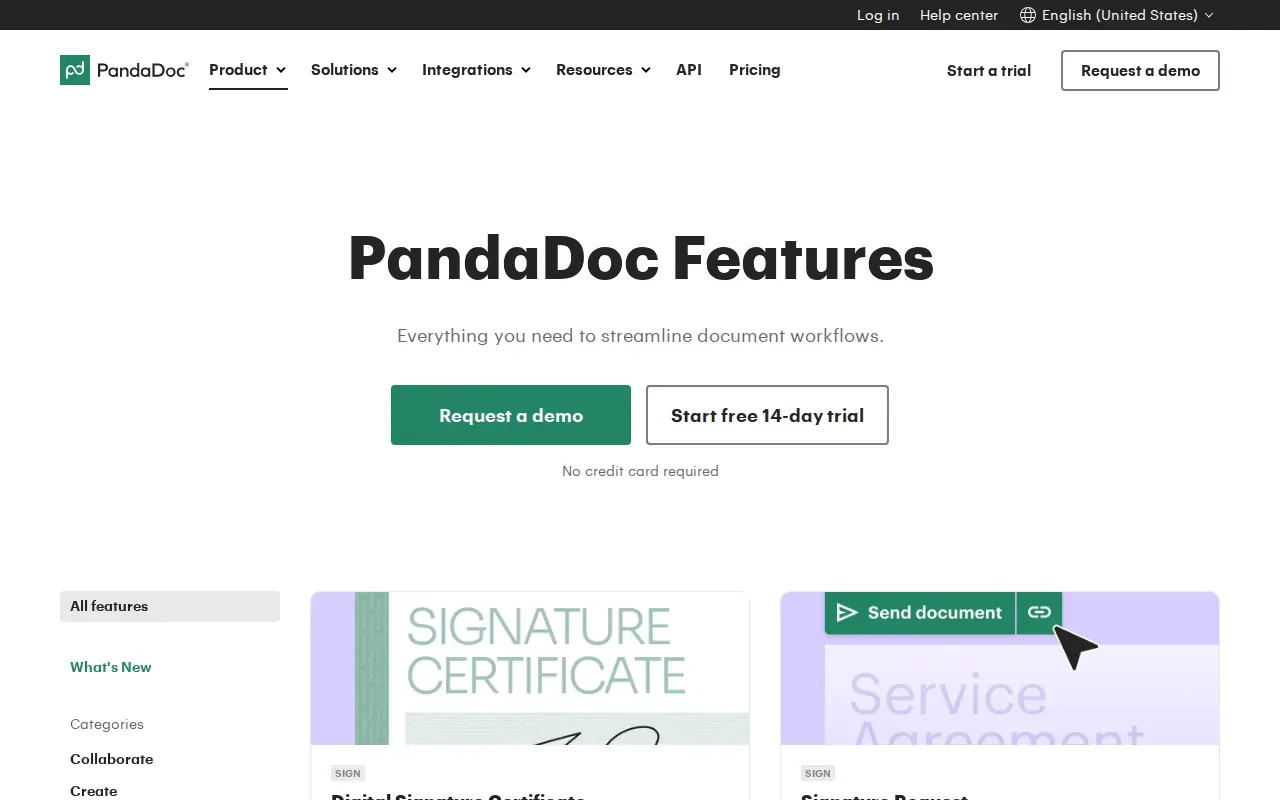
Its tools include a built-in document editor, drag-and-drop editing, a content library, and collaboration. Teams can reuse approved content blocks and work on a shared document. Approval rules can route documents for review before they reach a customer.
That workflow is useful when a quote needs internal sign-off before it goes out. A sales rep can assemble the document from approved content, then send it through the required approval and signing steps. E-signature generation covers the signing stage within the same document process.
PandaDoc is centered on sales documents and their review lifecycle. For a team whose records sit in Notion and whose main job is producing routine PDFs from database rows, the key question is whether the sales workflow features fit the day-to-day task.
Choose this option when sales approvals and signatures are at the heart of the process. If you mainly need a Notion row turned into a file, compare the database trigger and output steps first.
5. ActiveMerge: PDF generation from connected business data
ActiveMerge generates documents from business data using its web app or integrations. It suits teams that work from spreadsheets, forms, databases, or CRM systems and need several file types from a template.
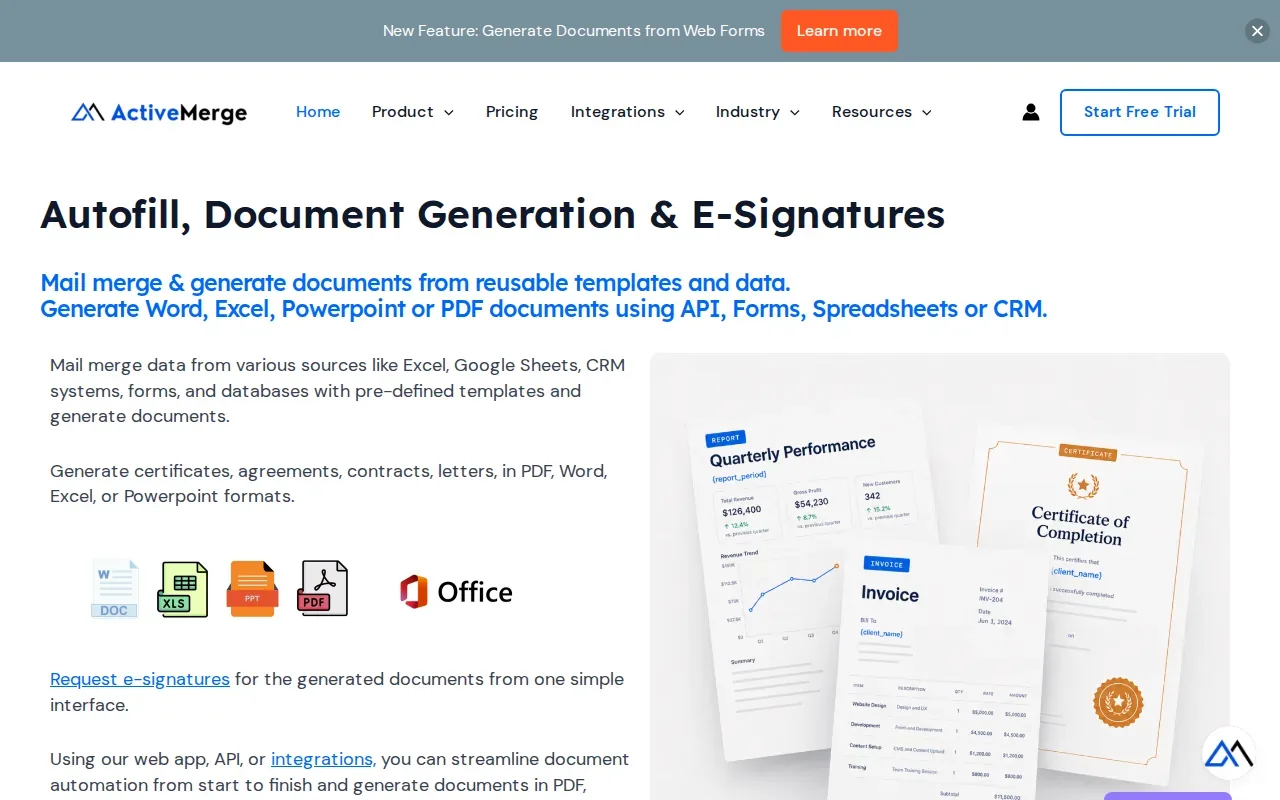
Its inputs include Excel, Google Sheets, CRM systems, forms, and databases. Outputs include PDF, Word, Excel, and PowerPoint formats. The product also describes mail merge, bulk generation, API integration, web form automation, and e-signature generation.
Mail merge means placing data from a record into matching fields in a template. For example, a supplier could use an order form to populate a delivery document for each submission. A batch process can generate files for many records in one run, rather than requiring a separate manual edit for every order.
ActiveMerge also describes scheduled, webhook, and on-demand triggers. Its web forms can collect details, then use those answers to fill a Word, Excel, or PowerPoint template.
For a team using Notion, compare how staff need to trigger and retrieve the finished file. PDFOutput keeps the workflow focused on Notion database records, while ActiveMerge covers a wider set of inputs and outputs.
Its range of file formats may help when a single workflow needs more than PDFs. Teams should also consider which input source will be easiest for staff to maintain.
Document automation tools compared: best fit by workflow
The main choice is often about where your data lives and what happens after a file is made. This table focuses on those workflow decisions rather than treating every feature as equally important.
| Tool | Best used for | Notion workflow fit | Useful distinction |
|---|---|---|---|
| PDFOutput | Generating documents from Notion records | Built around Notion databases | Button and status-property triggers; PDF, Google Docs, and PPTX outputs |
| DocsAutomator | Template-based documents across data sources | Notion is supported | PDF, Word, and Google Docs templates; PDF output |
| Docupilot | Templates with conditional content or repeated rows | Check the data connection against your process | Word and PowerPoint template inputs |
| PandaDoc | Sales documents with approvals and signing | Assess fit for your record source | Editor, content library, collaboration, and e-signatures |
| ActiveMerge | Generating files from varied business inputs | Notion database input is described | PDF and office document output formats |
Which document automation tool fits your Notion workflow?
Start with the record that should create the document. A quote may begin when a sales status changes. A certificate may start after a course record is marked complete. An invoice might need a person to check its line items before generation.
PDFOutput supports several ways to trigger work from Notion. A database button can generate a file on demand. A GeneratePDF status property can run a document when you set it to “Ready to Generate.” Other status choices can convert a Notion page to PDF, create a PDF and Google Doc, produce an e-signed PDF, or make a Google Doc preview.
That matters for teams with limited time for custom setup. A staff member can update the Notion record, use the chosen trigger, and find the generated file in the database. Bulk generation can help when a whole set of records needs documents at once. Scheduled triggers and Google Drive storage can support repeat work and shared filing.
Keep the process manual if documents are rare, each one needs substantial custom writing, or a person must review every detail before any file is made. Automation works best when the source fields stay accurate and the template rules are stable. For teams already using Notion, PDFOutput is a direct place to start testing that workflow.
Frequently asked questions
What do document automation tools do?
Document automation tools use data and templates to produce documents with less manual copying. A system can fill fields from a database record, apply rules to sections, or start a file when a record changes. Some also route documents for approval, collect signatures, or store the finished file with its source record.
Can I generate a PDF directly from a Notion database?
Yes. PDFOutput connects a Notion database to a template and maps database properties to placeholders such as \{\{Client_Name\}\}. You can start generation with a database button or a status property. The finished document can be stored back in the Notion record, with Google Drive storage available for files in a shared folder.
Which documents can a Notion automation create?
A Notion database can supply data for repeat documents such as invoices, quotes, contracts, certificates, reports, delivery notes, and inspection records. The template determines what the final file contains. Relations and rollups can bring connected details, such as invoice line items, into the output when those records are linked.
Do small businesses need document automation?
Small businesses can benefit when staff repeatedly make the same kind of document from structured records. A team that prepares recurring invoices or client reports may save manual entry and reduce mismatched fields. If documents are infrequent or highly customized, a reusable template and manual review may be enough.
How does PDFOutput start document generation in Notion?
PDFOutput can use a button or a status property in a Notion database. Set a record to “Ready to Generate” to create a PDF, or choose another supported status for a page-to-PDF conversion, a PDF and Google Doc, an e-signed PDF, or a preview. These triggers let staff act from the record they are already managing.
Conclusion
If your team keeps its source data in Notion, start with PDFOutput and test one recurring document, such as an invoice or certificate. Match the template placeholders to your database properties, preview the result, then set up the button or status trigger your staff will use.